A row of identical service cards is the most forgettable section on most websites.
This block is really eight different layouts in one — an accordion, sliding panels, an article grid, a banner, a hover reveal, a fancy box, an expandable list and a portfolio.
Before You Start
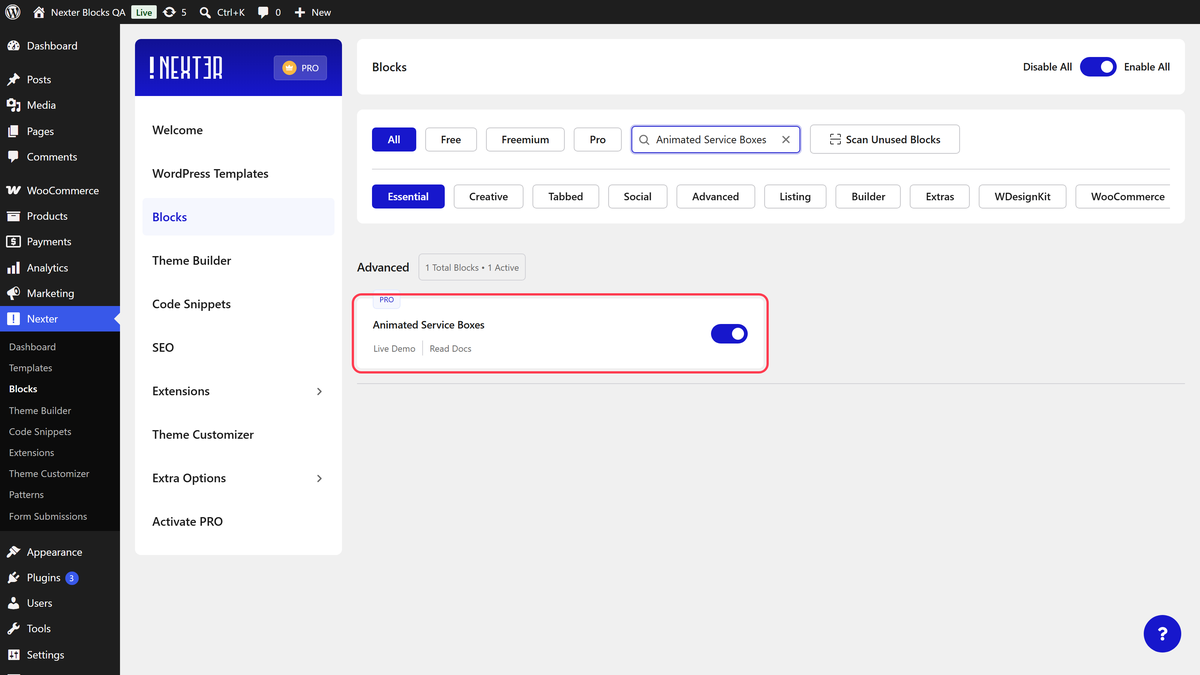
- Edition: Pro — the Animated Service Boxes block is part of Nexter Blocks Pro.
- Block to enable: Animated Service Boxes, switched on under Nexter > Blocks in your WordPress dashboard.
- Your items decided: each one takes a title, a subtitle, a description, an icon or image and a link.
Steps
- Add the Animated Service Boxes block and click Design from Scratch.
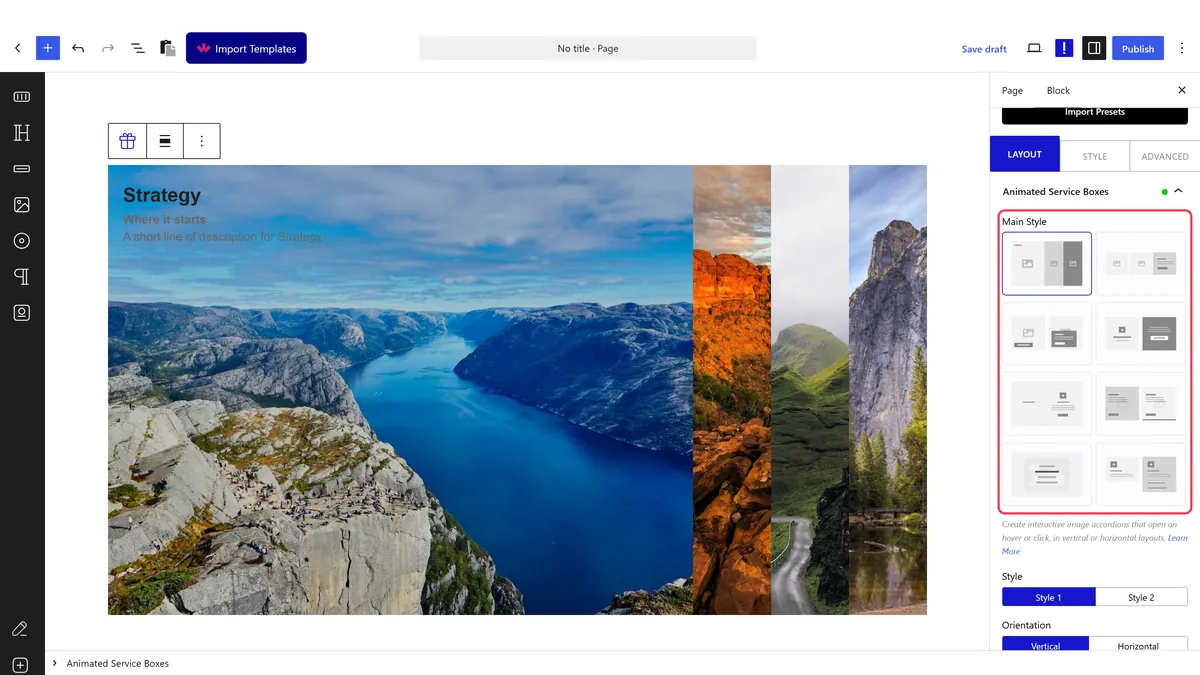
- Set Main Style to the layout you want.
- Fill in your items — title, subtitle, description, and an image or icon for each.
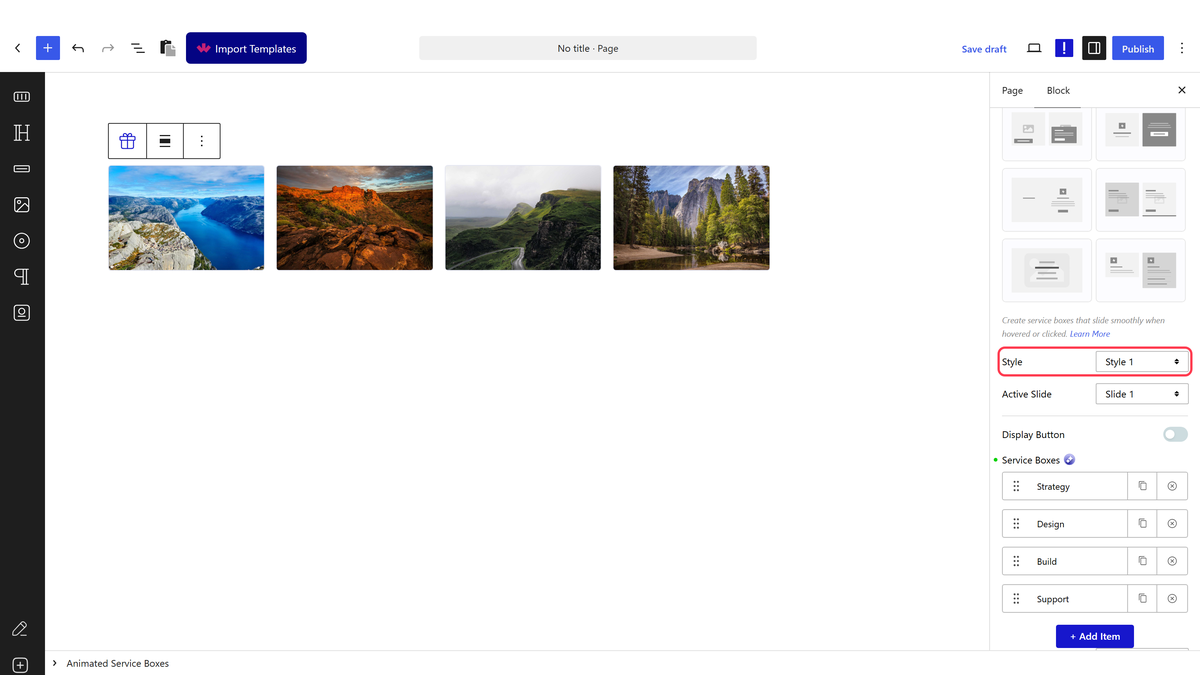
- Pick the Style for that layout — each Main Style has its own set.
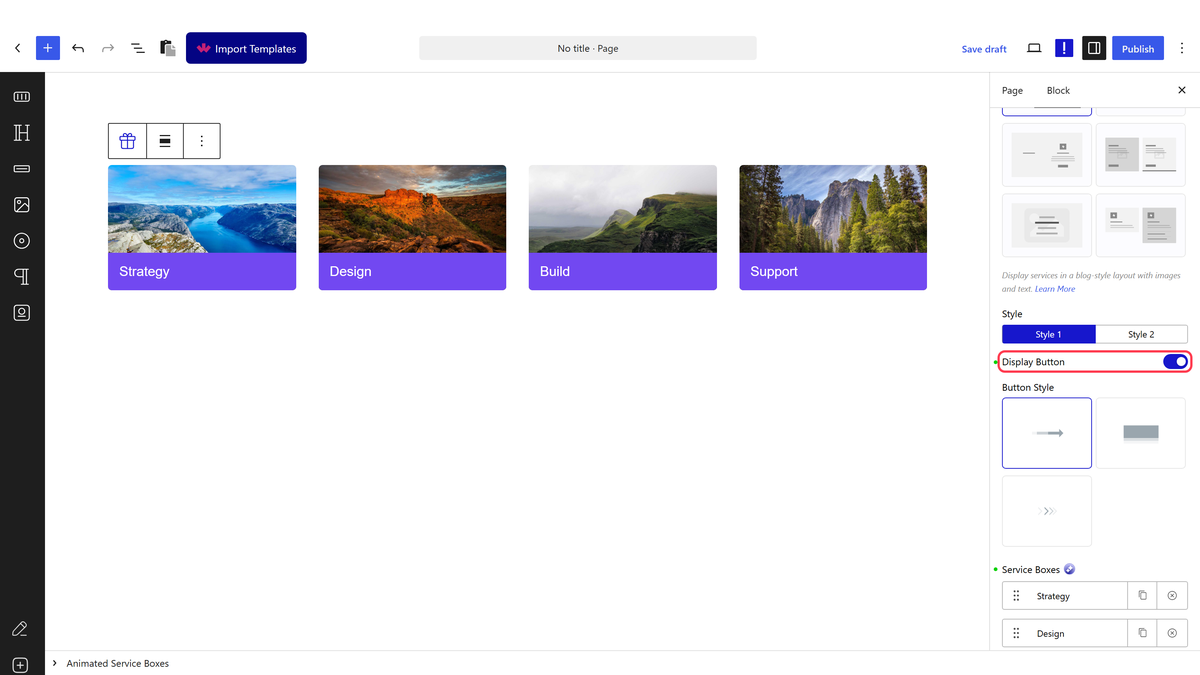
- Switch Display Button on if you want a link on each item.
- Publish and hover the boxes.
Main Style changes the rest of the panel. It is one block with eight quite different layouts, and each has its own Style, orientation and options — so set it first.
The Eight Layouts
| Main Style | What it gives you | Guide |
|---|---|---|
| Image Accordion | Panels that expand as you hover along a row or column | Image accordion |
| Sliding Boxes | Boxes that slide open to reveal their text | Sliding box effect |
| Article Box | A straightforward grid of image, title and text | Article box |
| Info Banner | Wide banners with the image behind the text | Info banner |
| Hover Section | A section whose background image changes as you move across it | Background image on hover |
| Fancy Box | Image-backed cards with the text overlaid | — |
| Services Element | A compact list that expands on click | Expandable service box |
| Portfolio | A list beside one large preview that follows it | Portfolio section |
How It Behaves
- Each layout renders differently, not just with different CSS. Measured: Image Accordion, Sliding Boxes and Article Box use real
<img>elements; Info Banner, Fancy Box and Portfolio use CSS background images; Services Element uses no images at all. - Hover is what animates most of them. Image Accordion and Sliding Boxes had no active item on load and exactly one after hovering.
- Hover Section and Portfolio start with one item already active, so the section is never blank before the visitor does anything.
- Hover Section loads its images only when needed — they sit in a
data-imageattribute rather than being requested up front. - Display Button is off by default. Measured: Article Box rendered no links at all until it was switched on, then one per item.
Limitations
- Pro only.
- Three layouts put the image in CSS, not in an
<img>tag — Info Banner, Fancy Box and Portfolio. Those images carry no alt text and are not indexed as images, so keep them decorative. - Services Element uses no image at all, so do not plan a picture into it.
- All of these are hover-driven, and there is no hover on a touch screen. Check each layout on a phone before relying on it.
- One layout per block. Two different styles on a page means two blocks.
Troubleshooting
The options I read about are not in the panel
They belong to a different Main Style. Each layout shows its own settings, so set Main Style first and the rest of the panel changes.
No buttons appear on my boxes
Switch Display Button on. It is off by default for every layout except Portfolio.
My images do not show
Check which layout you are using. Services Element shows no images at all, and Hover Section only loads them as the visitor moves across the section.
Nothing animates on my phone
These layouts react to hover, which touch screens do not have.
The block is missing from the inserter
Switch Animated Service Boxes on under Nexter > Blocks.