










An image accordion shows four or five pictures at once and gives the whole of one to whoever is looking at it.
It is the Image Accordion layout of the Animated Service Boxes block, and it runs either across the page or down it.
For every Animated Service Boxes setting in one place, see the Animated Service Boxes block guide.
Before You Start
- Edition: Pro — the Animated Service Boxes block is part of Nexter Blocks Pro.
- Block to enable: Animated Service Boxes, switched on under Nexter > Blocks in your WordPress dashboard.
- Your items decided: each one takes a title, a subtitle, a description, an icon or image and a link.
- One image per panel, all the same shape.
Steps
- Add the Animated Service Boxes block and click Design from Scratch.
- Set Main Style to Image Accordion.
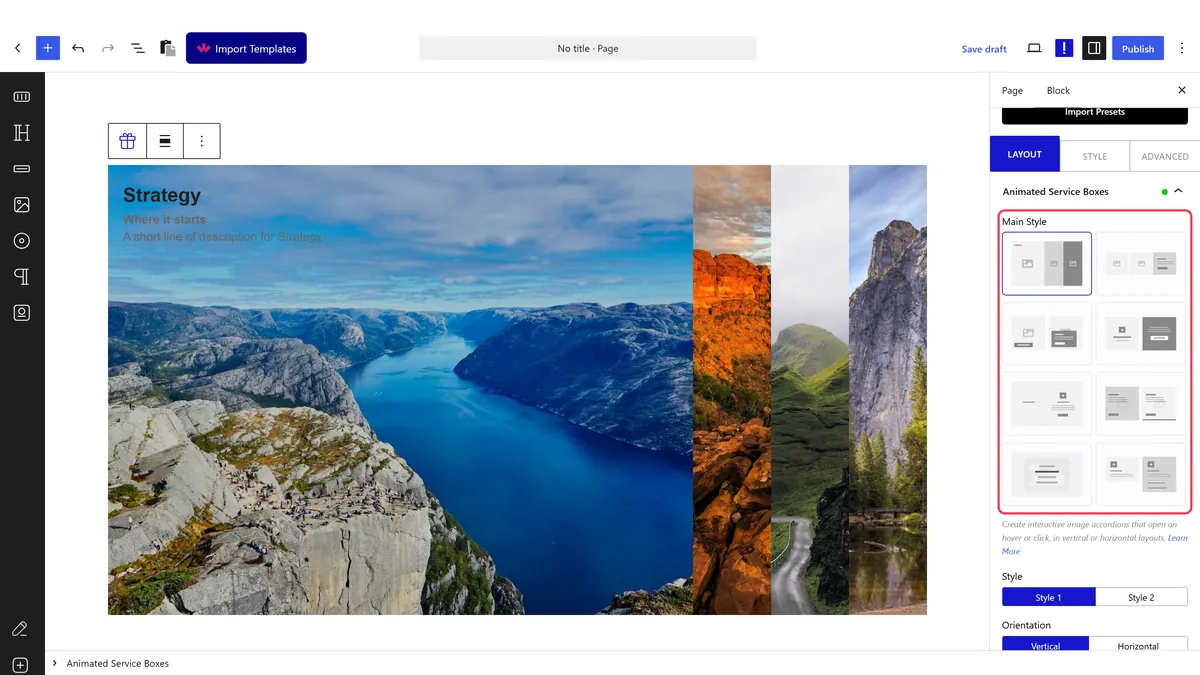
- Fill in your items — title, subtitle, description, and an image or icon for each.
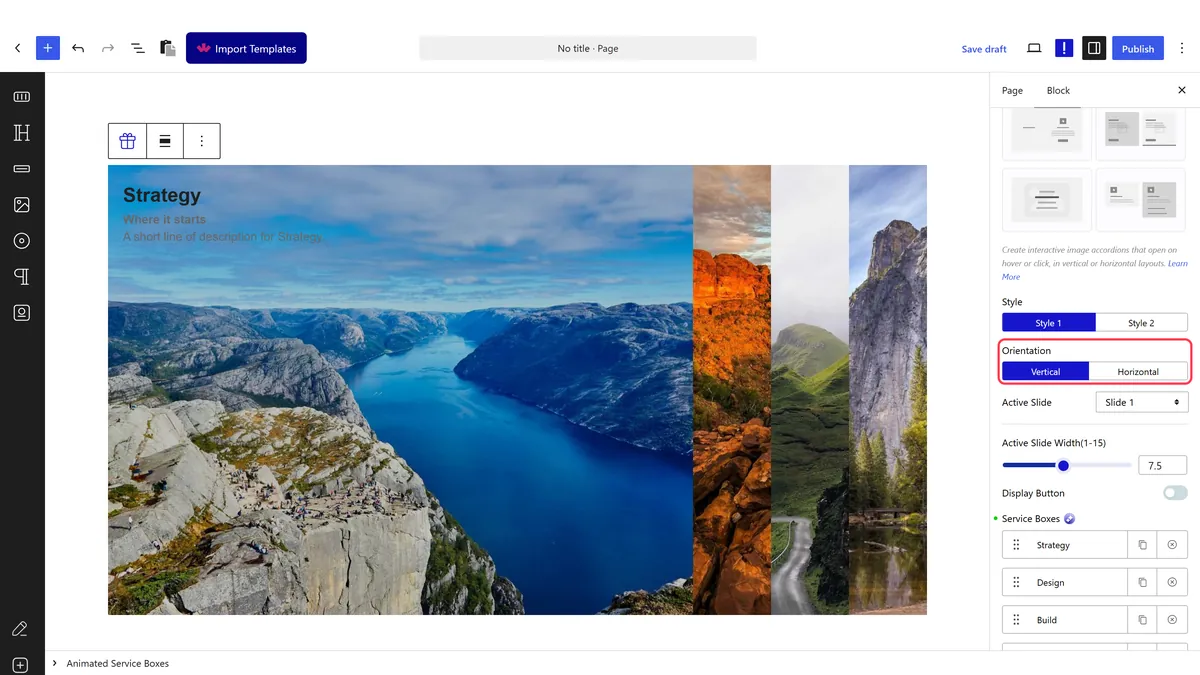
- Choose the Orientation — vertical panels across the page, or horizontal ones stacked down it.
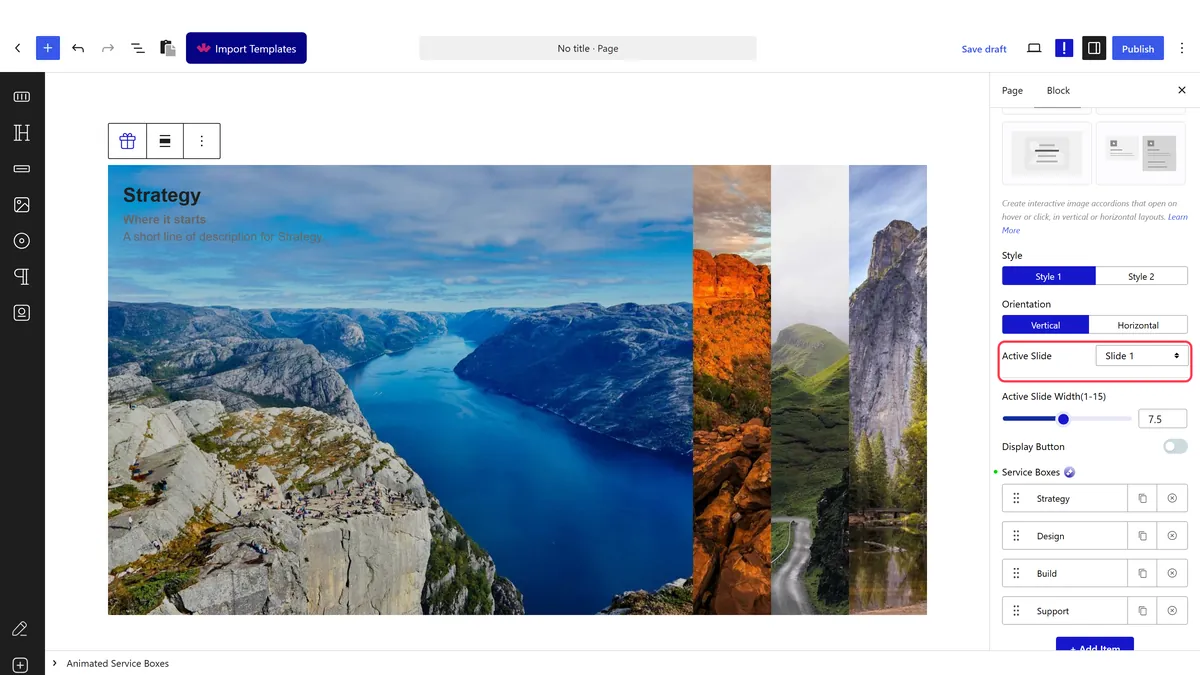
- Set Active Slide to decide which panel is open before anyone hovers.
- Publish and move the mouse across the panels.
How It Behaves
- Real images, not backgrounds. Measured: four
<img>elements, so each panel’s picture carries its own alt text. - Hover opens a panel. With nothing hovered there was no active panel; hovering the second one made exactly one active.
- Orientation writes a class —
accordion-verticalby default andaccordion-horizontalwhen switched. - Active Slide Width controls how much room the open panel takes from the others.
Limitations
- Pro only.
- Images of different shapes make the panels jump. Crop them all to the same ratio.
- Four or five panels is the practical limit; beyond that each closed panel is too narrow to read.
- There is no hover on a touch screen, so check how this looks on a phone before relying on it.
Troubleshooting
The panels do not open
The accordion opens on hover. On a touch screen there is nothing to hover.
One panel is open before I hover anything
That is Active Slide. Change which one, or set it to the first.
The panels are different heights
The images are different shapes. Crop them to a single ratio.
