










A grid of thumbnails makes every project look the same size and none of them look good.
Portfolio lists the names and gives one large preview that changes to whichever the reader is looking at.
For every Animated Service Boxes setting in one place, see the Animated Service Boxes block guide.
Before You Start
- Edition: Pro — the Animated Service Boxes block is part of Nexter Blocks Pro.
- Block to enable: Animated Service Boxes, switched on under Nexter > Blocks in your WordPress dashboard.
- Your items decided: each one takes a title, a subtitle, a description, an icon or image and a link.
- One strong image per project.

Steps
- Add the Animated Service Boxes block and click Design from Scratch.
- Set Main Style to Portfolio.
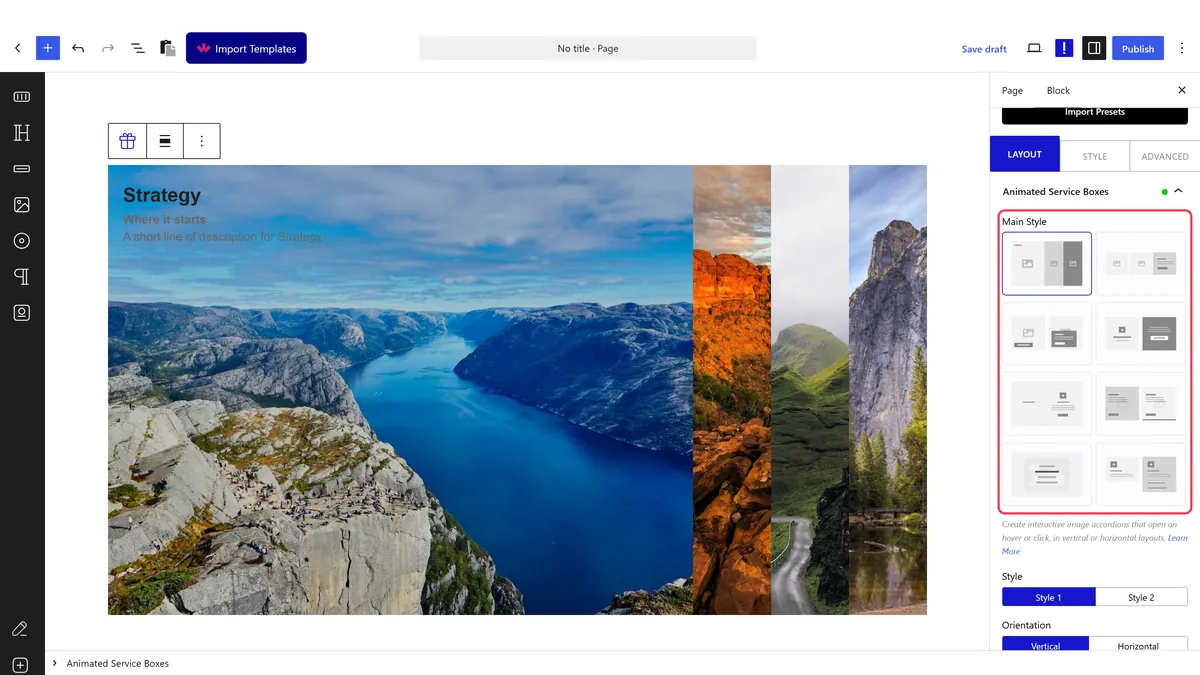
- Fill in your items — title, subtitle, description, and an image or icon for each.
- Pick the Style for the portfolio.
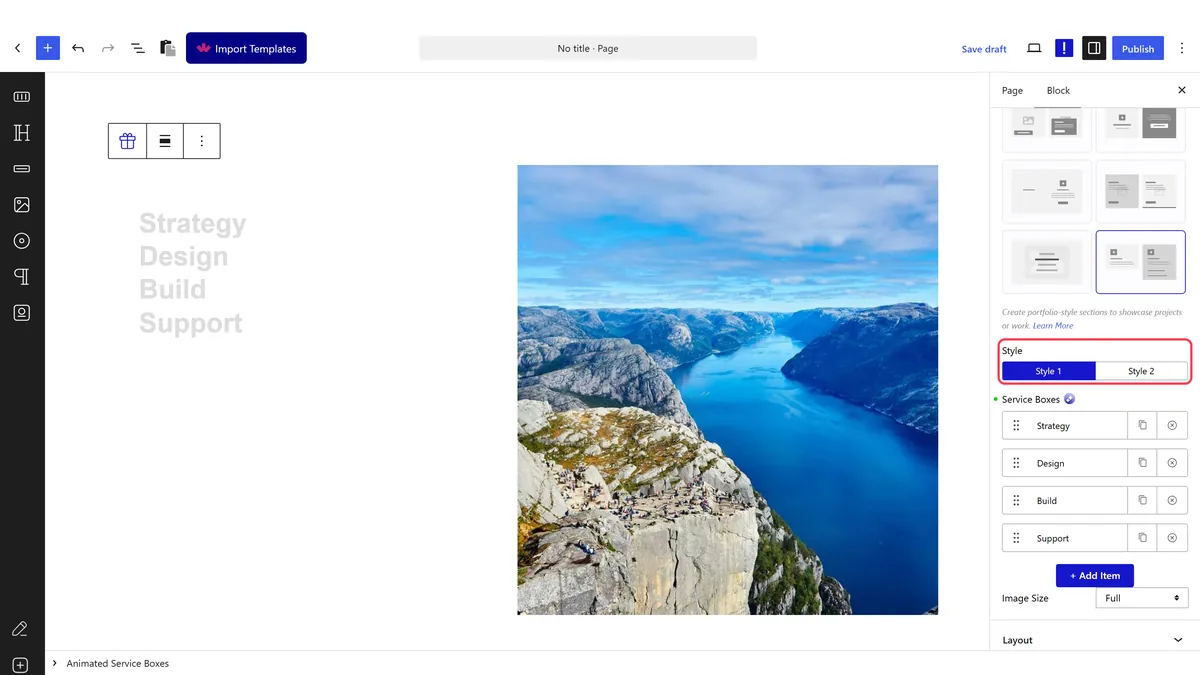
- Give each item a link — portfolio items are always clickable.
- Publish and move down the list.
How It Behaves
- One preview, not one image per item. Measured: a single background image for the whole block, with each item carrying its own picture in a
data-urlattribute. - One item is active from the start, so the preview is never empty.
- Links are always rendered here. Unlike the other layouts, Portfolio does not wait for Display Button — four items gave four links with the toggle off.
- Each item also carries its own click text, which defaults to Click Here.
Limitations
- Pro only.
- The images are CSS backgrounds, not
<img>tags. They carry no alt text and are not indexed as images, so keep them decorative rather than informative. - The preview is one image at a time, so this needs pictures strong enough to fill a large space.
- There is no hover on a touch screen, so check how this looks on a phone before relying on it.
Troubleshooting
The preview does not change
It follows the pointer, so there is nothing to follow on a touch screen.
The preview is empty at first
One item should be active by default. Check at least one item has an image.
My links do not work
Each item needs its own URL. Portfolio always renders the link, so an empty URL gives a dead one.
