










Sometimes the right answer is not an animation but a tidy grid that reads properly.
Article Box is the plainest of these layouts: picture, heading, text, and a link if you want one.
For every Animated Service Boxes setting in one place, see the Animated Service Boxes block guide.
Before You Start
- Edition: Pro — the Animated Service Boxes block is part of Nexter Blocks Pro.
- Block to enable: Animated Service Boxes, switched on under Nexter > Blocks in your WordPress dashboard.
- Your items decided: each one takes a title, a subtitle, a description, an icon or image and a link.
- One image per article.

Steps
- Add the Animated Service Boxes block and click Design from Scratch.
- Set Main Style to Article Box.
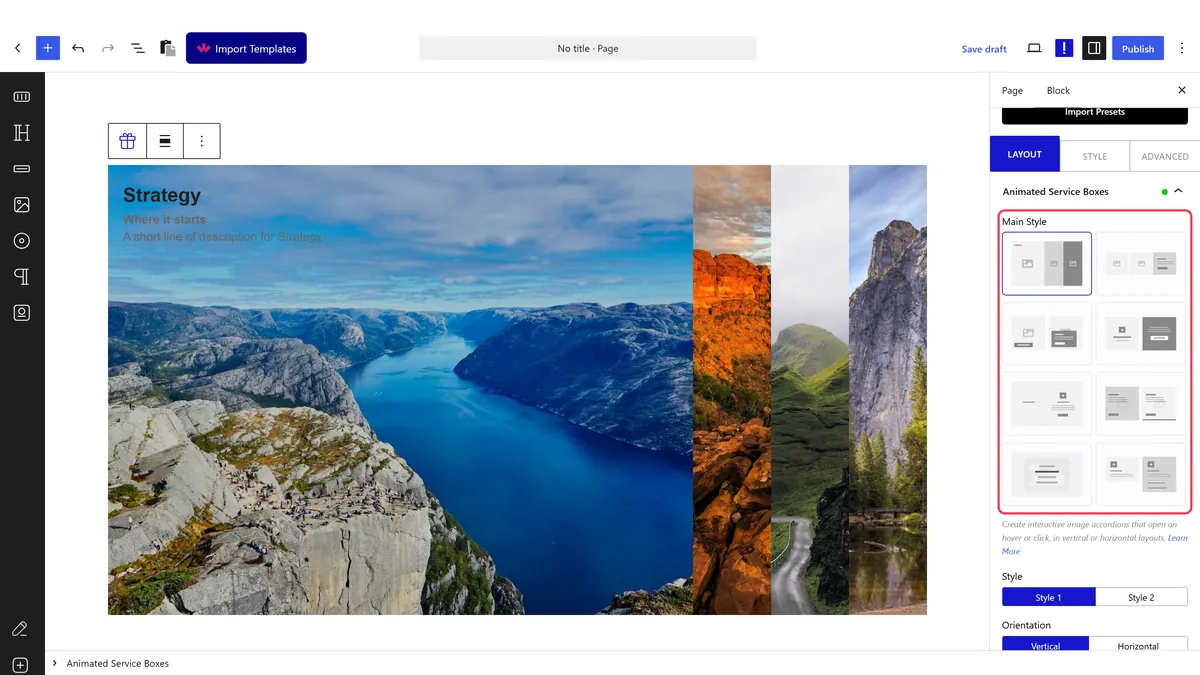
- Fill in your items — title, subtitle, description, and an image or icon for each.
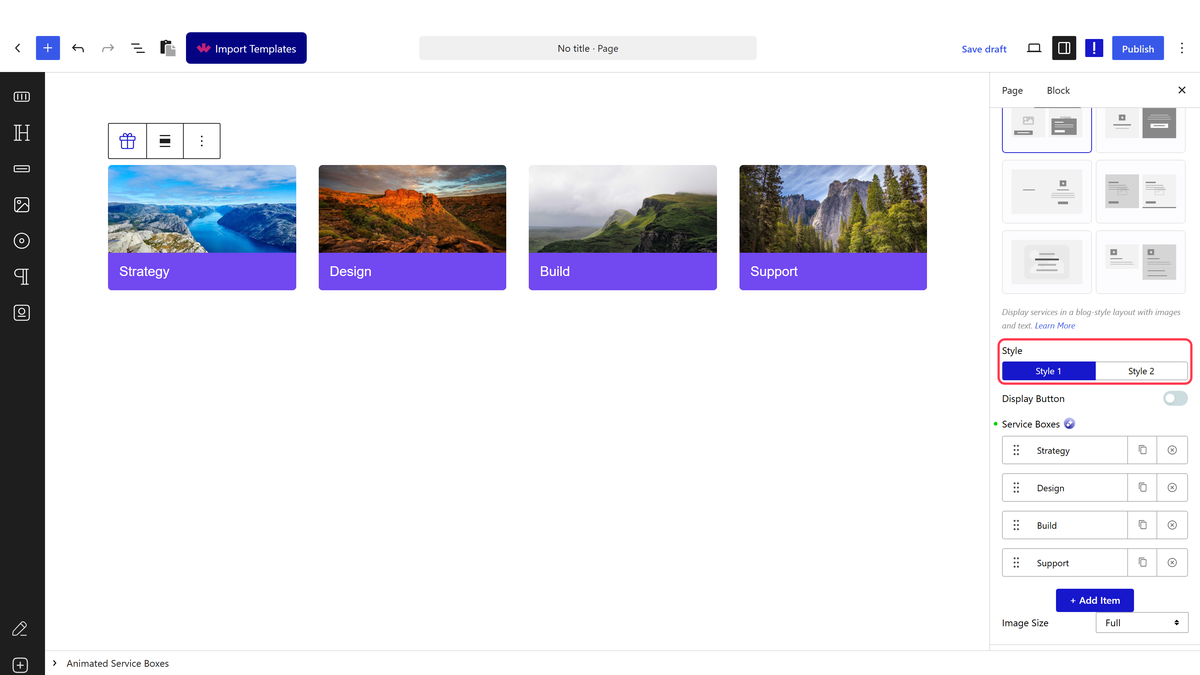
- Pick the Style for the article grid.
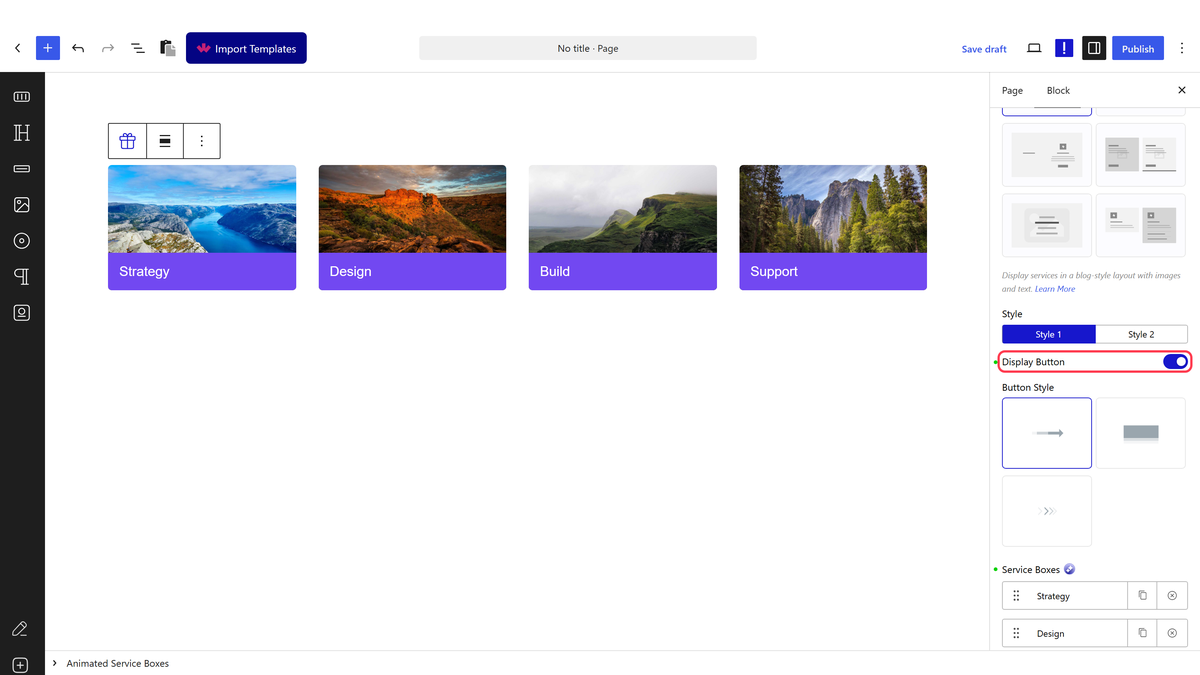
- Switch Display Button on if each item should link somewhere.
- Publish.
Display Button is off by default. Measured: Article Box rendered no links at all until it was switched on, then one per item.
How It Behaves
- Real images with alt text — four
<img>elements measured, which makes this the best of the eight layouts for anything that matters to search. - No hover animation. Unlike the accordion and sliding styles, nothing became active on hover — this layout just sits there and reads.
- Display Button really is the switch. Measured: no links at all until it was on, then one per item.
- Image Size is honoured, so you are not serving full-size photographs into a small grid.
Limitations
- Pro only.
- It is a static grid. If you wanted movement, one of the other layouts is the answer.
- Uneven text lengths give uneven boxes. Keep the descriptions to a similar length.
- One link per item, from Display Button.
Troubleshooting
There are no buttons
Display Button is off. It is off by default.
The images are huge and the page is slow
Set Image Size to something smaller than Full.
The boxes are uneven
The descriptions are different lengths. Even them up, or set a Height in the Layout panel.
