










Six services described in full is a wall of text; six headings with one open is a menu.
Services Element keeps the list compact and expands whichever item the reader chooses.
For every Animated Service Boxes setting in one place, see the Animated Service Boxes block guide.
Before You Start
- Edition: Pro — the Animated Service Boxes block is part of Nexter Blocks Pro.
- Block to enable: Animated Service Boxes, switched on under Nexter > Blocks in your WordPress dashboard.
- Your items decided: each one takes a title, a subtitle, a description, an icon or image and a link.

Steps
- Add the Animated Service Boxes block and click Design from Scratch.
- Set Main Style to Services Element.
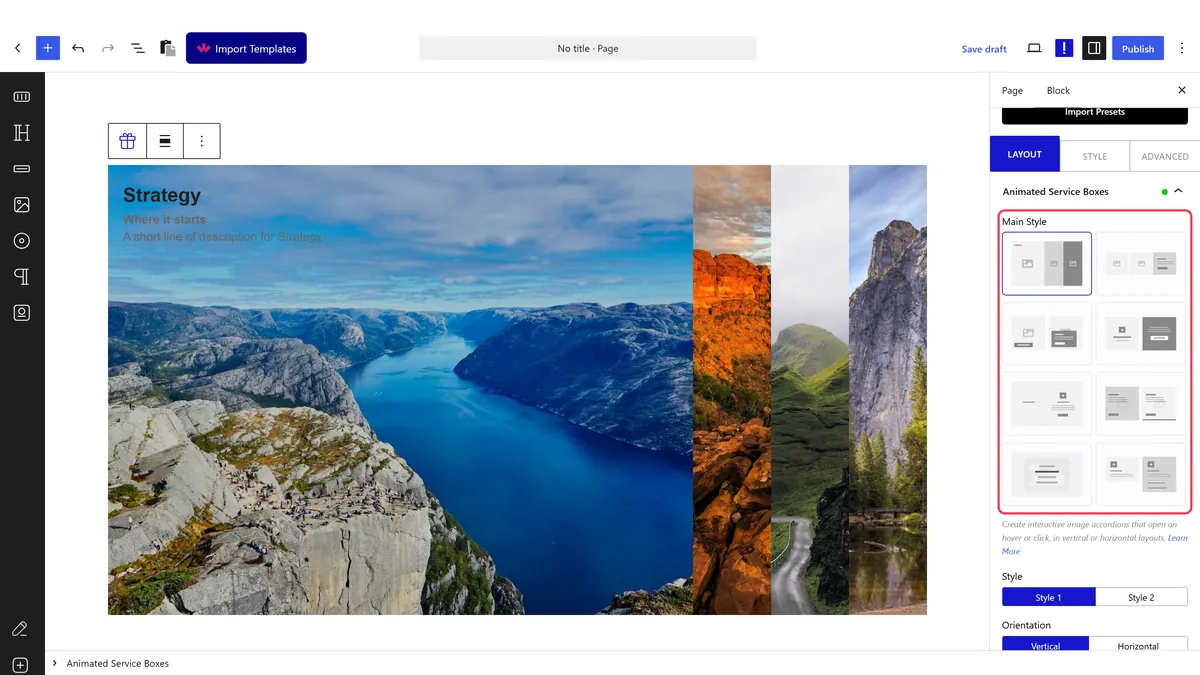
- Fill in your items — title, subtitle, description, and an image or icon for each.
- Set Style to Style 1 for the expanding behaviour.
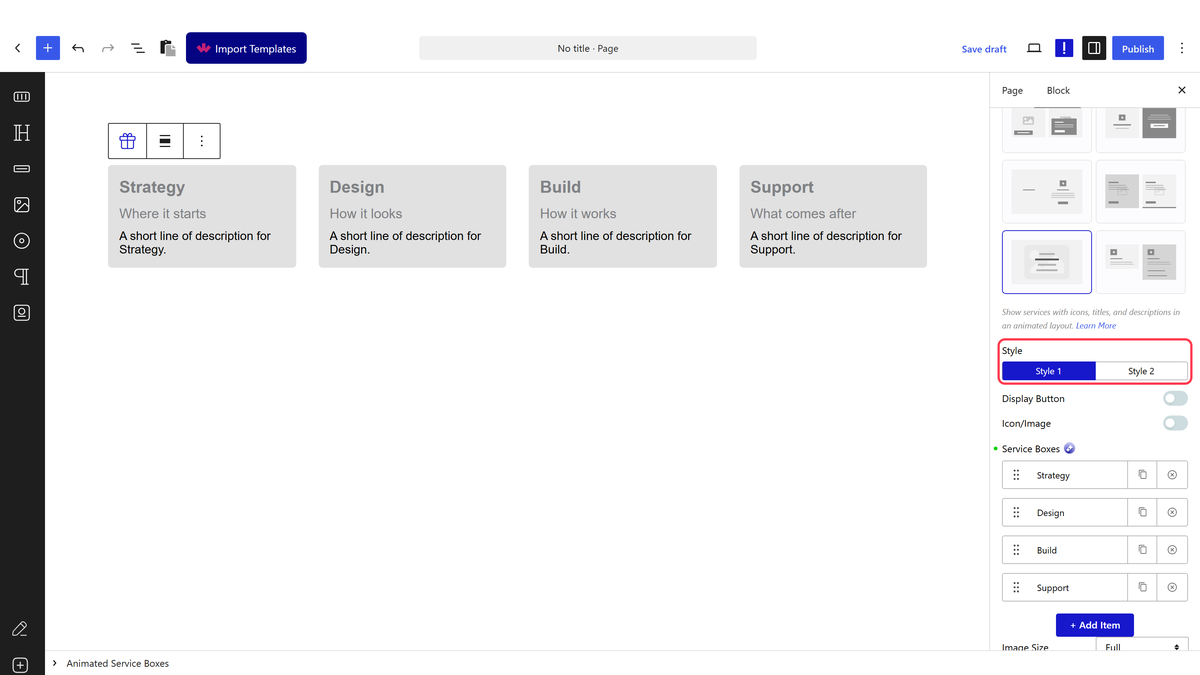
- Write a short description for each item — it is what appears when the item opens.
- Publish.
Style 2 keeps every item open. If you want them all visible at once, that is the one to choose; Style 1 is the expanding version.
How It Behaves
- This layout uses no images at all. Measured: no
<img>elements and no background images — it is built from icons and text. - One item is open at a time, which is what keeps the section short.
- Each item takes an icon, a title, a subtitle and a description.
- Because there is no image, it stays light and works well low down a long page.
Limitations
- Pro only.
- No images. If you want a picture per service, use ” + a(ARTICLE_DOC, “Article Box”) + ” instead.
- Only one item is open at a time in Style 1, so readers cannot compare two side by side.
- Long descriptions make the section jump in height as items open and close.
Troubleshooting
My images do not appear
This layout does not use images. Choose a different Main Style if you need them.
Everything is open at once
You are on Style 2, which shows all items. Switch to Style 1.
The page jumps as items open
The descriptions are very different lengths. Even them out.
