










A one-page site asks the visitor to scroll a long way, and a long scroll without landmarks is where people give up.
Scroll Navigation puts a small fixed set of dots down the side, one per section, so the whole page is one click away wherever the reader is.
Before You Start
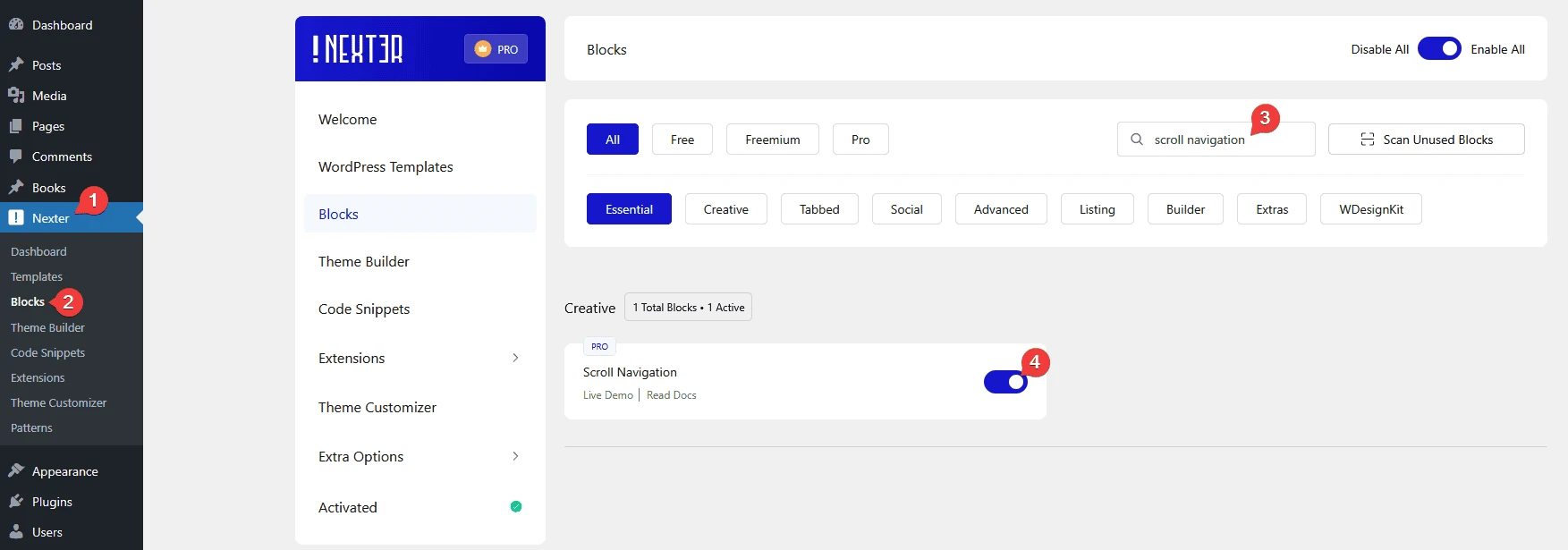
- Edition: Pro — the Scroll Navigation block needs Nexter Blocks Pro.
- Block to enable: Scroll Navigation, switched on under Nexter > Blocks in your WordPress dashboard.
- Your page sections, each with its own anchor set in the block’s Advanced settings.
Video Tutorial
Steps
- Give each section on the page an anchor — a short id such as
aboutorpricing.
- Add the Scroll Navigation block once, anywhere on the page.
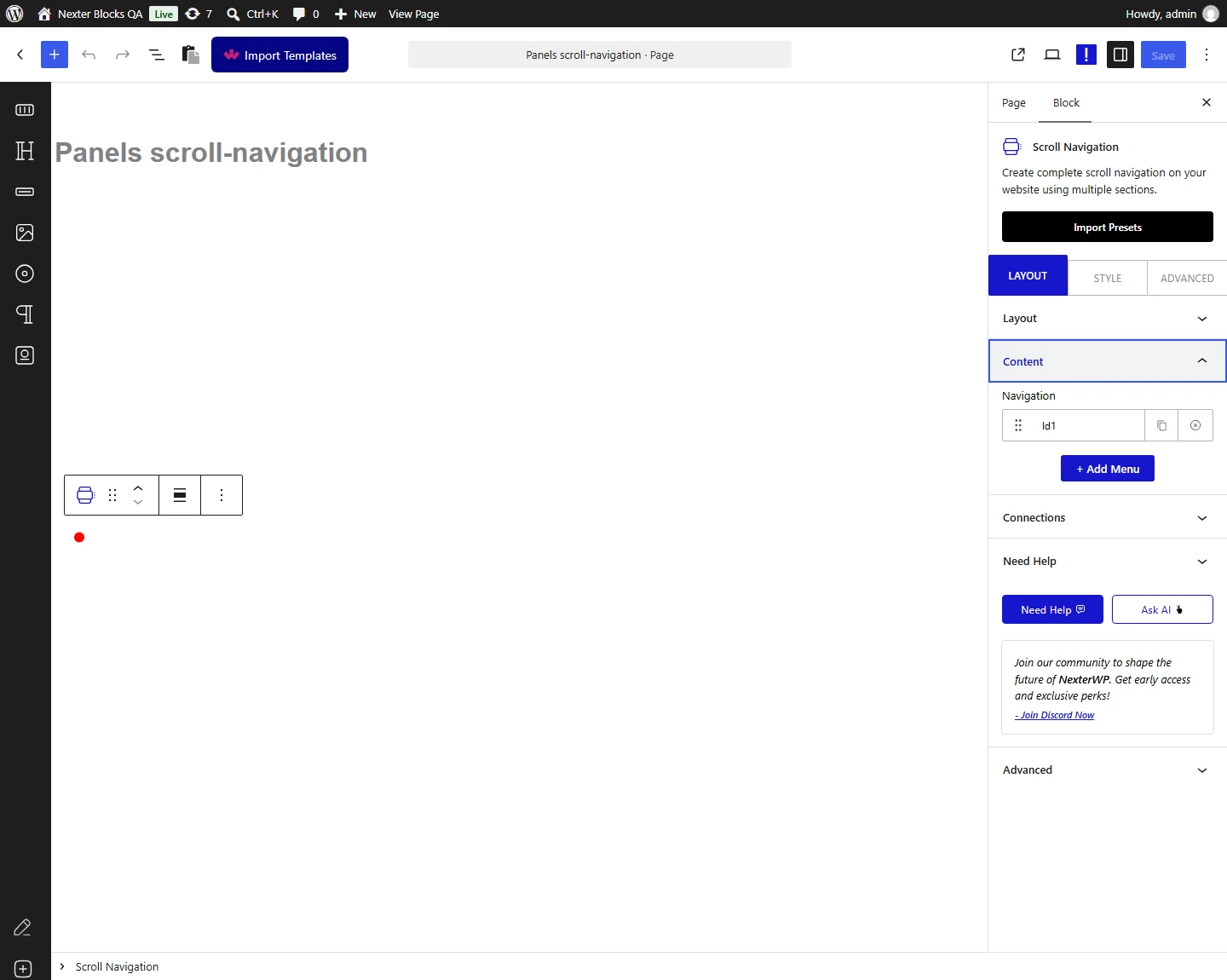
- Add one entry per section and point each at its anchor.

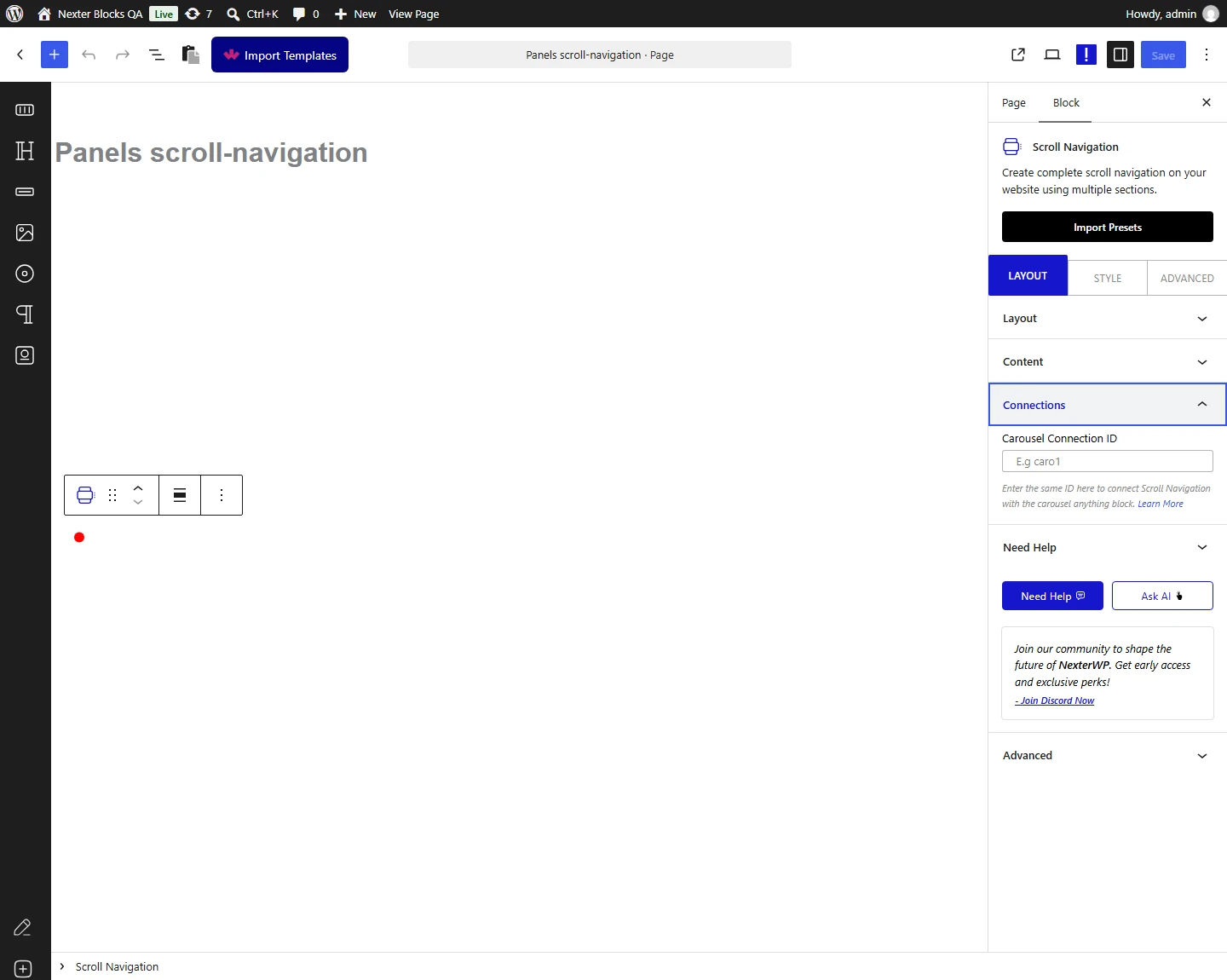
- Choose the side the dots sit on, and a style.
- Publish and scroll the real page.
How It Behaves
The block renders one dot per entry in its list, each a link to the anchor you gave it.
- One dot per entry, each an anchor link. Measured on a published page: the default single entry rendered one
.tpgb-scroll-nav-itemlinking to#Id1, with its position recorded asdata-tab="0". - The side is written into the block’s classes — measured, the block carries
nav-leftornav-rightto match your choice. - The dots are links, so they work without JavaScript too — a browser will jump to the anchor regardless.
- Anchors are the whole mechanism. A dot pointing at an anchor that does not exist simply goes nowhere.
- Measured with Nexter Blocks Pro deactivated: the block renders nothing at all.
Limitations
- Pro only — measured, the block renders nothing without it.
- Every section needs an anchor you set yourself. The block does not discover sections; it links to ids you have created.
- Add the block once per page. Two of them means two sets of dots.
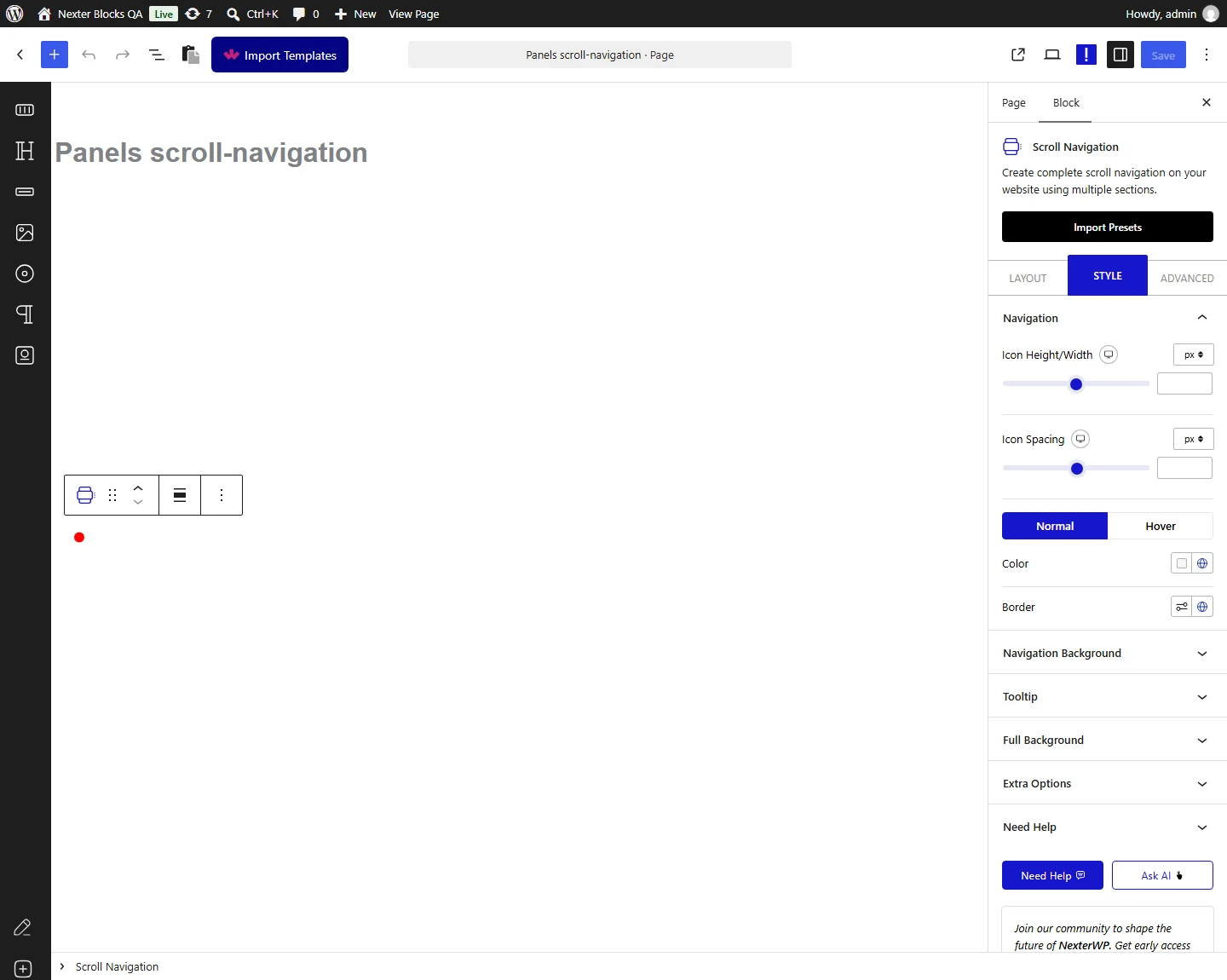
- Dots carry no labels by default, so a visitor cannot tell what a dot leads to until they use it — switch tooltips on if the destinations are not obvious.
Troubleshooting
A dot does not go anywhere
Its anchor does not match a section on the page. Check the section’s Advanced settings and the navigation entry use the same id, without a # in the anchor field.
The dots are on the wrong side
Set the direction on the block — measured, that writes nav-left or nav-right onto it.
There is only one dot
The block ships with a single entry. Add one entry per section — measured, the default renders exactly one dot.
Nothing renders at all
Measured with Nexter Blocks Pro deactivated: the block renders nothing at all. Check Nexter Blocks Pro is active.
