










A process with no beginning or end — a cycle, a set of services, the parts of a method — reads oddly as a numbered list, because a list implies an order.
The Interactive Circle arranges the items around a ring and shows each one’s detail as the visitor moves through them.
Before You Start
- Edition: Free — works in Nexter Blocks (free) and with Nexter Blocks Pro.
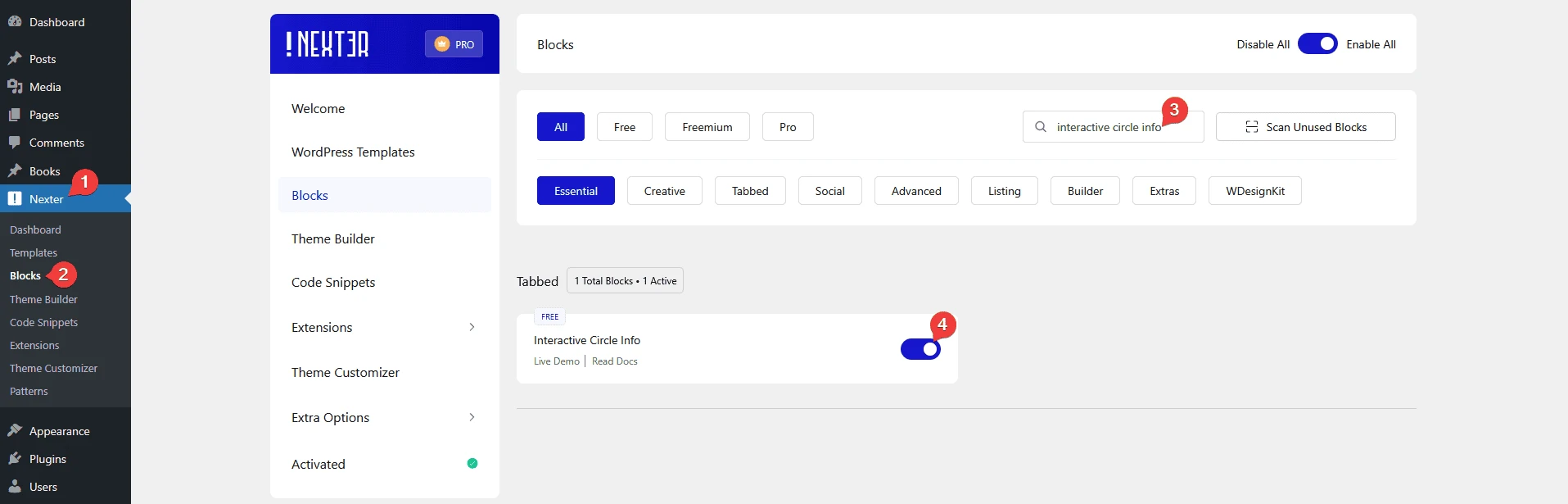
- Block to enable: Interactive Circle Info, switched on under Nexter > Blocks in your WordPress dashboard.
Video Tutorial
Steps
- Add the Interactive Circle Info block to your page.
- Add one entry per item, with an icon, a title and its content.

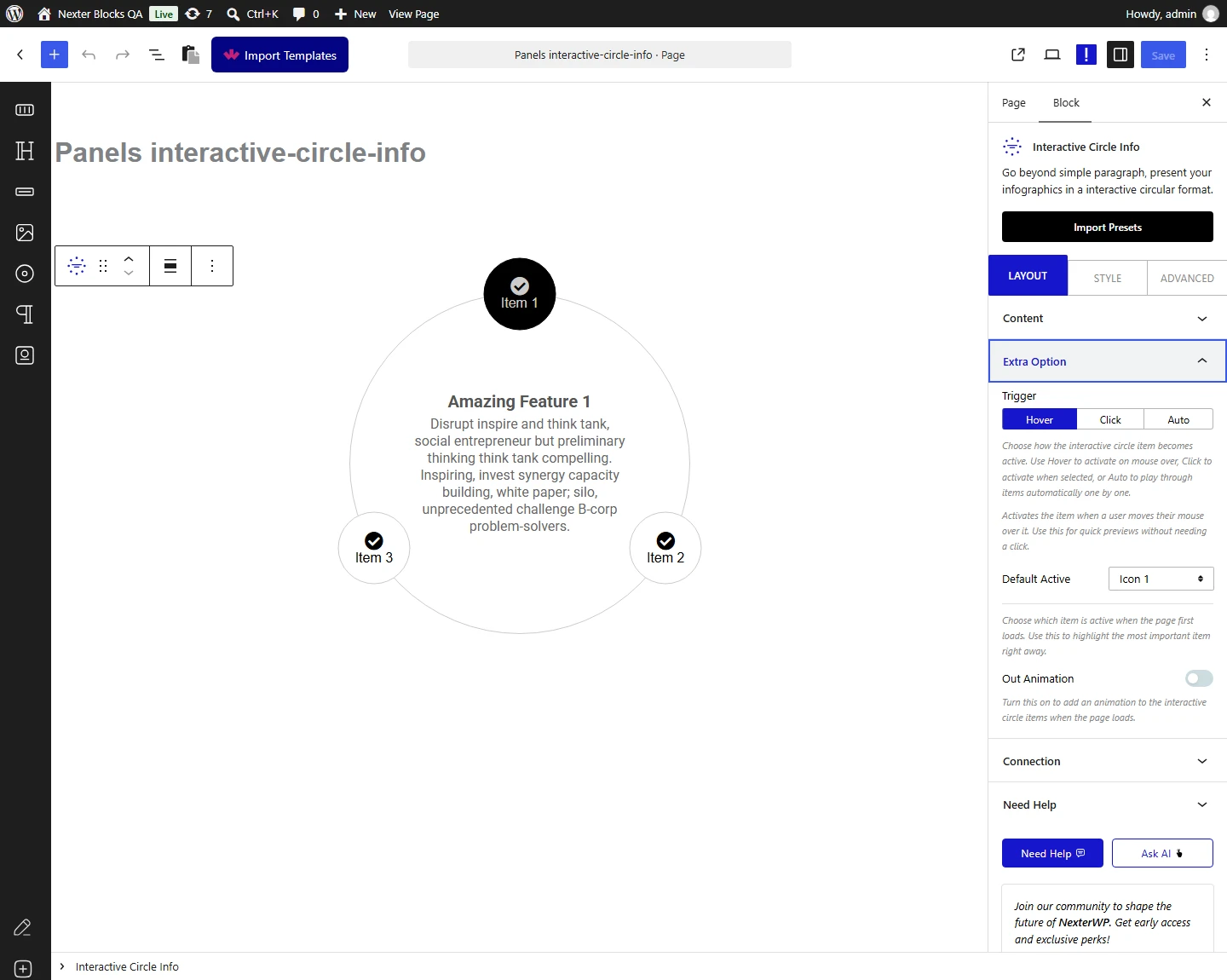
- Choose whether items open on hover or on click.
- Set which item is active by default.
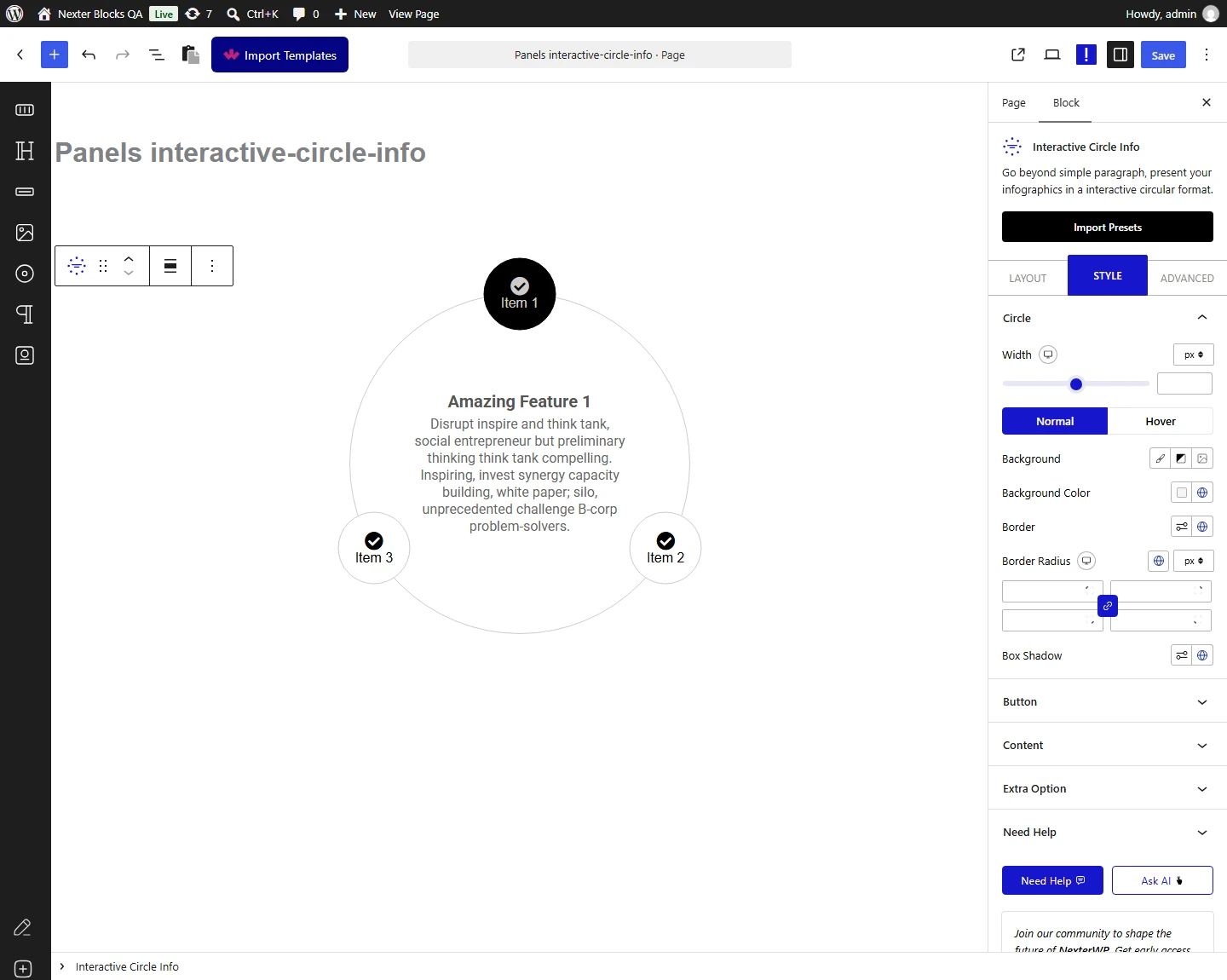
- Style the circle and publish.
How It Behaves
The block draws a ring of items with one open at a time, and the detail panel follows whichever item is active.
- Exactly one item is active at a time. Measured on published pages with the three default items: one carries the active state and the others do not.
- Default Active works as you would expect. Measured: setting it to 2 made the second item active on load, and leaving it alone made the first.
- The trigger is written into the page — measured, choosing hover or click sets the block’s trigger attribute to match.
- The circle is a fixed height — measured at 400 pixels with the default settings, so plan the surrounding layout around it.
- Measured with Nexter Blocks Pro deactivated: this block renders identically. It is a free block.
The connection needs both the toggle and an ID. Measured: with the toggle on and an ID set, the block carries the connection attributes; with the toggle off and the same ID, they are all empty and no connection exists.
Limitations
- Hover has no equivalent on a touch screen. If you choose hover, phone visitors get the tap behaviour instead — consider click so both behave the same.
- Items are arranged around a ring, so a long list becomes crowded. Keep it to a handful.
- The block is tall by nature. Measured at 400 pixels, which is a lot of vertical space on a phone.
- One item is always open — there is no state where the circle shows nothing.
Troubleshooting
The wrong item is open when the page loads
Set Default Active to the item you want. Measured: setting it to 2 opens the second item.
Nothing opens when I hover on my phone
There is no hover on a touch screen. Set the trigger to click so the behaviour is the same everywhere.
The circle overlaps the content below it
It is around 400 pixels tall by default. Give it room, or reduce the circle size in the block’s settings.
My Carousel Anything connection does nothing
The connection needs both the toggle and an ID. Measured: with the toggle on and an ID set, the block carries the connection attributes; with the toggle off and the same ID, they are all empty and no connection exists. See the carousel connection guide.
