










A dark mode switch is two separate jobs: something for the visitor to click, and a set of dark colours for the page to switch to.
This block is the first job. It adds the switch, flips a class on the page and can remember the choice — the colours come from your theme or your own CSS.
Before You Start
- Edition: Free — works in Nexter Blocks (free) and with Nexter Blocks Pro.
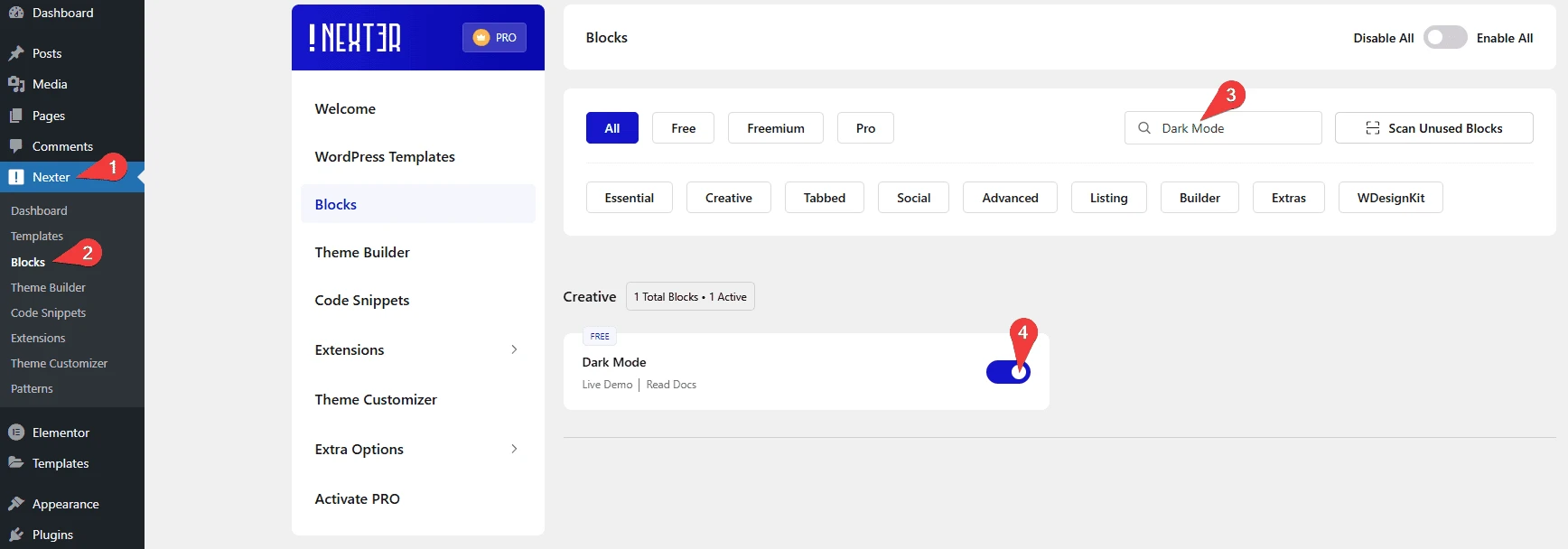
- Block to enable: Dark Mode, switched on under Nexter > Blocks in your WordPress dashboard.
- Dark colours defined for the
tpgb-dark-activeclass — either from your theme or your own CSS. See below.
Video Tutorial
Steps
- Add the Dark Mode block where the switch should sit — often a header or a footer.
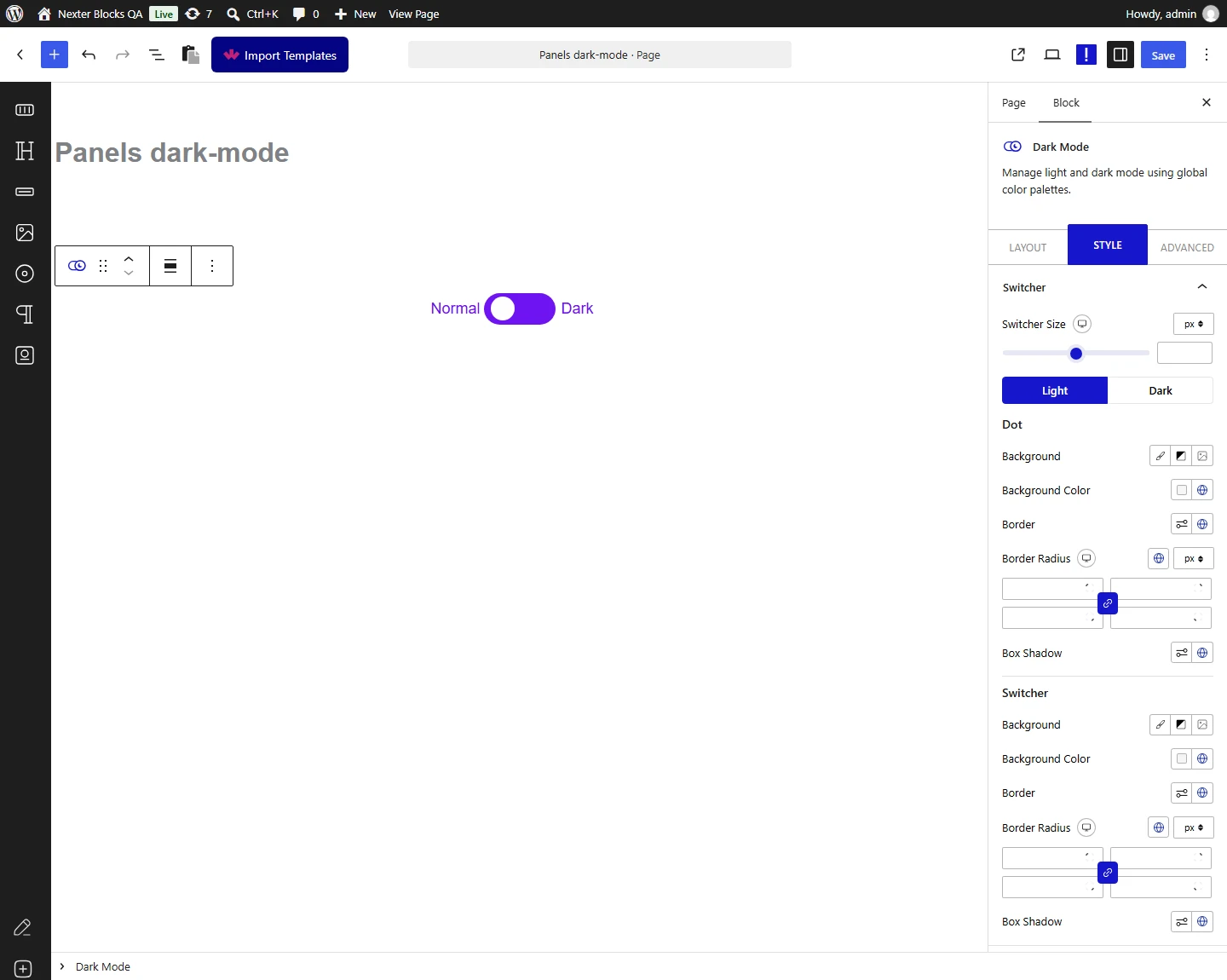
- Choose a style for the switch and set its icons.
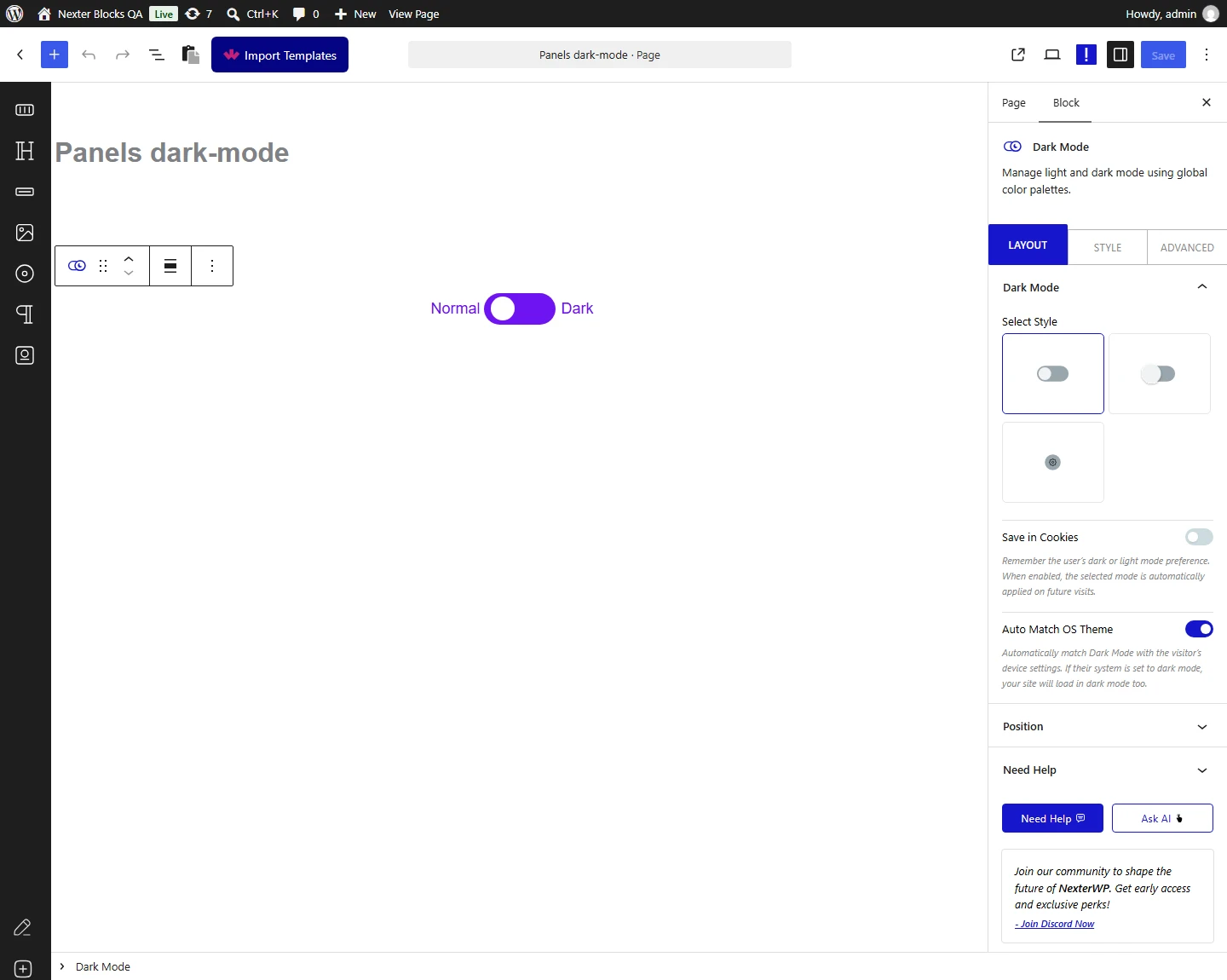
- Switch Save Cookies on if the choice should survive a page load.
- Set Match OS Theme if the page should open dark for visitors whose system is set to dark.
- Choose the position — in the flow of the page, or fixed to a corner.
How It Behaves
The block renders a switch. Clicking it adds one class to the page; everything you see change after that is CSS responding to that class.
- It adds
tpgb-dark-activeto the page’s<body>— measured by clicking the real switch on a published page. Clicking again removes it. - The page’s own colours do not change on their own. Measured: the background was
rgb(255,255,255)before the click andrgb(255,255,255)after it. The switch is the trigger; the dark colours have to exist in your CSS. - Save Cookies decides whether the choice survives. Measured: with it off nothing is stored and a reload returns the page to light; with it on the browser stores
tpgb_darkmodeand the page opens dark again after a reload. - Fixed position moves the block out of your content. Measured: the block’s own script lifts it to the top of the page body, which is why it leaves no gap where you inserted it.
- Measured with Nexter Blocks Pro deactivated: this block renders identically. It is a free block.
Limitations
- The block does not darken your site. It flips a class — measured, nothing about the page’s colours changed by itself. Your theme must style
body.tpgb-dark-active, or you must write those rules. - Without Save Cookies the choice is forgotten on every page load — measured.
- Images and embeds do not adapt. A white logo or a light screenshot will still be light; supply a dark variant if that matters.
- One switch per page is enough — several would each toggle the same class.
Troubleshooting
I click the switch and nothing happens
Something almost certainly did happen: the class is added to the page body. Measured, the colours do not change unless CSS exists for body.tpgb-dark-active. Add those rules, or use a theme that ships them.
The page goes back to light when I reload
Switch Save Cookies on. Measured: with it off nothing is stored; with it on the choice is remembered across reloads.
The switch is not where I put it
Position is set to Fixed. Measured: the block is then moved to the top of the page body by its own script and pinned to the corner you chose.
Some parts of the page stay light
Those parts have no dark rules. Work through the sections that matter under body.tpgb-dark-active.
