










A heading and the paragraph beneath it are one idea, but two blocks — so they drift apart when a section is moved, and their spacing has to be set twice.
The Paragraph block keeps the pair together, with the heading optional and both tags under your control.
Before You Start
- Edition: Free — works in Nexter Blocks (free) and with Nexter Blocks Pro.
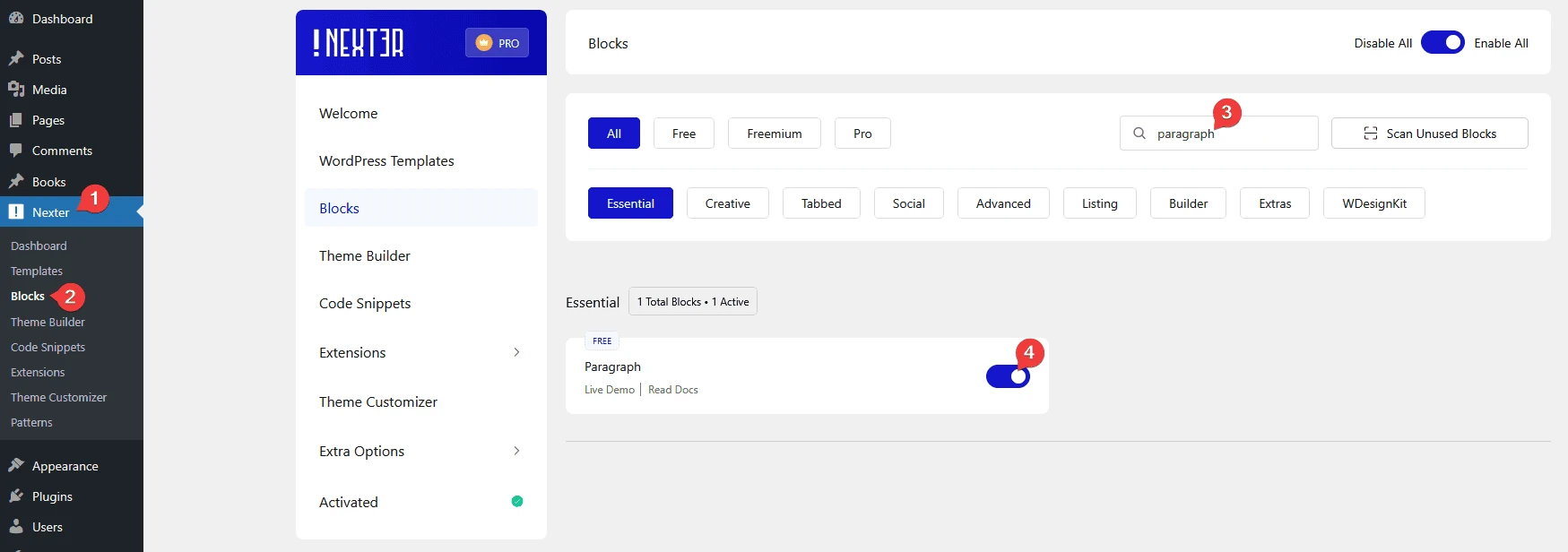
- Block to enable: Paragraph, switched on under Nexter > Blocks in your WordPress dashboard.
Video Tutorial
Steps
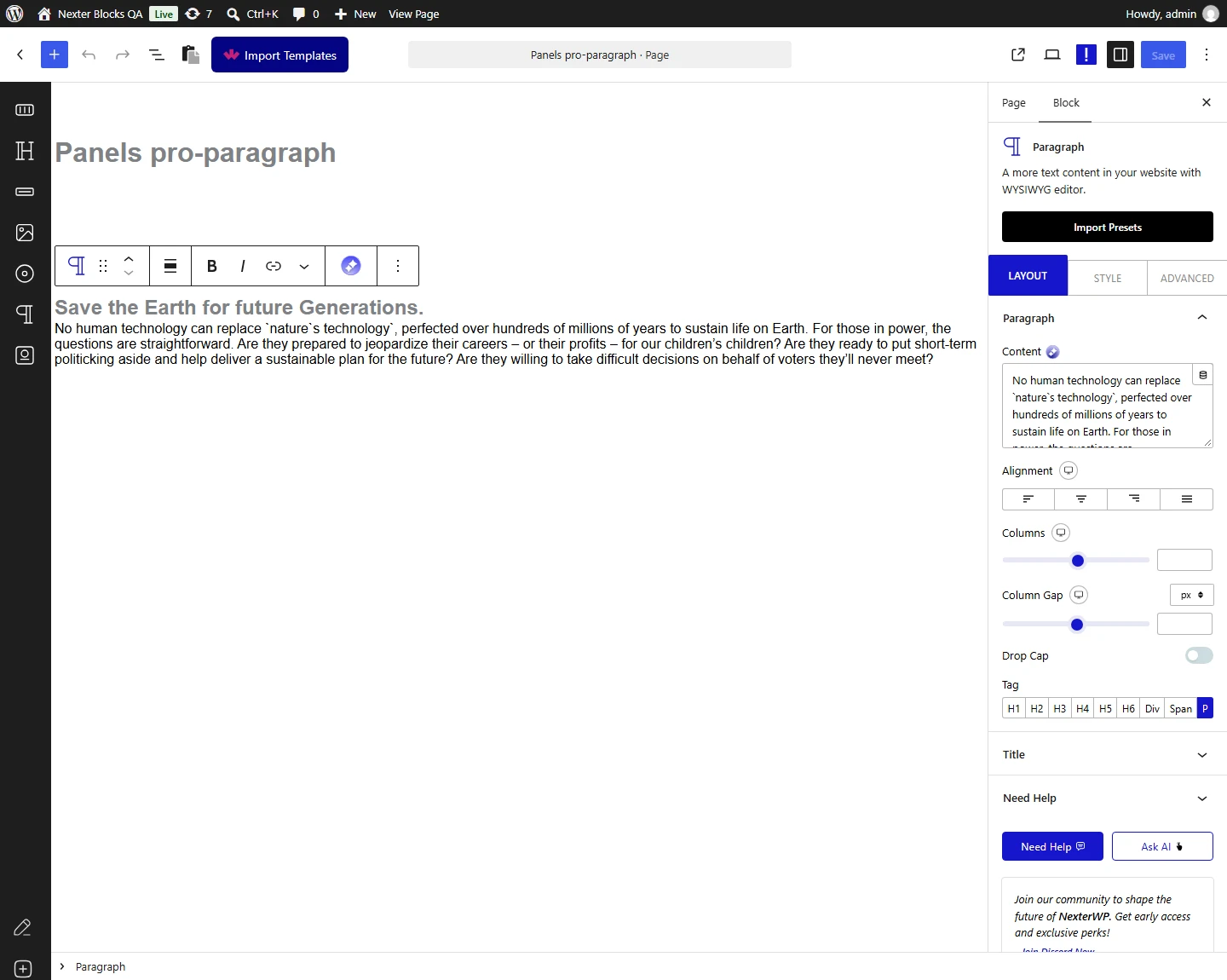
- Add the Paragraph block to your page.
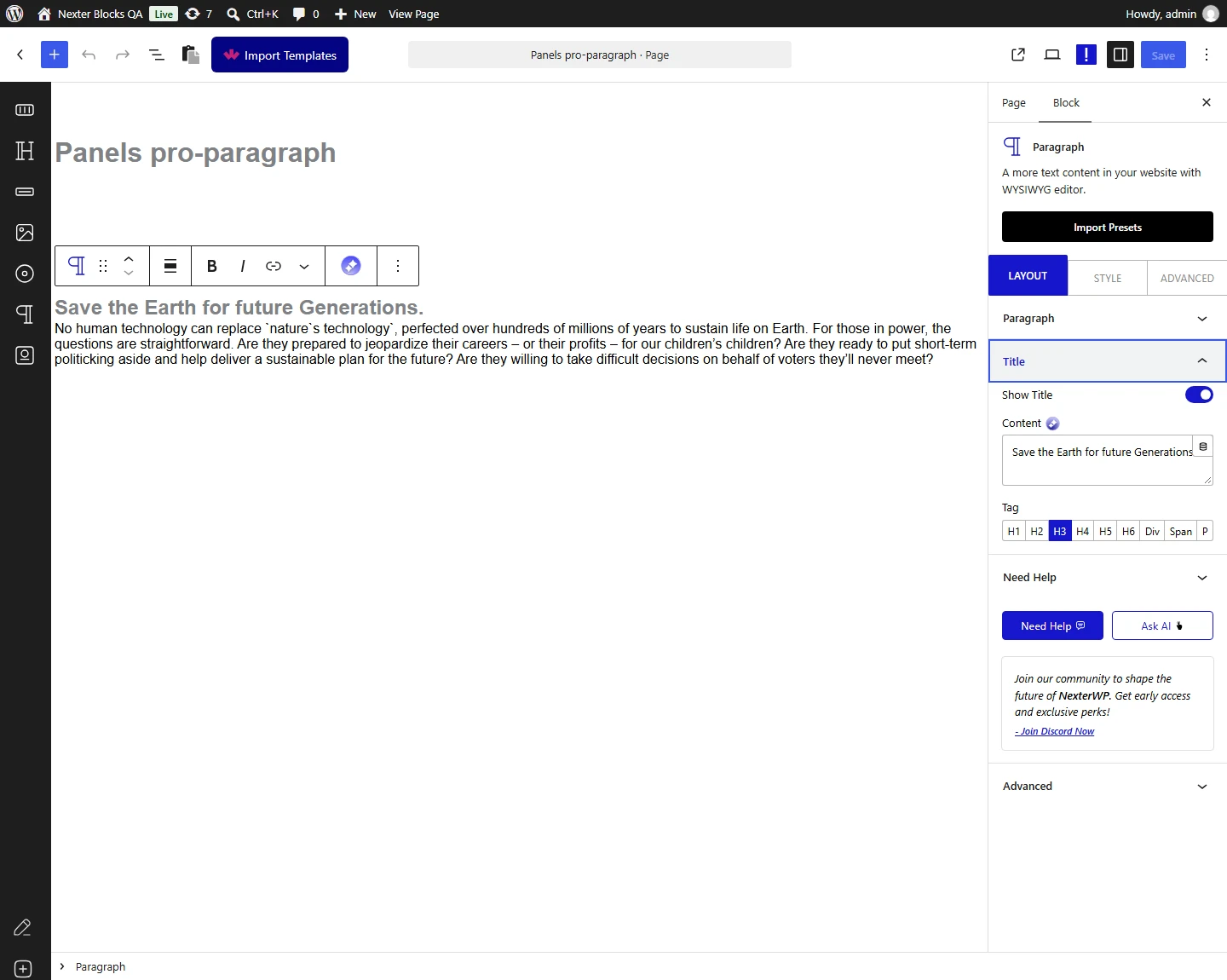
- Type the heading, or switch it off if you only want body text.

- Type the body text.
- Choose the tags for each — the heading level and the body’s element.
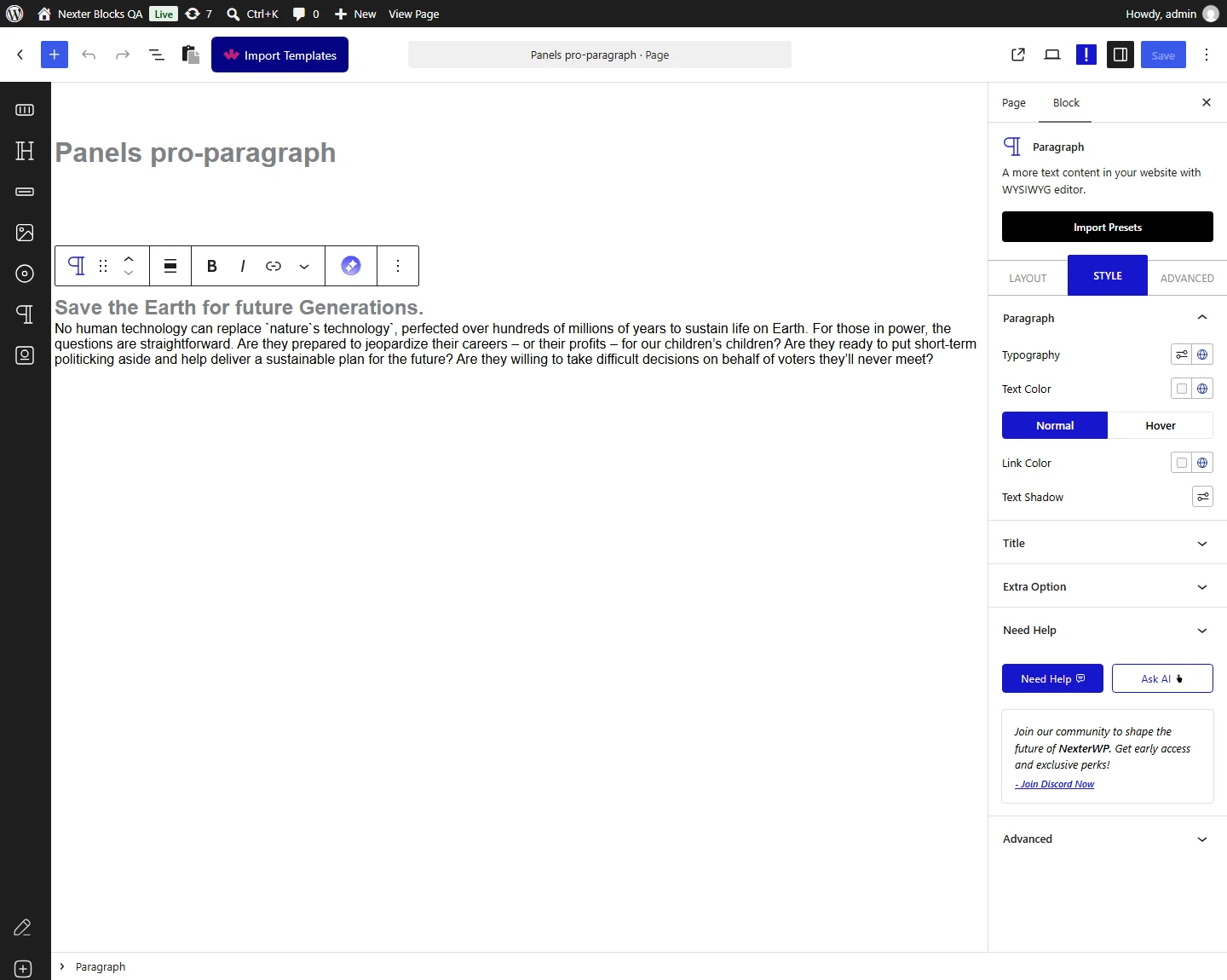
- Style the text and spacing, then publish.
How It Behaves
The block renders the heading and the body as two separate elements inside one wrapper, so they move and space as a unit while keeping their own markup.
- They are genuinely two elements. Measured on a published page:
h3.pro-heading-innerfollowed bydiv.pro-paragraph-inner. - Turning the heading off removes it entirely. Measured: the block went from 106 to 72 pixels tall and only the body element remained — it is not hidden, it is not rendered.
- The tags are yours to choose. Measured: setting the heading tag to H1 rendered
<h1>, so the block fits the page outline rather than fighting it. - One heading and one body per block — it is a pair, not a list.
- Measured with Nexter Blocks Pro deactivated: this block renders identically. It is a free block.
Limitations
- Keep one H1 per page. The block will let you set any heading level, including a second H1, which weakens the page outline.
- It is still one block. If you need the heading and text far apart, or something between them, use separate blocks.
- No sub-title or separator — for those use the Advanced Heading block.
- Styling is per block; for site-wide text styles use your theme or global styles.
Troubleshooting
My heading is not showing
The heading is switched off. Measured: with it off the heading element is not rendered at all, so there is nothing to style or reveal — switch it back on.
The heading is the wrong level
Set the heading tag on the block. Measured: choosing H1 renders an <h1>.
I want the text to be a paragraph, not a div
Set the body tag in the block’s settings — both tags are chosen separately.
The spacing between heading and text is wrong
Both sit in one block, so set the spacing once in the block’s own controls rather than adding margin to separate blocks.
