Every block on a page shows to every visitor, all the time — until you decide it shouldn’t.
Display Rules adds conditions to any Nexter block: show it only to logged-in visitors, only on certain dates, only on certain pages, and more. One rule or several, combined however you choose.
Before You Start
- Edition: Freemium — Login Status works in Nexter Blocks (free) and Nexter Blocks Pro. Every other condition (date, time, page, archive, custom fields and more) needs Nexter Blocks Pro.
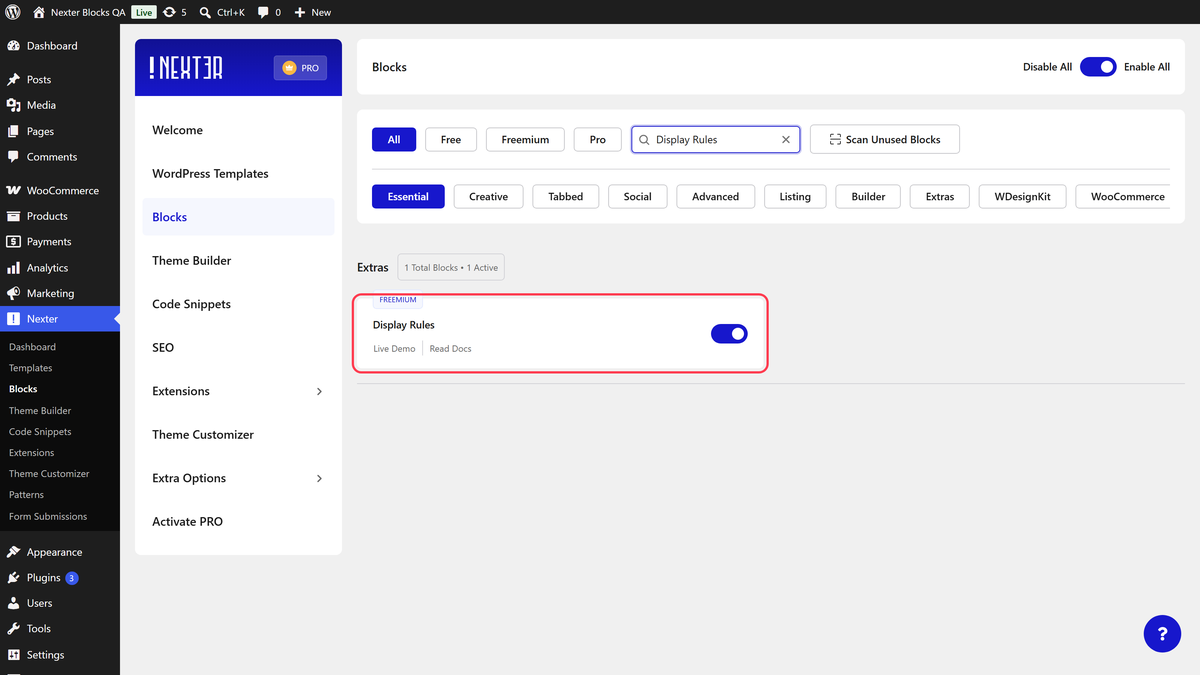
- Block to enable: Display Rules, switched on under Nexter > Blocks in your WordPress dashboard.
Steps
- Open the block you want to control, go to Advanced > Nexter : Display Rules, and switch on Display Rules.
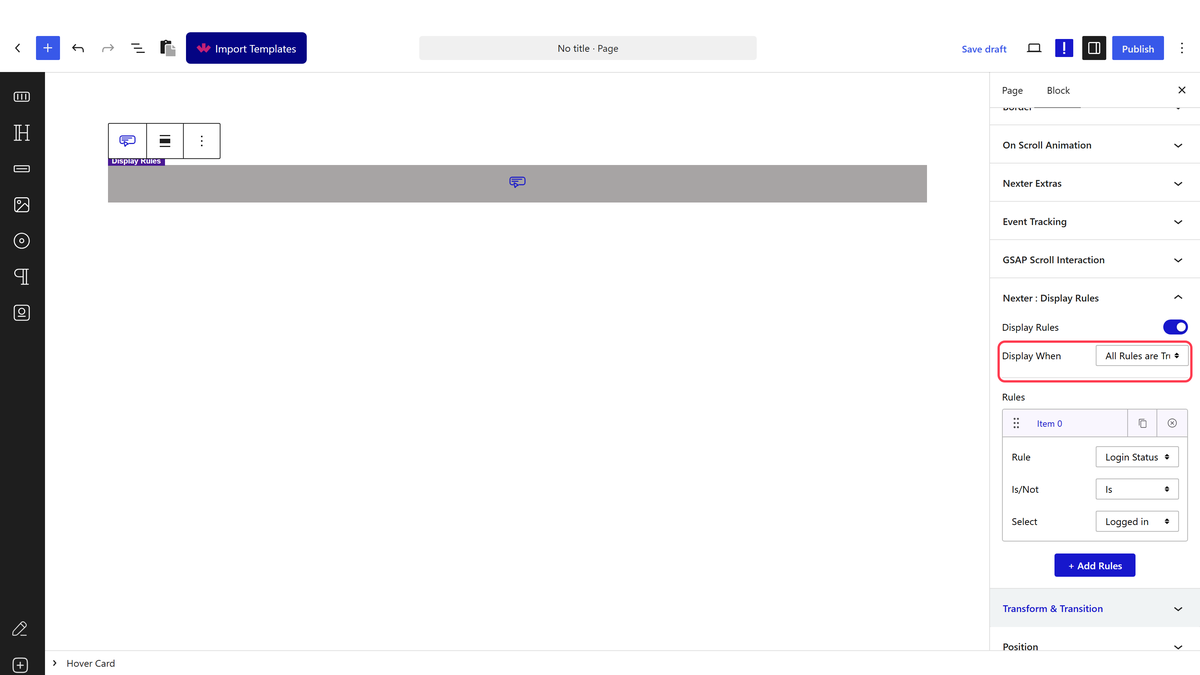
- Set Rule to the condition you want to check.
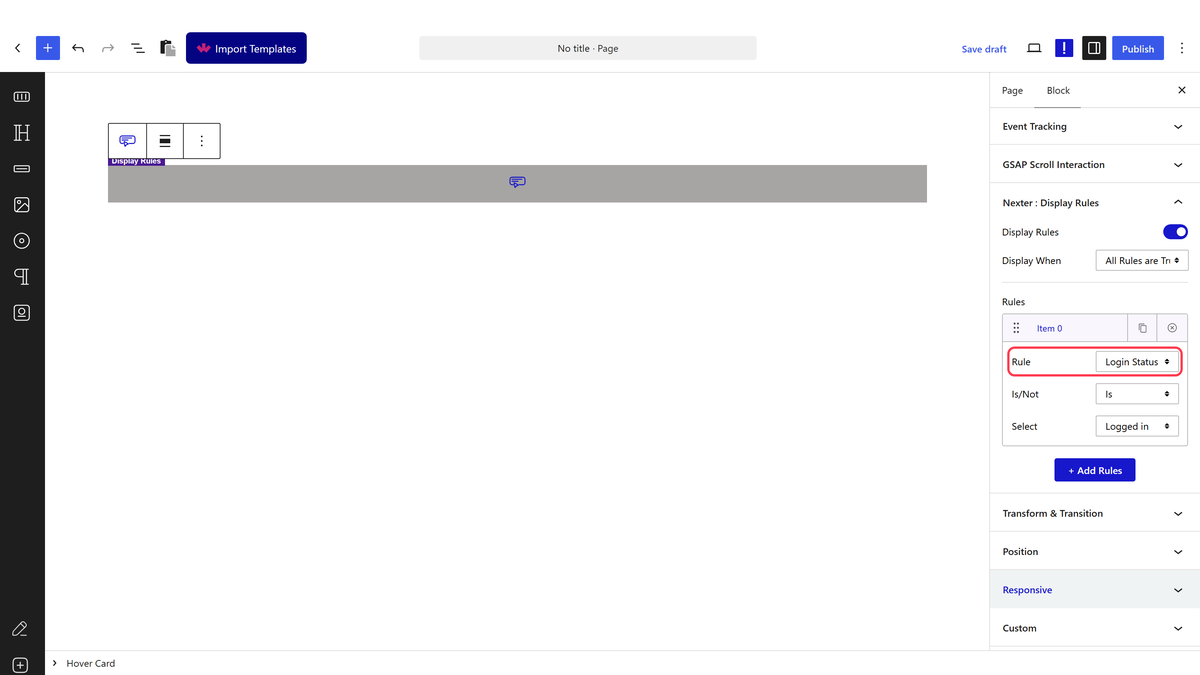
- Set Is/Not and fill in that rule’s own value.
- Add more rules with + Add Rules if you need more than one condition.
- If you have several rules, set Display When for how they combine.
A hidden block is removed from the page entirely, not just styled invisible — a failing rule replaces the block’s whole output with nothing. There is no empty gap left behind, and nothing for a visitor to find in the page’s own HTML.
What You Can Check
| Rule | Edition | Guide |
|---|---|---|
| Login Status | Free | Login status |
| Date, Time, Day of Week | Pro | Date and time |
| Page, Post, Static Page | Pro | Single page content |
| Taxonomy, Post Type, Author or Date Archive | Pro | Archive page content |
| ACF Text, Select, Button Group and more | Pro | Dynamic custom fields |
| User Role, Operating System, Browser | Pro | — |
How It Behaves
- A hidden block is removed from the page entirely, not just styled invisible — a failing rule replaces the block’s whole output with nothing. There is no empty gap left behind, and nothing for a visitor to find in the page’s own HTML.
- Display When decides how several rules combine. Measured with two rules, one true and one false: All Rules are True hid the block, Any Rule is True showed it — ordinary AND/OR logic, confirmed rather than assumed.
- Display Rules works on any Nexter block — it lives in the same Advanced tab panel regardless of which block you’re editing, so the same steps apply everywhere.
- Each rule has its own Is/Not switch, so a single rule can check for a condition or its opposite without needing a second, separate rule.
Limitations
- Login Status is the only Free condition — everything else needs Nexter Blocks Pro.
- A hidden block is removed from the markup entirely, so anything that depended on it being present (a JavaScript selector, for instance) will not find it either.
- There is no preview of a rule’s effect in the editor — check the published page to confirm a rule behaves the way you expect.
Troubleshooting
My block never shows up at all
Check Is/Not on each rule, and if you have more than one rule, check Display When — All Rules are True needs every single rule to pass.
The block shows for everyone when I only wanted one group to see it
Confirm Display Rules is actually switched on for that block, and that at least one rule is configured — with none, there is nothing to restrict.
The feature is missing from the Advanced tab
Switch Display Rules on under Nexter > Blocks.