










A long page arrives all at once. Having each section appear as the reader reaches it gives the page a sense of pace and marks where one idea ends and the next begins.
On-scroll animation plays a short entrance for a block the first time it comes into view.
Before You Start
- Edition: Pro — on-scroll animations needs Nexter Blocks Pro.
- Block to enable: any Nexter block, switched on under Nexter > Blocks in your WordPress dashboard.
- This is an Advanced tab option, so it is available on Nexter blocks generally rather than being a block of its own. Open any Nexter block and look under Advanced.
- A page long enough to scroll. The effect cannot be judged in the editor.
Steps
- Select your block and open the Advanced tab.
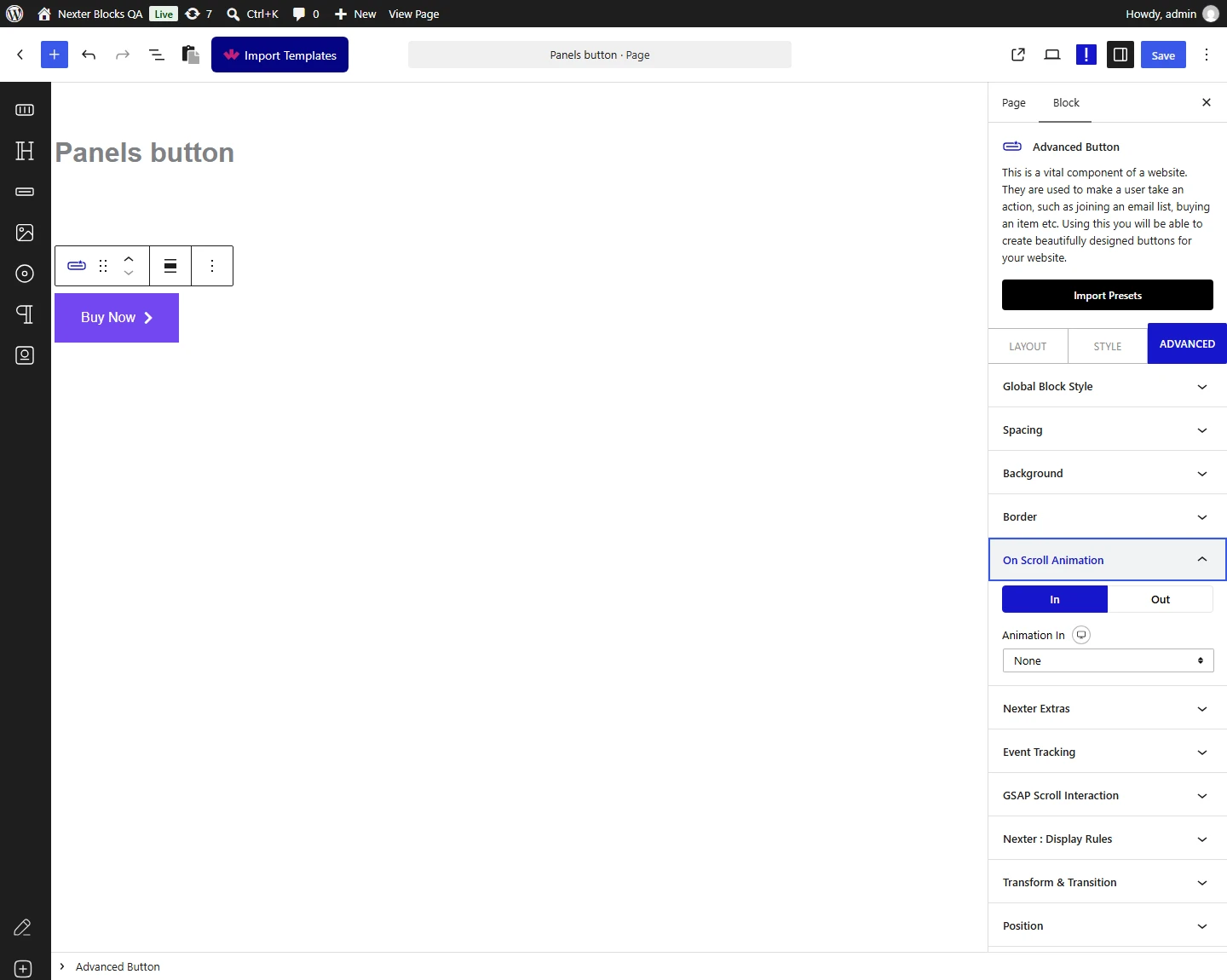
- Switch on scroll animation on.
- Choose the animation — a fade, a slide, a zoom.
- Set the duration and any delay.
- Publish and scroll the real page.
How It Behaves
The choice is written onto the block, and the plugin’s script plays it when the block enters the viewport.
- Measured on a published page: the block’s wrapper gained
tpgb-view-animationtogether with adata-animationsettingattribute carrying the settings chosen. - It runs on entering the viewport, not on page load, so a block far down the page waits until the reader gets there.
- Delay stacks up. Staggering several blocks looks good; a long delay on a block the reader has already reached just looks broken.
- It is a Pro feature but does not need a Pro block — it is an Advanced tab option, so it applies to free Nexter blocks too, as long as Pro is active.
- Measured with Nexter Blocks Pro deactivated: the effect disappears entirely and the block renders as though the option had never been set.
Limitations
- Pro only — measured with Nexter Blocks Pro deactivated, neither the class nor the data attribute is rendered and blocks simply appear.
- Animating everything defeats it. When every block slides in, none of them stands out and the page feels slow to use.
- Content animated in is not visible immediately, which matters for anything a visitor may be scrolling quickly to find.
- Movement is a genuine accessibility issue. Some people get motion sickness from entrance animations; keep them short and subtle.
- Avoid it above the fold. Animating the first thing on the page delays the one thing every visitor sees.
Troubleshooting
Nothing animates
Check Nexter Blocks Pro is active — measured, no animation attributes are rendered without it. Then check you are on the published page rather than the editor.
It only plays once
That is the intended behaviour: the entrance plays when the block first comes into view.
The block is invisible
It is waiting to animate but the trigger has not fired — usually a JavaScript error from another plugin on the page. Check the browser console.
It feels sluggish
Too many animated blocks, or durations that are too long. Shorten both.
It plays before I reach the block
Short blocks near the top of a tall screen can already be in view when the page loads. Move the animation to a block further down.
