










Related posts are just as useful at the end of a case study or a portfolio entry as they are at the end of a blog post, and usually more so.
The same related listing works for any post type, as long as the type has a taxonomy to match on.
Before You Start
- Edition: Pro — related listings needs Nexter Blocks Pro.
- Block to enable: Post Listing, switched on under Nexter > Blocks in your WordPress dashboard.
- A custom post type with a taxonomy, and terms actually assigned to its entries.
- A single template for that post type.
Preview
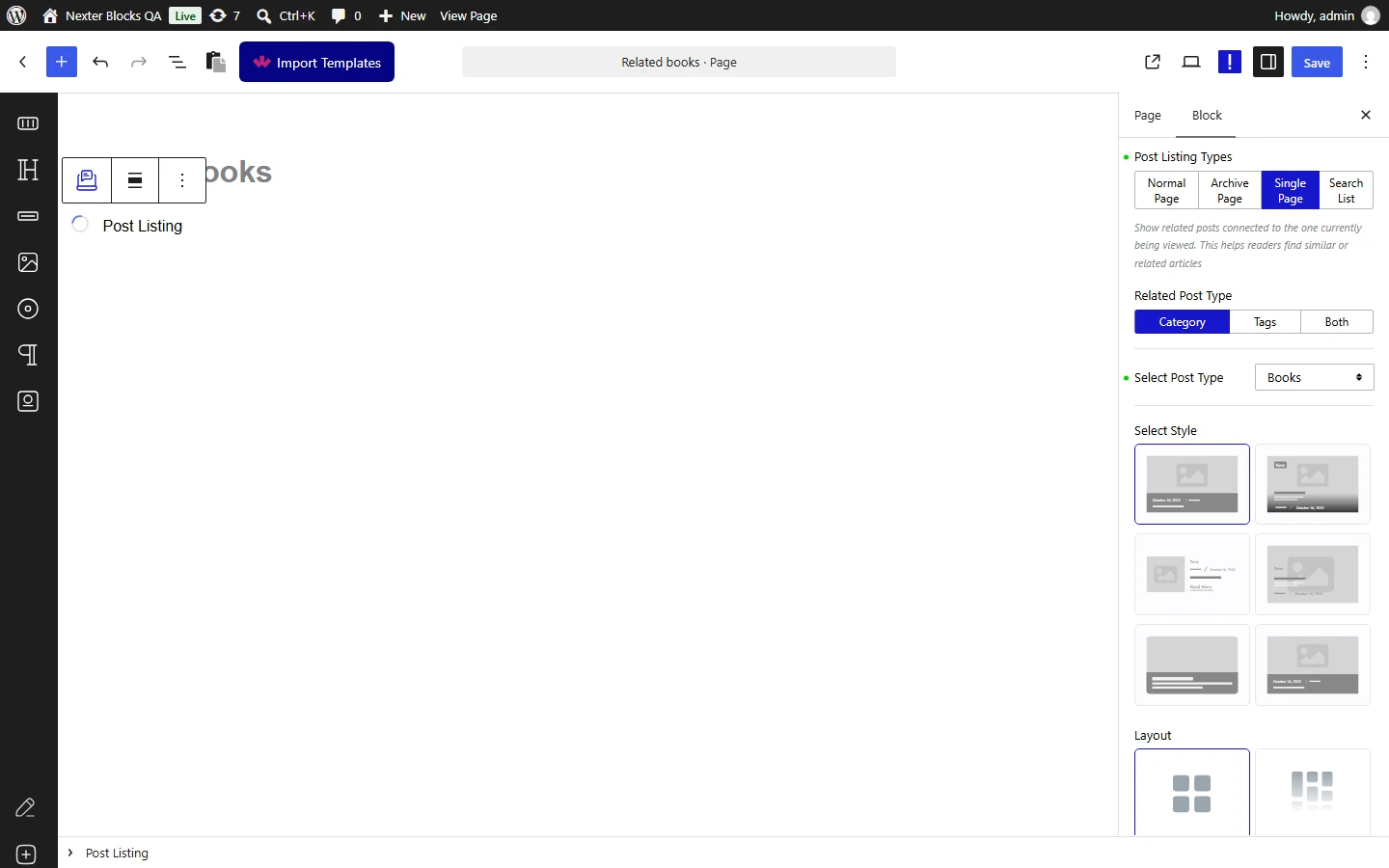
Steps
- Edit the single template for your post type.
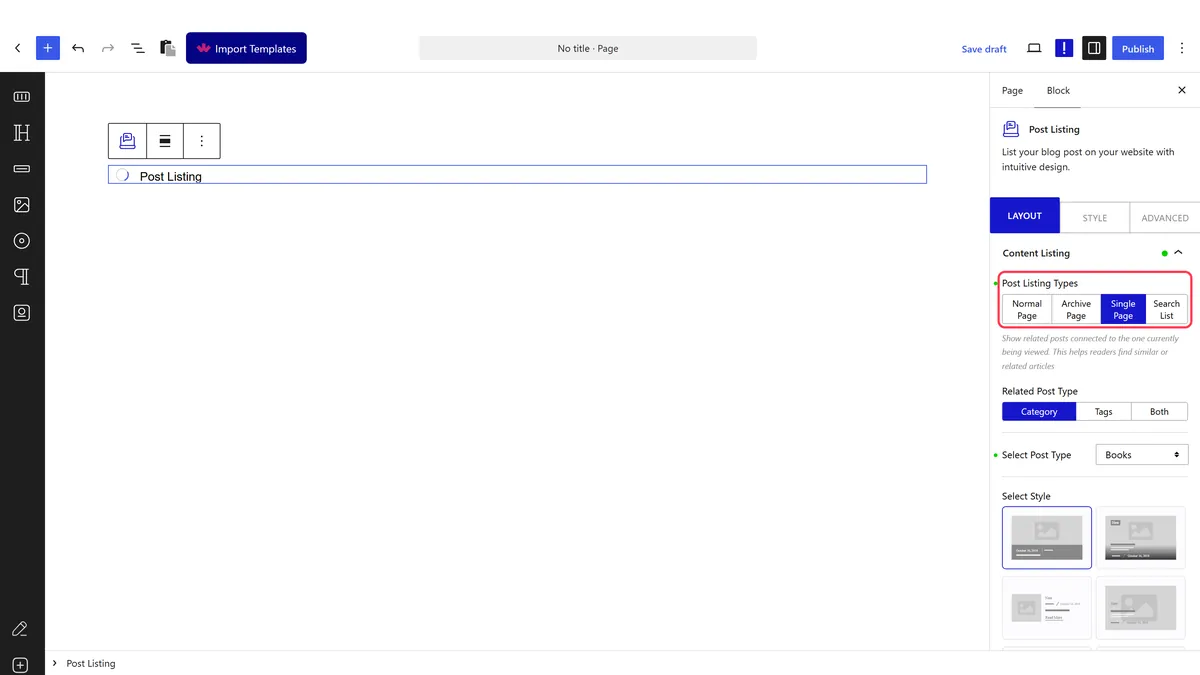
- Add a Post Listing block below the content.
- Set the post type to your custom type.
- Set the listing type to related and choose the matching.
- Save and open a real entry to check the matches.
How It Behaves
Related matching reads the current entry’s terms, whatever post type it belongs to.
- The post type and the matching are separate settings. The post type decides what can appear, the related mode decides which of those actually do.
- Matching needs a taxonomy. A custom post type registered without one has nothing to match on, and the listing will come back empty.
- The current entry is excluded, as with any related listing.
- It only works inside a single template for that post type — see the related posts guide for the same idea on blog posts.
- Measured with Nexter Blocks Pro deactivated: this stops working. The block still renders a plain list of posts, so there is no error to see — just the feature quietly missing.
Limitations
- Pro only — measured with Nexter Blocks Pro deactivated, the listing does not follow the current entry.
- No taxonomy means no matches. Many custom post types are registered without one, which is the usual reason this comes back empty.
- Default cards are blog-shaped, so a portfolio entry may need a custom loop skin to look right.
- There is no relevance ranking, so matches come back in the usual order rather than best first.
- Sparse post types produce thin results, because there is little to match against.
Troubleshooting
Nothing related shows
Either the post type has no taxonomy, or no terms are assigned to its entries. Check both before anything else.
It shows blog posts instead of my entries
The post type setting is still on posts. Change it to your custom type.
The cards look wrong for my content
Default cards show the standard post parts. Build a custom loop skin — see custom loop skin for custom post types.
It is empty in the editor
Expected. There is no current entry in the editor. Open a real one.
