










Custom post types are where the interesting content usually lives, and their archive pages are usually whatever the theme happens to produce.
The Post Listing block can query any public post type, so a case study or portfolio archive can be built the same way as a blog one.
Before You Start
- Edition: Pro — archive listings needs Nexter Blocks Pro.
- Block to enable: Post Listing, switched on under Nexter > Blocks in your WordPress dashboard.
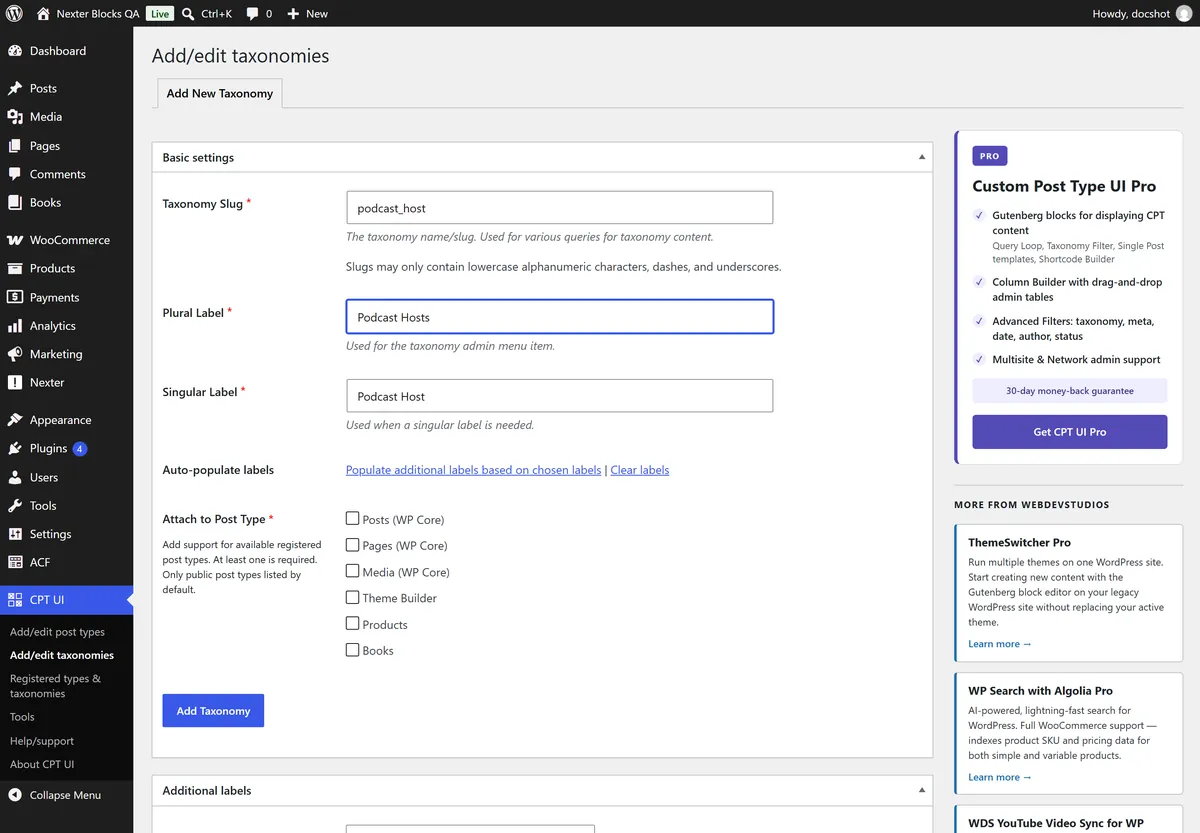
- A registered custom post type with published entries.
- A template for that post type’s archive.
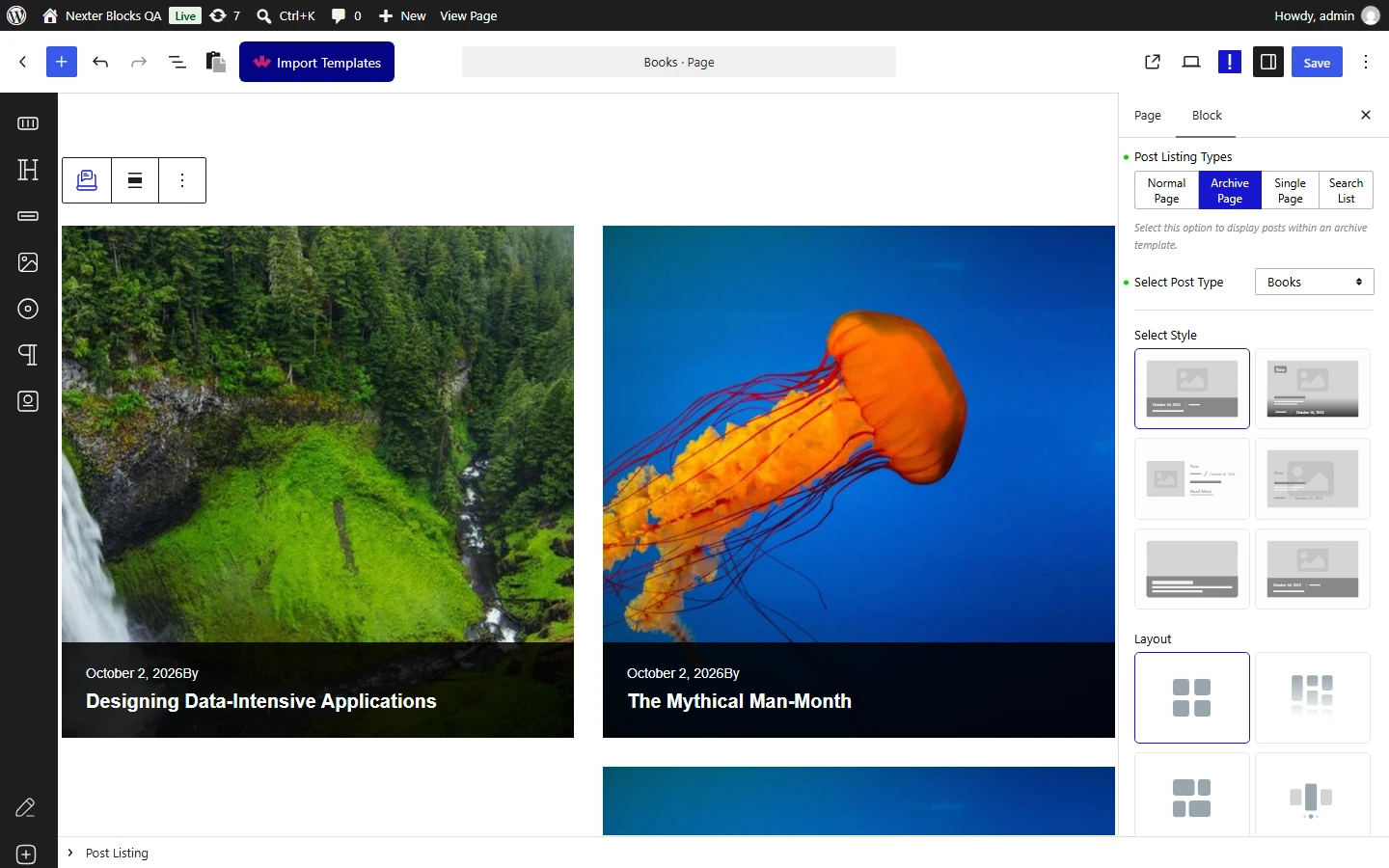
Preview
Steps
- Create or edit the archive template for your post type.
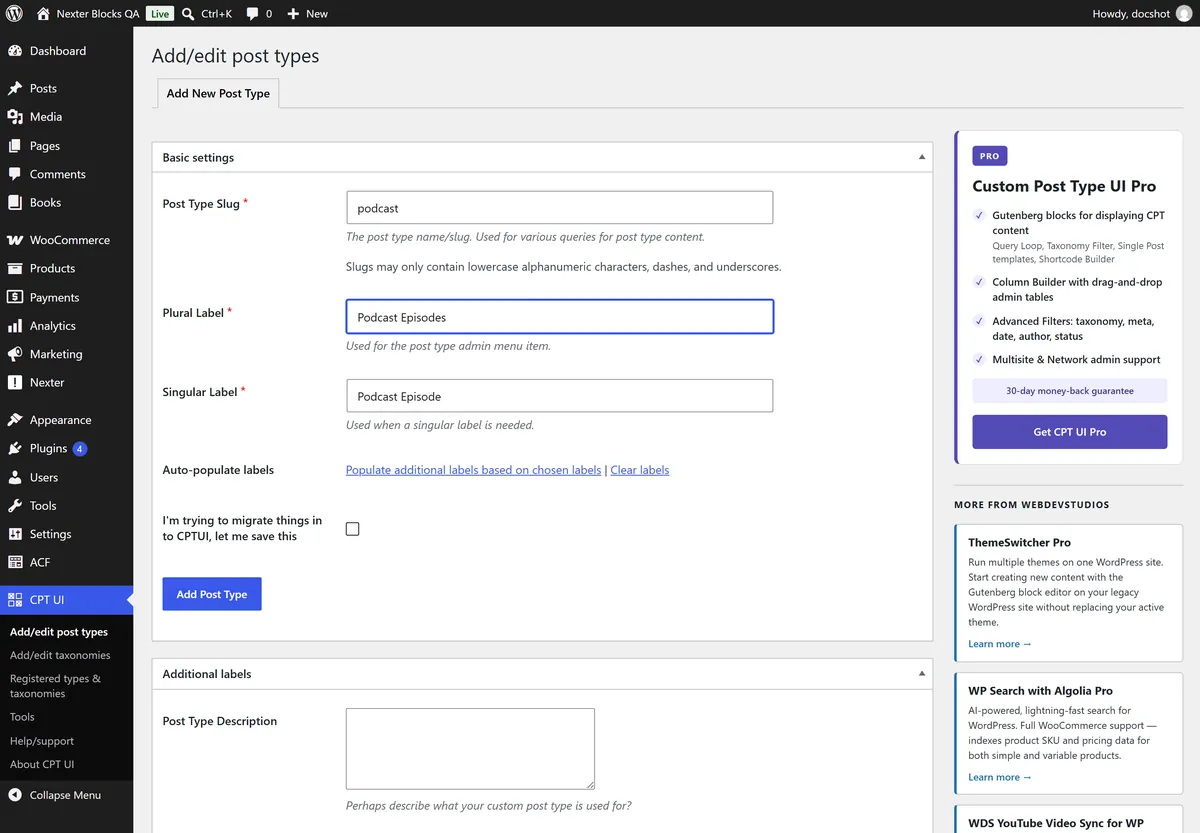
- Add a Post Listing block to it.
- Set the post type to your custom type.
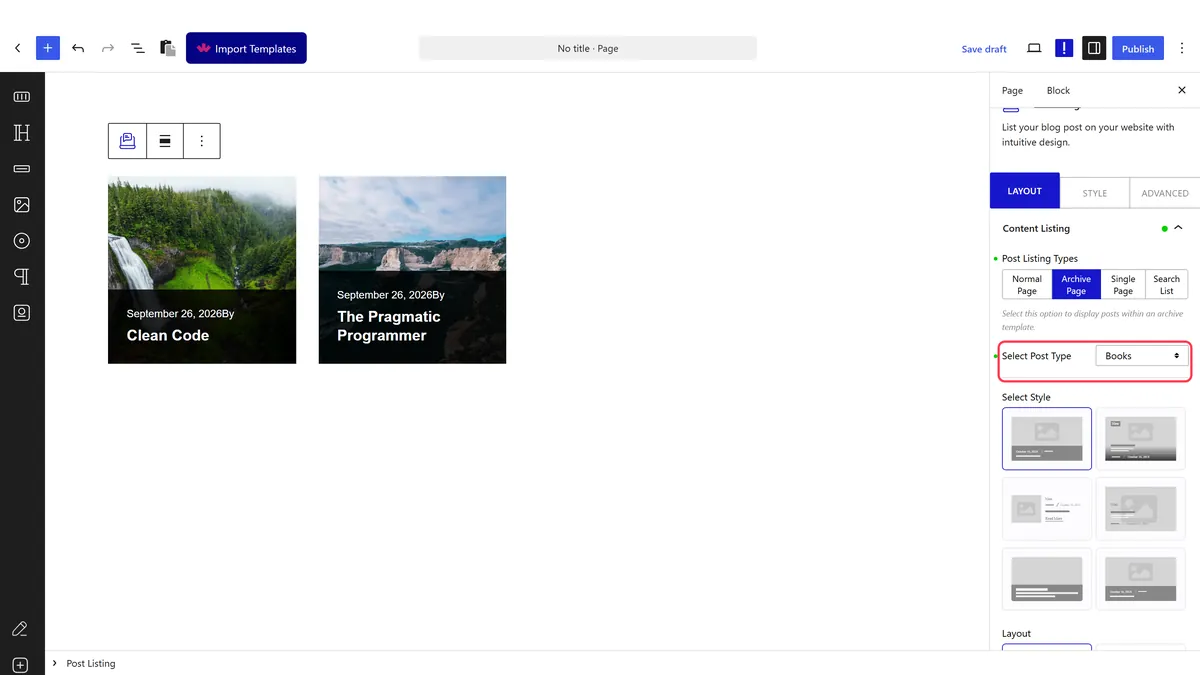
- Set the listing type to archive so it follows the page.
- Set the layout and what each card shows, then save.

How It Behaves
The post type is a query setting, so the block works with any public type the same way.
- Measured on a published page: setting the post type to
pagemade the listing render pages instead of posts, and the total page count indata-dypostchanged to match that larger set. - Any public post type works, so the same block covers posts, pages, products or your own types.
- Archive mode follows the page rather than running a fixed query, which is what lets one template serve the whole archive — see the category archive guide.
- Custom fields are not shown by default. A card shows title, image, date, author and excerpt; anything specific to your post type needs a custom loop skin — see custom loop skin for custom post types.
- Measured with Nexter Blocks Pro deactivated: this stops working. The block still renders a plain list of posts, so there is no error to see — just the feature quietly missing.
Limitations
- Pro only — measured with Nexter Blocks Pro deactivated, the listing does not follow the archive.
- The post type must be public and have archives enabled when it is registered, or there is no archive URL to build on.
- Default cards are blog-shaped. A property or product type usually needs its own loop skin to show the fields that matter.
- Taxonomy archives for custom types need their own templates, separate from the post type archive.
- The editor cannot preview it properly, since there is no archive query there.
Troubleshooting
My post type is not in the list
It is probably registered as not public, or without archive support. That is set where the post type is registered, not in this block.
The archive URL is a 404
The post type was registered without archives enabled. Enable them, then flush permalinks by re-saving your permalink settings.
The cards do not show my custom fields
Default cards show the standard post parts only. Build a custom loop skin — see custom loop skin for custom post types.
Every archive page shows the same entries
The listing is running its own query. Set the listing type to archive so it follows the page.
