










When a sale ends you usually want more than a sentence — a new offer, a button, an image.
The Pattern action replaces the finished timer with a saved pattern, so the ended state can be a whole section.
For every Countdown setting in one place, see the Countdown block guide.
Before You Start
- Edition: Free — works in Nexter Blocks (free) and with Nexter Blocks Pro.
- Block to enable: Countdown, switched on under Nexter > Blocks in your WordPress dashboard.
- Your end date and time decided. The block reads it in your site’s timezone, set under Settings > General, not the visitor’s.
Steps
- Add the Countdown block to your page and click Design from Scratch.
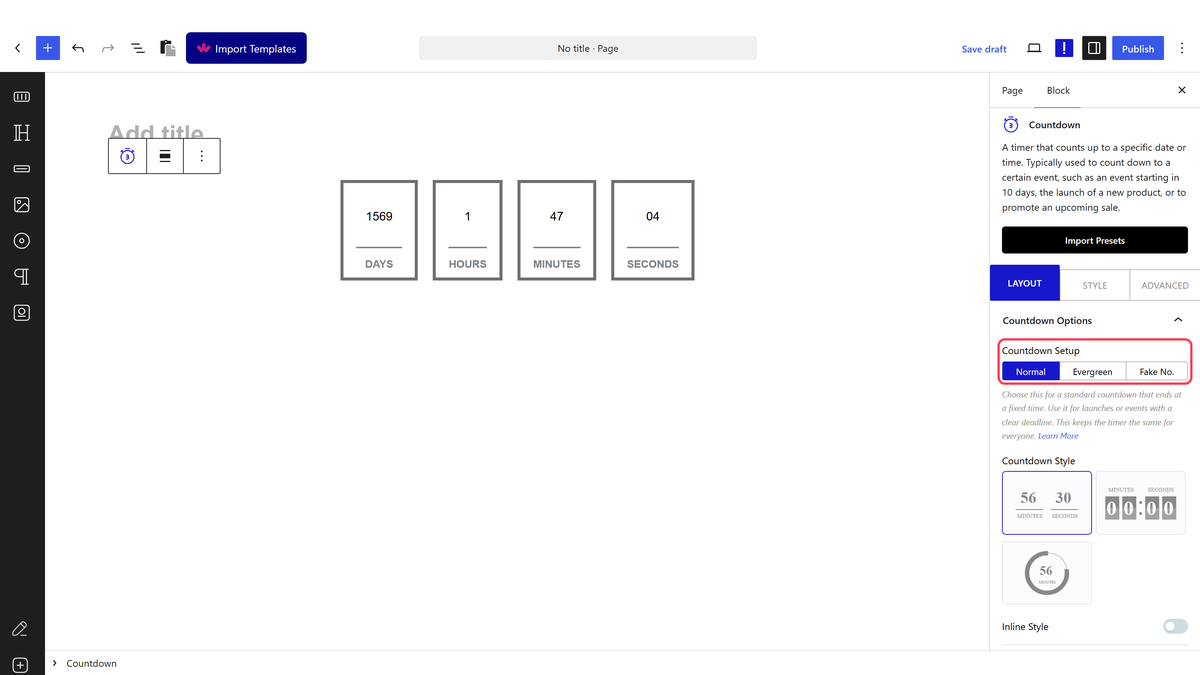
- In Countdown Options, leave Countdown Setup on Normal and set the end date and time.
- Build the content you want to show afterwards and save it as a pattern.
- In Action After Countdown Ending, set Countdown Expiry to Pattern.
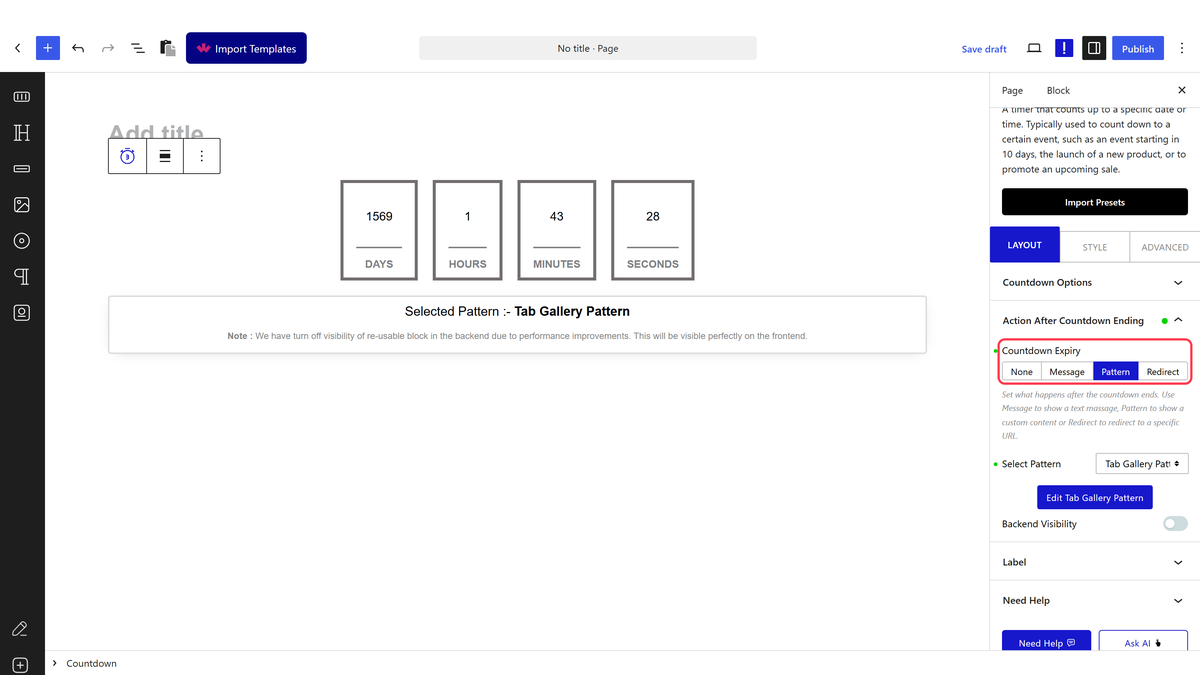
- Choose your saved pattern, then publish the page.
| Countdown Expiry | What happens when the timer reaches zero |
|---|---|
| None | The timer simply stops at zero |
| Message | The timer is replaced by a line of text you write |
| Pattern | The timer is replaced by a saved pattern |
| Redirect | The visitor is sent to a URL you choose |
How It Behaves
- Once the countdown has ended the block renders the pattern in place of the timer — verified with a pattern containing an image and a paragraph, both of which appeared.
- This is the one ending action that also works for visitors who arrive after the countdown has already finished, because the swap happens when the page is built.
- The pattern can hold anything — images, buttons, columns.
- Editing the pattern updates every countdown that uses it.
Limitations
- The content has to exist as a saved pattern first; you cannot type it into the block.
- One pattern per countdown, so different timers needing different endings each need their own.
- A large pattern is still loaded as part of the page once the countdown has ended.
- Editing the pattern changes it everywhere it is used.
Troubleshooting
The area is empty after the countdown ends
Check a pattern is actually selected — setting the action without choosing one leaves nothing to show.
I want just a line of text
Use the Message action instead, remembering it only runs at the moment the timer reaches zero.
