A deadline that is only written in a sentence is easy to ignore; one that is ticking is not.
The Countdown block puts a live timer on the page and decides what happens the moment it reaches zero.
Before You Start
- Edition: Free — works in Nexter Blocks (free) and with Nexter Blocks Pro.
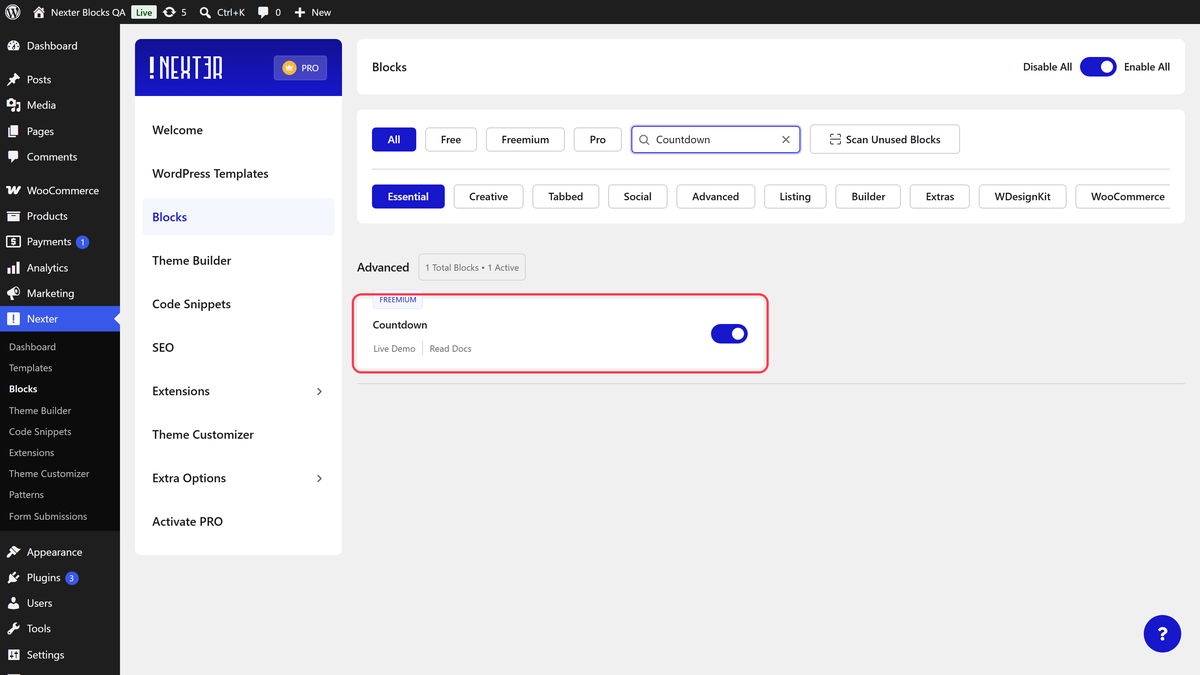
- Block to enable: Countdown, switched on under Nexter > Blocks in your WordPress dashboard.
- Your end date and time decided. The block reads it in your site’s timezone, set under Settings > General, not the visitor’s.
Learn via Video Tutorial
Steps
- Add the Countdown block to your page and click Design from Scratch.
- In Countdown Options, leave Countdown Setup on Normal and set the end date and time.
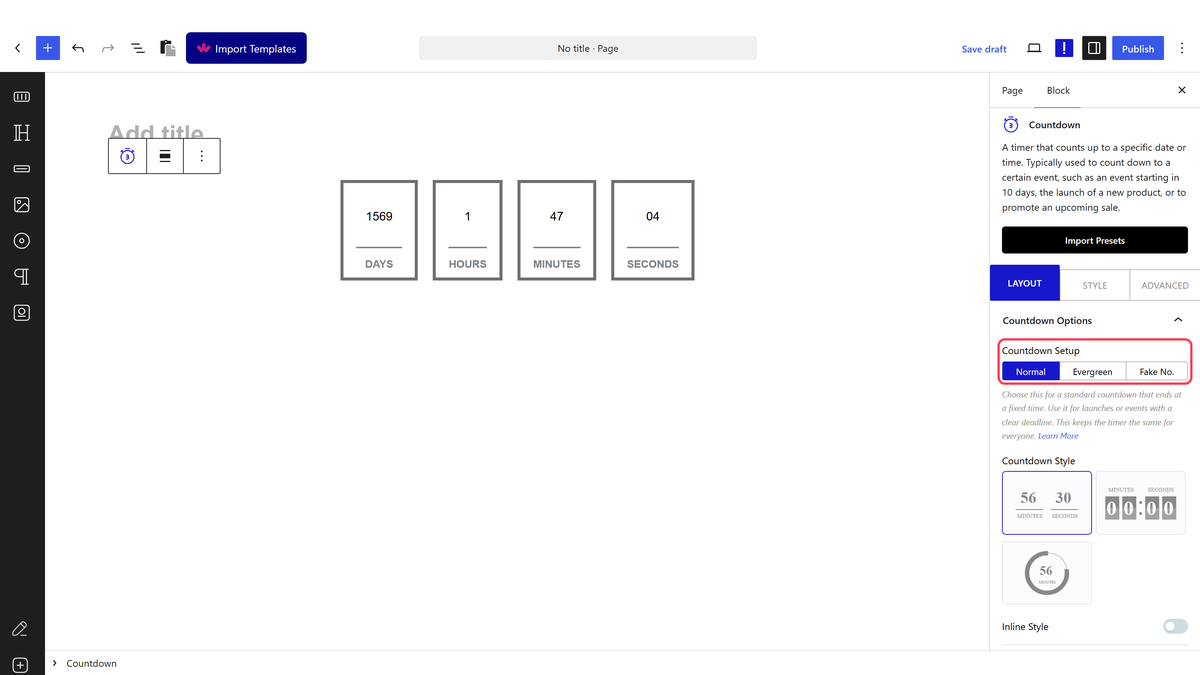
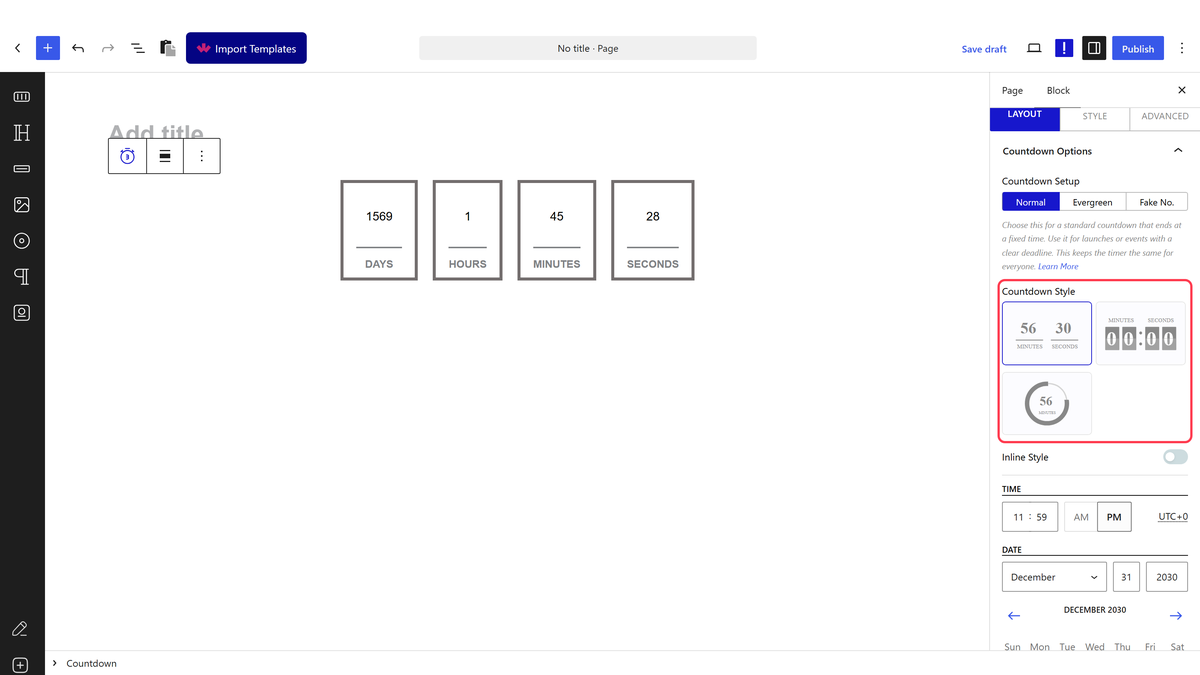
- Pick a Countdown Style: Simple, Flipdown or Progressbar.
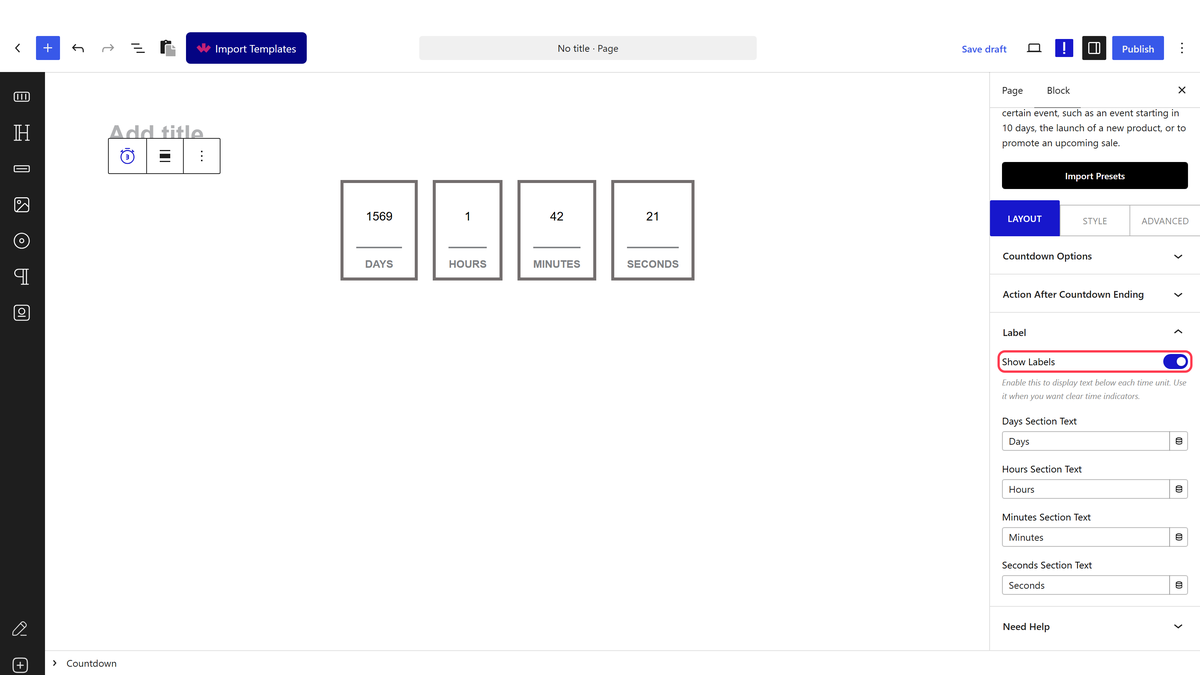
- In the Label panel, switch Show Labels on or off and rename the units if you want.
- In Action After Countdown Ending, choose what happens at zero.
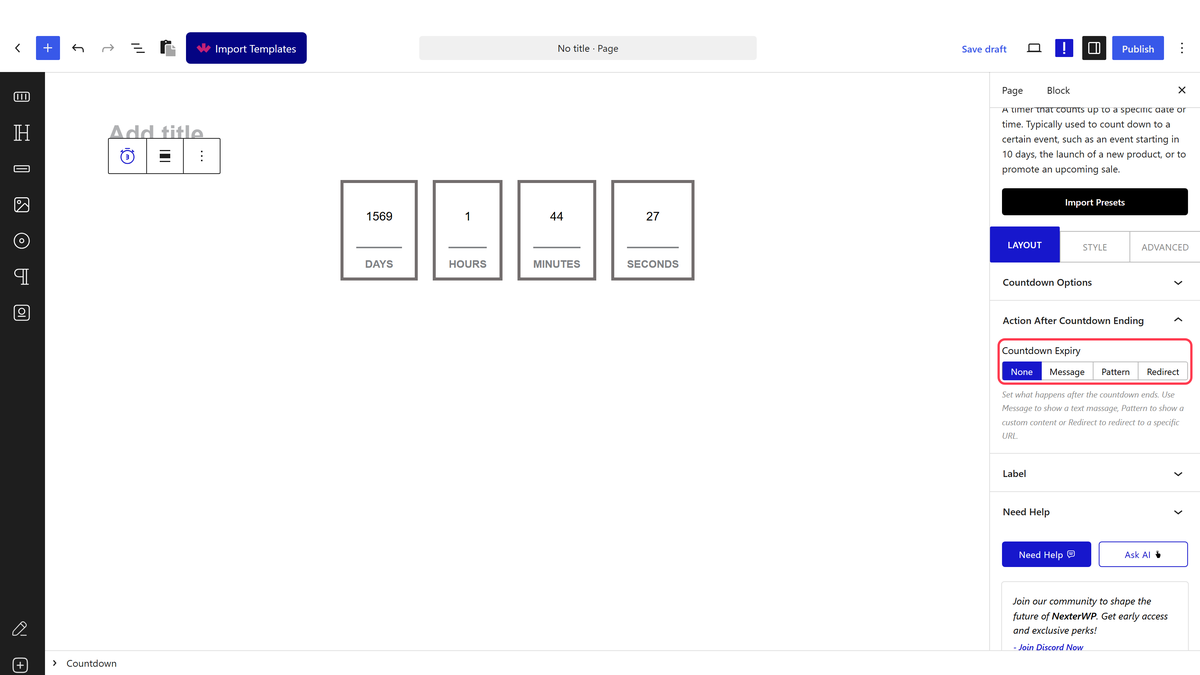
- Publish the page.
The Three Setups
| Countdown Setup | What it counts | Guide |
|---|---|---|
| Normal | Down to one fixed date and time, the same for everyone | — |
| Evergreen | A per-visitor countdown that starts when they arrive | Evergreen timer |
| Fake No. | A scarcity counter showing a number rather than a clock | Scarcity counter |
What Happens at Zero
| Countdown Expiry | What happens when the timer reaches zero |
|---|---|
| None | The timer simply stops at zero |
| Message | The timer is replaced by a line of text you write |
| Pattern | The timer is replaced by a saved pattern |
| Redirect | The visitor is sent to a URL you choose |
The Message and Redirect actions run at the moment the countdown reaches zero, while someone is on the page. A visitor who arrives after it has already finished does not see them — use Pattern if the ended state has to last.
How It Behaves
- The end date is read in your site’s timezone, not the visitor’s, so everyone sees the same deadline reached at the same moment.
- Labels are optional. With Show Labels off only the numbers render; with it on you can rename the units to anything, including another language.
- Inline Style puts the units on one line instead of stacking them into blocks.
- The timer counts in the visitor’s browser, so it keeps ticking without reloading the page.
Limitations
- The timer relies on the visitor’s device clock, so a badly set clock shows the wrong remaining time.
- Message and Redirect only run if the countdown reaches zero while someone is on the page — see the note above.
- A countdown that has already finished shows zeros unless you set one of the ending actions.
- Evergreen timers are remembered per browser, so the same person on two devices gets two timers.
Troubleshooting
The timer shows the wrong remaining time
Check your site timezone under Settings > General. The end date is read in that timezone, so a mismatch shifts the whole countdown.
It just shows zeros
The end date is in the past. Set a future date, or choose an ending action so the block has something to show.
The block is missing from the inserter
Switch Countdown on under Nexter > Blocks in your dashboard.