










Posting form submissions to Discord keeps your community or team in the loop without checking email.
The Form block in Nexter Blocks Pro sends each submission to a Discord channel through a webhook.
For every Form setting in one place, see the Form block guide.
Before You Start
- Edition: Pro — The Discord action needs Nexter Blocks Pro.
- Block to enable: Form, switched on under Nexter > Blocks in your WordPress dashboard.
- A Discord webhook URL: create one in the channel’s settings under Integrations > Webhooks. See Discord’s intro to webhooks.
Learn via Video Tutorial
Steps
- Add the Form block to your page, click Design from Scratch and choose Simple Contact Form or Newsletter Form.
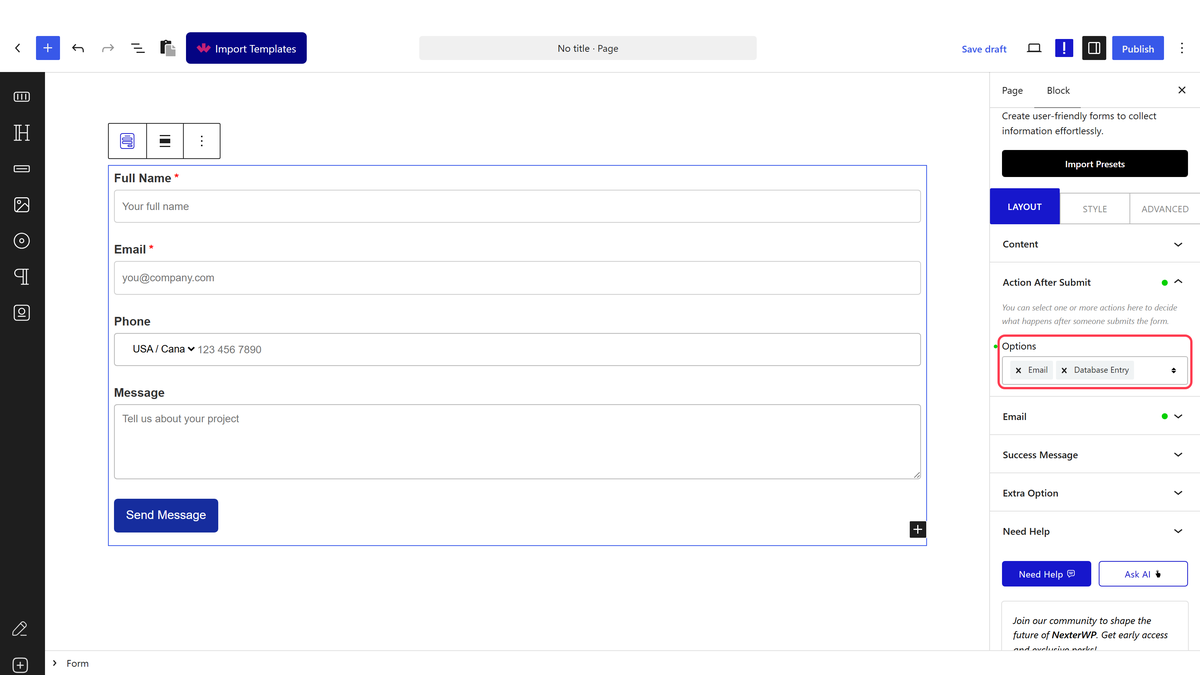
- Select the Form block (not a field inside it). In Action After Submit, open Options and choose Discord. You can keep Email selected as well.
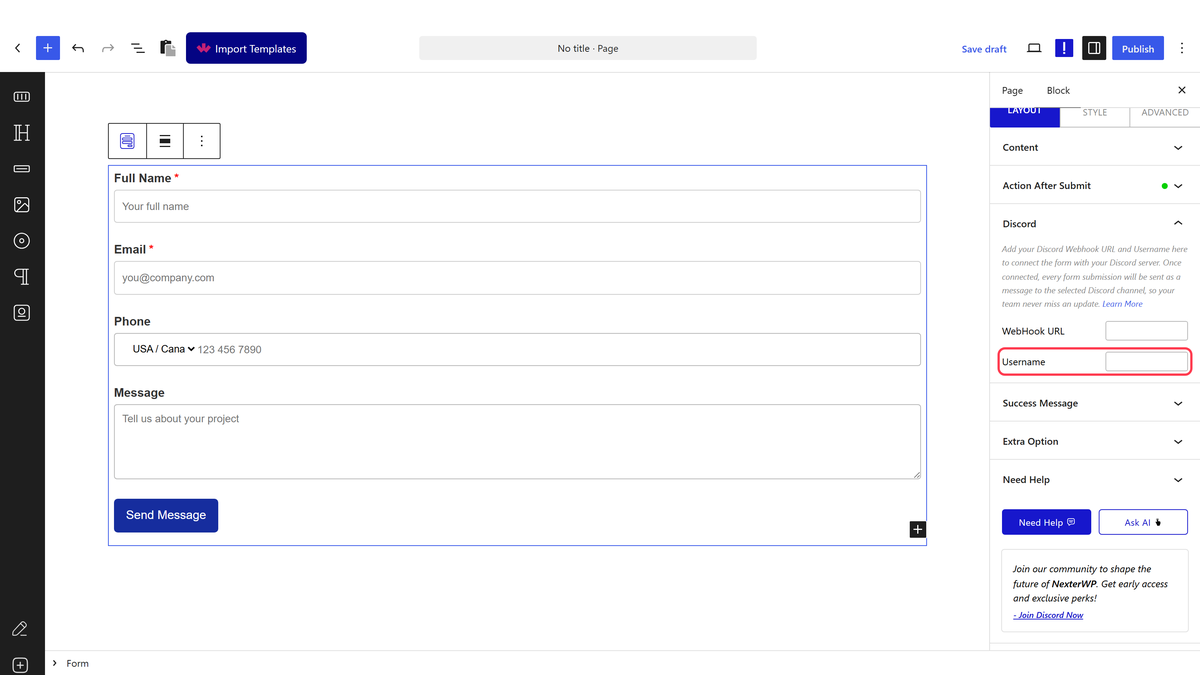
- Open the Discord panel that appears and paste the URL into WebHook URL and type a sender name in Username.
- Save the page, then submit the form once on the front end to test the connection.
How It Behaves
- Each submission posts a message starting Form Submission: to the webhook’s channel, shown under your Username.
- The message lists Name, Email, Phone, Message, Radio Group and Checkbox Values.
Limitations
- Pro only.
- Other field types are not included in the Discord message. Add Email or Database Entry as well to keep every field.
Troubleshooting
The visitor sees an error and nothing is posted
The webhook URL was deleted or copied incompletely. Create a new webhook and paste the full URL.
