







If you have certain information inside a particular tab and you want to send visitors directly to that tab from any page of your website or even from other websites, you can do that with the Nexter Blocks Tabs Tours block.
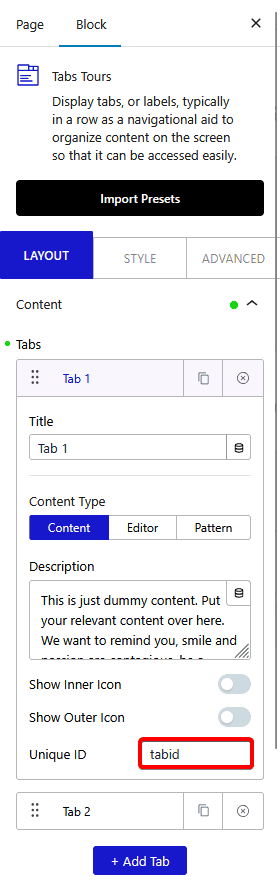
In the Tabs block, you can assign a unique ID to each tab item that you can use to create anchor links.
Best Used For:
- Documentation pages where you want to link readers directly to a specific topic tab
- Landing pages with tabbed pricing or feature sections where external links target a specific tab
- Internal navigation linking visitors from one part of a page to a tab section below
To check the complete feature overview documentation of the Nexter Blocks Tabs Tours block, click here.
Requirement – This block is part of Nexter Blocks. Make sure it is installed and activated.
Add the Tabs Tours block to the page. In the block settings, select the tab you want to link to and enter a value in the Unique ID field. Use a unique value that is not used anywhere else on the page.
Add a Button block and click the link icon. In the URL field, enter the ID value with a # prefix.
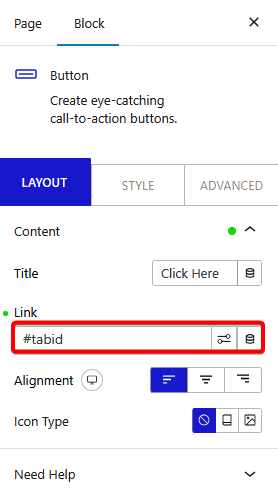
Note: If the Tab is on a different page then you have to add the page URL before the #, like this /about/#tabs.
When someone clicks the button, they go directly to the linked tab.
Also, check How to open specific Tab by default in WordPress.
