A page that holds three versions of the same story makes the visitor scroll past two of them.
The Tabs Tours block splits that content into labelled tabs so people open only the part they came for.
Before You Start
- Edition: Free — works in Nexter Blocks (free) and with Nexter Blocks Pro.
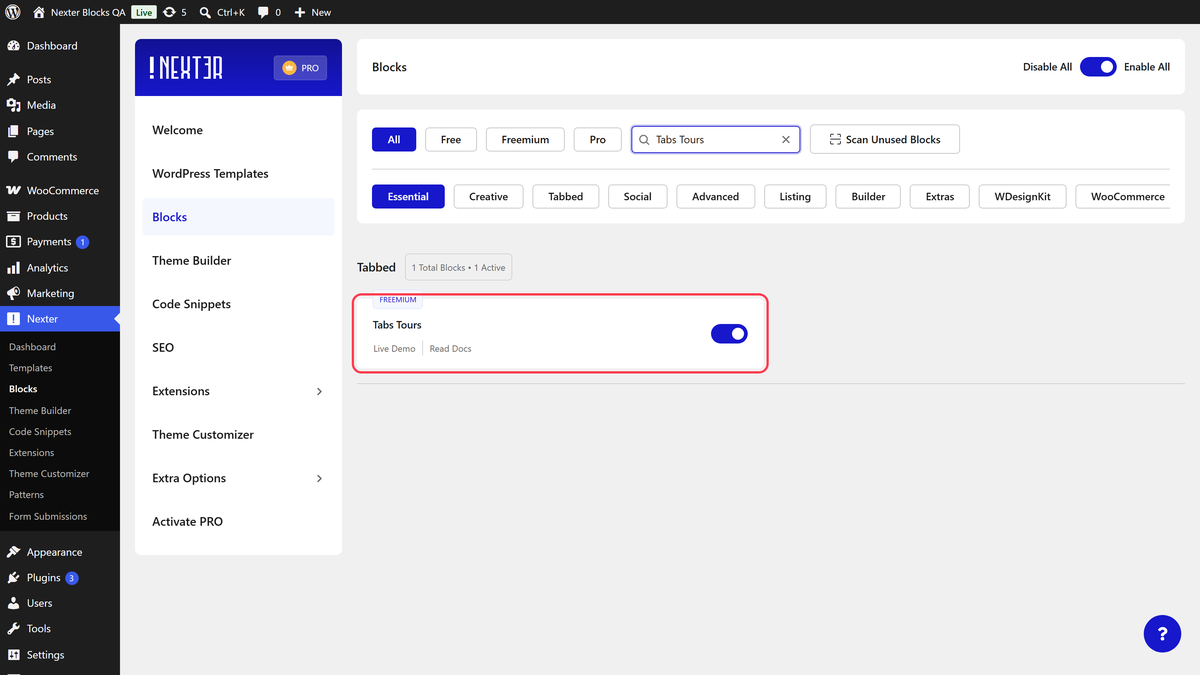
- Block to enable: Tabs Tours, switched on under Nexter > Blocks in your WordPress dashboard.
- Your sections planned: one tab per section, and the block takes up to 10 tabs.
Learn via Video Tutorial
Steps
- Add the Tabs Tours block to your page and click Design from Scratch.
- Open the Content panel. Each item in Tabs is one tab — set its Title, and click Add Tab for more.
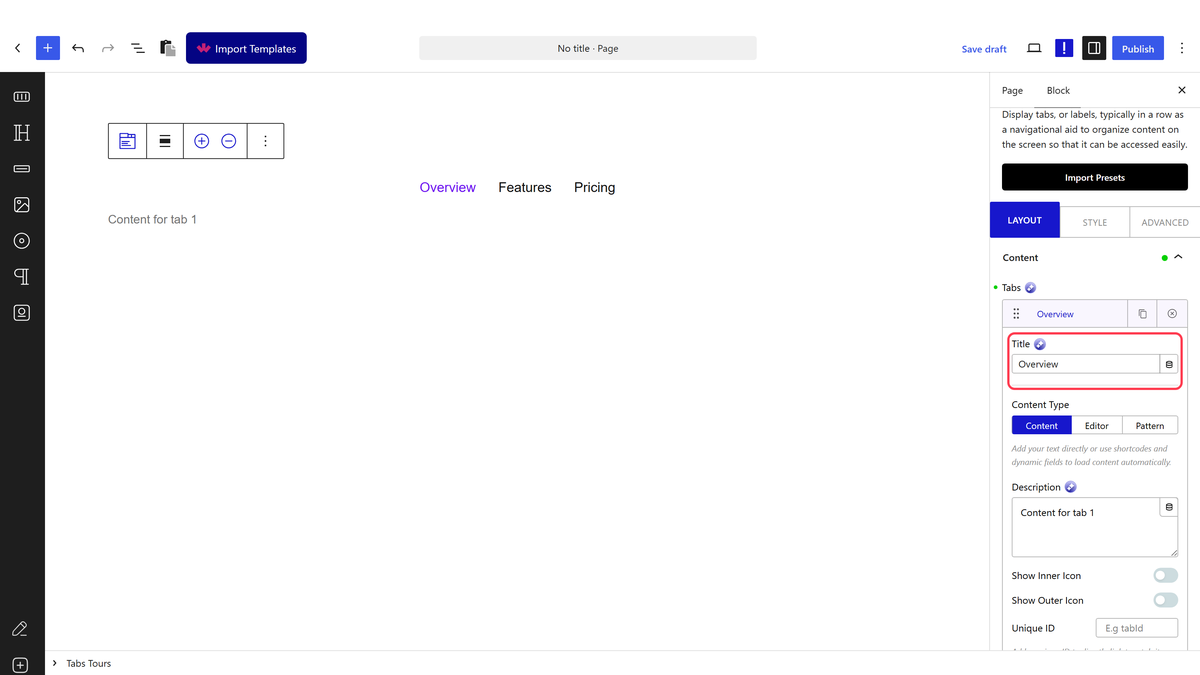
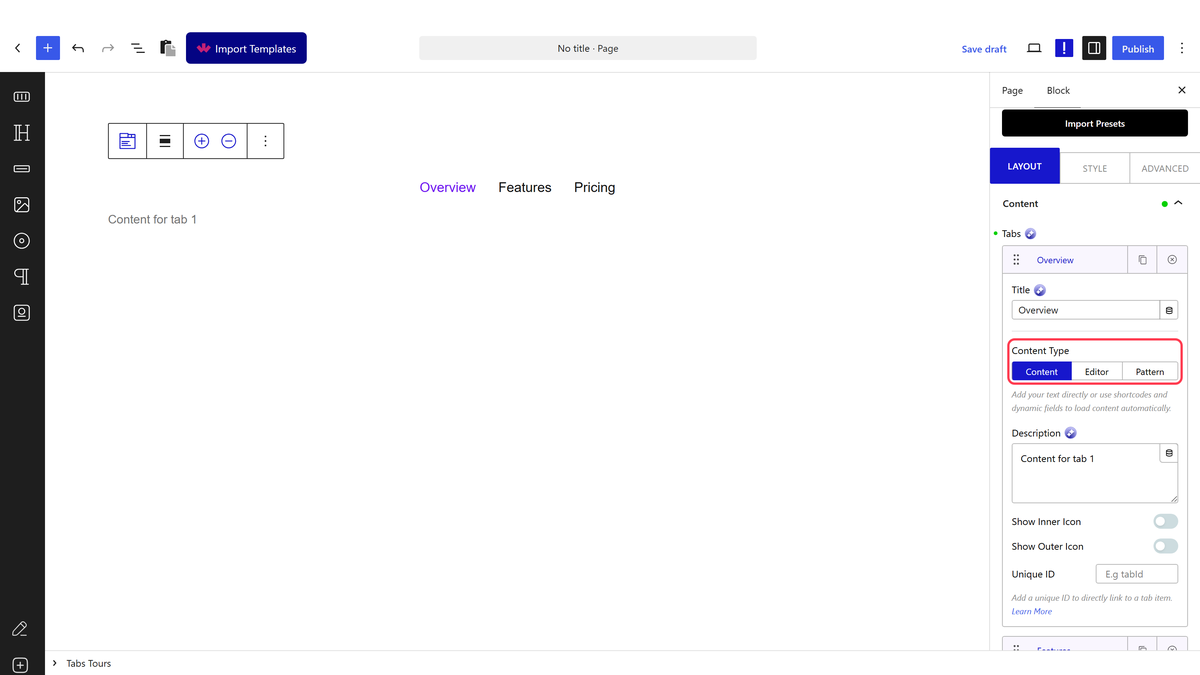
- Set each tab’s Content Type and fill in its content.
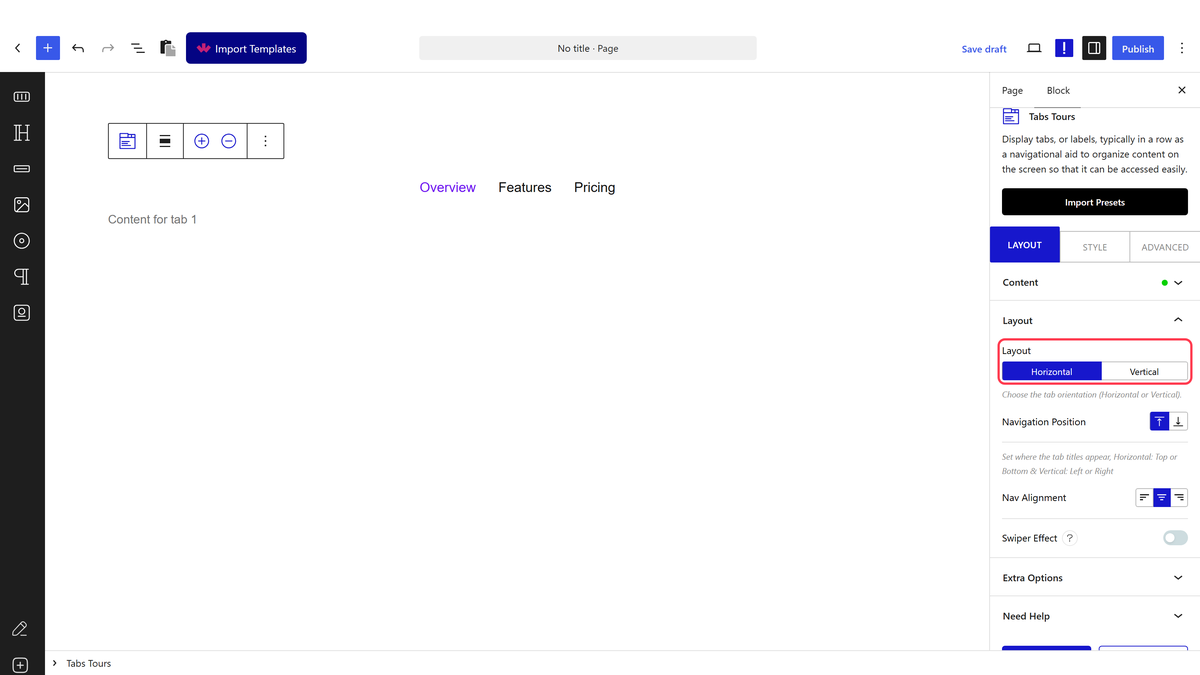
- Open Layout and choose Horizontal or Vertical, then set Navigation Position.
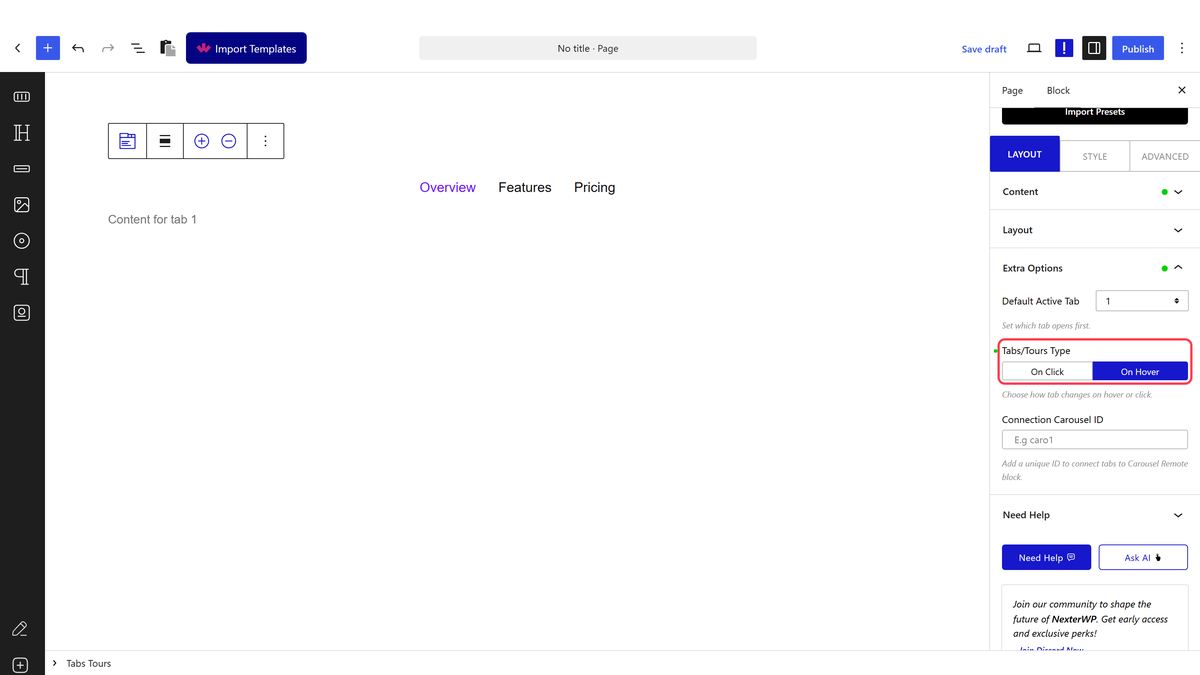
- Open Extra Options to set which tab opens first and whether tabs switch on click or hover.
- Publish the page.
Where Tab Content Comes From
| Content Type | What it holds | Edition |
|---|---|---|
| Content | A rich-text Description typed straight into the tab | Free |
| Pattern | A saved pattern, so a tab can hold any blocks — images, galleries, columns | Pro |
| Editor | Intended for building the tab’s content with blocks in place | — |
Content is the everyday choice. For a tab that needs images or a full layout, use a Pattern — see the guide on putting images inside tabs.
What Each Panel Controls
| Panel | What you set there |
|---|---|
| Content | The tab list: each tab’s Title, Content Type, content, icons and its own unique ID |
| Layout | Horizontal or Vertical, where the tab titles sit, their alignment, and the Swiper Effect |
| Extra Options | Default Active Tab, whether tabs open on click or hover, and the Connection Carousel ID |
How It Behaves
- The tab titles become the navigation and the matching panel shows below, beside, or above them depending on the layout you choose.
- Only one tab is open at a time, and switching does not reload the page.
- The block takes up to 10 tabs.
- Every tab is in the page’s HTML whether or not it is the open one, so search engines still see all of it — unless you use a Pattern set to load over AJAX.
Limitations
- Ten tabs is the maximum, and the Default Active Tab dropdown lists numbers up to 15, so anything above 10 can never match a tab.
- Tab content cannot be built from ordinary blocks dropped into the tab — it comes from the Description or from a Pattern.
- Patterns are a Pro feature, so on the free plugin a tab holds rich text only.
- Hidden tabs are still downloaded with the page, so very heavy tabs do not save a visitor anything.
Troubleshooting
The tabs show but the content is empty
Check each tab’s Content Type. A tab set to Content needs its Description filled in, and a tab set to Pattern needs a pattern chosen.
Clicking a tab does nothing
View the published page rather than the editor preview — the switching script only runs on the front end.
The block is missing from the inserter
Switch Tabs Tours on under Nexter > Blocks in your dashboard.