










Circular text is a classic badge or stamp look, for example around a logo or a play button.
The Advanced Typography block in Nexter Blocks Pro wraps any text around a circle.
For every Advanced Typography setting in one place, see the Advanced Typography block guide.
Before You Start
- Edition: Pro — Circular text needs Nexter Blocks Pro.
- Block to enable: Advanced Typography, switched on under Nexter > Blocks in your WordPress dashboard.
Steps
- Add the Advanced Typography block, keep Normal and type your text in Content. End it with a space or a dot so the circle does not join two words.
- Set Alignment to center.
- Open Circular Text and turn on Circular Text.
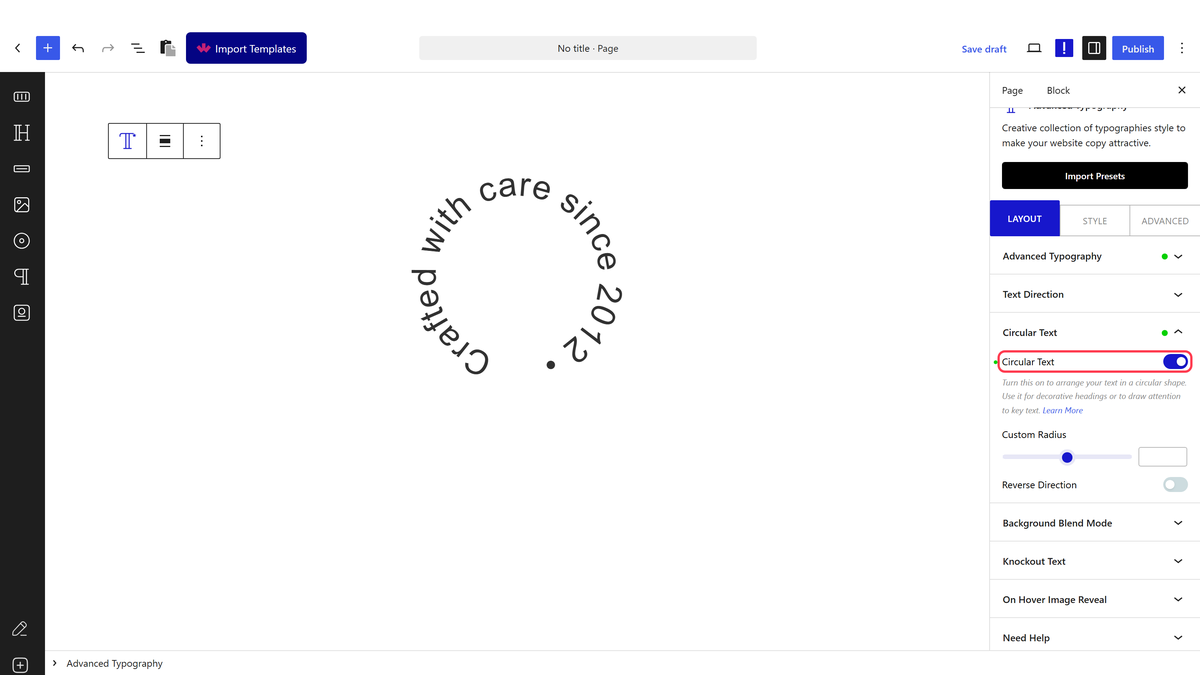
- Optional: set Custom Radius to make the circle bigger or smaller, or turn on Reverse Direction. Save and check the live page.
How It Behaves
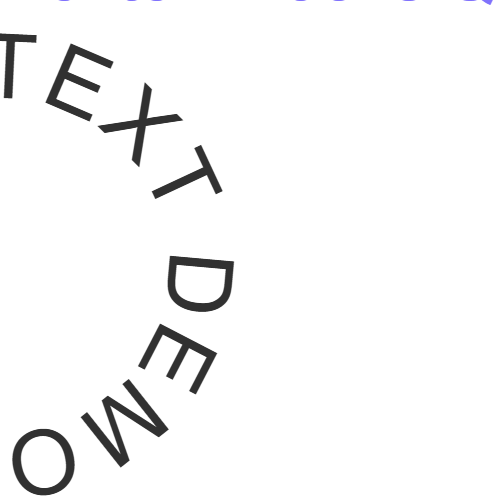
- A script places each letter on the circle after the page loads.
- Reverse Direction runs the letters the other way around the circle.
- Font size and text length change the size of the circle; Custom Radius sets it directly.
Limitations
- Circular Text is for Normal text only.
- Very long text overlaps itself on a small radius. Shorten the text or raise Custom Radius.
Troubleshooting
The circle is off-center
Set Alignment to center.
