










Vertical text works well for section labels, side captions and bold portfolio headings.
The Advanced Typography block in Nexter Blocks Pro turns text vertical with two settings.
For every Advanced Typography setting in one place, see the Advanced Typography block guide.
Before You Start
- Edition: Pro — Vertical text needs Nexter Blocks Pro.
- Block to enable: Advanced Typography, switched on under Nexter > Blocks in your WordPress dashboard.
Steps
- Add the Advanced Typography block, keep Normal under Select Option and type your text in Content.
- Open Text Direction and pick Left to Right or Right to Left under Vertical Text.
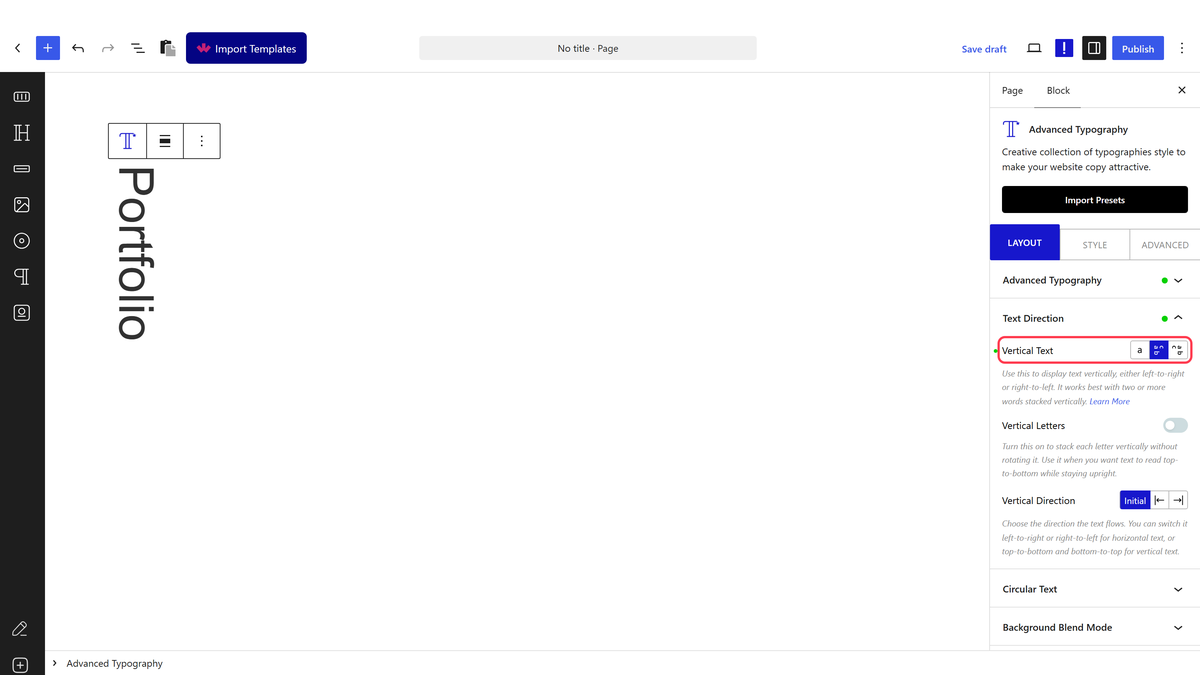
- Optional: turn on Vertical Letters to stack each letter upright.
- Optional: set Vertical Direction to Right to Left for right-to-left languages. Save.
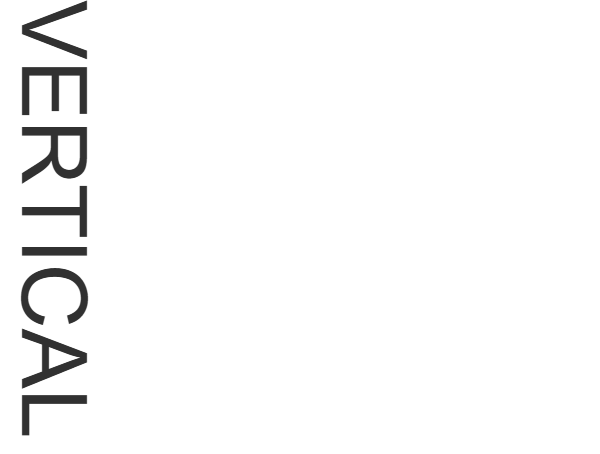
Text Direction Settings
| Setting | Options | Result |
|---|---|---|
| Vertical Text | Normal, Left to Right, Right to Left | Normal keeps horizontal text; the others turn it vertical (lines flow left to right or right to left) |
| Vertical Letters | On / Off | Stacks letters upright instead of rotating them |
| Vertical Direction | Initial, Left to Right, Right to Left | Sets the reading direction of the characters |
How It Behaves
- The text is rotated with CSS, so it stays real, selectable text that search engines can read.
- Tall vertical text takes up height, so give the block room in your layout.
Limitations
- The Text Direction panel is only available for Normal text. With Multiple, use the Transform field of each item, for example
rotate(-90deg). - Vertical Letters suits short words; long sentences become very tall.
Troubleshooting
I do not see the Text Direction panel
Set Select Option to Normal.
