










A vertical toggle menu keeps a long list of pages or categories tucked behind a title bar until visitors need it.
The free Navigation Menu block in Nexter Blocks has a Vertical Toggle layout for this.
For every Navigation Menu setting in one place, see the Navigation Menu block guide.
Before You Start
- Edition: Free — works in Nexter Blocks (free) and with Nexter Blocks Pro.
- Block to enable: Navigation Menu, switched on under Nexter > Blocks in your WordPress dashboard.
Steps
- Add the Navigation Menu block, choose a Type and set Menu Layout to Vertical Toggle.
- Keep Toggle Bar on and pick Toggle Open: Normal (always open), Hover or Click.
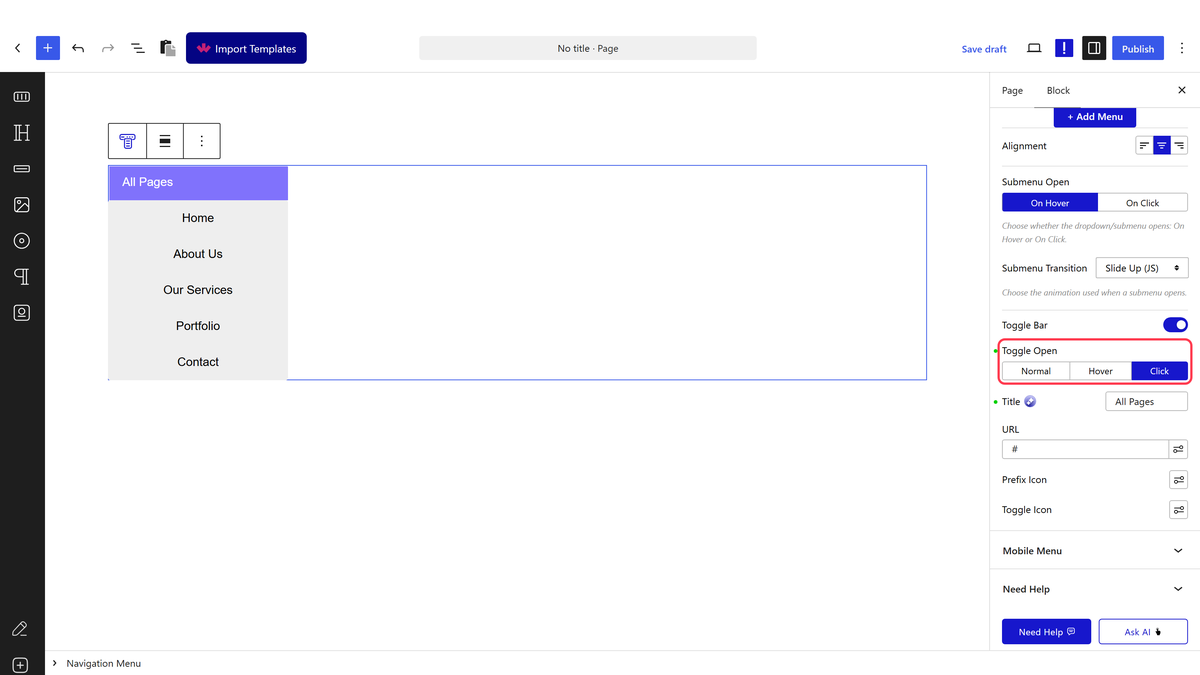
- Enter the bar Title, an optional URL, and choose a Prefix Icon and Toggle Icon. Save.
How It Behaves
- With Click or Hover, only the title bar shows until visitors click or hover over it; then the stacked menu appears.
- Style the bar on the Style tab under Toggle SideBar.
- It works in the free plugin and with Pro.
Limitations
- With a URL set, clicking the bar title can take visitors to that link. Leave URL as # for a pure toggle.
Troubleshooting
The menu is always open
Toggle Open is set to Normal. Choose Click or Hover.
