










A text mask fills the letters with a photo or gradient, like a mountain landscape inside a bold headline.
The Advanced Typography block in Nexter Blocks Pro does this with Knockout Text.
For every Advanced Typography setting in one place, see the Advanced Typography block guide.
Before You Start
- Edition: Pro — Knockout Text needs Nexter Blocks Pro.
- Block to enable: Advanced Typography, switched on under Nexter > Blocks in your WordPress dashboard.
Steps
- Add the Advanced Typography block and type a short word in Content. Use a large, heavy font so the image shows.
- Open Knockout Text and turn on Knockout Text.
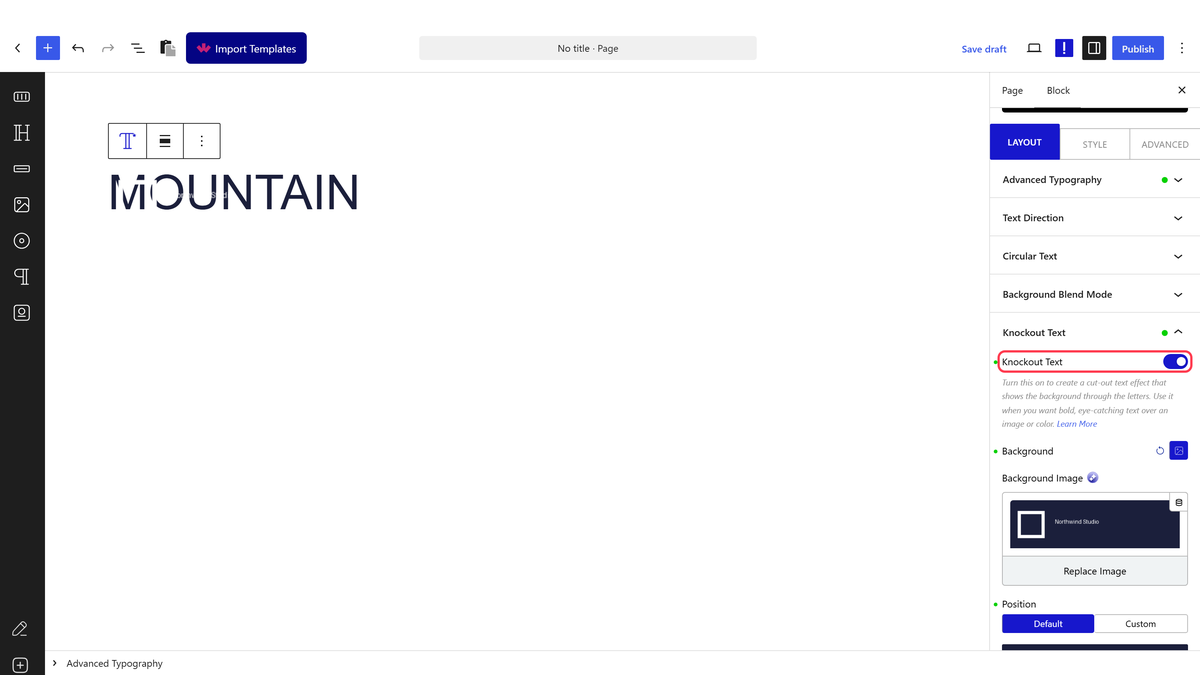
- In Background, choose an image (or a colour or gradient). Save.

How It Behaves
- The background is clipped to the letter shapes, so only the text shows the image.
- With Multiple, each text item has its own Knockout Text in Extra Options.
Limitations
- Thin fonts hide most of the image. Use bold weights and large sizes.
- Busy images can make the text hard to read.
Troubleshooting
The text is invisible
No background is set yet. Add an image, colour or gradient under Background.
