










Outlined text looks light and modern on hero sections, and it can fill with colour when visitors hover.
The Advanced Typography block in Nexter Blocks Pro adds a stroke outline to any text.
For every Advanced Typography setting in one place, see the Advanced Typography block guide.
Before You Start
- Edition: Pro — Text stroke needs Nexter Blocks Pro.
- Block to enable: Advanced Typography, switched on under Nexter > Blocks in your WordPress dashboard.
Steps
- Add the Advanced Typography block, keep Normal and type your text in Content. Bold, large fonts work best.
- On the Style tab, open Stroke/Fill and turn on Stroke/Fill.
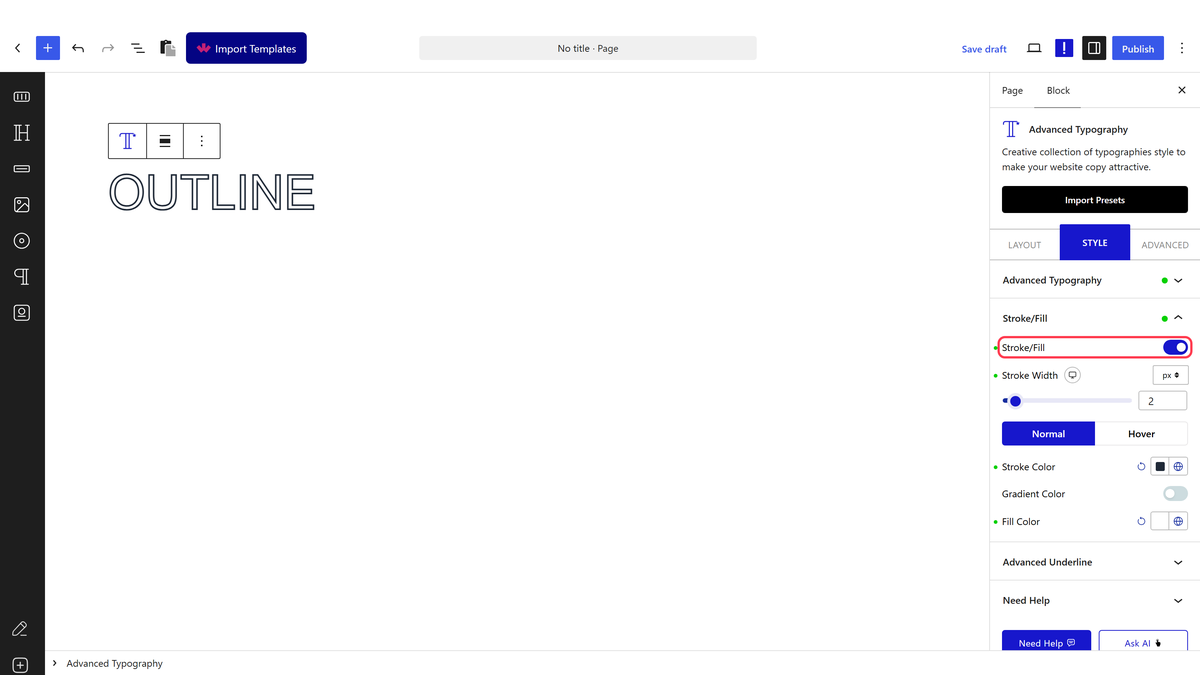
- Set Stroke Width, a Stroke Color (or Gradient Stroke) and a transparent Fill Color for an outline look.
- On the Hover tab, set a Fill Color to fill the letters on hover. Save.

How It Behaves
- The letters show only their outline in the Stroke Color.
- With a hover Fill Color, the outline fills with that colour while the pointer is over the text.
Limitations
- The Stroke/Fill panel is for Normal text. With Multiple, use Stroke/Fill Options inside each text item.
- Thin fonts can look faint with a transparent fill. Use a heavier font weight.
Troubleshooting
The text looks unchanged
Set a Stroke Width above 0 and a transparent Fill Color.
