










A blend mode mixes your text with the background, so a heading can look printed onto a photo.
The Advanced Typography block in Nexter Blocks Pro offers 19 blend modes.
For every Advanced Typography setting in one place, see the Advanced Typography block guide.
Before You Start
- Edition: Pro — Blend mode needs Nexter Blocks Pro.
- Block to enable: Advanced Typography, switched on under Nexter > Blocks in your WordPress dashboard.
- A background: put the block inside a group, container or cover that has a background image or colour. Images show the effect best.
Steps
- Add the Advanced Typography block inside a section with a background and type your text in Content.
- Open Background Blend Mode and turn on Blend Mode.
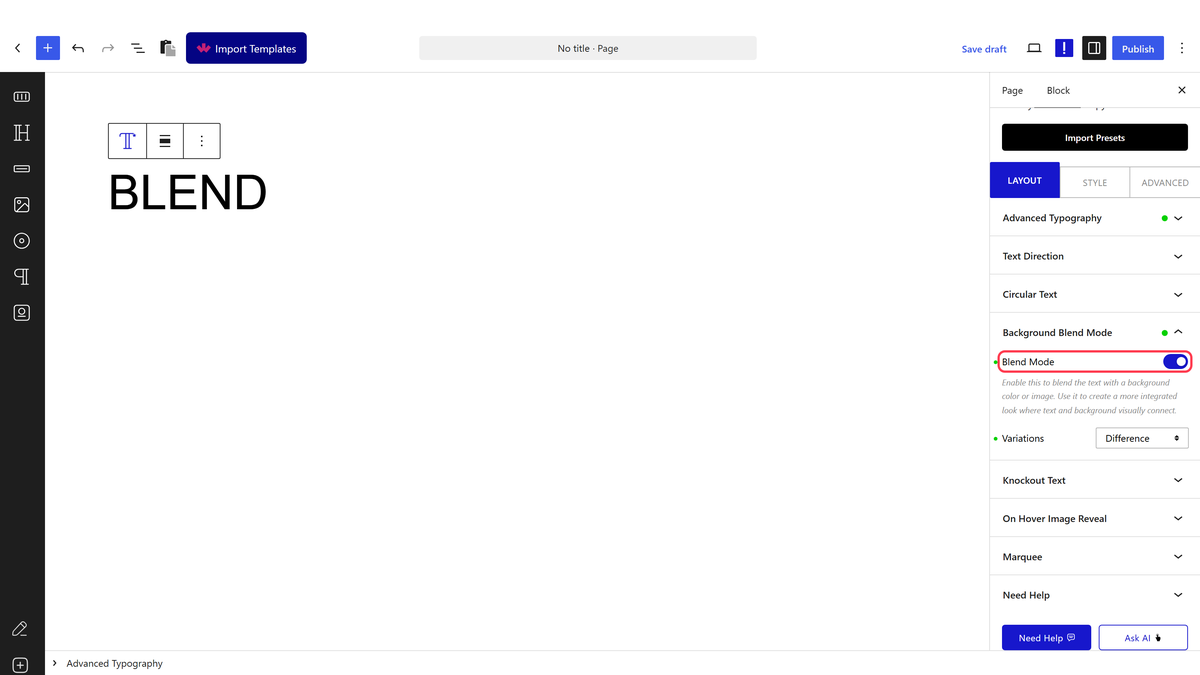
- Pick a mode under Variations, such as Difference, Multiply or Screen. Save.
How It Behaves
- The text colour mixes with whatever sits behind it, so the result changes with the background.
- Difference and Exclusion give strong contrast on photos; Multiply darkens and Screen lightens.
- With Multiple, each text item has its own Blend Mode in Extra Options.
Limitations
- On a plain white background most modes show little change.
- Blend modes can lower contrast. Check that the text is still readable.
Troubleshooting
The blend has no visible effect
The block needs a coloured or image background behind it. Add one to the parent section.
