










A webhook sends your form data to Zapier, so each submission can add a CRM contact, a spreadsheet row or anything else.
The Form block in Nexter Blocks Pro posts every submission to a webhook URL.
For every Form setting in one place, see the Form block guide.
Before You Start
- Edition: Pro — The Webhook action needs Nexter Blocks Pro.
- Block to enable: Form, switched on under Nexter > Blocks in your WordPress dashboard.
- A webhook URL: in Zapier, create a Zap with the Webhooks by Zapier trigger and Catch Hook event, then copy its URL. See Zapier’s webhook guide.
Learn via Video Tutorial
Steps
- Add the Form block to your page, click Design from Scratch and choose Simple Contact Form or Newsletter Form.
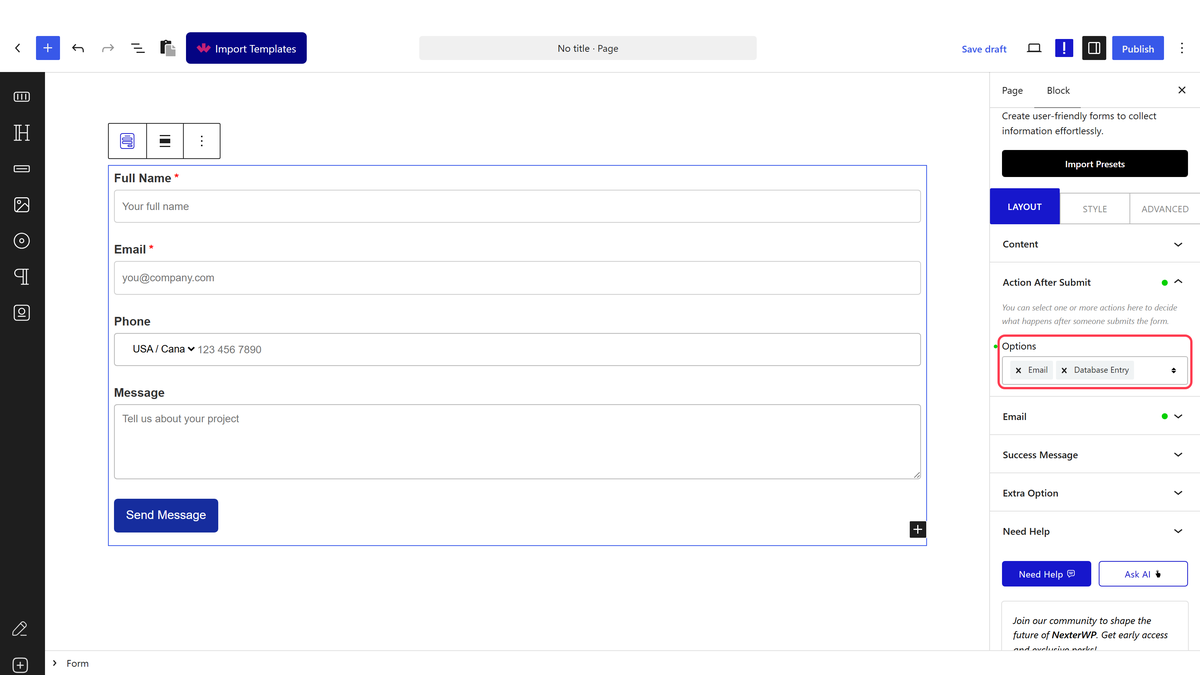
- Select the Form block (not a field inside it). In Action After Submit, open Options and choose Webhook. You can keep Email selected as well.
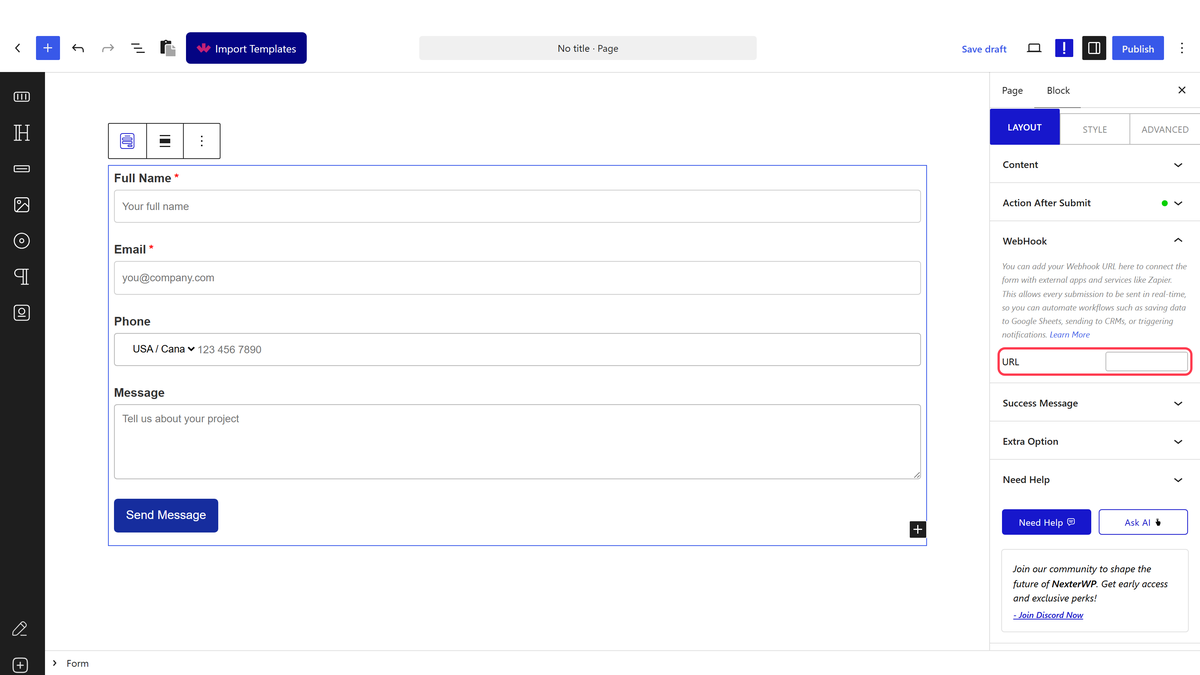
- Open the WebHook panel that appears and paste your webhook URL into URL.
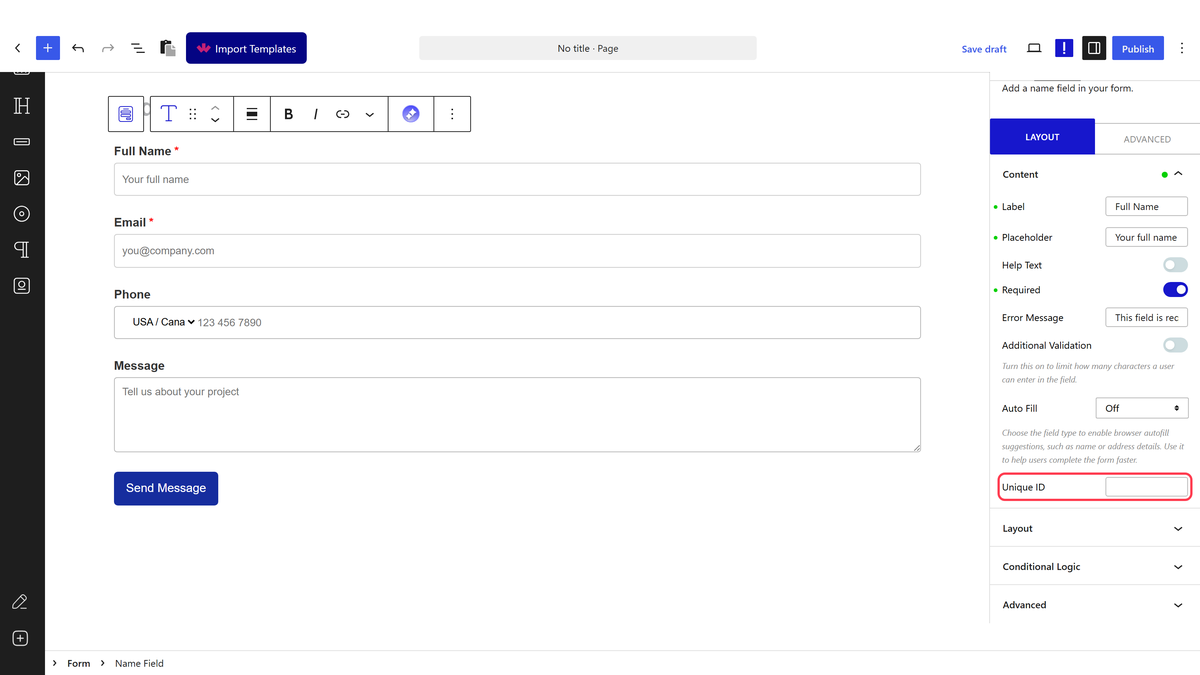
- Optional: select each field and enter a short key, such as
email, in its Unique ID setting. These become the field names Zapier receives.
- Save the page, then submit the form once on the front end to test the connection.
How It Behaves
- Each submission is sent as a JSON POST request to the URL.
- Fields with a Unique ID are sent under that key. Without Unique IDs, each field is sent under its label, with spaces replaced by underscores (for example
Full_Name). - In Zapier, click Test trigger after a test submission to see the fields.
Limitations
- Pro only.
- The URL must be publicly reachable. Local or private network addresses are rejected.
- Changing a field label later changes its key unless you set a Unique ID, which can break your Zap.
Troubleshooting
Zapier shows different field names than before
A label was edited. Set a Unique ID on every field so the keys stay the same.
The visitor sees “A valid URL was not provided”
Paste the full https:// webhook URL into the URL field.
