










Carousel controls normally sit on the carousel. Sometimes the design wants them somewhere else entirely — in the column alongside, or above a full-width slider.
Carousel Remote is a separate block of controls, paired to a carousel by giving both the same ID.
Before You Start
- Edition: Pro — the Carousel Anything block needs Nexter Blocks Pro.
- Block to enable: Carousel Anything, switched on under Nexter > Blocks in your WordPress dashboard.
- A Carousel Anything block — see the Carousel Anything guide.
- A Carousel Remote block on the same page — see the Carousel Remote guide.
- Test with several slides. A carousel with one slide has nothing to move to, so most settings will look broken when they are simply idle.
Video Tutorial
Steps
- Add both blocks to the page.
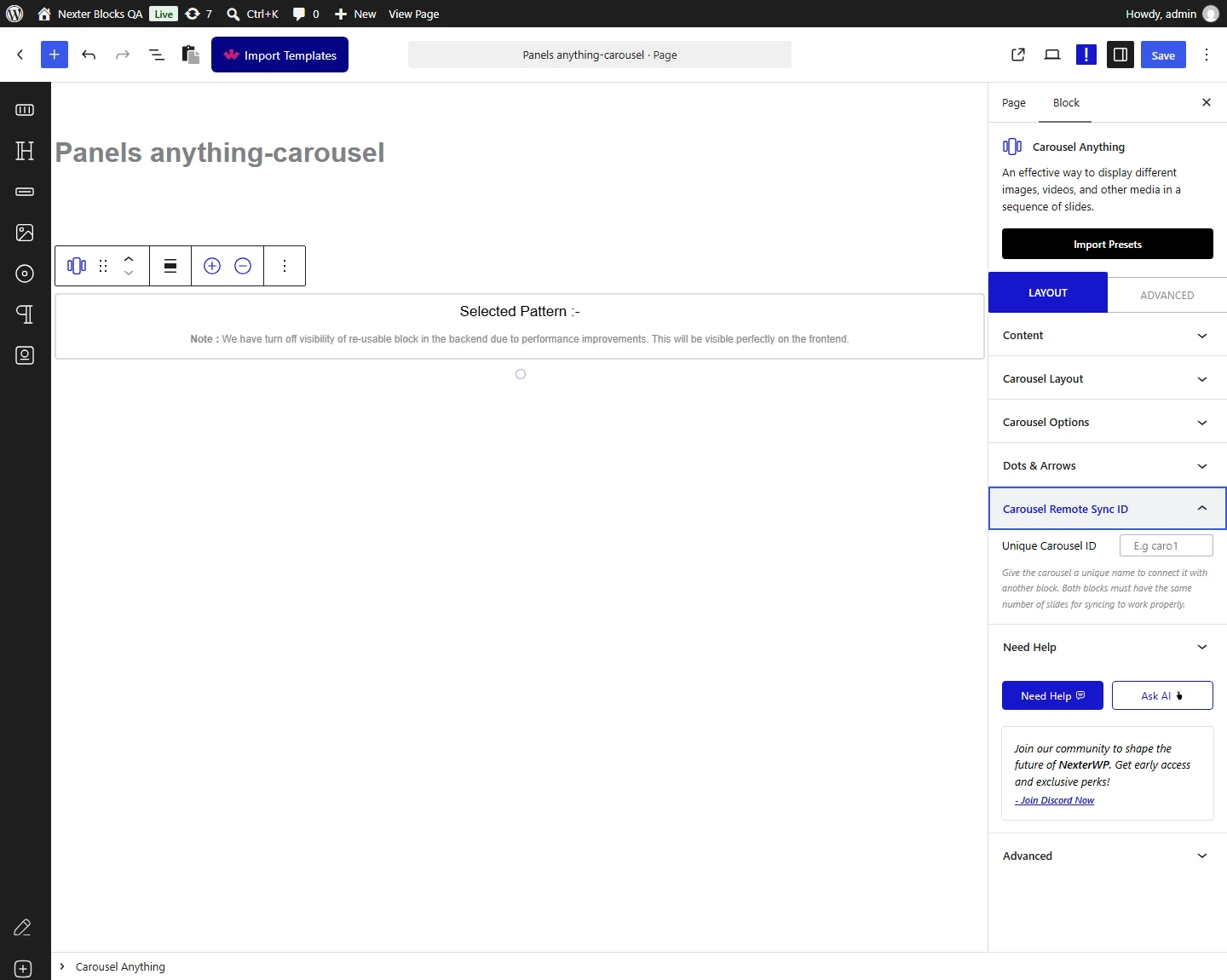
- Set a Carousel ID on the Carousel Anything block — for example
Ca1.
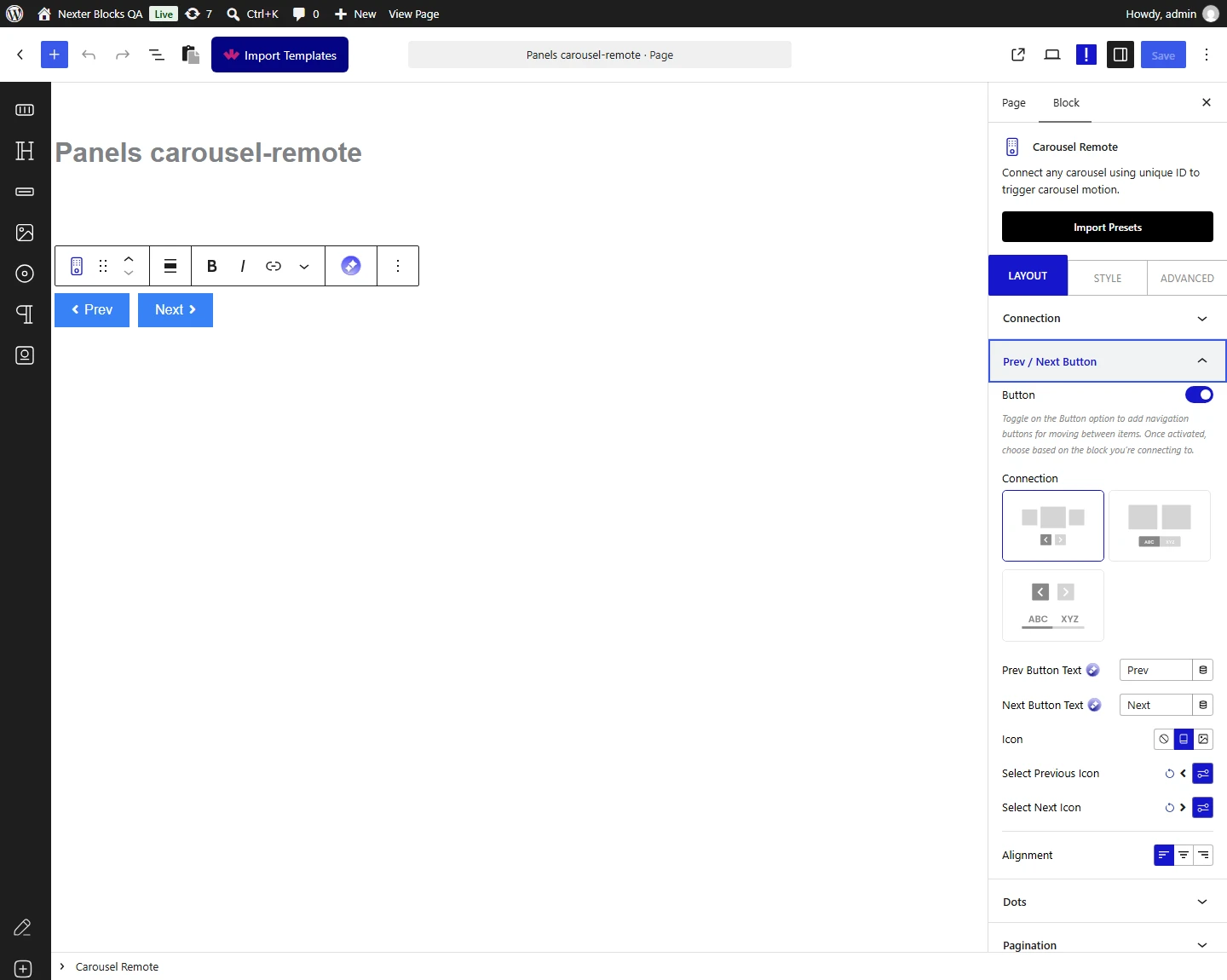
- Set the same ID on the Carousel Remote block.
- Publish and use the remote on the real page.
How It Behaves
The pairing is made entirely through the shared ID, written onto the carousel as two attributes.
- Measured on a published page with the ID
Ca1: the carousel rendereddata-id="tpca-Ca1"anddata-connection="tptab_Ca1". With no ID set, neither attribute appears. - This is the same pairing scheme used across Nexter Blocks — the same
tpca-andtptab_pair as Carousel Remote, Interactive Circle Info and Accordion. Learn it once and it applies to all of them. - The IDs must match exactly, including capitals. A mismatch produces no connection and nothing on the page says so.
- The carousel keeps its own controls too, unless you switch its arrows and dots off — see the arrows and dots guide.
- Every setting ends up in one place. The block writes its whole configuration into a
data-splideattribute on the carousel, which is what the slider script reads. If a setting is not doing what you expect, that attribute is where to look. - Measured with Nexter Blocks Pro deactivated: the carousel renders nothing at all — no wrapper, no configuration and no slides. This is a Pro-only block.
Limitations
- Pro only — measured with Nexter Blocks Pro deactivated, neither block renders anything.
- Give each pairing on a page its own unique ID, or one remote will drive two carousels.
- Both blocks must be on the same page. The connection is made in the browser, not on the server.
- It works on the published page, not in the editor, so the pairing cannot be checked while building.
- Keep the remote near the carousel. Controls far from what they control are confusing, particularly on a phone where the two may not be visible together.
Troubleshooting
The remote does nothing
Check the IDs match exactly on both blocks, that Nexter Blocks Pro is active, and that you are on the published page rather than the editor.
One remote is moving two carousels
They share an ID. Give each pairing its own value.
It works on desktop but the controls are lost on mobile
The remote and the carousel have stacked apart. Move the remote directly above the carousel at the phone breakpoint.
I set the ID but see no connection attributes
Measured, the carousel renders data-id and data-connection only when an ID is present. If they are absent, the ID has not been saved — re-enter it and update the page.
