A page that renders in pieces looks broken, even when it is loading perfectly normally.
The Pre Loader block covers the page with a loading animation of your choice and clears it the moment the page is ready.
Before You Start
- Edition: Pro — the Pre Loader block is part of Nexter Blocks Pro.
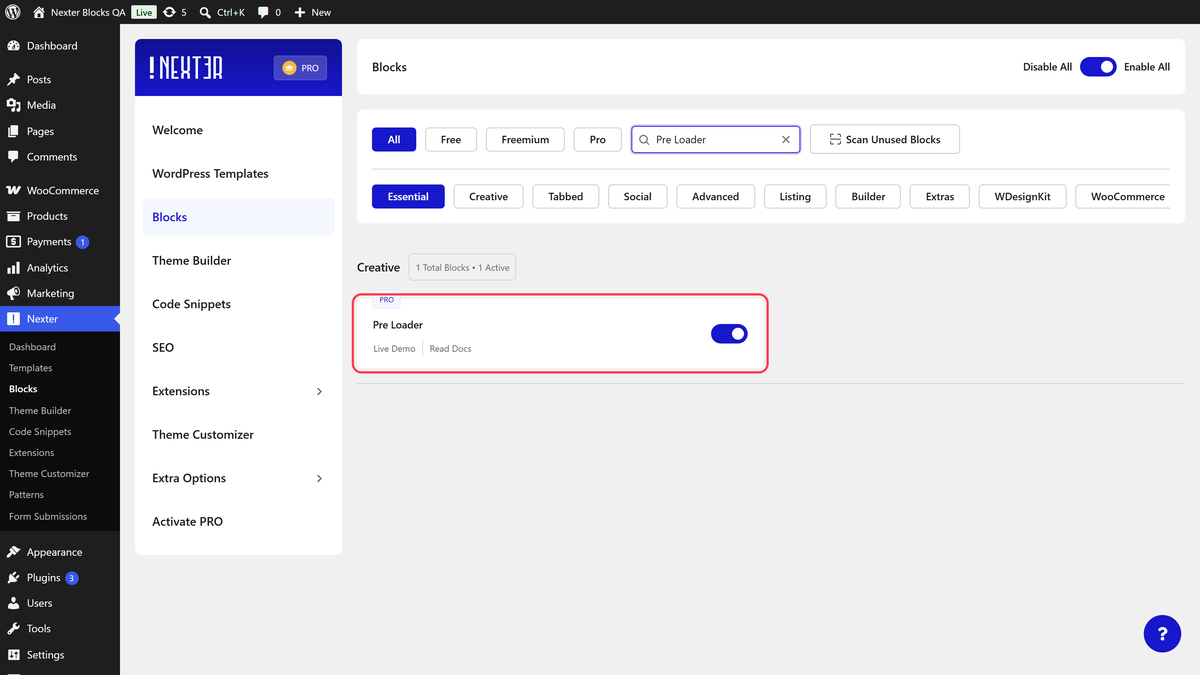
- Block to enable: Pre Loader, switched on under Nexter > Blocks in your WordPress dashboard.
- Somewhere to put it: add the block to the template or page you want the loader on.
Learn via Video Tutorial
Steps
- Add the Pre Loader block to the page and click Design from Scratch.
- In the Pre Loader panel, click + Add Item and set Select Type to Image.
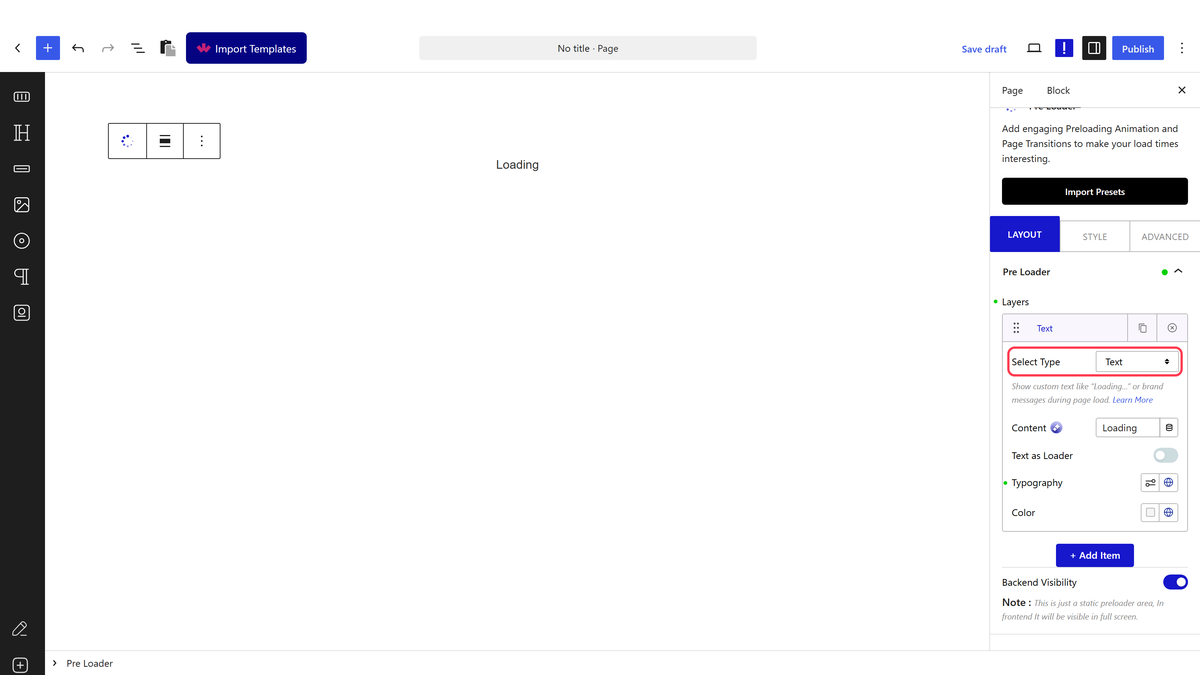
- Fill in the field that appears for that type — an image, an icon, some text, a Lottie file and so on.
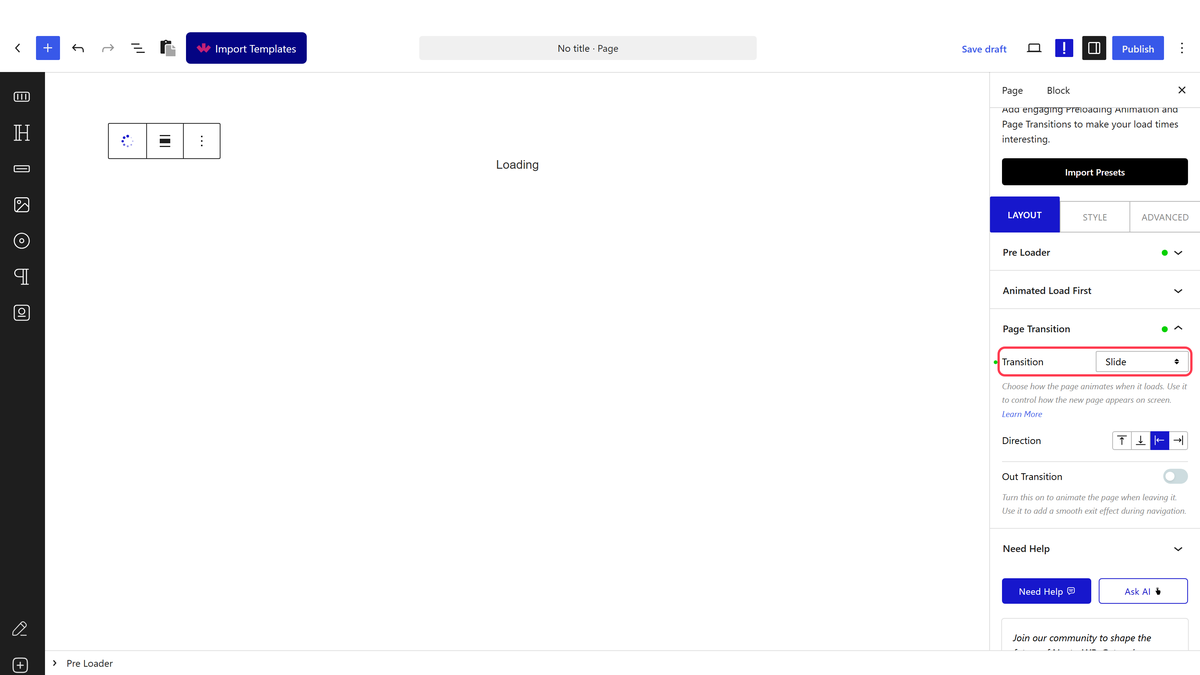
- Open Page Transition if you want the page to animate in as the loader clears.
- Publish the page and load it in a new tab to see the loader.
The editor only shows a small static preview of the loader. On the published page it covers the whole screen until loading finishes.
The Eight Loader Types
| Select Type | What you supply | Guide |
|---|---|---|
| Image | A picture, usually your logo | Image preloader |
| Icon | A font icon | Icon preloader |
| Text | A short word or phrase | Text preloader |
| Predefined | One of the block’s built-in CSS animations | — |
| Lottie | A Lottie JSON animation | Lottie preloader |
| Custom Code | Your own markup | Custom CSS preloader |
| Shortcode | A shortcode your site provides | Shortcode preloader |
| Progress | One of six progress bar layouts | — |
What Each Panel Controls
| Panel | What you set there |
|---|---|
| Pre Loader | The loader items themselves, and Backend Visibility for the editor preview |
| Animated Load First | Content that should appear immediately, and how long the loader stays |
| Page Transition | How the page animates in, and whether it animates out again |
How It Behaves
- While the page is loading, the block adds
tpgb-body-preloaderto the page and shows the overlay. Once loading finishes it swaps intpgb-loadedand the overlay goes away. - The loader is a list, so you can show more than one thing at once — see combining animations.
- Load Time lets you keep the loader on screen for at least a set time, or cut it off after a maximum, instead of tracking the real load exactly.
- Animated Load First lets chosen elements skip the wait — see excluding content.
Limitations
- Pro only.
- The editor shows a static preview area, not the full-screen overlay, so the real effect has to be checked on the published page.
- A preloader hides your content until it clears, so a long minimum time works against the visitor and against how quickly your page appears to load.
- The loader covers the page it is on — put the block in a template if you want it site wide.
Troubleshooting
Nothing happens on the page
Check the block actually has a loader item. An empty Pre Loader list renders the overlay with nothing in it, which looks like no preloader at all.
I only see a small box in the editor
That is the static preview. Use Backend Visibility to hide it while you work, and view the published page to see the real overlay.
The block is missing from the inserter
Switch Pre Loader on under Nexter > Blocks in your dashboard.