









Adding an icon preloader animation to your WordPress website can be a simple yet effective way to improve the user experience during page loading. An icon preloader animation displays a small icon or symbol while a website or page loads, indicating to users that the site is actively loading.
With the Preloader block from the Nexter Blocks, you can easily use an icon as a preloader for your WordPress website.
To check the complete feature overview documentation of the Nexter Blocks Preloader block, click here.
Requirement – This block is a part of the Nexter Blocks, make sure its installed & activated to enjoy all its powers.
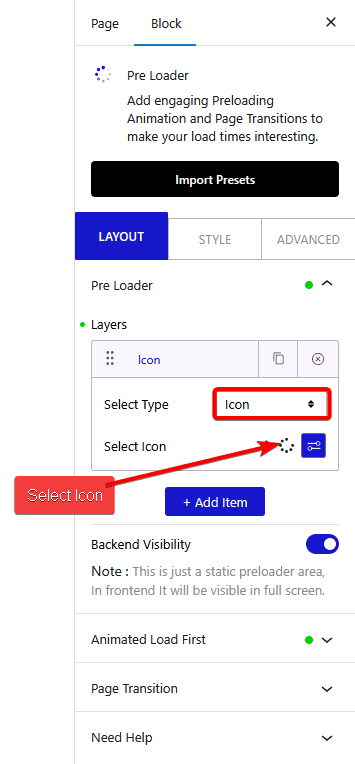
To do this, add the Preloader block on the page or template, in the Pre Loader tab, you’ll find a repeater item under Layers.
Open the item and select Icon from the Select Type dropdown.
From the Select Icon field, you can add an icon.
From the Icon tab under Style, you can manage the icon style.

Also, check How to Add Page Loading Transition Effects in WordPress.
Also, check the Icon block for adding decorative icons to your page outside of preloader animations.
