










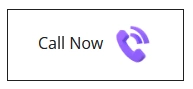
A small image, such as an app store badge or phone icon, makes a button’s purpose clear at a glance.
The free Advanced Button block in Nexter Blocks can place an image inside the button.
For every Advanced Button setting in one place, see the Advanced Button block guide.
Before You Start
- Edition: Free — works in Nexter Blocks (free) and with Nexter Blocks Pro.
- Block to enable: Advanced Button, switched on under Nexter > Blocks in your WordPress dashboard.
- A small image: a PNG or SVG with a transparent background, ideally under 64px.
Steps
- Add the Advanced Button block, pick a style and type the button text.
- Open the Icon panel and set Icon Type to Image.
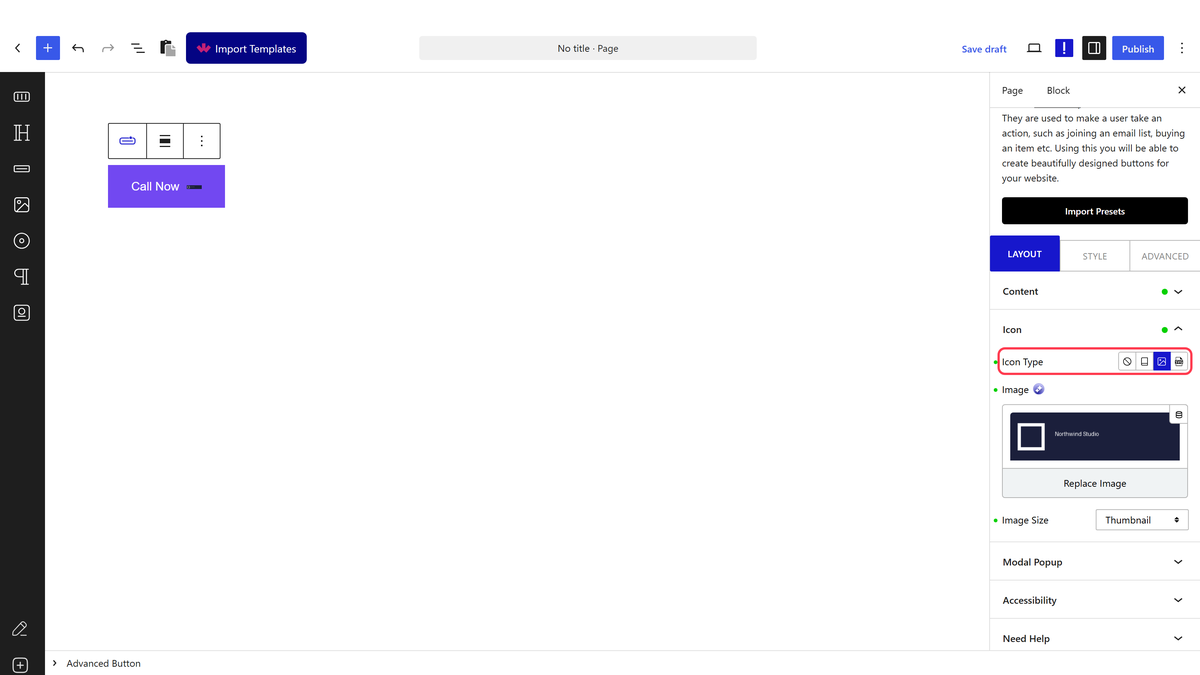
- Choose your image and a small Image Size, such as Thumbnail.
- On the Style tab, open Icon to set Icon Position (Prefix or Postfix), Icon Spacing and Icon Size. Save.
How It Behaves
- The image sits inside the button link, before or after the text.
- Icon Size controls how large the image appears.
- The image uses its alt text from the Media Library, or “Button” if it has none.

Limitations
- Image Size picks the file WordPress serves. Large sizes add page weight even if Icon Size shrinks them.
- Some styles (3, 6, 7 and 9) use their own arrow and do not show the icon.
Troubleshooting
The image is too big
Set Icon Size on the Style tab and choose a smaller Image Size.
