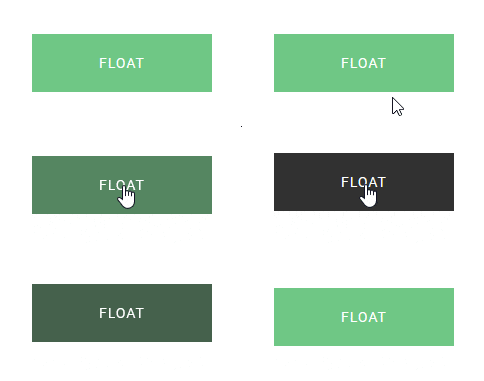





Do you want to add button hover animation in WordPress? Adding button hover animation can add a touch of professionalism and interactivity to a website, making it more visually appealing and engaging for users.
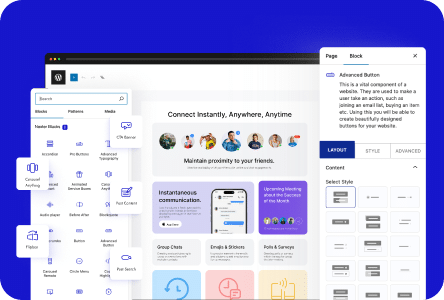
With the Advanced Button block from the Nexter Blocks, you can easily add a hover animation effect to a button in WordPress.
To check the complete feature overview documentation of the Nexter Blocks Advanced Button block, click here.
Requirement – This block is a part of the Nexter Blocks, make sure it’s installed & activated to enjoy all its powers.
To do this, add the Advanced Button block on the page and follow the steps –
1. Select the appropriate button style and add the text to the button.
2. Then go to Style > Extra Options tab and enable the Content Hover Effect toggle then select an effect from the Select Effect dropdown.
Here you’ll find multiple pre-defined hover animation effects, select the animation as per your requirements.
Now you’ll see a beautiful animation effect when you hover the button.