A long article without a progress bar asks visitors to trust that the end is coming.
Progress Tracker fills, rises or draws a ring as a visitor scrolls, and it can track the whole page or just one section.
Before You Start
- Edition: Free — the Progress Tracker block works in Nexter Blocks (free) and Nexter Blocks Pro.
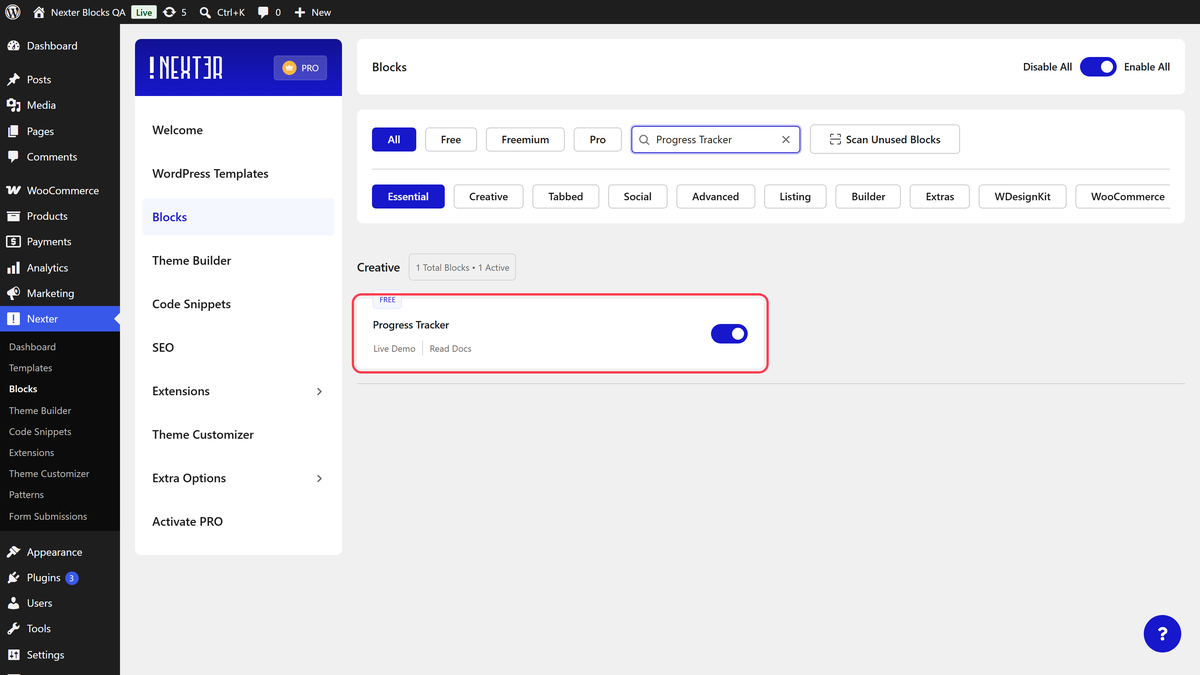
- Block to enable: Progress Tracker, switched on under Nexter > Blocks in your WordPress dashboard.
- The bar is fixed to the screen, not the page. It stays in place as you scroll, pinned to the edge you choose — that is what makes it a reading indicator rather than a static graphic.
Steps
- Add the Progress Tracker block anywhere on the page.
- Choose a Type: Horizontal, Vertical or Circular.
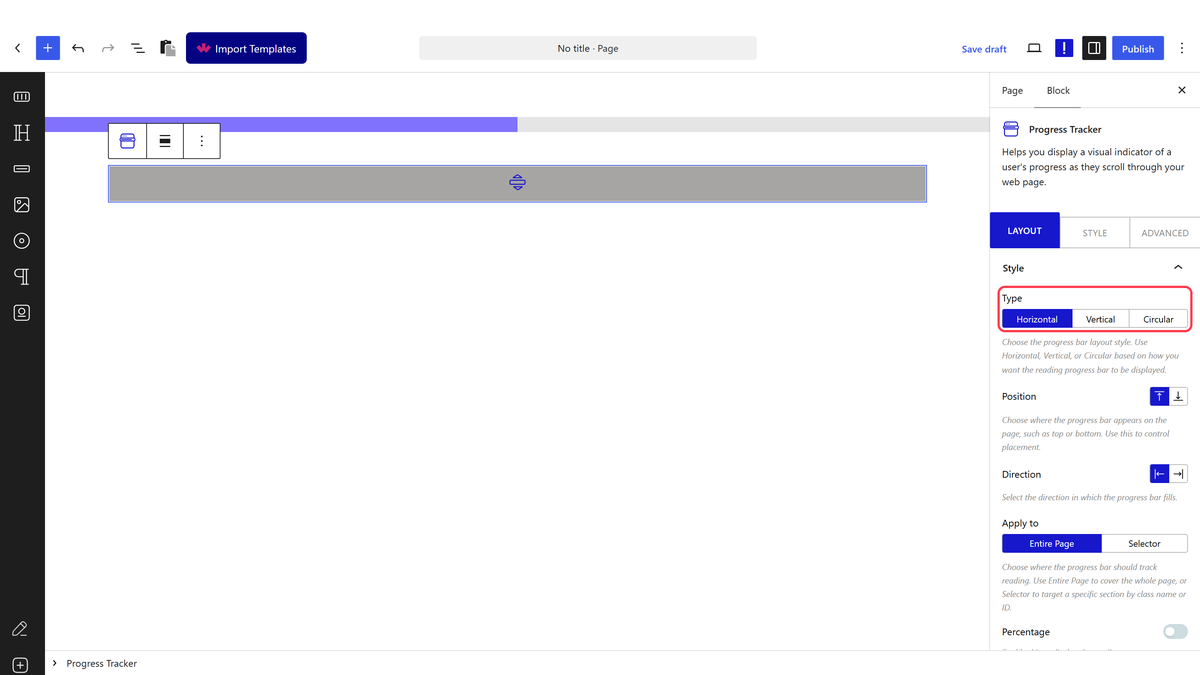
- Set Position for where the bar sits on screen.
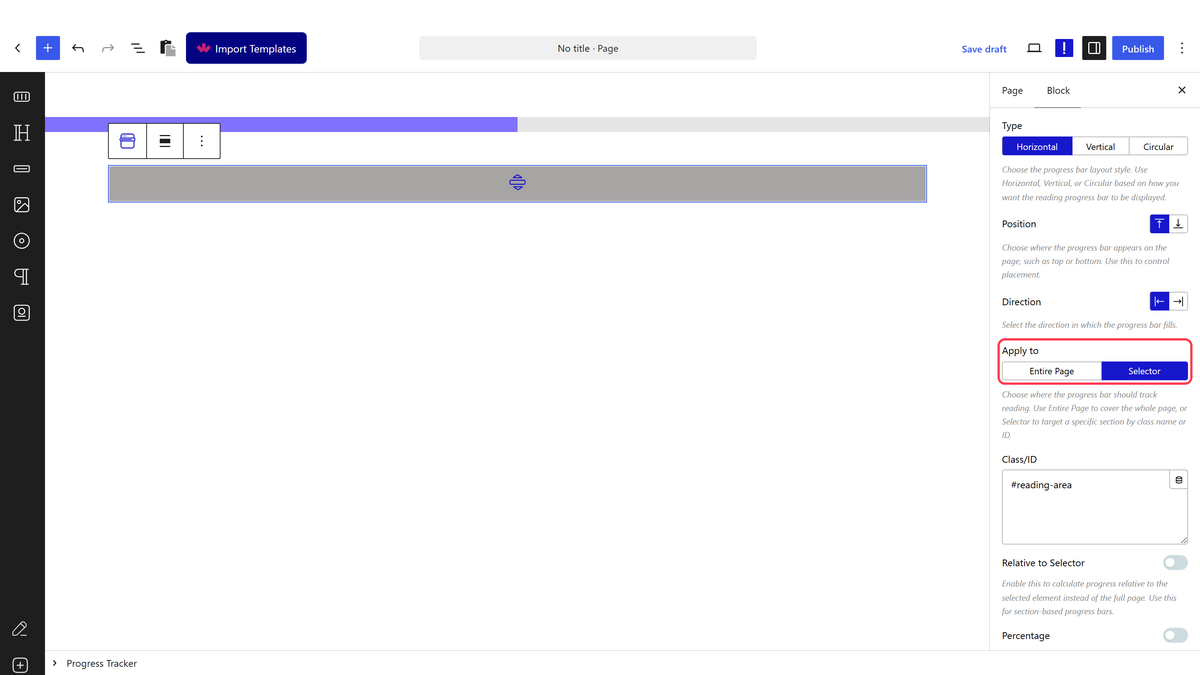
- Leave Apply to on Entire Page, or point it at one section.
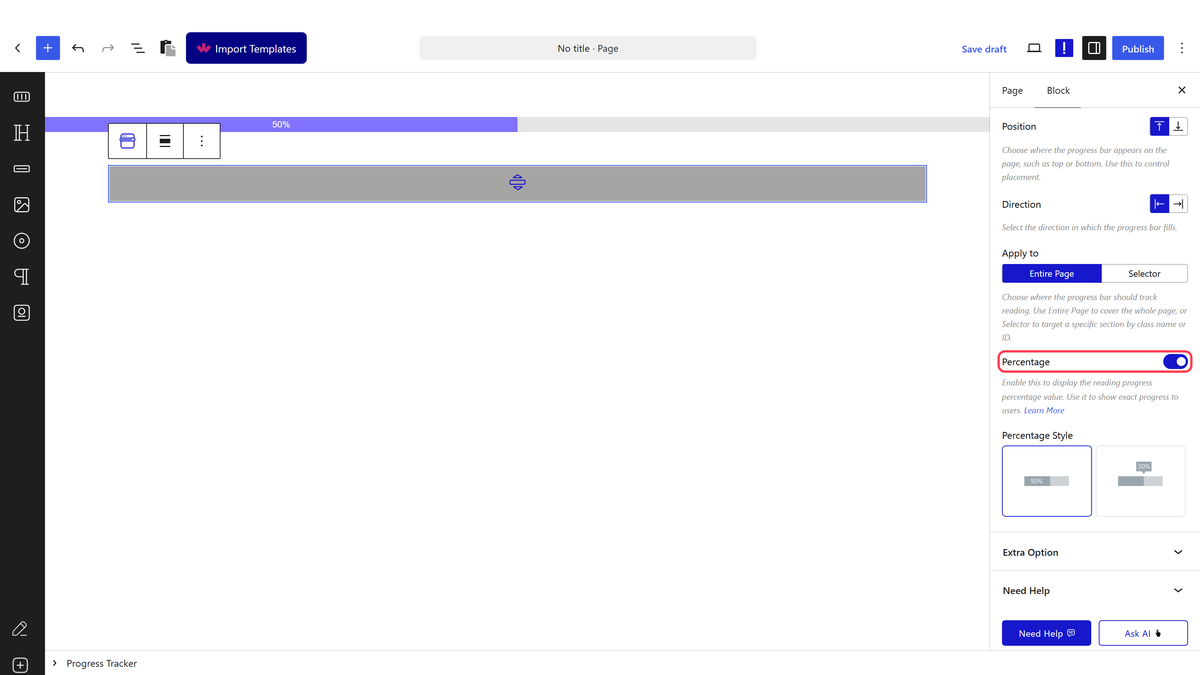
- Turn on Percentage if you want a number as well as the bar.
The bar is fixed to the screen, not the page. It stays in place as you scroll, pinned to the edge you choose — that is what makes it a reading indicator rather than a static graphic.
The Three Types
| Type | Fills by | Guide |
|---|---|---|
| Horizontal | Width, along the top or bottom edge | — |
| Vertical | Height, along the left or right edge | Vertical progress bar |
| Circular | A ring drawn clockwise | Circular progress bar |
How It Behaves
- Every type is proportional to real scroll — measured at 50% scrolled, every type read 50% filled.
- Apply to can scope the bar to one section instead of the whole page — useful for a long single post inside a page with other content. The tracked section needs to be taller than the screen. Measured: point the block at a section shorter than the viewport and the bar sits at 0% for most of the page, then jumps straight to 100% far too early and stays there — it never tracks the short section smoothly. Pick a section long enough to scroll through in its own right. See the section guide.
- Pin Point adds clickable, named markers along the bar that jump a visitor to that part of the page. Pin Point only appears with Apply To set to Entire Page, and only on the Horizontal or Vertical types. Measured: the same setup with Apply To set to a section, or the type set to Circular, renders zero markers — the settings stay in the editor but nothing appears on the page. See the Pin Point guide.
- Percentage works on all three types, showing a live, rounded number next to the bar.
Limitations
- A section-scoped bar needs a section taller than the screen — measured, see the section guide.
- Pin Point does not work with a section-scoped bar or with the Circular type — measured, no markers render either way.
- The bar is fixed to the screen and stacks with any other fixed elements — check it does not overlap a sticky header.
Troubleshooting
The bar never seems to move
Check the page is actually taller than the screen, and that Apply to is not pointed at a section shorter than the viewport — see the section guide.
My Pin Point markers are not showing
Pin Point only renders with Apply to set to Entire Page and the type set to Horizontal or Vertical — measured, it does nothing on a section-scoped or Circular bar.
The block is missing from the inserter
Switch Progress Tracker on under Nexter > Blocks.