










A progress bar shows how far. Pin Point shows what is still ahead, by name.
Each pin is a small, clickable marker tied to a heading or section elsewhere on the page — click one and the page scrolls straight there.
For every Dynamic Device setting in one place, see the Progress Tracker block guide.
Before You Start
- Edition: Free — the Progress Tracker block works in Nexter Blocks (free) and Nexter Blocks Pro.
- Block to enable: Progress Tracker, switched on under Nexter > Blocks in your WordPress dashboard.
- The bar is fixed to the screen, not the page. It stays in place as you scroll, pinned to the edge you choose — that is what makes it a reading indicator rather than a static graphic.
- An HTML id on each heading or section you want to mark — set it in that block’s Advanced > HTML anchor field.


Steps
- Add the Progress Tracker block anywhere on the page.
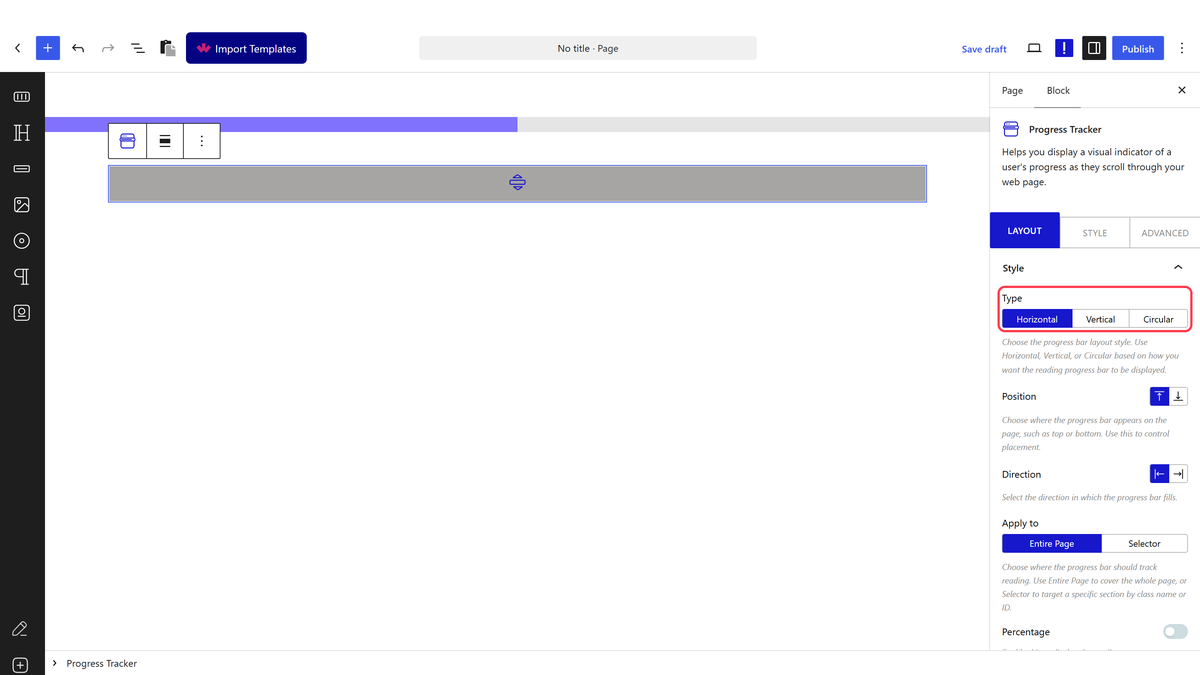
- Choose a Type: Horizontal, Vertical or Circular.
- Turn on Pin Point.
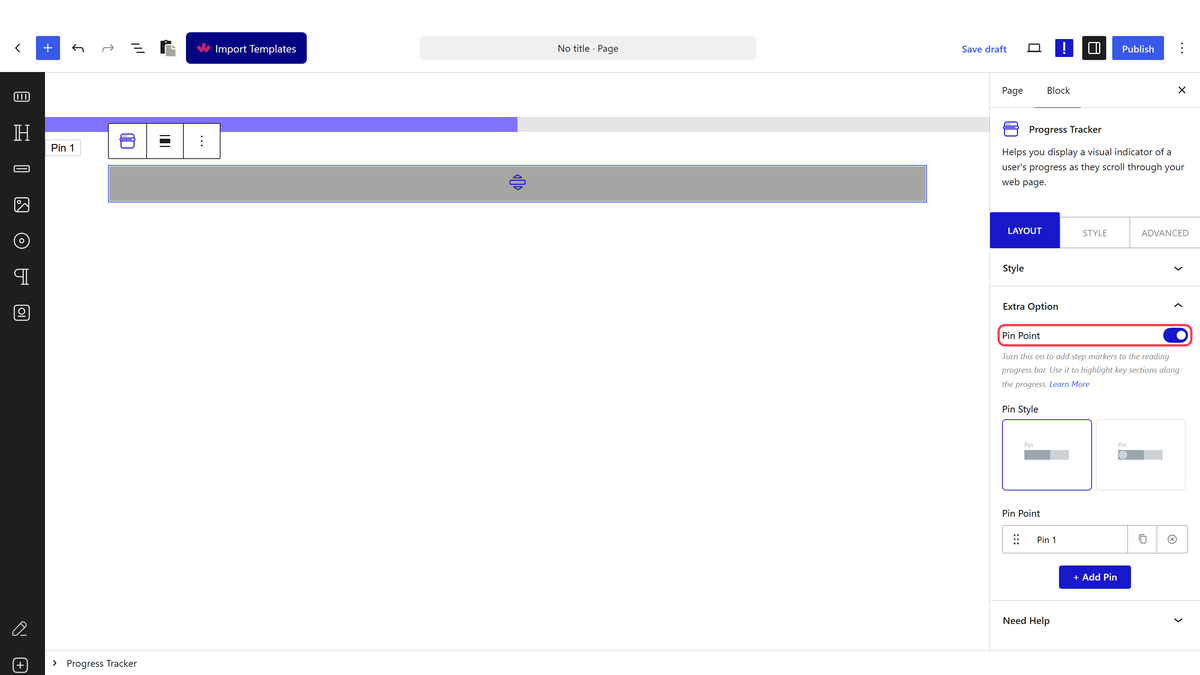
- Add a row for each marker, give it a Title, and put the target heading’s HTML anchor into the ID field.
- Repeat for every point you want marked along the bar.
Pin Point only appears with Apply To set to Entire Page, and only on the Horizontal or Vertical types. Measured: the same setup with Apply To set to a section, or the type set to Circular, renders zero markers — the settings stay in the editor but nothing appears on the page.
How It Behaves
- Pins are genuinely clickable. Measured: clicking a pin scrolled the page straight to its target element, smoothly.
- Pins sit where their target sits. Measured across a long page: three pins for content near the top, middle and end positioned themselves at roughly 0%, 33% and 73% along the bar — proportional to where that content actually falls.
- Pins mark themselves as passed. Read directly in the block’s own script: once scroll passes a pin’s target, that pin gains an
activeclass, so returning readers can see what they have already covered. - Pin Point only appears with Apply To set to Entire Page, and only on the Horizontal or Vertical types. Measured: the same setup with Apply To set to a section, or the type set to Circular, renders zero markers — the settings stay in the editor but nothing appears on the page.
Limitations
- Only works with Apply to set to Entire Page — measured, a section-scoped bar never shows any pins.
- Does not work on the Circular type — measured, no markers render.
- Each pin needs a real HTML id elsewhere on the page — a Title with no matching ID renders nothing for that row.
Troubleshooting
My pins are not showing at all
Check Apply to is set to Entire Page and Type is Horizontal or Vertical — measured, pins render on neither a section-scoped bar nor a Circular one.
A pin does nothing when clicked
Check that row’s ID matches a real HTML anchor elsewhere on the page exactly, including case.
The pins are bunched up in one spot
That reflects where their targets actually sit relative to the whole page — if your headings are close together near the top, their pins will be too.
