









Looking to create personalized and targeted product showcases on your WooCommerce store? With the Product Listing block from the Nexter Blocks, you can easily create a customized product listing based on product ids.
To check the complete feature overview documentation of the Nexter Blocks Product Listing block, click here.
Requirement – This block is a part of the Nexter Blocks, make sure its installed & activated to enjoy all its powers.
To do this, make sure you’ve added some products to your WooCommerce store, then follow the steps –
1. Add the Product Listing block on the page.
2. Select Normal from the Type section, then select the appropriate style and layout.
3. Then go to the Query tab, and in the Include Product(s) field, you can add the IDs of the products you want to show.
Note: You can add multiple ids separated by a comma(,).
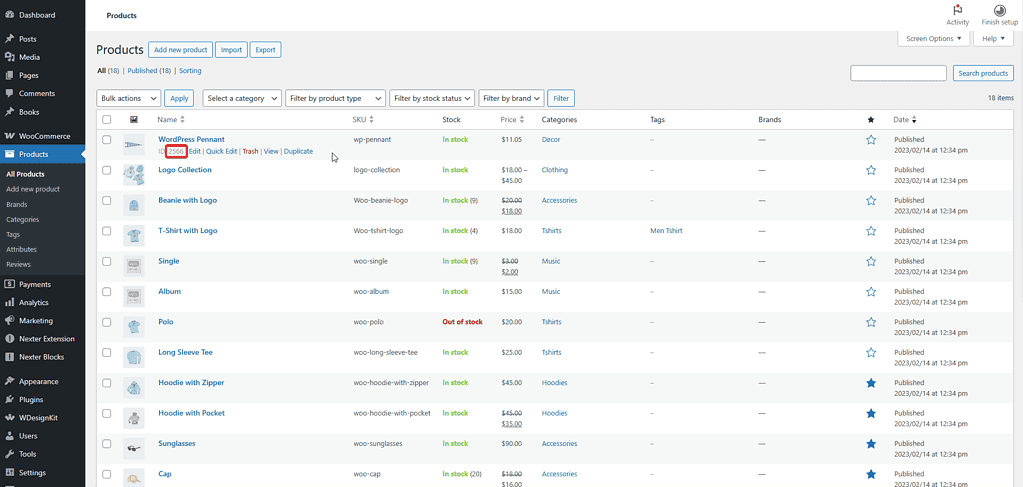
To find the product id from the Dashboard, go to Products.
Hover over the product you want to get the ID of, and you’ll see the ID.
Also, check How to Create a WooCommerce Product Archive Page in WordPress.
