










The shop page WooCommerce gives you shows every product, in one layout, in one order. The moment you want four featured products on the home page, that is not enough.
The Product Listing block puts a set of products wherever you want them, and lets you choose which products and how the cards look.
Before You Start
- Edition: Pro — the Product Listing block needs Nexter Blocks Pro.
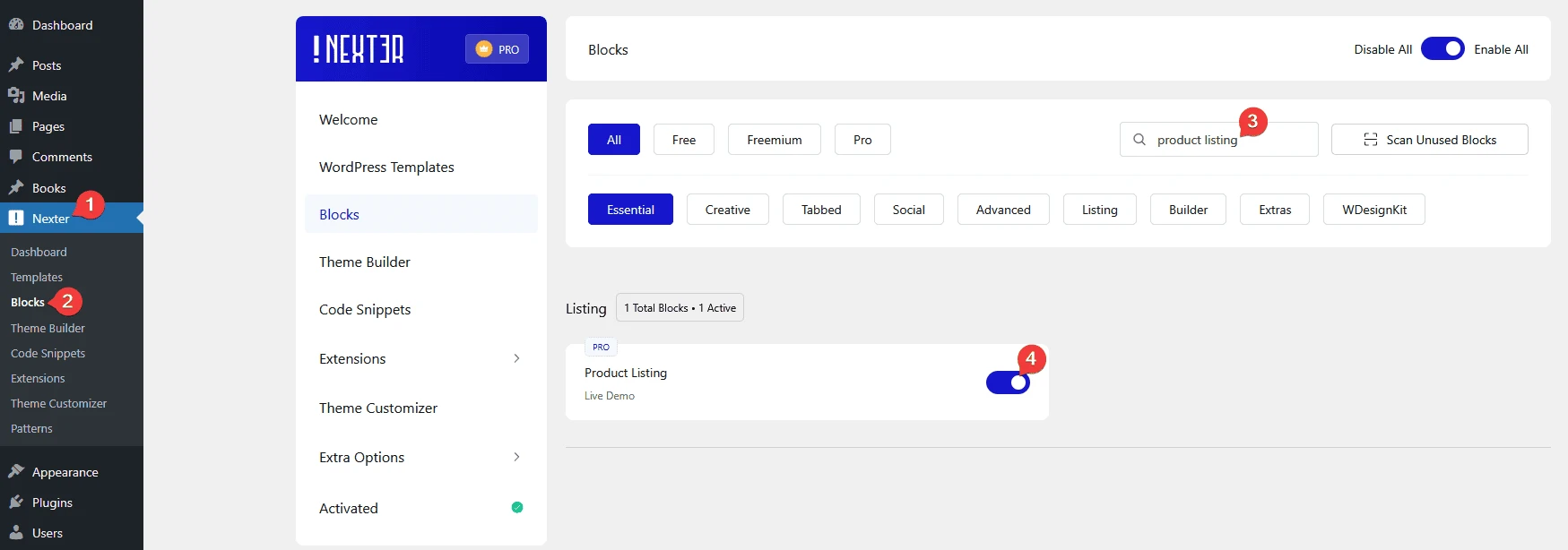
- Block to enable: Product Listing, switched on under Nexter > Blocks in your WordPress dashboard.
- WooCommerce active, with published products. The block reads your real catalogue, so an empty store renders an empty listing.
Video Tutorial
Steps
- Add the Product Listing block to your page.
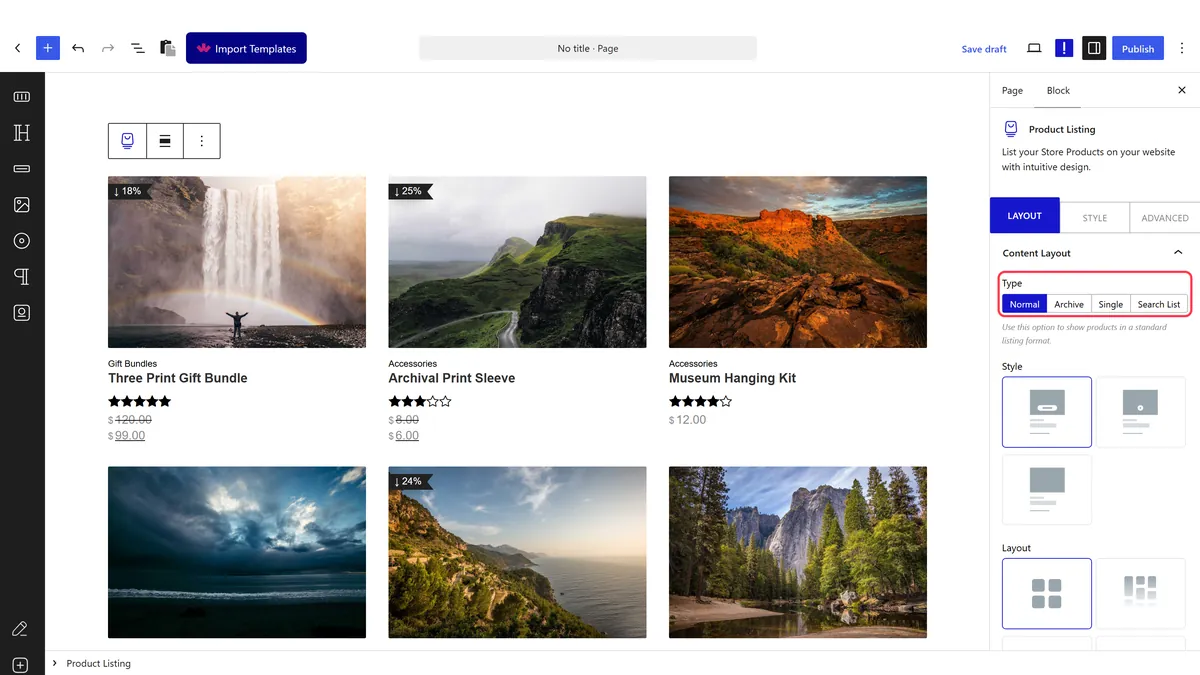
- Choose a layout — grid, masonry, metro, carousel or list.
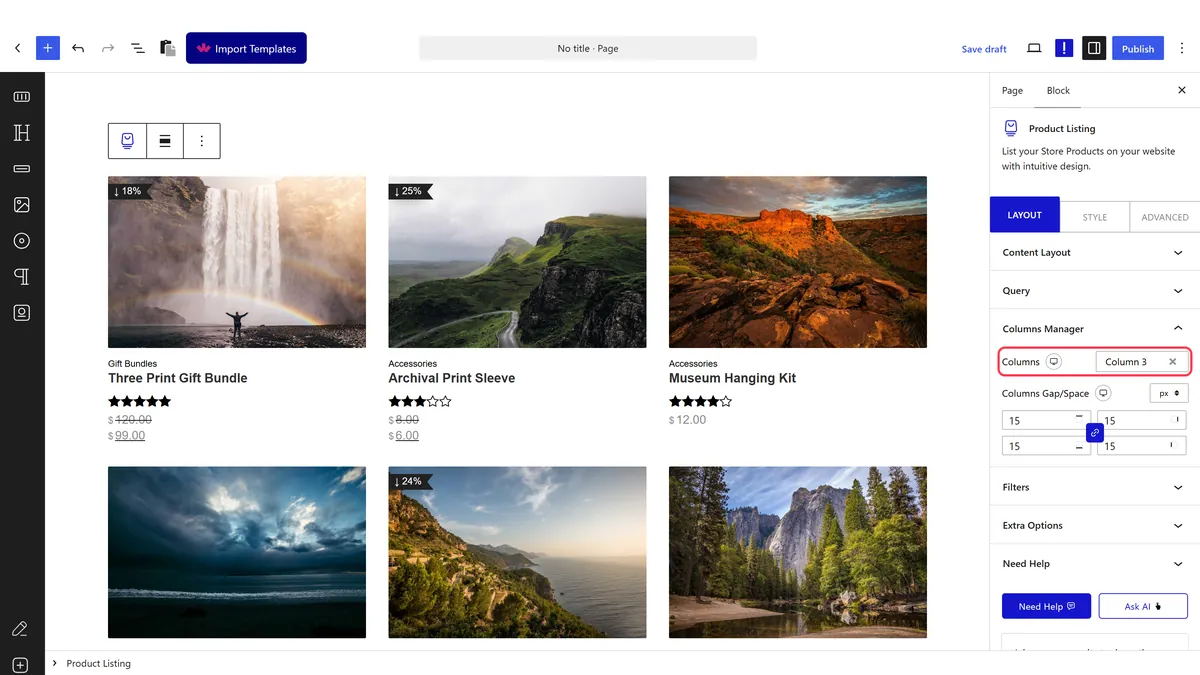
- Set how many products to show.
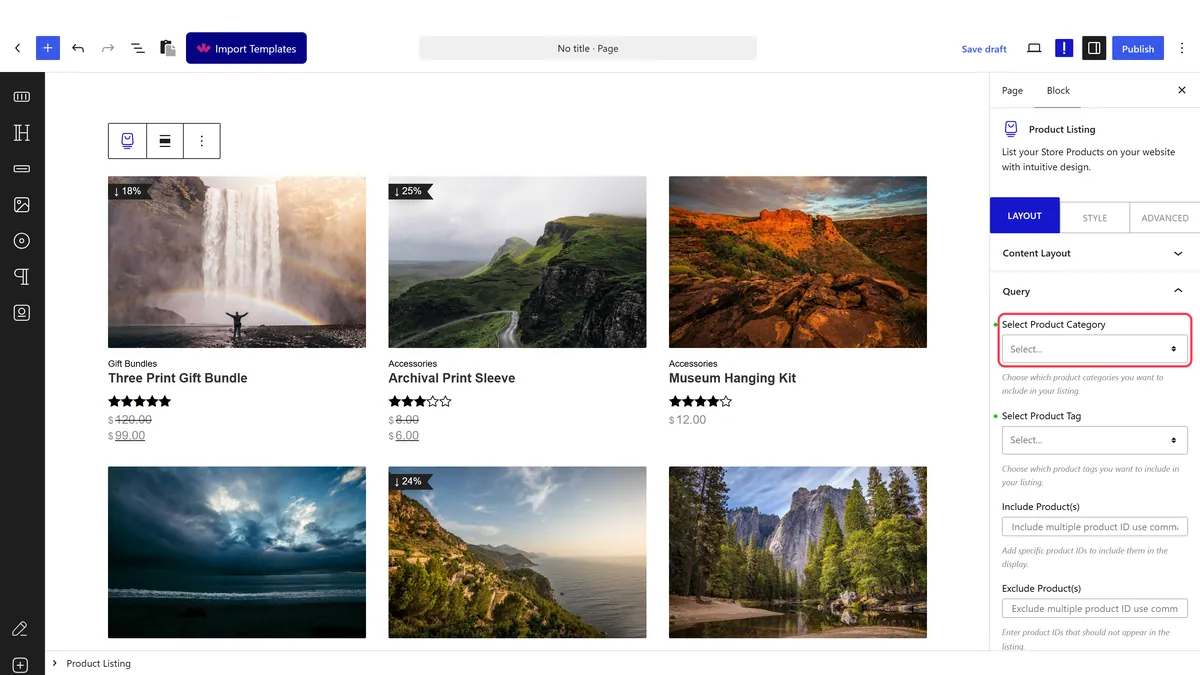
- Narrow the selection if you want — by category, by tag, or to featured products only.
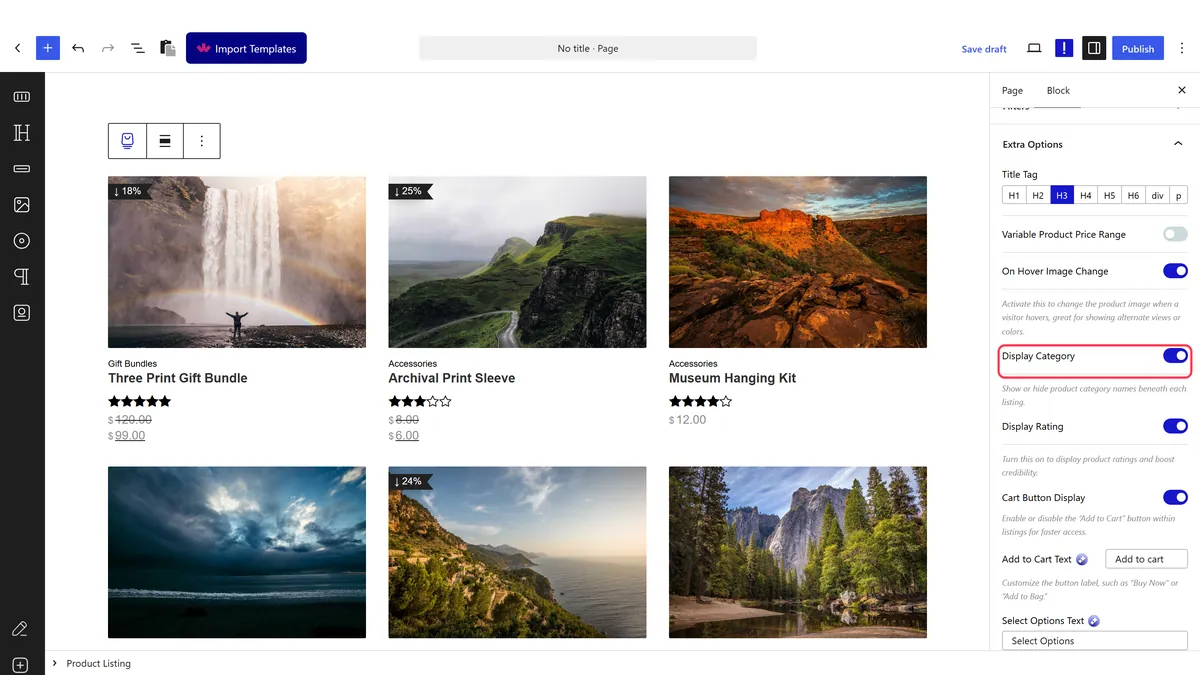
- Decide what each card shows: price, rating, category, sale badge, add to cart.
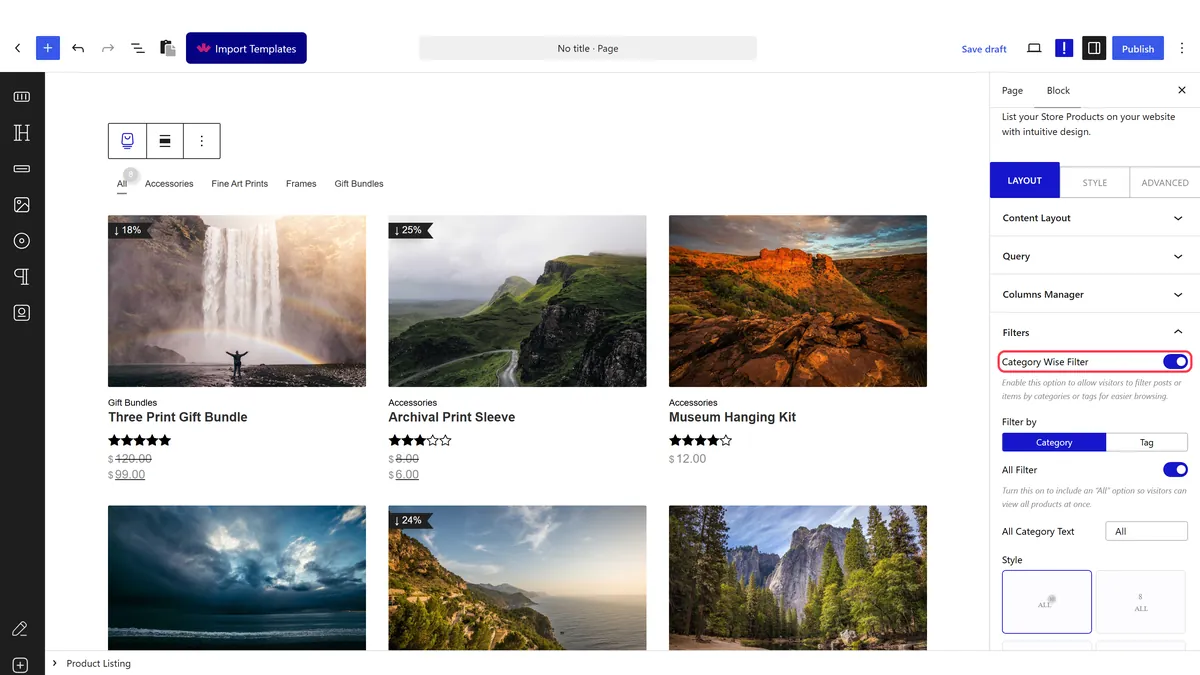
- Style the cards.
- Publish and check the real page.
How It Behaves
The block runs its own product query and renders a WooCommerce product card for each result.
- Every card carries its own data. Measured on a published page, each product renders as an
articlewhose classes include its category (product_cat-...), its tags (product_tag-...), its stock state (instockoroutofstock) and whether it is on sale. - Prices come from WooCommerce, including sale prices, so a price change in the product updates the listing with no edit here.
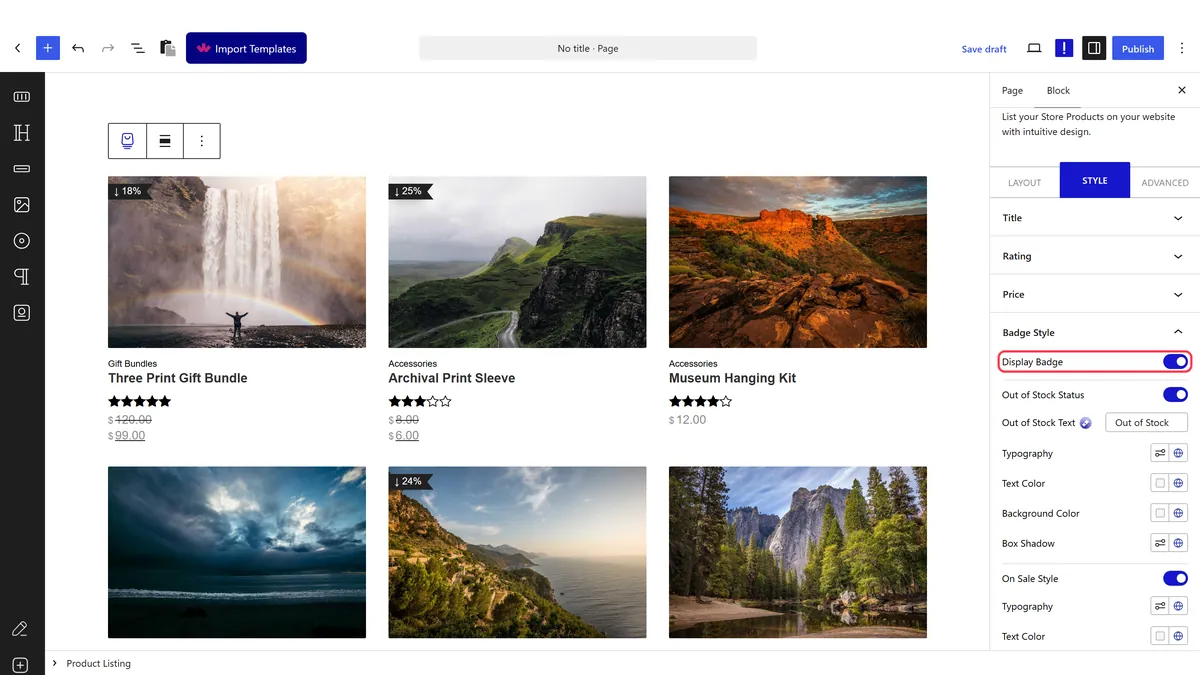
- Sale badges show the discount. Measured: a product reduced from $120 to $99 rendered a badge reading
↓ 18%, calculated rather than typed. - The default is eight products. Measured, the count setting is stored as text, so enter a plain number such as 12.
- Several card parts are off by default, which surprises people: star ratings and the category line are both hidden until switched on. Add to cart and the sale badge are on.
- Measured with Nexter Blocks Pro deactivated: the block renders nothing at all — no wrapper, no products, no prices. This is a Pro-only block.
What Each Card Can Show
- Add to cart — on by default. See hide the add to cart button.
- Sale badge — on by default, with the discount worked out for you.
- Star rating — off by default. See add star ratings.
- Category — off by default.
- Price, title and image — always shown.
Limitations
- Pro only — measured with Nexter Blocks Pro deactivated, the block renders nothing at all, not even a plain product list.
- It needs WooCommerce and real products. An empty catalogue renders an empty listing.
- Every product in the listing is queried and rendered, so a listing of thirty is thirty products’ worth of work on every page load.
- Related products need a product page. On an ordinary page there is no current product to match from — see show related products.
- Variable products show a price range rather than a single figure, which is WooCommerce behaviour rather than a block setting.
Troubleshooting
Nothing renders at all
Check Nexter Blocks Pro is active. Measured with Pro off, this block produces no output whatsoever.
The listing is empty
No published products match the query. Check any category, tag or featured restriction, and that the products are published.
There are no star ratings
Ratings are off by default. Switch them on — see add star ratings.
I see more products than I asked for
The count is stored as text. Enter a plain number; a non-numeric value falls back to the default of eight.
