










Asking visitors to agree to your privacy policy before they submit is a common part of GDPR-friendly forms.
The Form block in Nexter Blocks Pro has an Agree to Terms field that adds a consent checkbox.
For every Form setting in one place, see the Form block guide.
Before You Start
- Edition: Pro — The Agree to Terms field needs Nexter Blocks Pro.
- Block to enable: Form, switched on under Nexter > Blocks in your WordPress dashboard.
- A privacy policy page to link to.
Steps
- Add the Form block and set up your fields.
- Click the + inside the form and add Agree to Terms above the Submit button.
- Edit the consent text in Label and turn on Required.
- Turn on Enable Link, then enter the words to link in Link Label and your policy page in Link. Save.
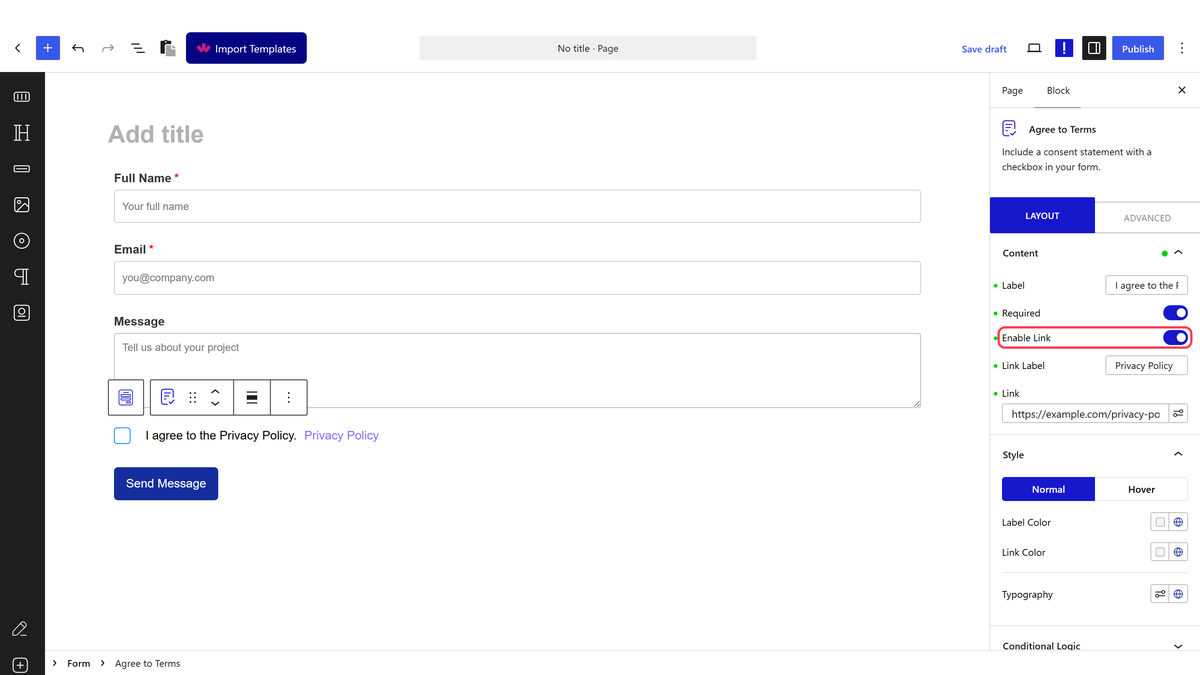
How It Behaves
- With Required on, the form cannot be submitted until the box is ticked.
- Once ticked, the form submits as normal. The tick itself is not listed in the email you receive.
- Style the text and link colour on the field’s Style tab.
Limitations
- Pro only.
- The form does not store a record of consent. Add Database Entry if you need a saved copy of each submission.
- A checkbox alone does not make a site GDPR compliant. Check your wider data handling with a legal adviser.
Troubleshooting
Visitors can submit without ticking the box
Select the Agree to Terms field and turn on Required.
