










Google requires an API key for every map it serves on your site.
This guide creates the key in Google Cloud and connects it to the Google Map block in Nexter Blocks.
For every Google Map setting in one place, see the Google Map block guide.
Before You Start
- Edition: Free — the API key works for the Google Map block in Nexter Blocks (free) and with Nexter Blocks Pro.
- Block to enable: Google Map, switched on under Nexter > Blocks in your WordPress dashboard.
- A Google account and a payment card for Google Cloud billing. Google gives a monthly free usage allowance; check current pricing on Google’s site.
Create a Project and Billing
Google Cloud changes its screens often, so yours may look slightly different.
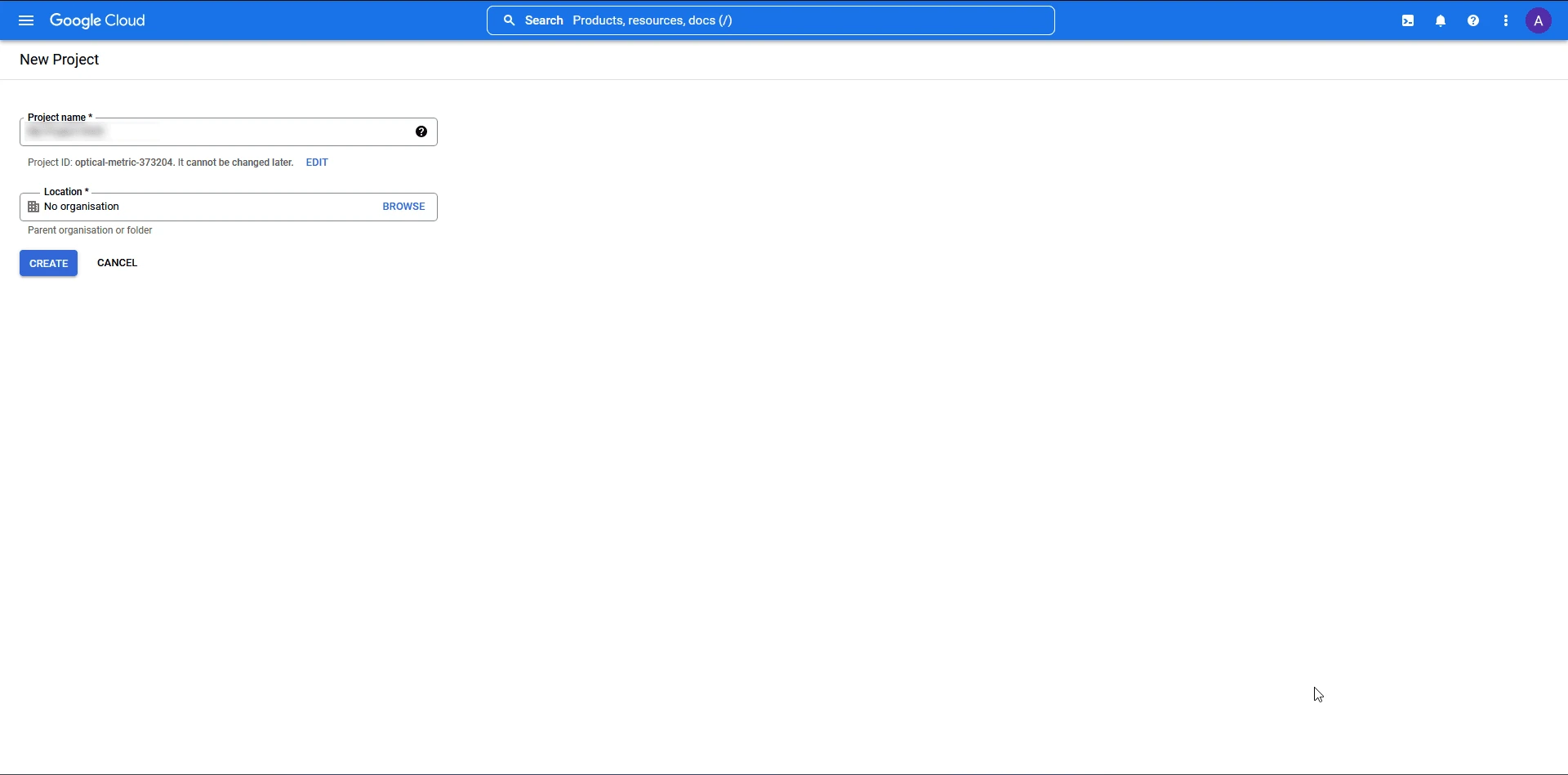
- Open the Google Maps Platform credentials page and create a new project. Give it a name and click Create.
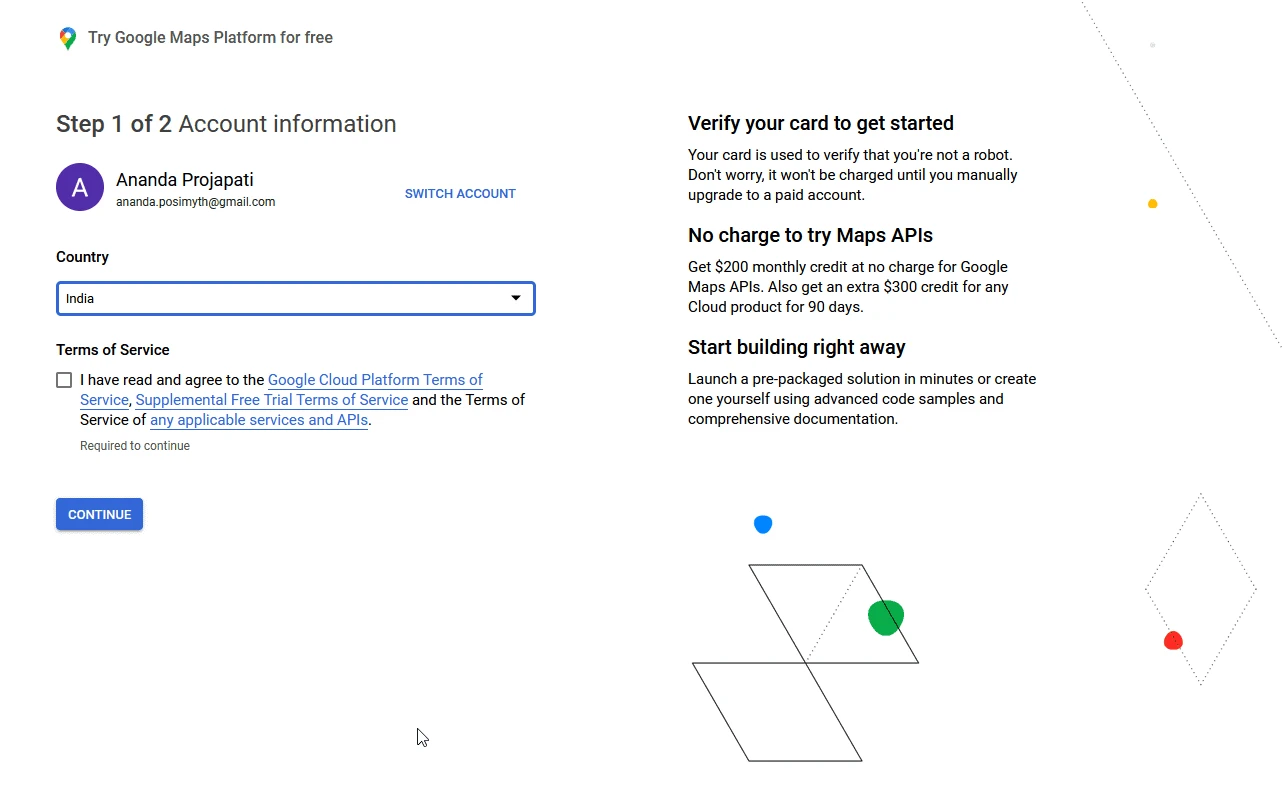
- Choose your country, accept the terms and continue.
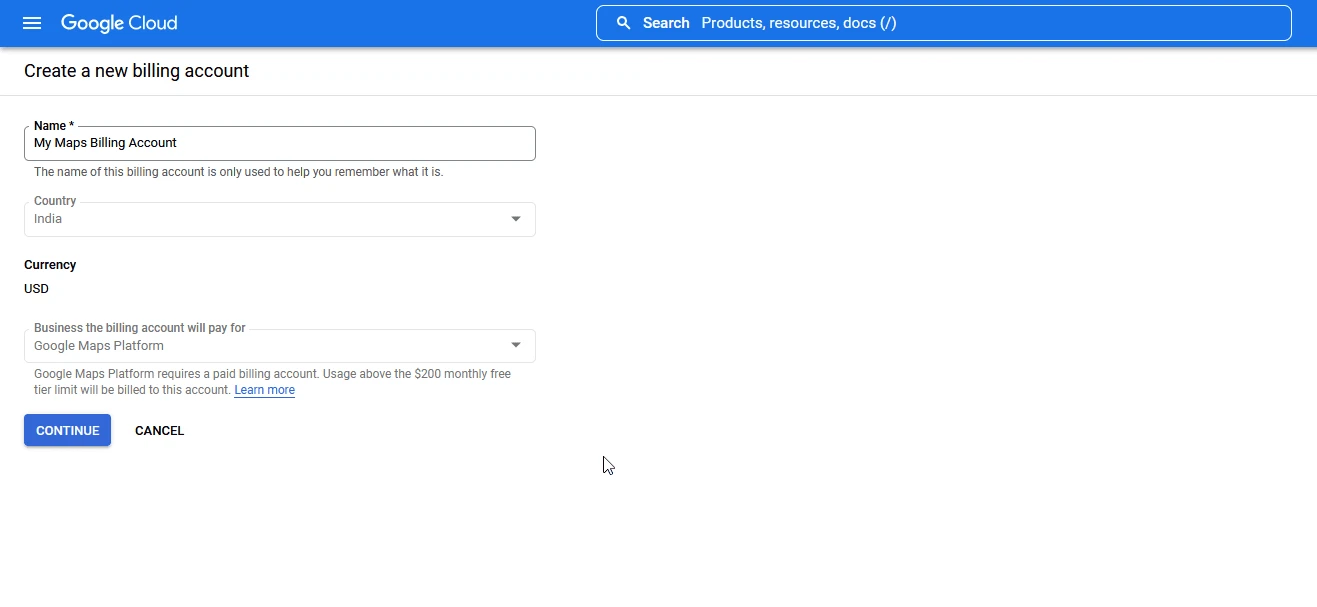
- Create a billing account: name it and continue.
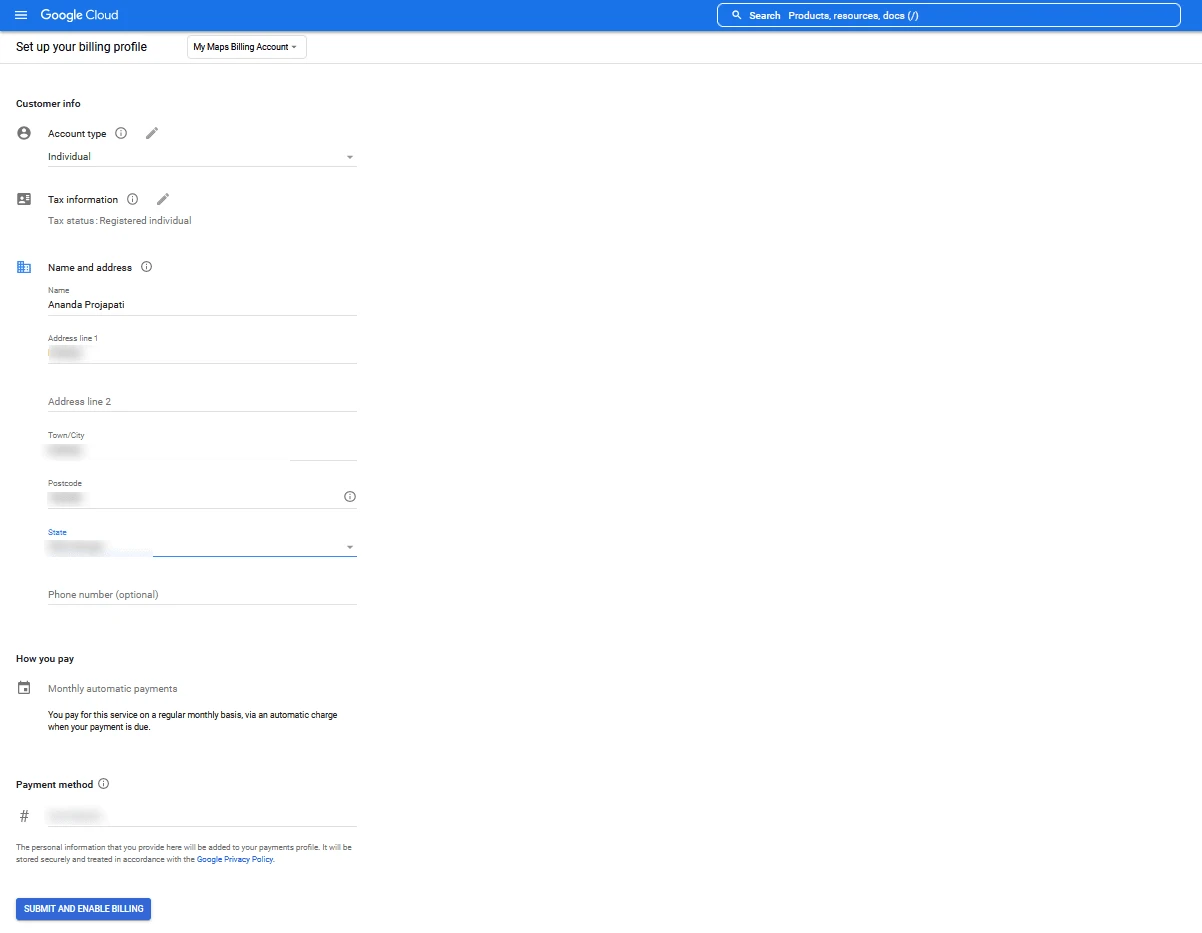
- Fill in the account type, tax and payment details and click Submit and Enable Billing.
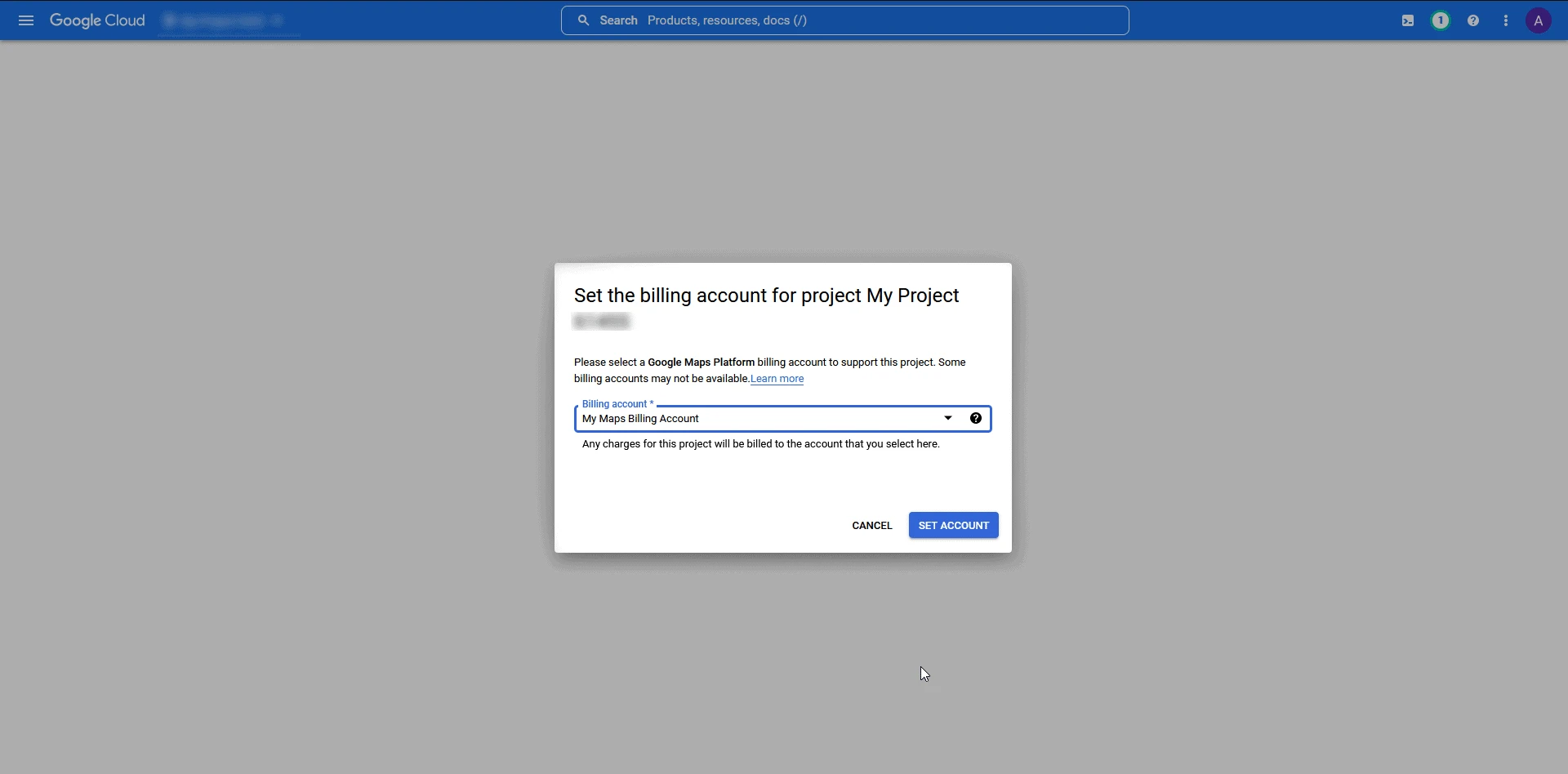
- Link the billing account to your project with Set Account.
Get and Restrict the Key
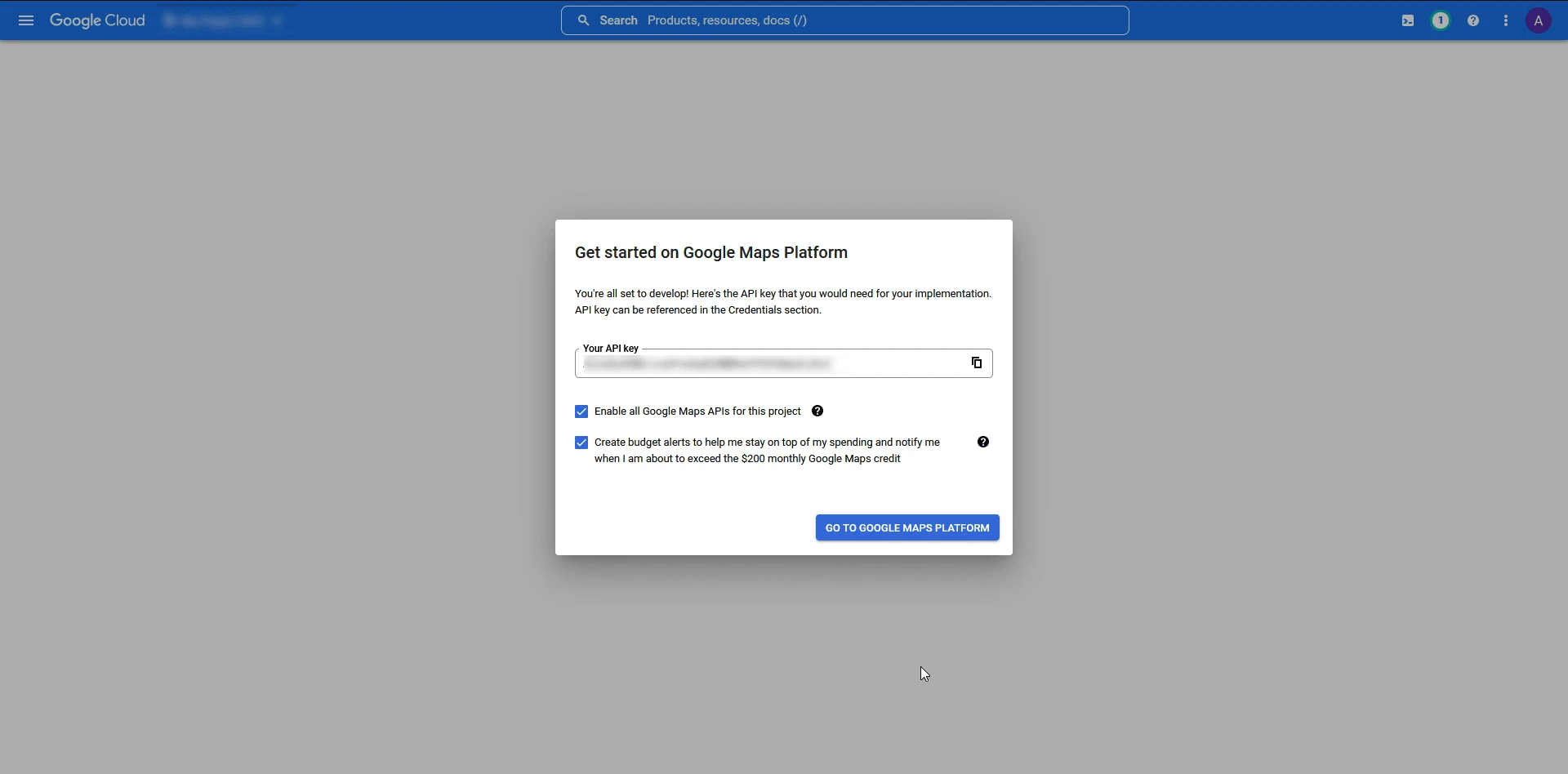
- Answer Google’s short questions. Your API key then appears. Copy it.
- Open the key’s settings. Under API restrictions, choose Restrict key and select Maps JavaScript API. Do not pick Maps Embed API: the block uses the JavaScript API.
- Under Application restrictions, choose Websites and add your domain, for example
https://example.com/*. Save.
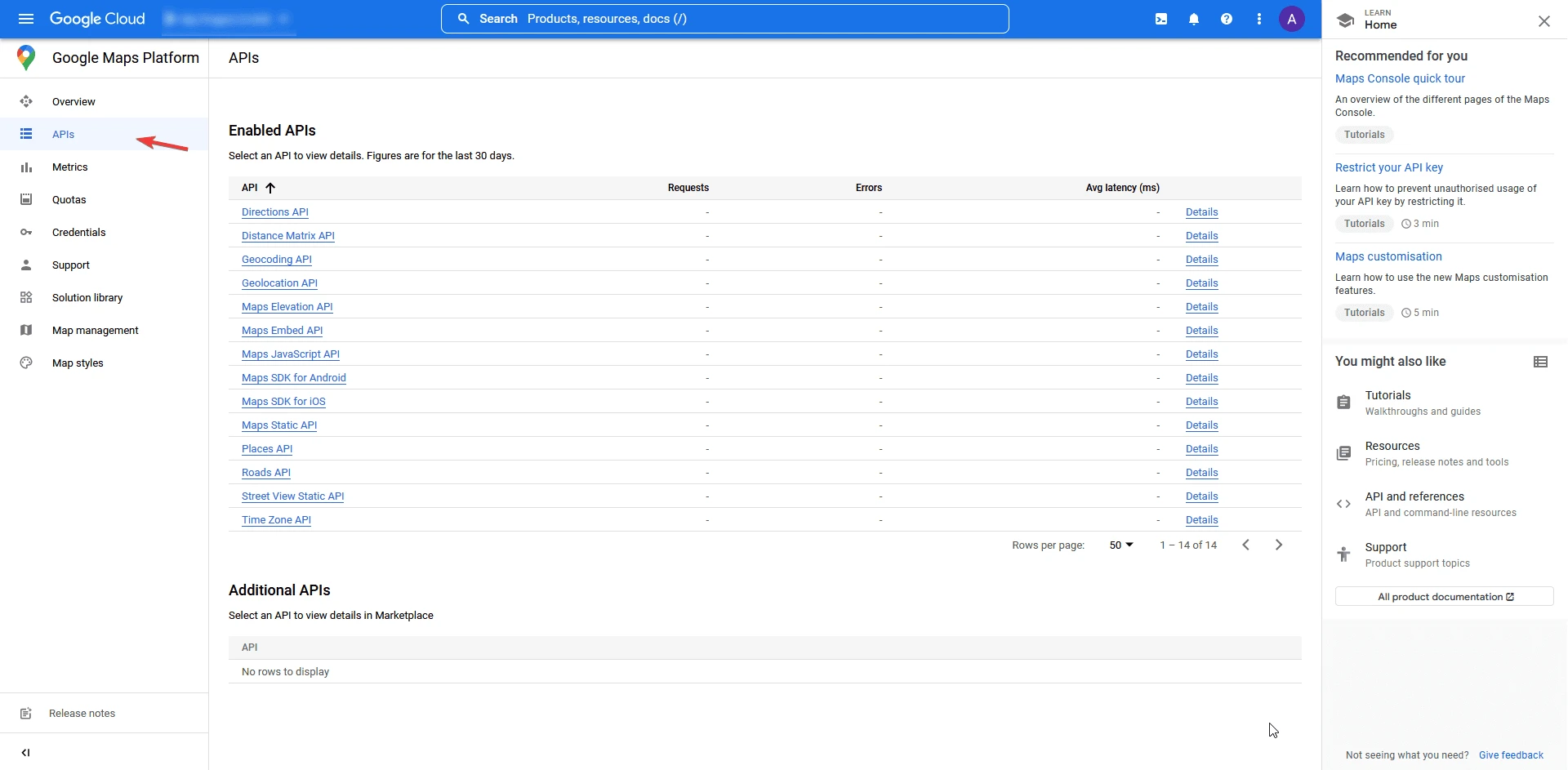
- Check APIs in the left menu to confirm Maps JavaScript API is enabled.
Connect the Key in Nexter
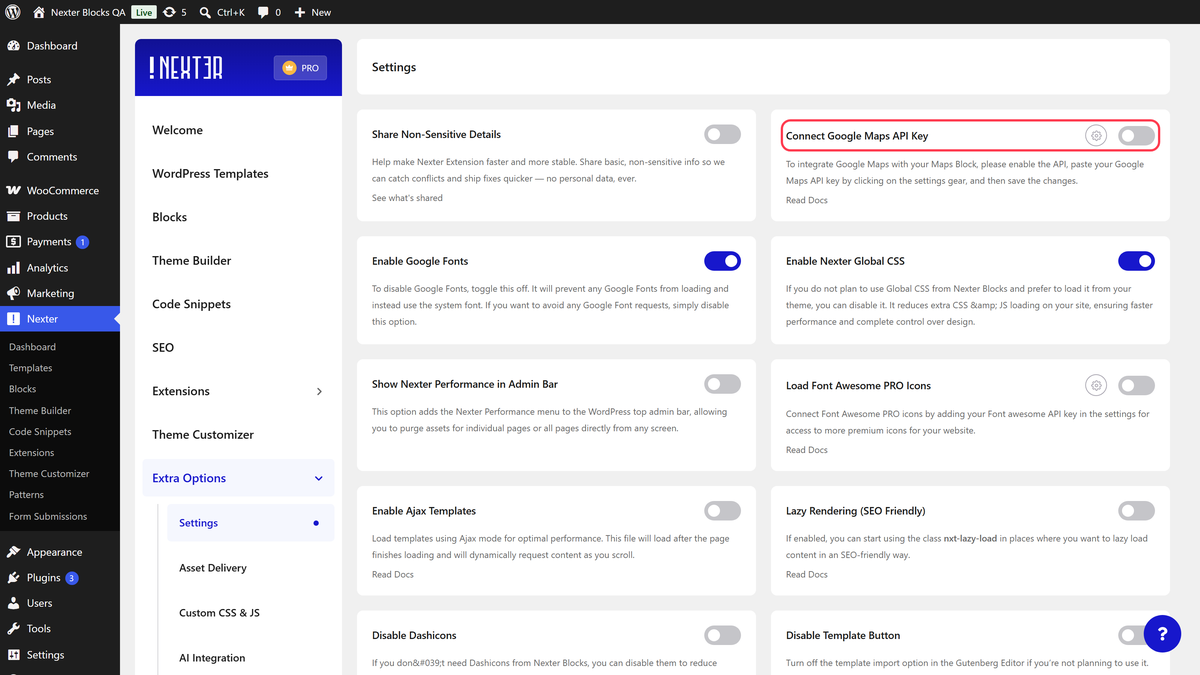
- In WordPress, go to Nexter > Extra Options > Settings.
- Turn on Connect Google Maps API Key, click its settings gear, paste the key into Enter API Key and click Save.
How It Behaves
- One key serves every Google Map block on your site.
- The block loads Google’s Maps JavaScript API with this key on pages that contain a map.
- Restricting the key to your domain stops other sites from using it.
Limitations
- Google requires billing on the project, even if your traffic stays inside the free allowance.
- A key restricted to the Maps Embed API only will not work with this block.
Troubleshooting
The map shows “This page can’t load Google Maps correctly”
Billing is not active, the Maps JavaScript API is not enabled, or the key’s website restriction does not match your domain. Fix it in Google Cloud and reload the page.
It works on my live site but not on staging
Add the staging domain under Application restrictions.
