










A map on your contact or locations page shows visitors exactly where to find you.
The Google Map block in Nexter Blocks embeds an interactive Google Map with one or more pins, tooltips, custom marker images and your choice of map controls.
Before You Start
- Edition: Free, except Map Overlay Content and Custom Style Map, which need Nexter Blocks Pro.
- Block to enable: Google Map, switched on under Nexter > Blocks in your WordPress dashboard.
- A Google Maps API key with the Maps JavaScript API enabled. See how to generate a Google Maps API key.
Learn via Video Tutorial
Connect Your API Key
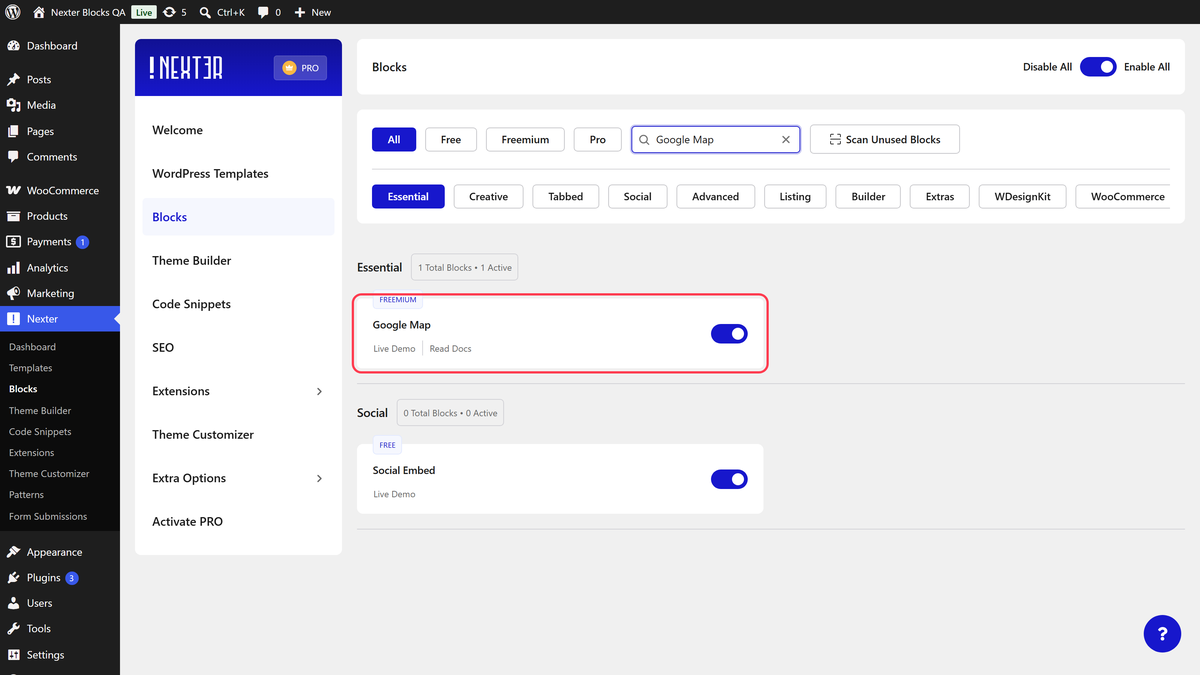
- Go to Nexter > Blocks, search for Google Map and turn it on.
- Go to Nexter > Extra Options > Settings and find Connect Google Maps API Key.
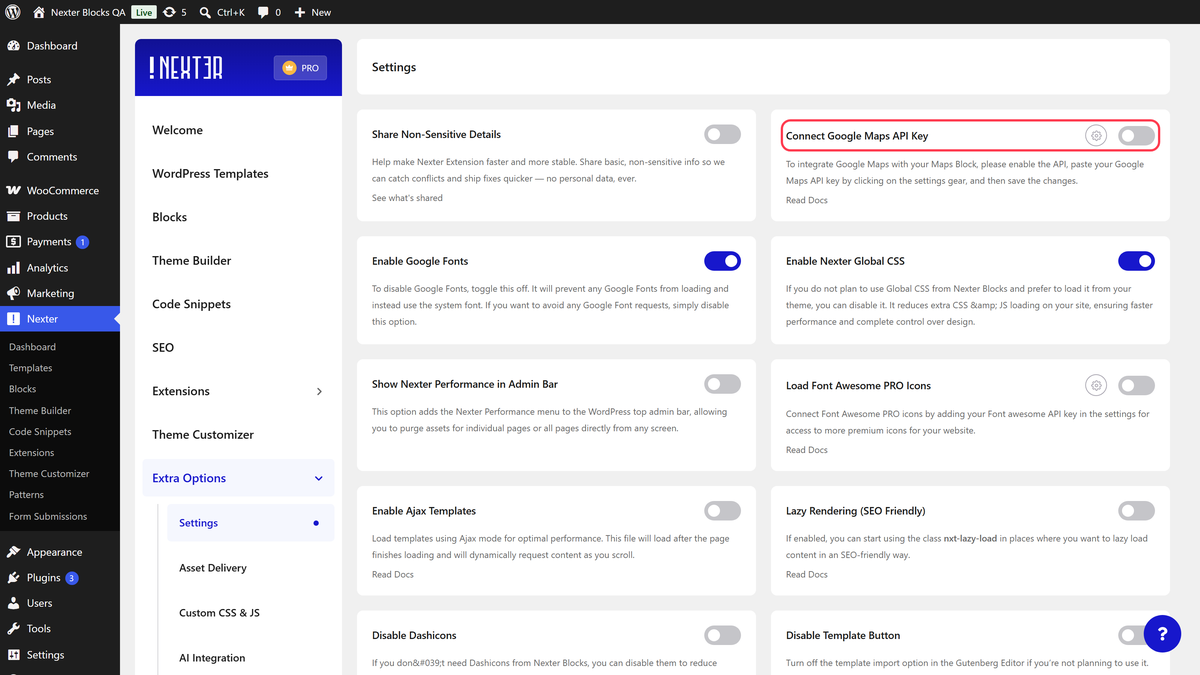
- Turn on the switch, click the settings gear, paste your key into Enter API Key and click Save.
Add the Map
- Add the Google Map block to your page and click Design from Scratch.
- On the Layout tab, open Content and the first item under Pins.
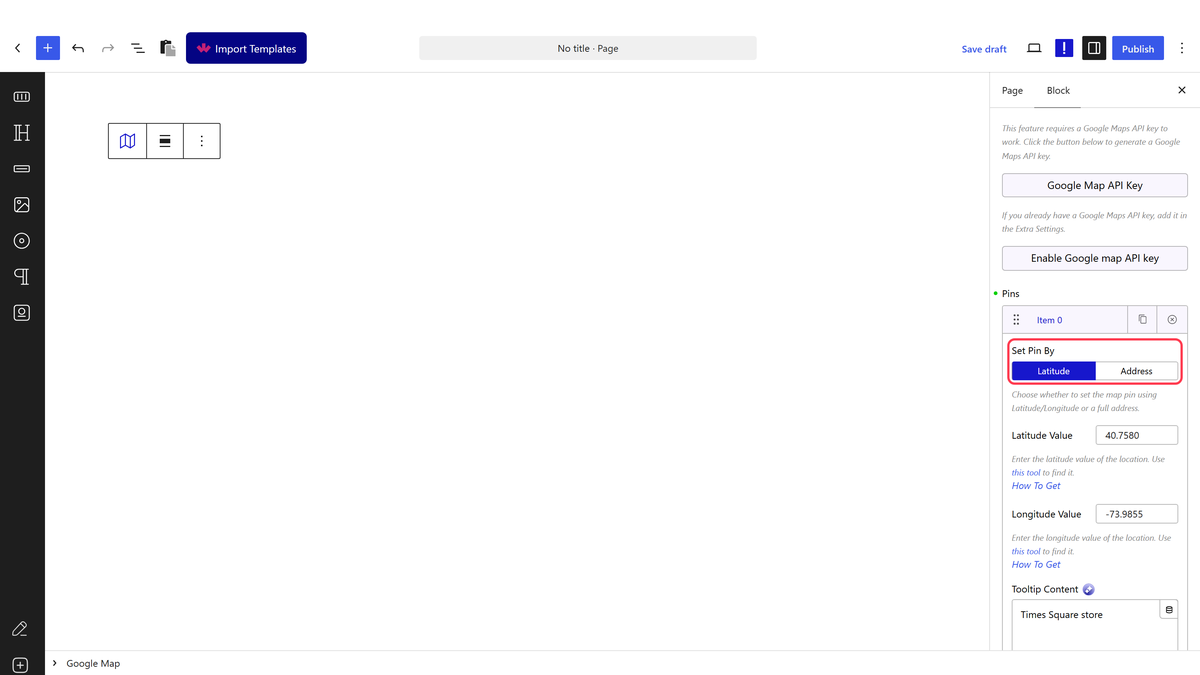
- Under Set Pin By, choose Latitude and fill in Latitude Value and Longitude Value, or choose Address and type it in Location.
- Add the text visitors see on the pin in Tooltip Content. Upload an image in Tooltip Icon to replace the red marker.
- Click Add Pin for each extra location, then set Minimum Height and Map Zoom.
- Open the Style tab to pick map controls and a map type, then save.
Layout Settings
| Panel | Setting | What it does | Default |
|---|---|---|---|
| Content | Pins > Set Pin By | Place the pin by Latitude (Latitude Value and Longitude Value) or by Address (Location) | Latitude |
| Content | Pins > Tooltip Content | Text shown when a visitor clicks the pin. Basic HTML such as bold and line breaks is allowed | Empty |
| Content | Pins > Tooltip Icon, Image Size | A custom marker image and the size WordPress serves | Google’s red marker |
| Content | Add Pin | Adds another location to the same map | One pin |
| Content | Minimum Height | Height of the map, per device | 300px |
| Content | Map Zoom | Starting zoom, from 1 (far) to 25 (close) | 8.5 (shown as 8) |
| Overlay Content | Map Overlay Content (Pro) | A title and description box on top of the map, with a show/hide button | Off |
Style Settings
| Panel | Setting | What it does | Default |
|---|---|---|---|
| Map | Zoom Control, Scroll Wheel, Pan Control, Draggable, Map Type Control, Scale Control, Full-screen Control, Street View Control | Turns each map control or mouse interaction on or off | All on |
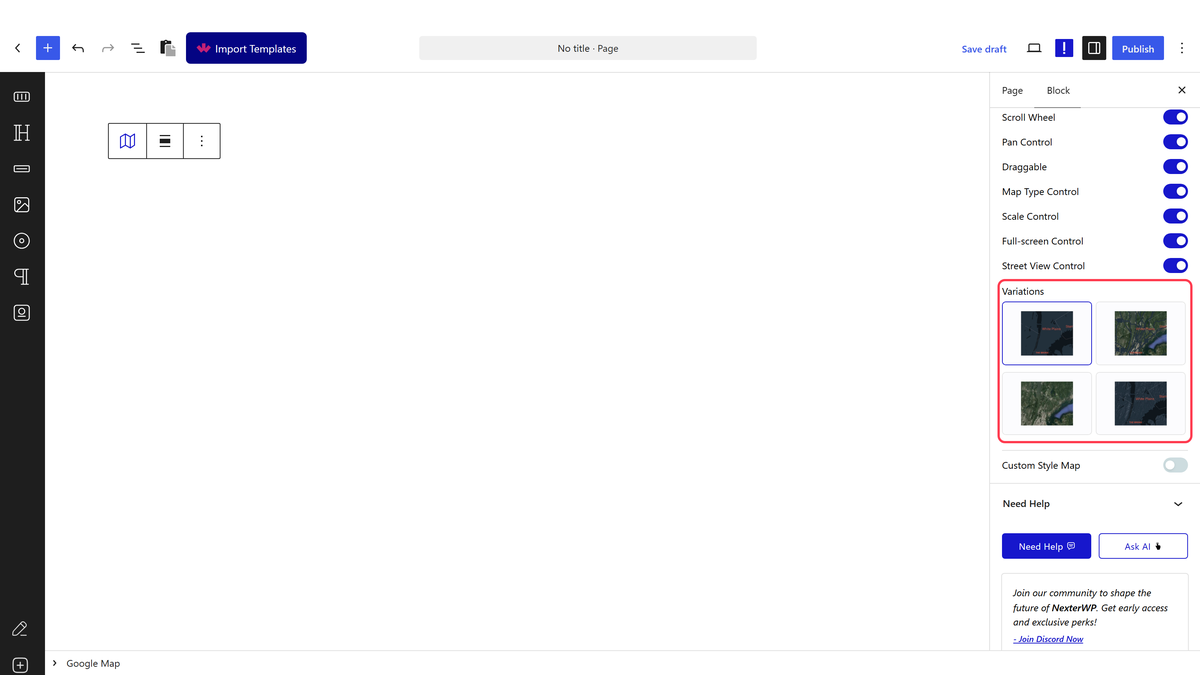
| Map | Variations | ROADMAP, HYBRID, SATELLITE or TERRAIN | ROADMAP |
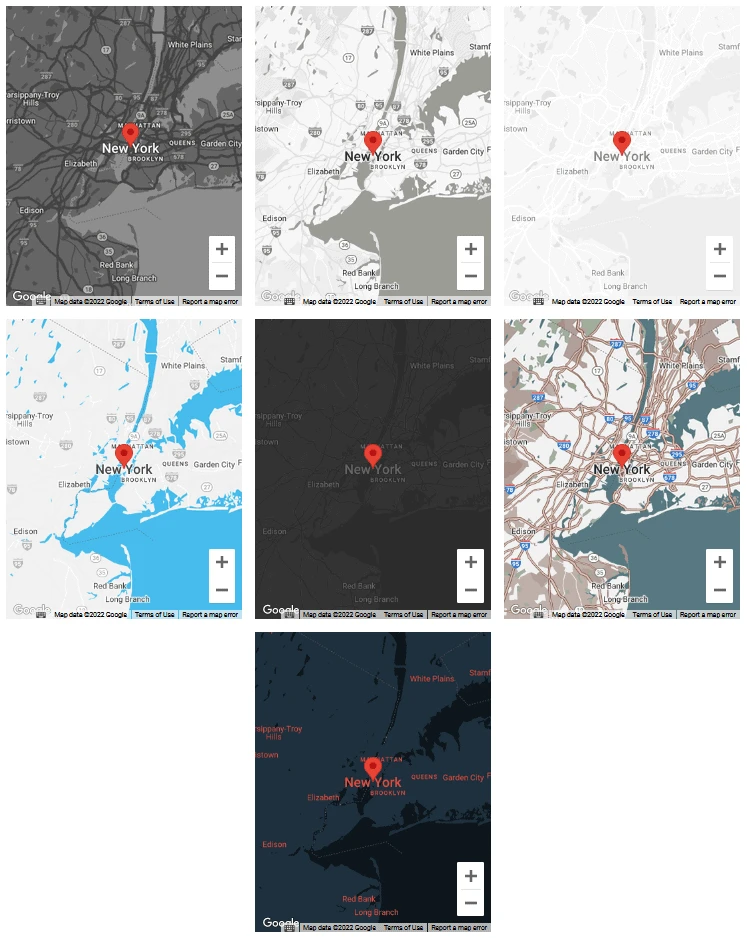
| Map | Custom Style Map (Pro) | Recolours the map with one of seven Creative Map Style presets | Off |
| Overlay Content | Colours, typography, background (Pro) | Styles the overlay box. Shows when Map Overlay Content is on | — |
The Advanced tab holds the options shared by all Nexter Blocks.
How It Behaves
- The map loads Google’s Maps JavaScript API with the key saved in Extra Options, once per page.
- All pins share one map. The map does not zoom out to fit them, so set Map Zoom so every pin is in view.
- The editor shows your pins and settings; check the published page to see the live map.
- Pins, zoom, height, controls and all four Variations work in the free plugin. With only the free plugin, Map Overlay Content and Custom Style Map show in the sidebar but do not change the map.
Limitations
- Map Zoom uses whole numbers. Decimals are rounded down, so the default 8.5 shows zoom 8.
- Map Overlay Content and Custom Style Map are Pro features, although the free plugin shows their switches.
- The map needs your own API key with billing enabled in Google Cloud.
Troubleshooting
The map is grey or says it cannot load Google Maps
Check that Connect Google Maps API Key is on and the key is saved, that the key has the Maps JavaScript API enabled, and that billing is active in Google Cloud.
The overlay or custom style does not show
Both need Nexter Blocks Pro. Activate Pro, then turn the setting off and on again.
The browser console shows a Google Maps error about loading the API more than once
Another plugin or your theme also loads Google Maps. See how to remove the Google Maps API error.
