










A table is only as useful as the order it is in, and the order you typed is rarely the order a visitor wants.
One switch in the Data Table block makes every column heading clickable, so visitors reorder the table themselves.
For every Data Table setting in one place, see the Data Table block guide.
Before You Start
- Edition: Free — works in Nexter Blocks (free) and with Nexter Blocks Pro.
- Block to enable: Data Table, switched on under Nexter > Blocks in your WordPress dashboard.
- A table with a header row: sorting works from the headings, so each column needs one.
Steps
- Add the Data Table block to your page and click Design from Scratch.
- In the Table panel, leave Type on Standard.
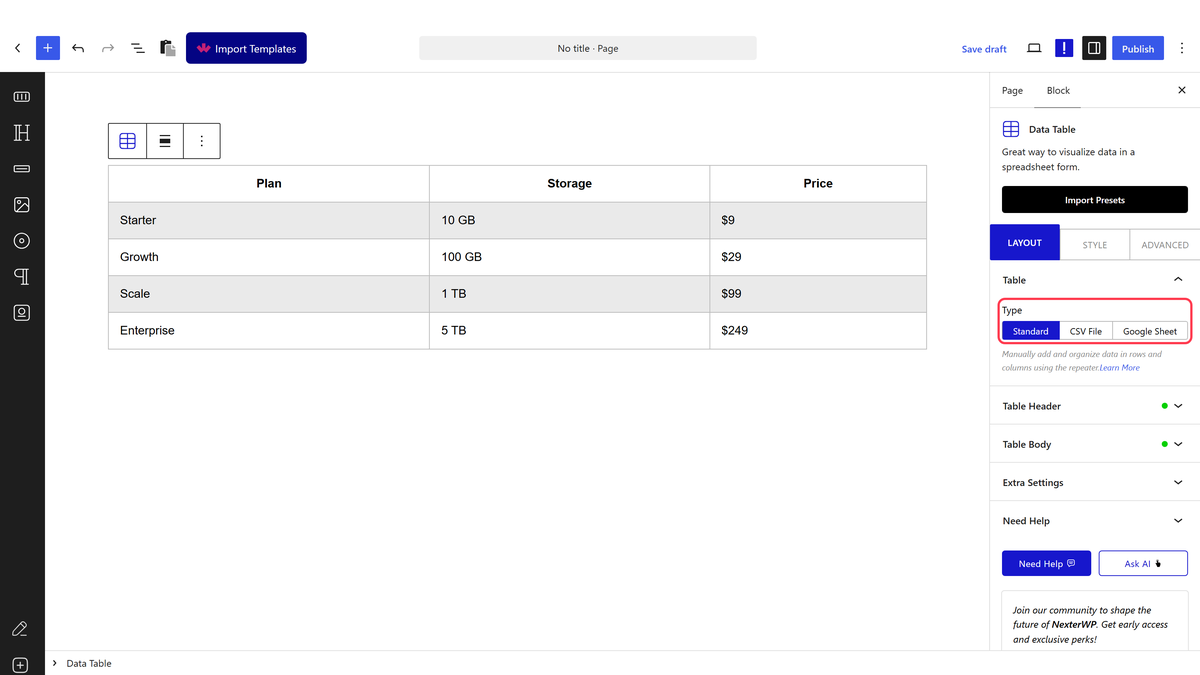
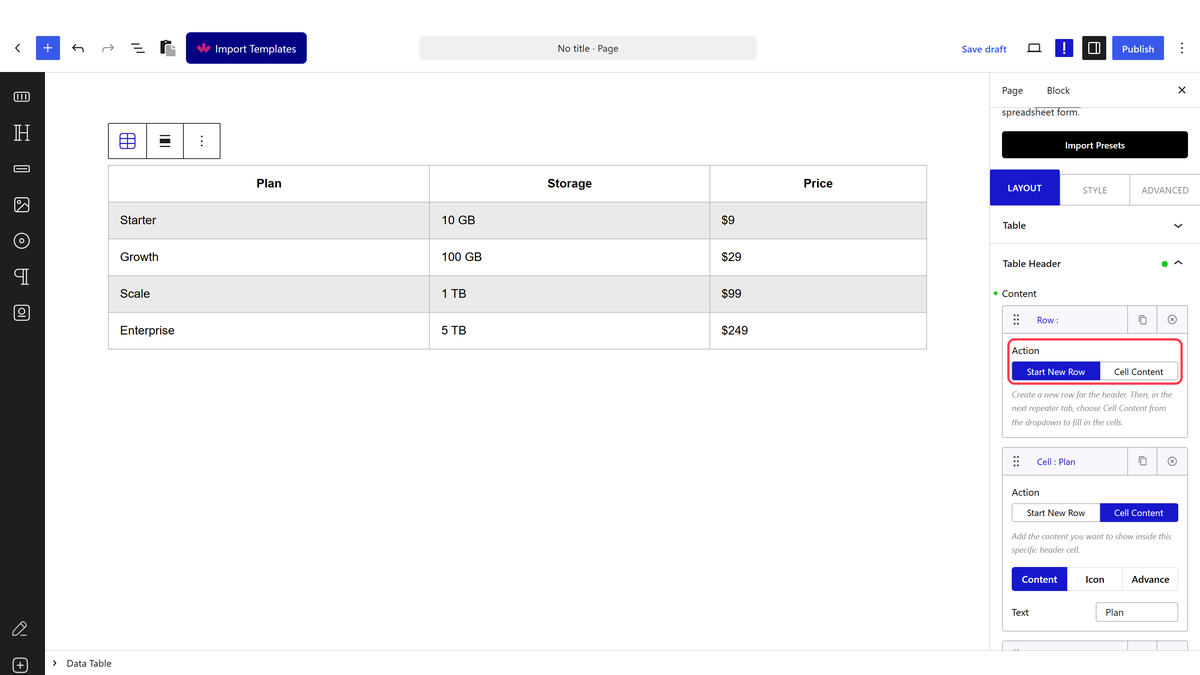
- Open Table Header. Each item’s Action is either Start New Row or Cell Content — start a row, then add one Cell Content item per column and type its heading.
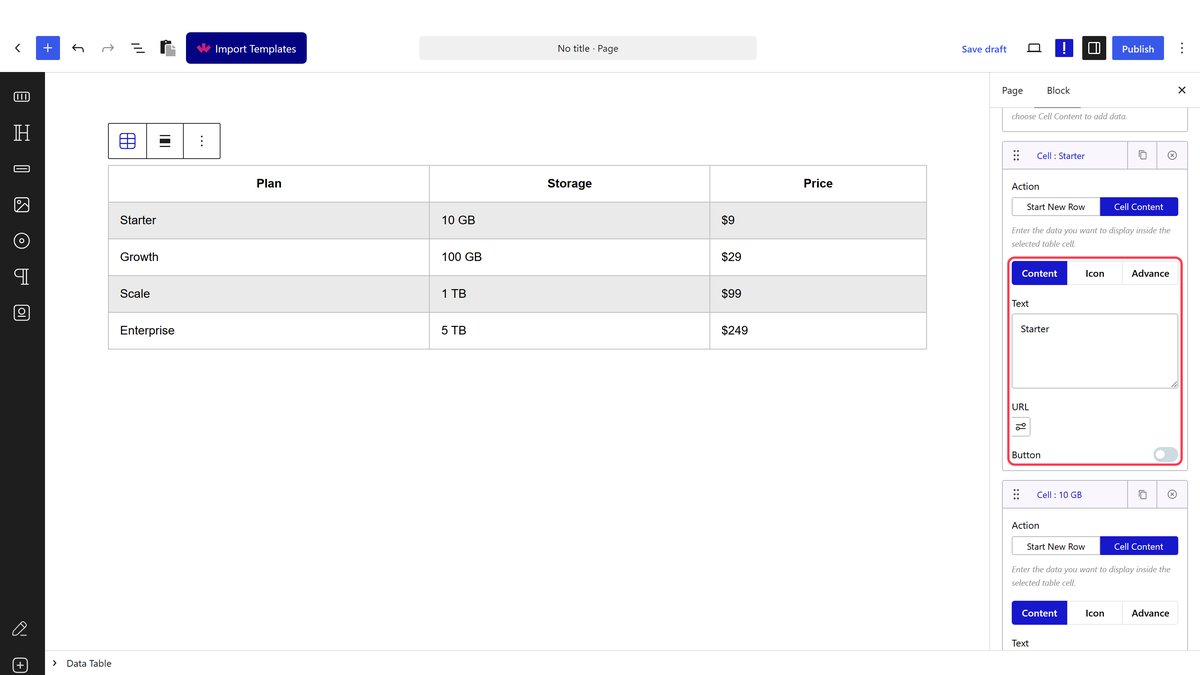
- Open Table Body and do the same: a Start New Row item, then one Cell Content item per column with its Text.
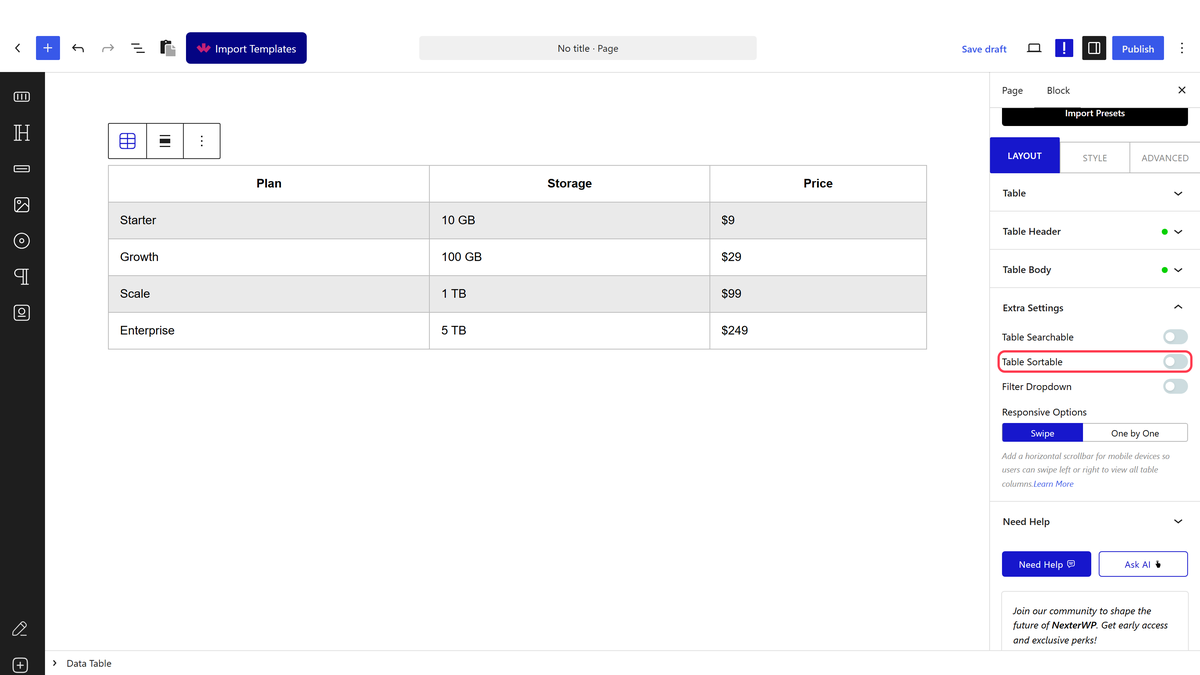
- Open Extra Settings and switch Table Sortable on.
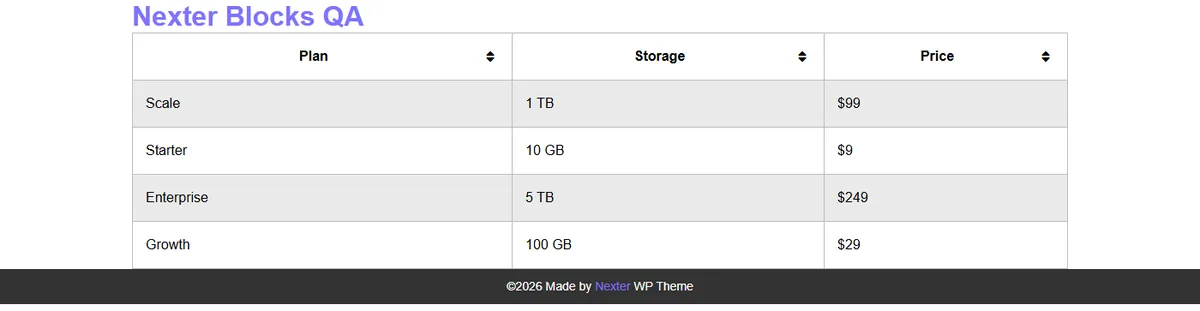
- Publish the page, then click a column heading on the front end to sort by it.
How It Behaves
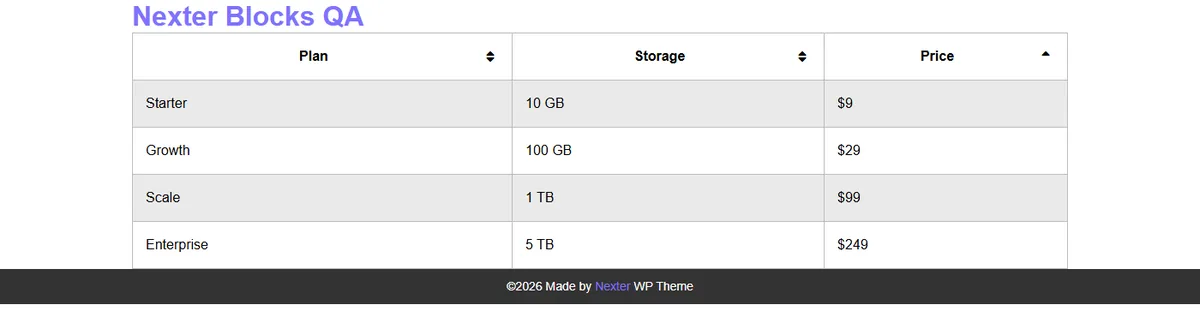
- Every column becomes sortable. The first click sorts ascending, the next click reverses it.
- Numbers sort as numbers even when they carry a symbol. A price column holding $99, $9, $249 and $29 sorts to $9, $29, $99, $249 rather than alphabetically.
- Text columns sort alphabetically.
- Sorting happens in the browser, so the page does not reload and the visitor’s place is kept.
Limitations
- Sorting is all or nothing — you cannot make one column sortable and leave another fixed.
- There is no way to set a default sort order, so the table first loads in the order you entered.
- The sort order is not remembered between page loads.
- Cells that use Column Span or Row Span leave a row with more cells than there are headings, which makes sorting unreliable. Keep sortable tables rectangular.
Troubleshooting
The headings do not respond to clicks
Check that Table Sortable is on, and view the published page rather than the editor preview — sorting only runs on the front end.
A number column sorts in the wrong order
Mixed content in the column is the usual cause. Keep a numeric column numeric, with the same symbol on every row, and leave notes to their own column.
Sorting stopped working after I merged some cells
Remove the Column Span or Row Span from that table, or keep it as a presentation table without sorting.
