Pricing tiers, specifications and comparison charts all need a real table, and the block editor’s own table is hard work once there is any structure to it.
The Data Table block builds one from two simple repeaters, and can also pull its rows from a CSV file or a Google Sheet.
Before You Start
- Edition: Free — works in Nexter Blocks (free) and with Nexter Blocks Pro.
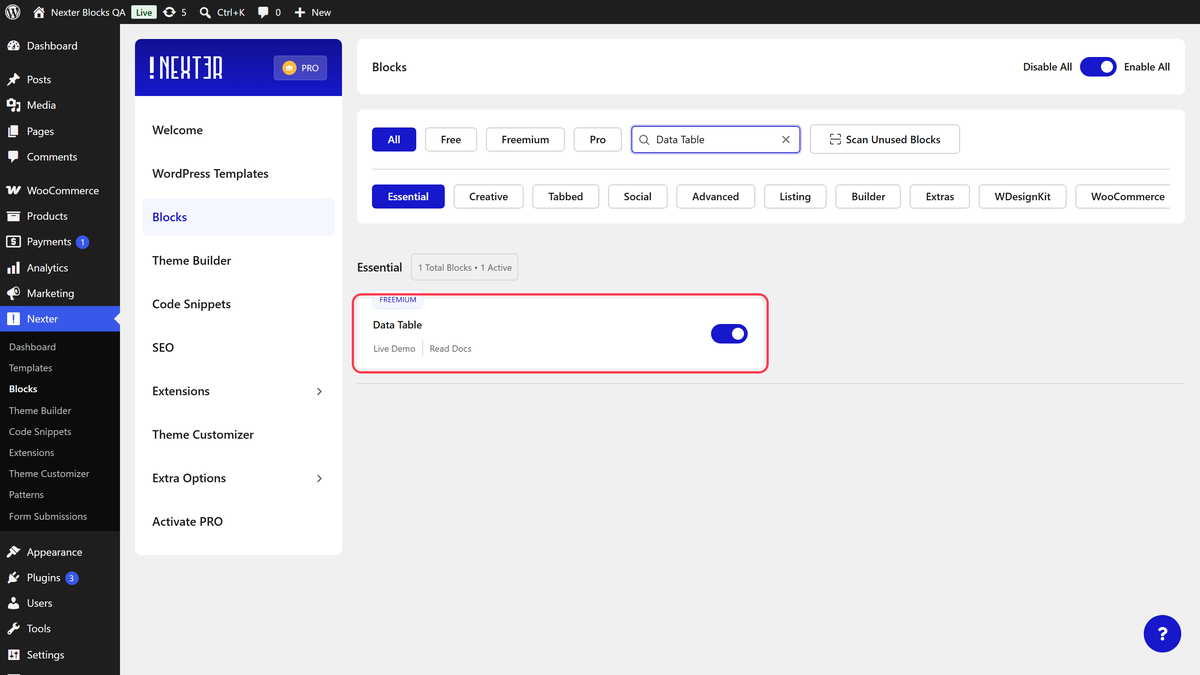
- Block to enable: Data Table, switched on under Nexter > Blocks in your WordPress dashboard.
- Your data ready: either the values to type in, or a CSV file or Google Sheet to import from.
Learn via Video Tutorial
Steps
- Add the Data Table block to your page and click Design from Scratch.
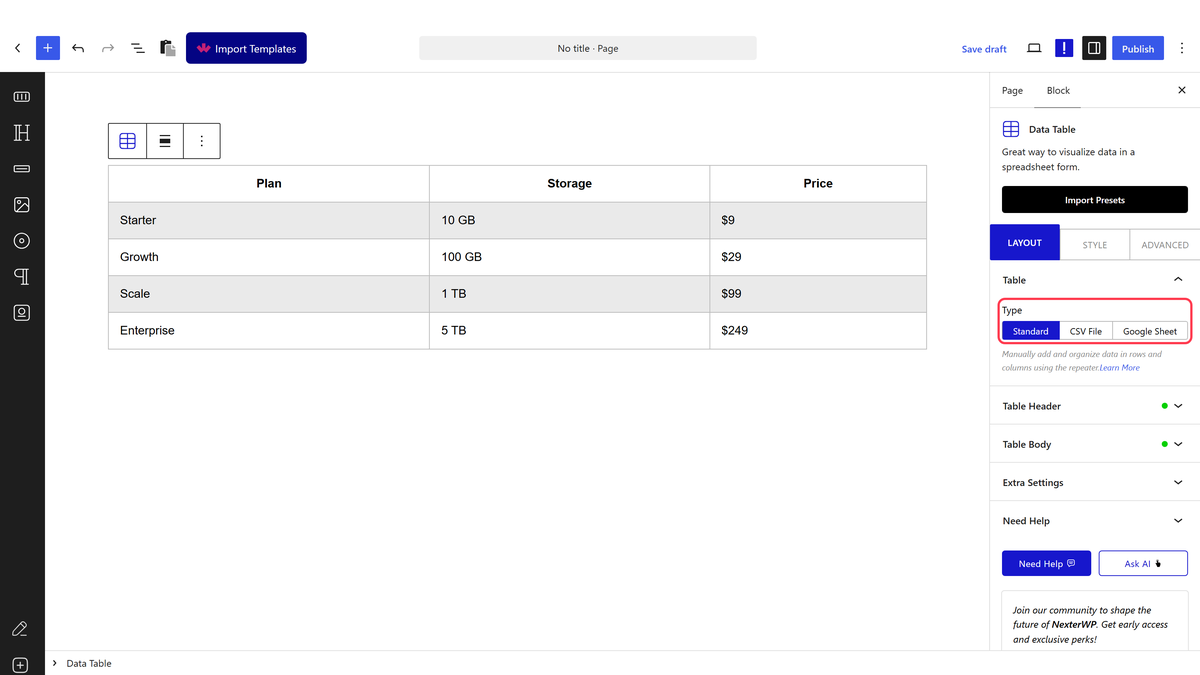
- In the Table panel, leave Type on Standard.
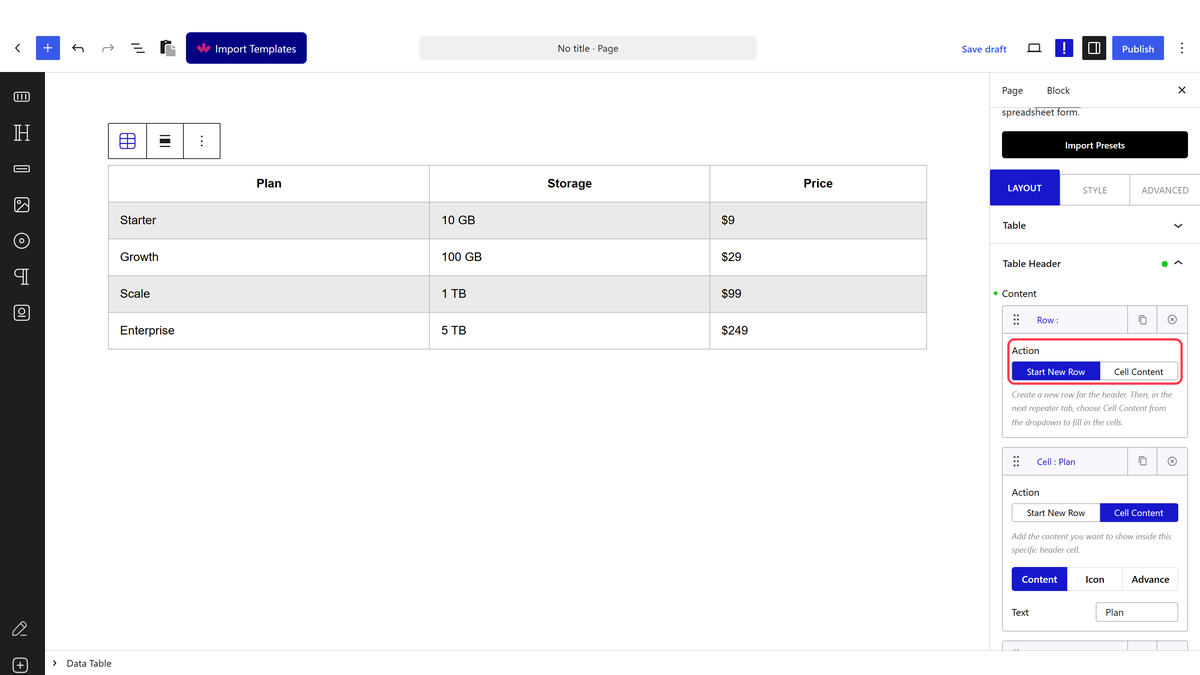
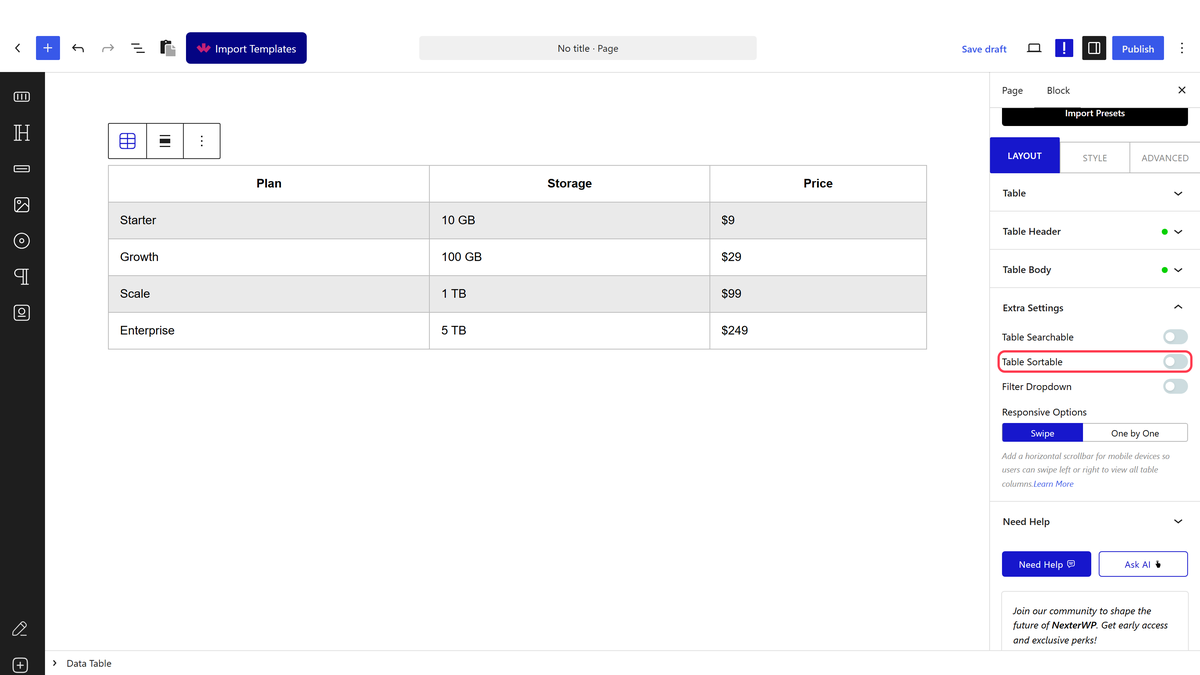
- Open Table Header. Each item’s Action is either Start New Row or Cell Content — start a row, then add one Cell Content item per column and type its heading.
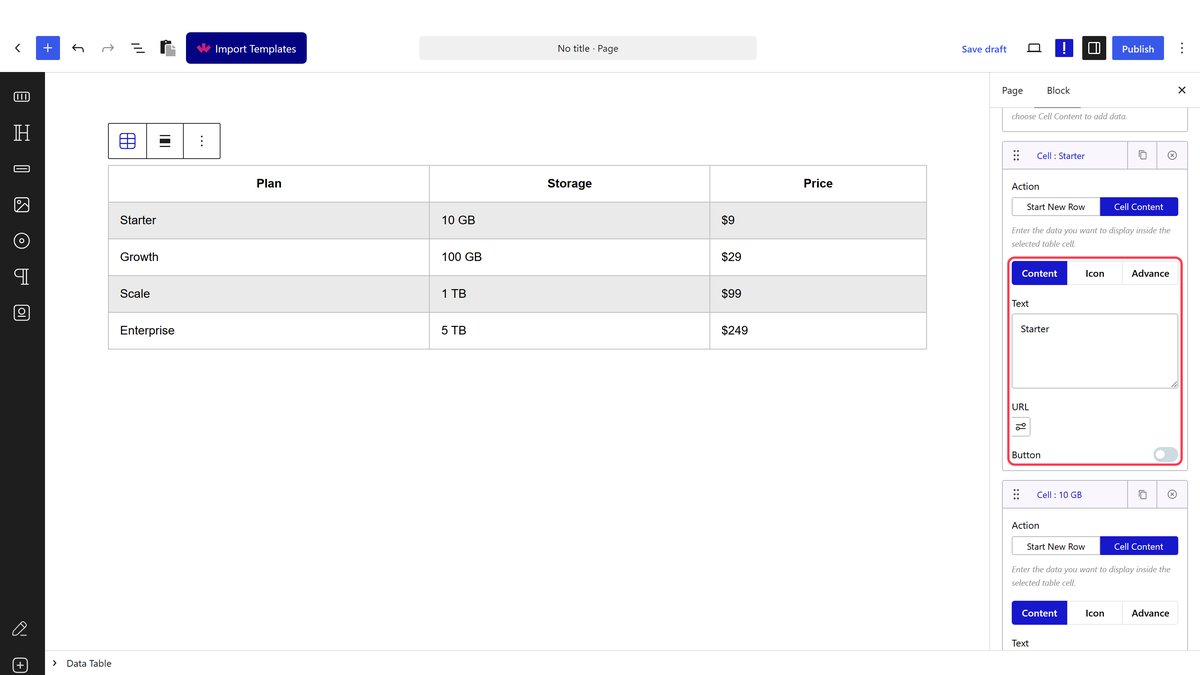
- Open Table Body and do the same: a Start New Row item, then one Cell Content item per column with its Text.
- Open Extra Settings to switch on sorting, search, the entries dropdown and the mobile behaviour.
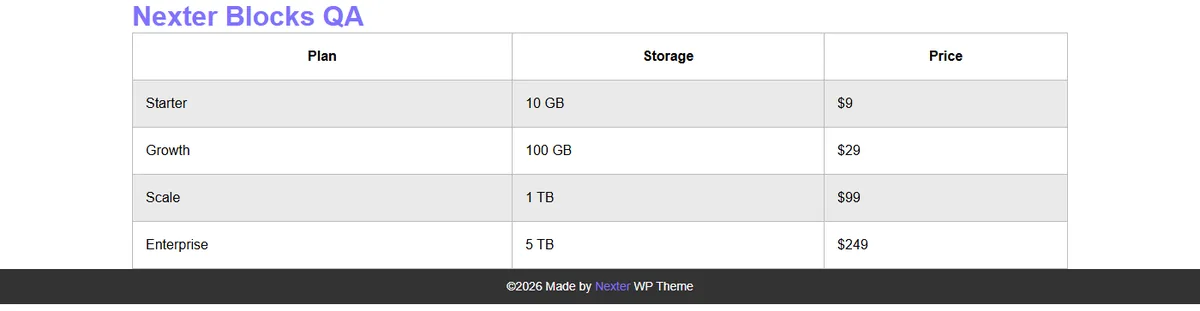
- Publish the page and check the table on the front end.
Where Your Rows Come From
| Type | What you provide | Guide |
|---|---|---|
| Standard | You type the rows into the Table Header and Table Body repeaters | — |
| CSV File | The URL of a semicolon separated CSV in your Media Library | Import from CSV |
| Google Sheet | A Sheet ID, an API key and a cell range | Import from Google Sheets |
What Each Panel Controls
| Panel | What you set there |
|---|---|
| Table | Type, and the CSV or Google Sheet fields that go with it |
| Table Header | The heading row, one Cell Content item per column |
| Table Body | The data rows, with text, links, buttons, icons or images per cell |
| Extra Settings | Table Searchable, Table Sortable, Filter Dropdown and Responsive Options |
Free and Pro
| Feature | Edition |
|---|---|
| Standard tables, and every cell type (text, link, button, icon, image) | Free |
| Column Span and Row Span | Free |
| Table Sortable | Free |
| Table Searchable | Pro |
| Filter Dropdown (entries per page) | Pro |
| Responsive Options (One by One) | Pro |
| CSV File and Google Sheet import | Pro |
Table Searchable, Filter Dropdown and Responsive Options live in the Extra Settings panel and need Nexter Blocks Pro. The controls appear in the free plugin too, but they only take effect once Pro is active.
How It Behaves
- Rows are built from repeater items: one item starts a row, and the items after it fill that row’s cells. Both the header and the body work this way.
- A cell can hold plain text, a link, a button, an icon or an image, set per cell.
- Sorting reads the values rather than the raw text, so a price column starting with a currency symbol still sorts by number.
- On a narrow screen the table scrolls sideways inside its own wrapper rather than squashing the columns.
Limitations
- Search, the entries dropdown, the One by One mobile layout and both import types need Nexter Blocks Pro. Their controls are visible in the free plugin but do nothing until Pro is active.
- Every row is a repeater item, so a long table is slow to build by hand — import it instead.
- With the entries dropdown off the table renders up to 500 rows on a single page.
- Column Span and Row Span do not mix well with search, sorting or the entries dropdown, because they leave more cells in a row than there are headings.
Troubleshooting
The table is empty
Check Type. Rows typed into Table Body only show while Type is Standard, and a CSV or Sheet only loads under its own Type.
All the data is in one column
That is a comma separated CSV. The importer splits on semicolons — see the CSV guide.
The block is missing from the inserter
Switch Data Table on under Nexter > Blocks in your dashboard.