










A landing page about frames should show frames. A listing that shows the whole catalogue makes the visitor do the filtering you should have done for them.
Restricting the listing to a category is a query setting, decided by you rather than by the shopper.
Before You Start
- Edition: Pro — the Product Listing block needs Nexter Blocks Pro.
- Block to enable: Product Listing, switched on under Nexter > Blocks in your WordPress dashboard.
- WooCommerce active, with published products. The block reads your real catalogue, so an empty store renders an empty listing.
- Product categories with products actually assigned.
Steps
- Select your Product Listing block.
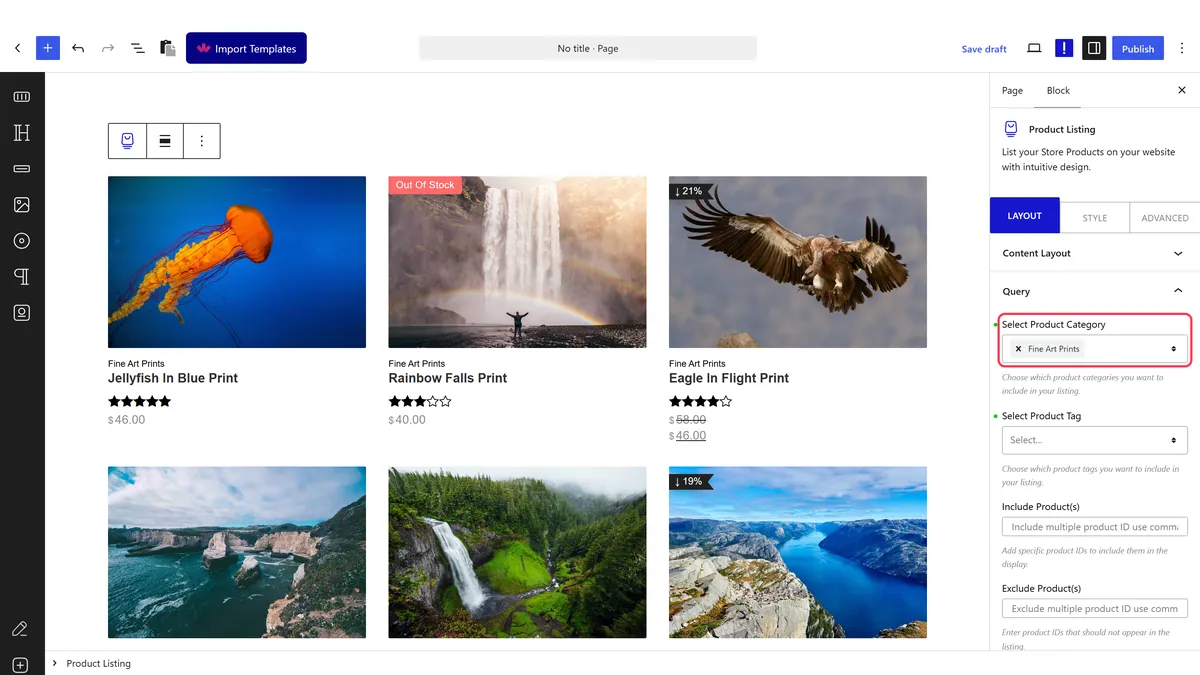
- Choose the categories the listing should draw from.
- Set the number of products to show.
- Publish and confirm only that category appears.
How It Behaves
The category selection is applied to the block’s own product query.
- Measured on a published page: restricting the listing to the Fine Art Prints category returned exactly 6 products, and every card carried
product_cat-printswith no other category present. - It is a query restriction, not a filter. The shopper cannot widen it. For a filter they can use, see filter products by category.
- Several categories can be selected at once, in which case products from any of them appear.
- Every card carries its own data. Measured on a published page, each product renders as an
articlewhose classes include its category (product_cat-...), its tags (product_tag-...), its stock state (instockoroutofstock) and whether it is on sale. - Measured with Nexter Blocks Pro deactivated: the block renders nothing at all — no wrapper, no products, no prices. This is a Pro-only block.
Limitations
- Pro only — measured with Nexter Blocks Pro deactivated, nothing renders.
- An empty category renders an empty listing. Nothing on the page explains why, so check the category has published products.
- Child categories are not automatically included unless you select them, which catches people out on deep catalogues.
- Renaming a category is fine, deleting it is not. A deleted category leaves the listing pointing at nothing.
- For a category archive page, use archive mode instead so one template serves every category — see create a product archive page.
Troubleshooting
The listing is empty
The selected category has no published products, or the selection did not save. Check both.
Products from other categories are showing
More than one category is selected, or the products belong to several categories at once.
My child category products are missing
Selecting a parent does not automatically include children. Select the child categories too.
I want the shopper to choose
That is a filter rather than a restriction — see filter products by category.
