










Connecting your form to MailerLite puts new subscribers into the right group the moment they sign up.
The Form block in Nexter Blocks Pro sends each submission to a MailerLite group.
For every Form setting in one place, see the Form block guide.
Before You Start
- Edition: Pro — The MailerLite action needs Nexter Blocks Pro.
- Block to enable: Form, switched on under Nexter > Blocks in your WordPress dashboard.
- A MailerLite API token and Group ID: see MailerLite’s guide Where to find the API key and group ID.
Learn via Video Tutorial
Steps
- Add the Form block to your page, click Design from Scratch and choose Simple Contact Form or Newsletter Form.
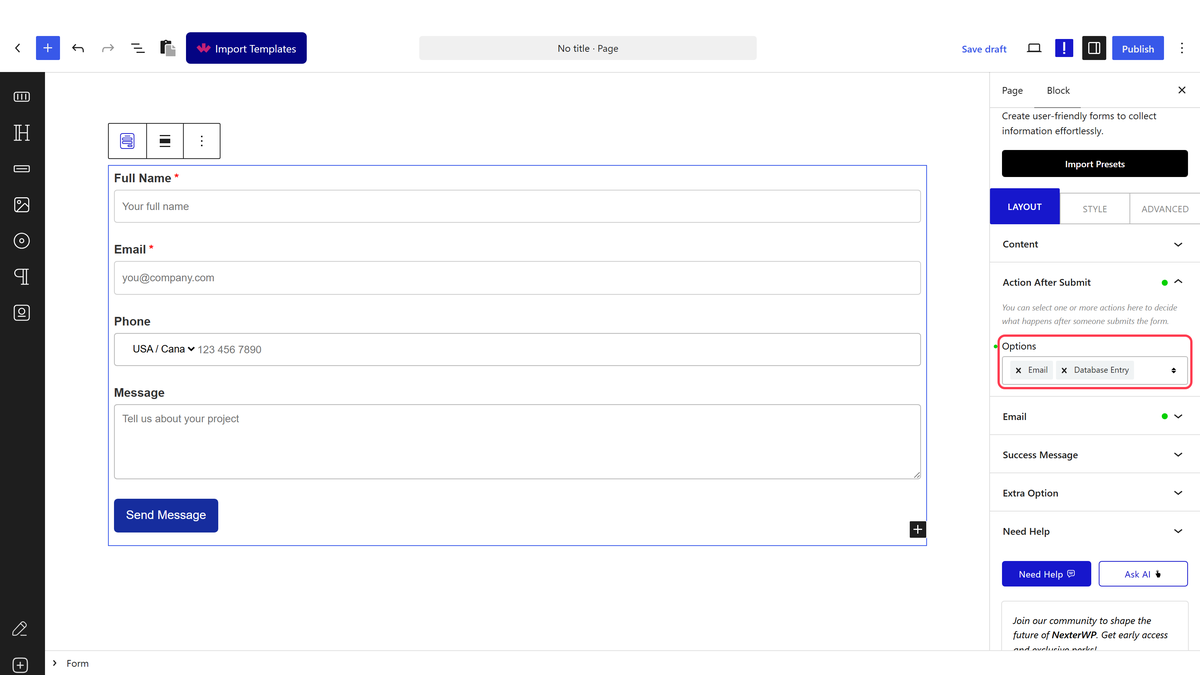
- Select the Form block (not a field inside it). In Action After Submit, open Options and choose MailerLite. You can keep Email selected as well.
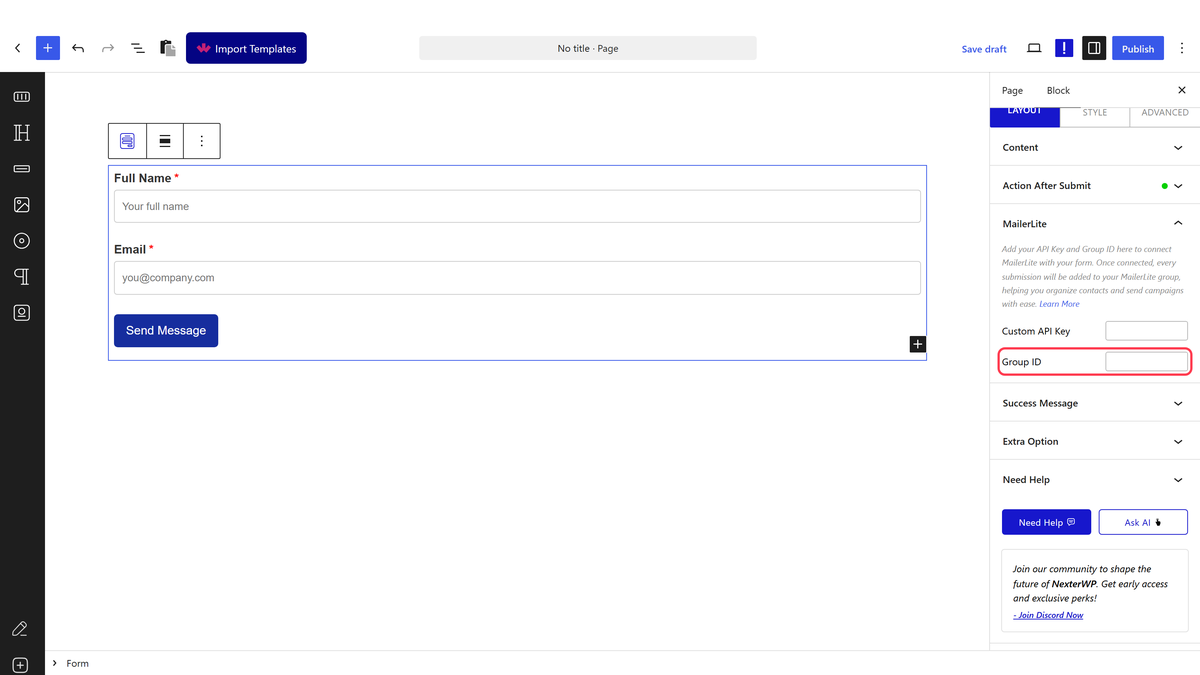
- Open the MailerLite panel that appears and paste your token into Custom API Key and your group into Group ID.
- Save the page, then submit the form once on the front end to test the connection.
How It Behaves
- Each submission creates or updates the subscriber in MailerLite and adds them to the group.
- The form sends the visitor’s email and name (the first Name Field). Other fields are not sent to this service.
- The form uses MailerLite’s current API, so use a token created in the current MailerLite app.
Limitations
- Pro only.
- One group per form.
Troubleshooting
Subscribers are not added
Create a new API token, check the Group ID, and make sure the form has an Email Address field.
