










Adding form leads to Brevo lets you follow up with email campaigns without copying contacts by hand.
The Form block in Nexter Blocks Pro creates a Brevo contact from every submission.
For every Form setting in one place, see the Form block guide.
Before You Start
- Edition: Pro — The Brevo action needs Nexter Blocks Pro.
- Block to enable: Form, switched on under Nexter > Blocks in your WordPress dashboard.
- A Brevo API key: created under SMTP & API in your Brevo account. See Brevo’s getting started guide.
Learn via Video Tutorial
Steps
- Add the Form block to your page, click Design from Scratch and choose Simple Contact Form or Newsletter Form.
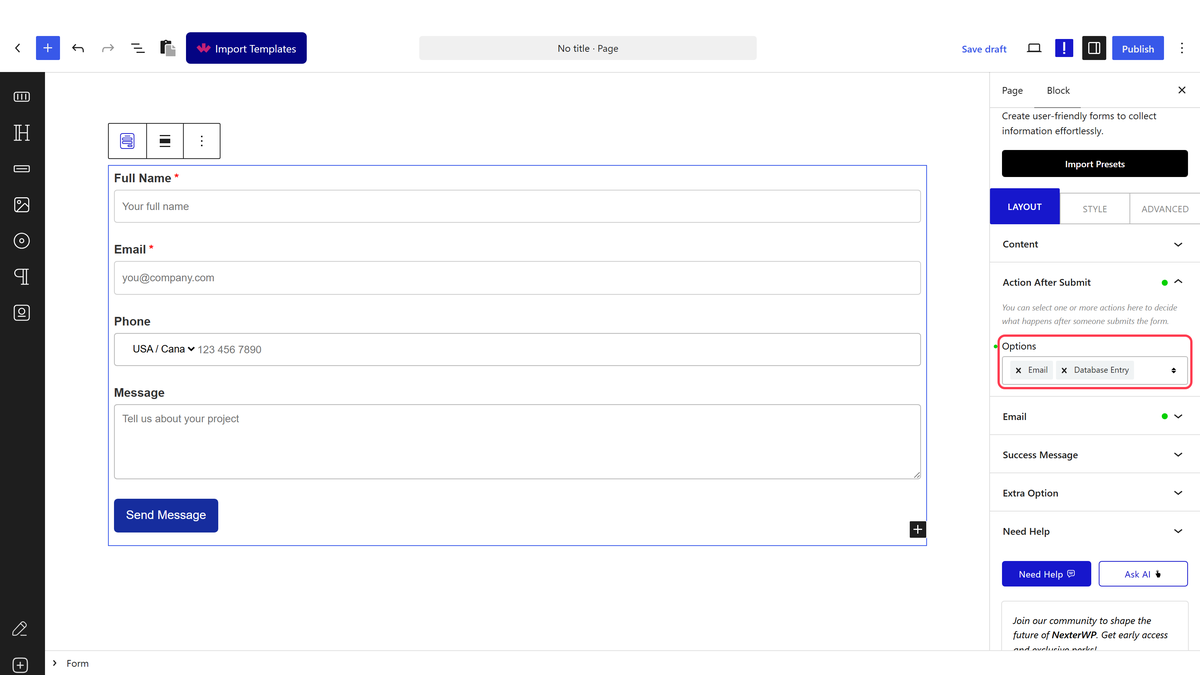
- Select the Form block (not a field inside it). In Action After Submit, open Options and choose Brevo. You can keep Email selected as well.
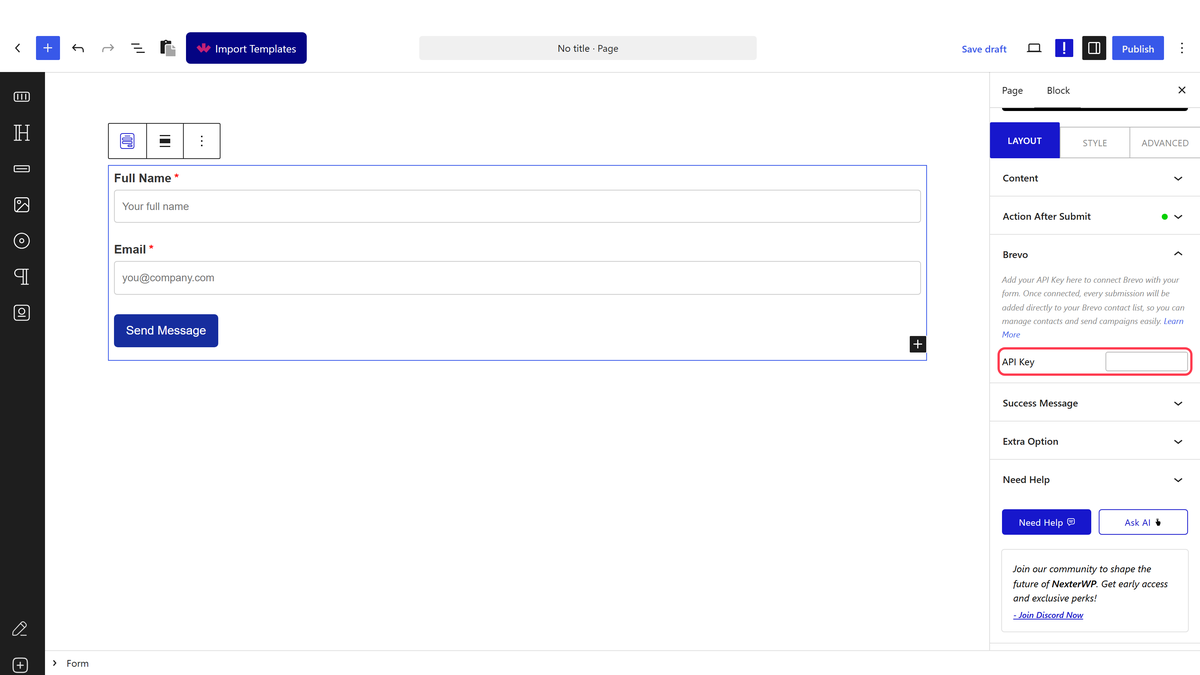
- Open the Brevo panel that appears and paste your key into API Key.
- Save the page, then submit the form once on the front end to test the connection.
How It Behaves
- Each submission creates a contact in Brevo with the email and the name as FIRSTNAME.
- The form sends the visitor’s email and name (the first Name Field). Other fields are not sent to this service.
Limitations
- Pro only.
- There is no list setting in the block. New contacts are added to your Brevo contacts without a list.
- If the email address is already a Brevo contact, Brevo does not create it again and the visitor sees an error message.
Troubleshooting
New contacts are missing
Use an API key (not an SMTP key) and check the key is active in Brevo.
