










A row of text-only tabs takes a moment to read; an icon next to each label is recognised instantly.
Every tab in the Tabs Tours block can carry its own icon, or a small image if you would rather use your own artwork.
For every Tabs Tours setting in one place, see the Tabs Tours block guide.
Before You Start
- Edition: Free — works in Nexter Blocks (free) and with Nexter Blocks Pro.
- Block to enable: Tabs Tours, switched on under Nexter > Blocks in your WordPress dashboard.
- Your sections planned: one tab per section, and the block takes up to 10 tabs.
Steps
- Add the Tabs Tours block to your page and click Design from Scratch.
- Open the Content panel. Each item in Tabs is one tab — set its Title, and click Add Tab for more.
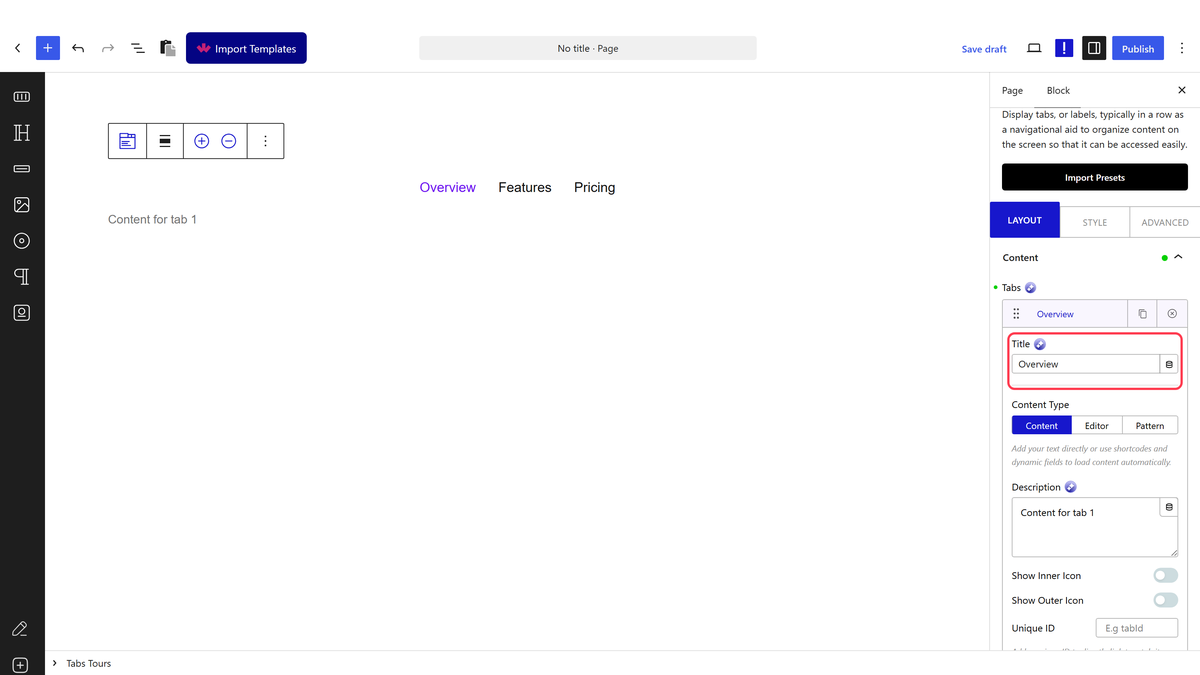
- Set each tab’s Content Type and fill in its content.
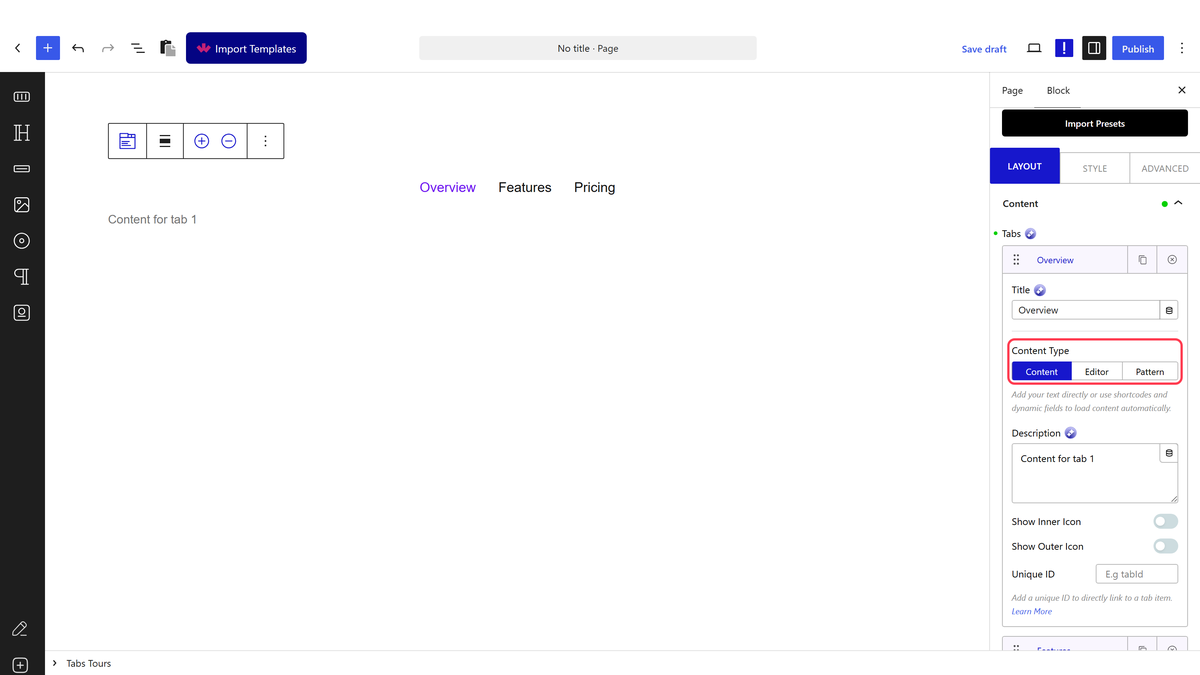
- Open the tab in the Content panel and switch Show Inner Icon on.
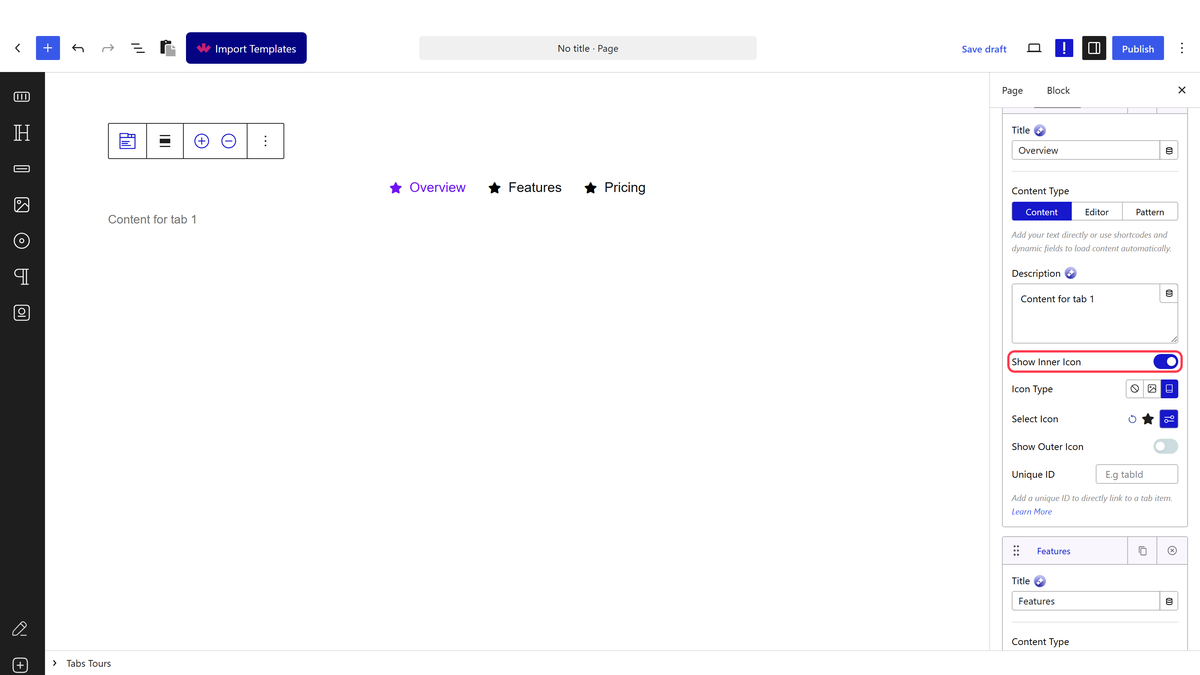
- Set Icon Type to Icon and choose one under Select Icon, or set it to Image and pick a file plus an Image Size.
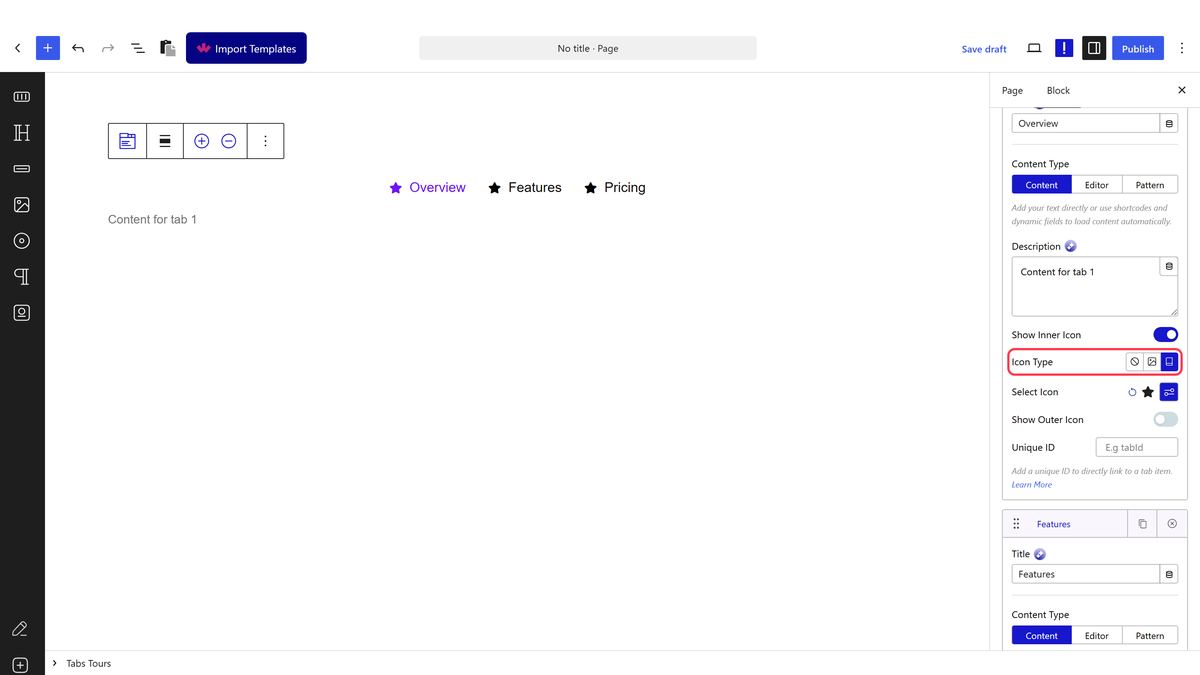
- Repeat for the other tabs, then publish.
Icon or Image
| Icon Type | What it shows | Best for |
|---|---|---|
| Icon | A font icon you pick, which takes the colour you set | Matching the icon colour to your tab styling |
| Image | A file from your Media Library at the size you choose | Logos, flags, product shots and anything an icon set does not cover |
| None | No icon | Turning an icon off again without losing the setting |
How It Behaves
- The icon sits inside the tab title, so it moves with the title in both horizontal and vertical layouts.
- Each tab has its own setting — you can give icons to some tabs and not others.
- Font icons take a colour of their own, so they can match or contrast with the title text.
- Image icons use your site’s registered sizes, so choosing a small size serves a smaller file.
- There is also a Show Outer Icon switch for an icon outside the title.
Limitations
- Icons are decorative here and carry no text for screen readers, so keep a real title on every tab.
- A large image icon stretches the tab title — pick a small image size.
- Icon styling for the whole block lives in the Style tab, so you cannot colour one tab’s icon differently from another’s there.
- The icon set depends on what your site has loaded.
Troubleshooting
No icon appears
Check Show Inner Icon is on for that tab and that an icon is actually selected — the switch alone does nothing.
The image icon is huge
Change Image Size on the tab rather than resizing the original file.
I changed the icon but the old one still shows
Republish the page and clear any page cache. Tab markup is saved with the page rather than built on each load.
