










Your own logo or icon drawing itself on screen is a memorable touch for a hero section or an about page.
The free Draw SVG block in Nexter Blocks animates any compatible SVG file you upload.
For every Draw SVG setting in one place, see the Draw SVG block guide.
Before You Start
- Edition: Free — works in Nexter Blocks (free) and with Nexter Blocks Pro.
- Block to enable: Draw SVG, switched on under Nexter > Blocks in your WordPress dashboard.
- An SVG file made of lines (strokes). Shapes that are only filled show little drawing.
- Permission to upload SVGs: administrators and editors can upload them directly. Other roles need SVG Upload turned on in Nexter Extension.
Steps
- Test your file first: drop it into Vivus Instant. If it animates there, it will animate in the block.
- Add the Draw SVG block and select Custom Upload under SVG Options.
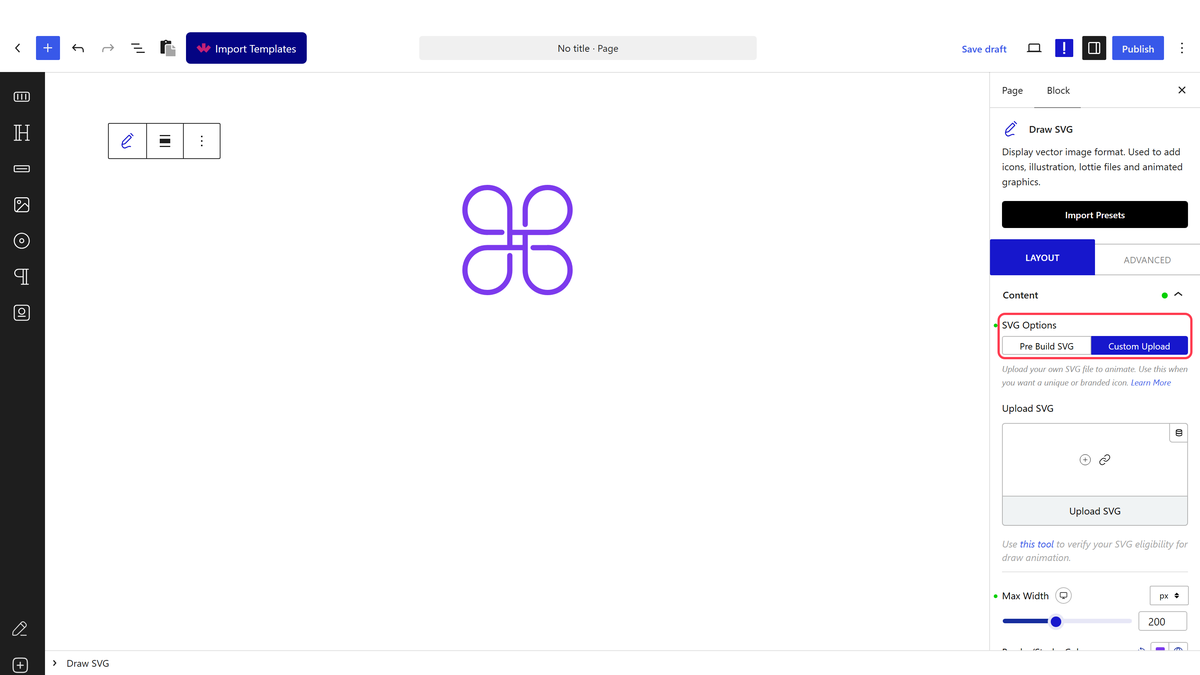
- Click Upload SVG and choose your file from the Media Library or upload it.
- Set Border/Stroke Color, and turn on Fill Color if the icon should end up filled.
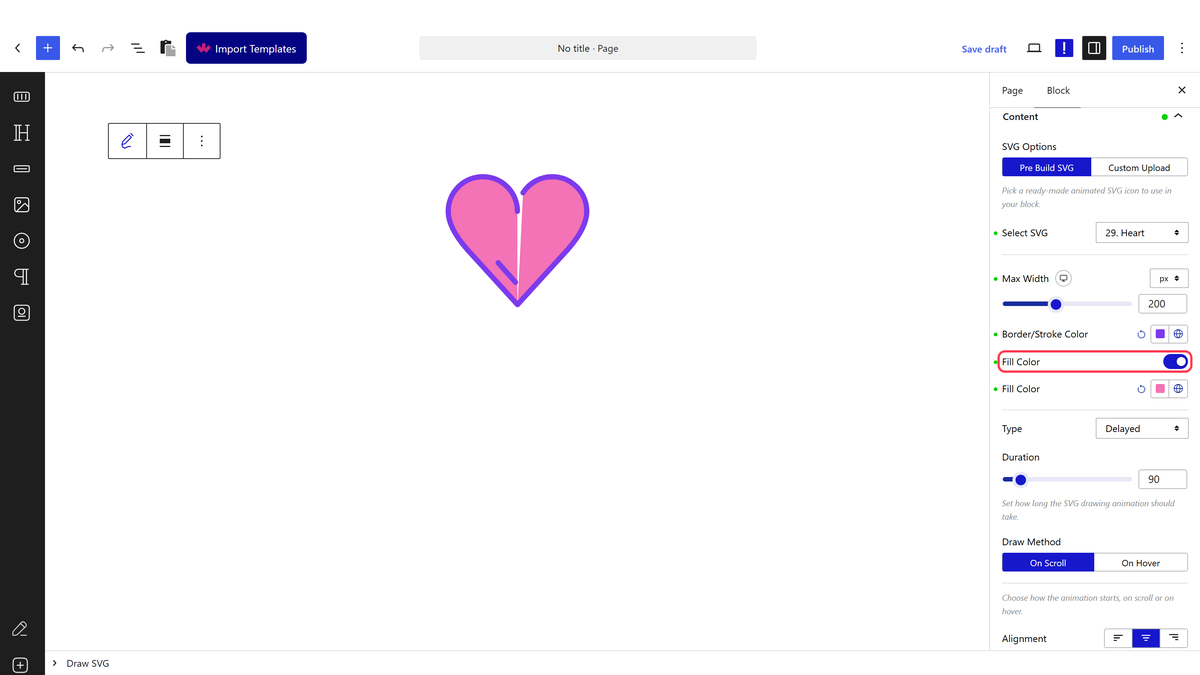
- Pick Type, Duration and Draw Method, then save and scroll to the icon.
How It Behaves
- The block replaces the colours in your file: lines use Border/Stroke Color and shapes stay unfilled unless Fill Color is on.
- The lines draw when the icon comes into view (On Scroll) or replay on hover (On Hover).
- Uploaded SVG files are cleaned for security when they are uploaded.


Limitations
- Your SVG’s original colours are not kept. Pick them again in the block.
- Icons with deeply nested groups may keep some of their original colours.
- Filled artwork without strokes, such as photos traced to SVG, barely animates.
Troubleshooting
The icon shows but does not draw
The file has no strokes. Check it in Vivus Instant, or export it from your design tool with outlines as strokes.
“Sorry, you are not allowed to upload this file type”
Your user role cannot upload SVGs. Ask an administrator, or turn on SVG Upload in Nexter Extension for your role.
