A video autoplays whether the visitor is ready or not. A scroll sequence waits for them.
Scroll Sequence swaps between your uploaded images, frame by frame, exactly in step with how far the visitor has scrolled — scroll down and the sequence plays forward, scroll up and it plays back.
Before You Start
- Edition: Pro — the Scroll Sequence block needs Nexter Blocks Pro.
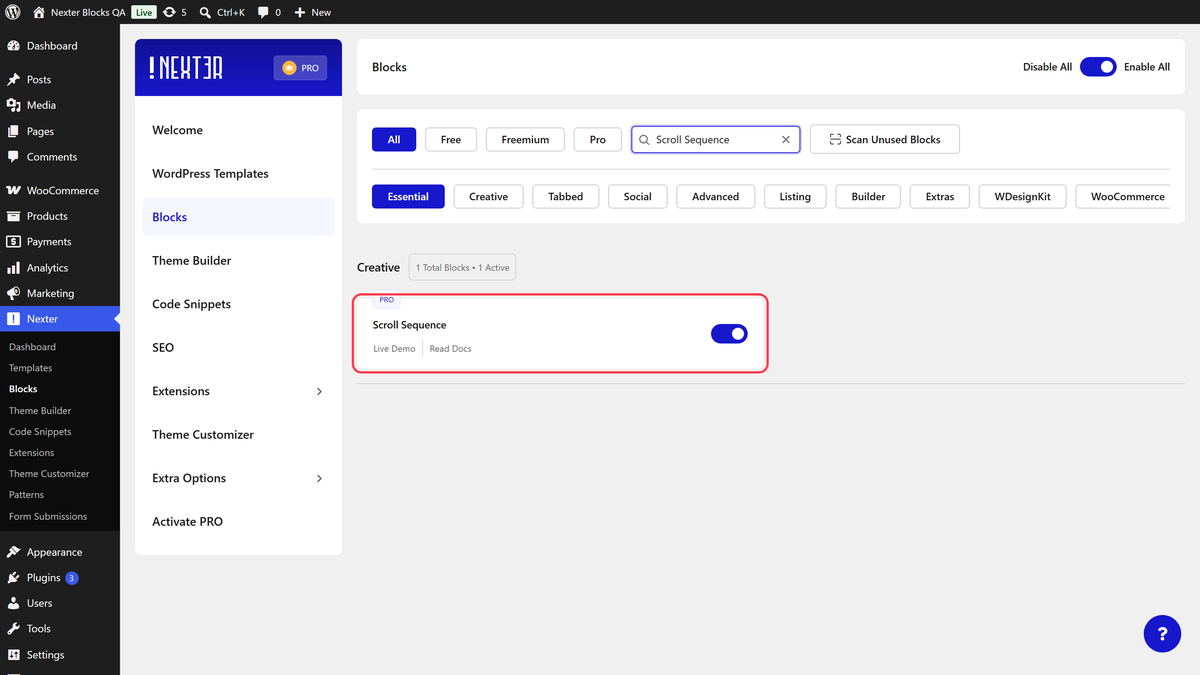
- Block to enable: Scroll Sequence, switched on under Nexter > Blocks in your WordPress dashboard.
- Upload the frames in the order you want them played — a still-camera sequence of a product turning, a scene changing, or a chart building up. More frames make the motion smoother; fewer frames make it choppier but load faster.
Steps
- Add the Scroll Sequence block and upload your frames under Images Upload, in playback order.
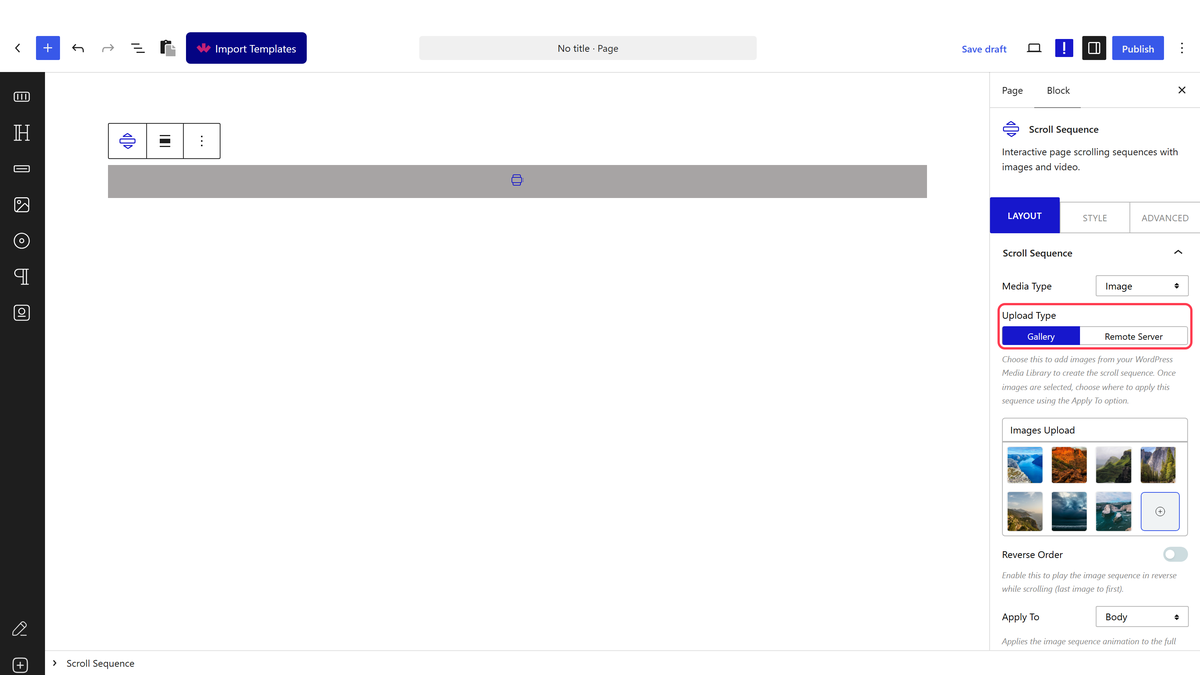
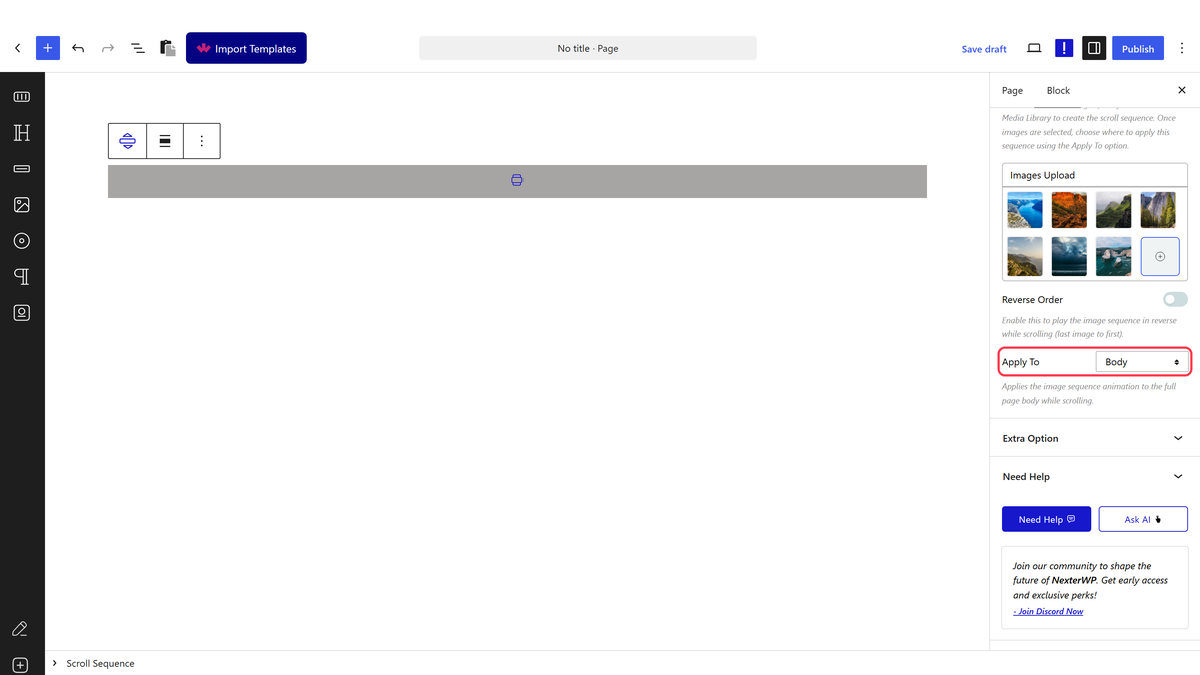
- Set Apply To for what drives the animation as the visitor scrolls.
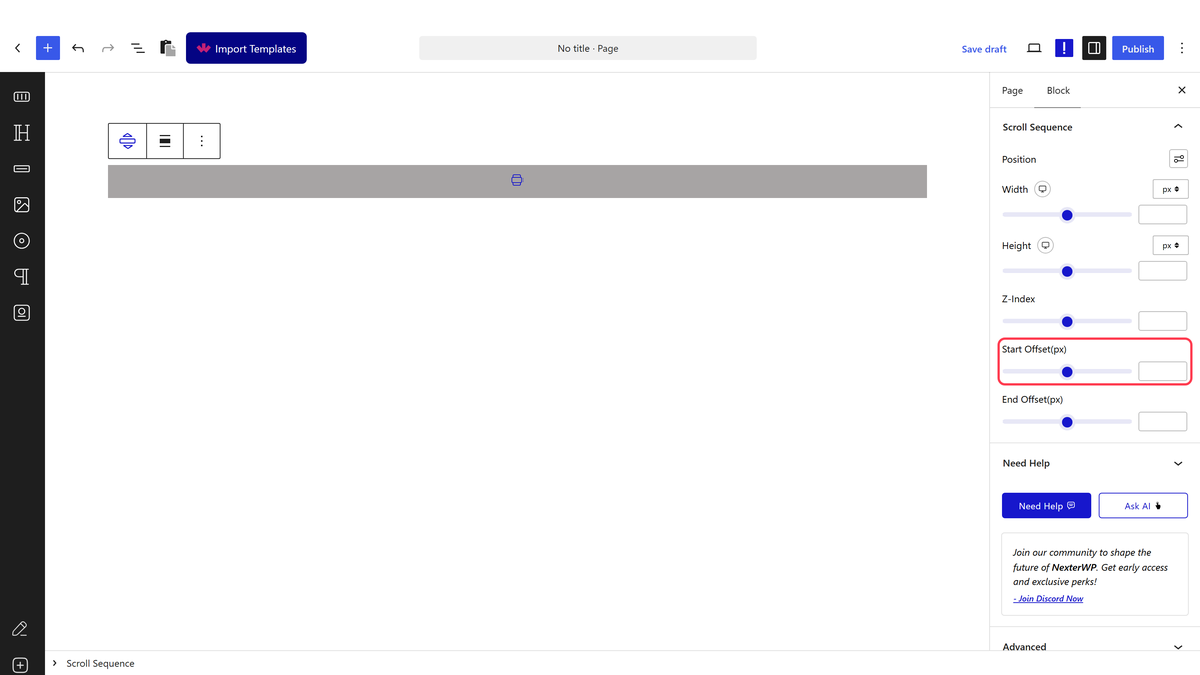
- Set Start Offset and End Offset under Style if the animation should begin or end a little early or late.
Whatever you point Apply To at needs to be taller than the screen. Measured: a tracked element shorter than the viewport never draws a single frame — the canvas stays completely blank for the whole page, from the first scroll to the last. Give the tracked element real height, either with its own content or a minimum height setting.
Where The Animation Can Live
| Apply To | Tracks scroll through | Guide |
|---|---|---|
| Body | The whole page | Page body |
| Container | One Nexter Container block | One container |
| Inner Container | One column inside a Container | One inner container |
How It Behaves
- The tracked element must be taller than the screen, measured precisely. Whatever you point Apply To at needs to be taller than the screen. Measured: a tracked element shorter than the viewport never draws a single frame — the canvas stays completely blank for the whole page, from the first scroll to the last. Give the tracked element real height, either with its own content or a minimum height setting.
- Frames can come from your Media Library, or from a numbered URL pattern on your own server — the second option is useful for very large sequences you don’t want sitting in your Media Library. See the URL sequence guide.
- Reverse Order does not currently work. Measured: turning it on and off produced an identical sequence, in the same order, at the same scroll position — the setting is not read anywhere in the block. To play a sequence backwards, upload the frames in reverse order instead.
- Missing frames in a URL sequence are skipped silently, with no error and no gap left behind — measured. See the URL sequence guide.
Limitations
- Reverse Order has no effect — measured. Upload your frames in the order you want them played instead.
- A tracked element shorter than the screen shows nothing at all. Give it real height.
- Every frame is a full image, so a long, high-resolution sequence can be heavy — keep an eye on Preload Image(%) and Lazy Load.
Troubleshooting
The sequence never appears
Check whatever Apply To points at is taller than a typical screen — measured, a shorter element shows nothing at all, for the whole page.
My frames play in the wrong order
Reverse Order does not work — measured. Re-upload the images in the order you actually want them played.
The block is missing from the inserter
Switch Scroll Sequence on under Nexter > Blocks.