








Elementor comes with a variety of icons that can be added to your site for a better user experience. However, you may not use all types of icons on your website. So disabling the extra types of icons can improve the Elementor page builder’s performance.
But there is no option within Elementor to disable specific types of icons for that, you have to use third party plugins or custom coding. If you are using the Nexter Extension (Free) plugin, you can easily disable different types of icons in your Elementor page builder.
Learn via Video Tutorial
How to Disable Elementor Icons with the Nexter Extension?
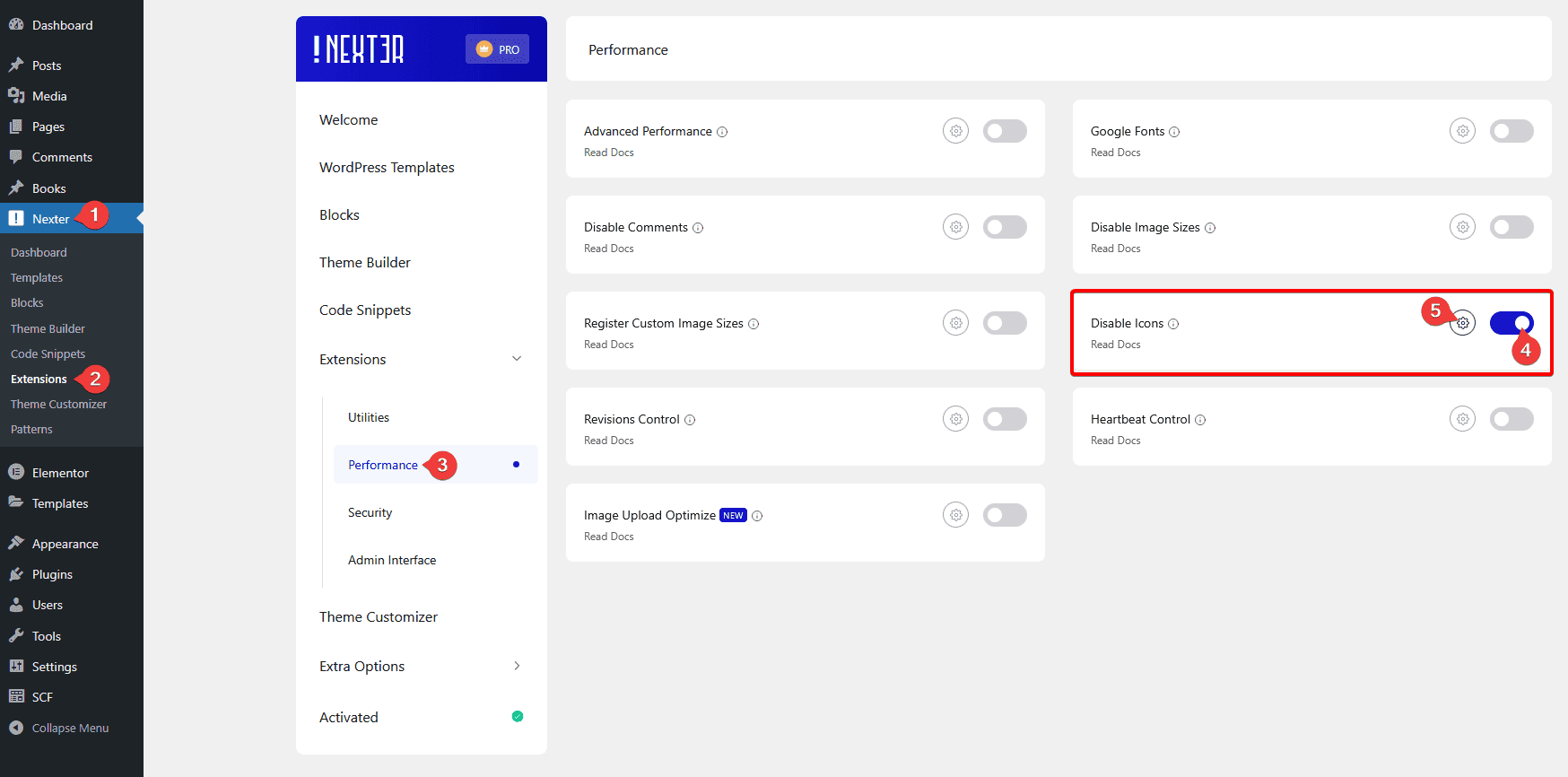
To disable Elementor icons with the Nexter Extension, from the WordPress Dashboard, go to Nexter > Extensions > Performance.
Then go to the Disable Icons section, enable the toggle, and click on the gear icon (⚙).
It will open the Disable Icons popup, here you’ll see all the different types of icons Elementor is loading.
You can individually disable all the icon types.
Turn on the toggle for the icon types you want to disable, then click on the Save button.
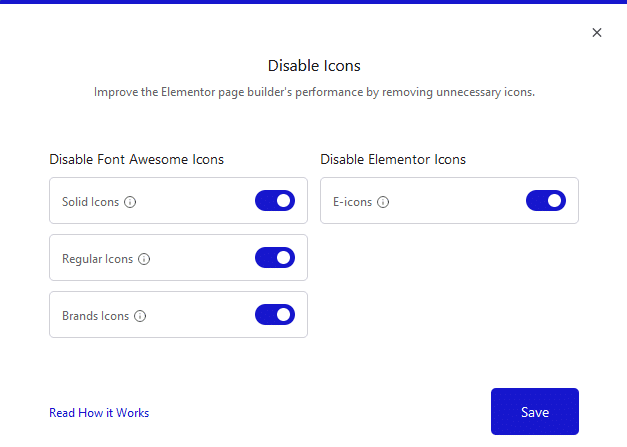
Now those types of icons will not show in the Elementor icon library.
