






Looking to create a sleek and stylish image gallery on your WordPress website? The metro layout is an excellent choice. With its grid-based design and modern aesthetics, it can make your image gallery stand out.
With the Media Listing block from the Nexter Blocks, you can easily create a stylish image gallery in a metro layout for your WordPress website.
To check the complete feature overview documentation of the Nexter Blocks Media Listing block, click here.
Requirement – This block is a part of the Nexter Blocks, make sure its installed & activated to enjoy all its powers.
To do this, add the Media Listing block on the page,
1. Select Images from the Type section.
2. Then select the appropriate listing style and select Metro from the Layout section under the Layout tab.
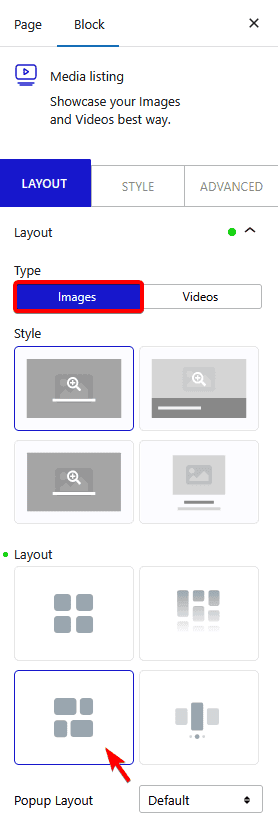
Note: Similarly, you can show a video gallery in a metro layout by selecting Videos from the Type section.
You can select the appropriate image popup type from the Popup Layout dropdown.
3. In the Content tab, select the appropriate content source and add images to the gallery.
Now your gallery will show in a metro layout. You can manage the grid columns from the Columns Manage tab.

Also, read How to Create WordPress Photo Gallery Grid.
