









Are you looking to create a WooCommerce product category list in WordPress? Showing a product category list can improve the user experience as it allows you to group similar products together, making it easier for customers to find what they’re looking for.
With the Taxonomy Listing block from the Nexter Blocks, you can easily create a WooCommerce product category list.
To check the complete feature overview documentation of the Nexter Blocks Taxonomy Listing block, click here.
Requirement – This block is a part of the Nexter Blocks, make sure it’s installed & activated to enjoy all its powers.
To do this, make sure you’ve created some product categories in WooCommerce then follow the steps –
1. Add the Taxonomy Listing block on a page and select an appropriate style from the Style section from the Layout tab.
2. Then select an appropriate layout from the Layout section.
3. After that select Product categories from the Select Taxonomy dropdown.
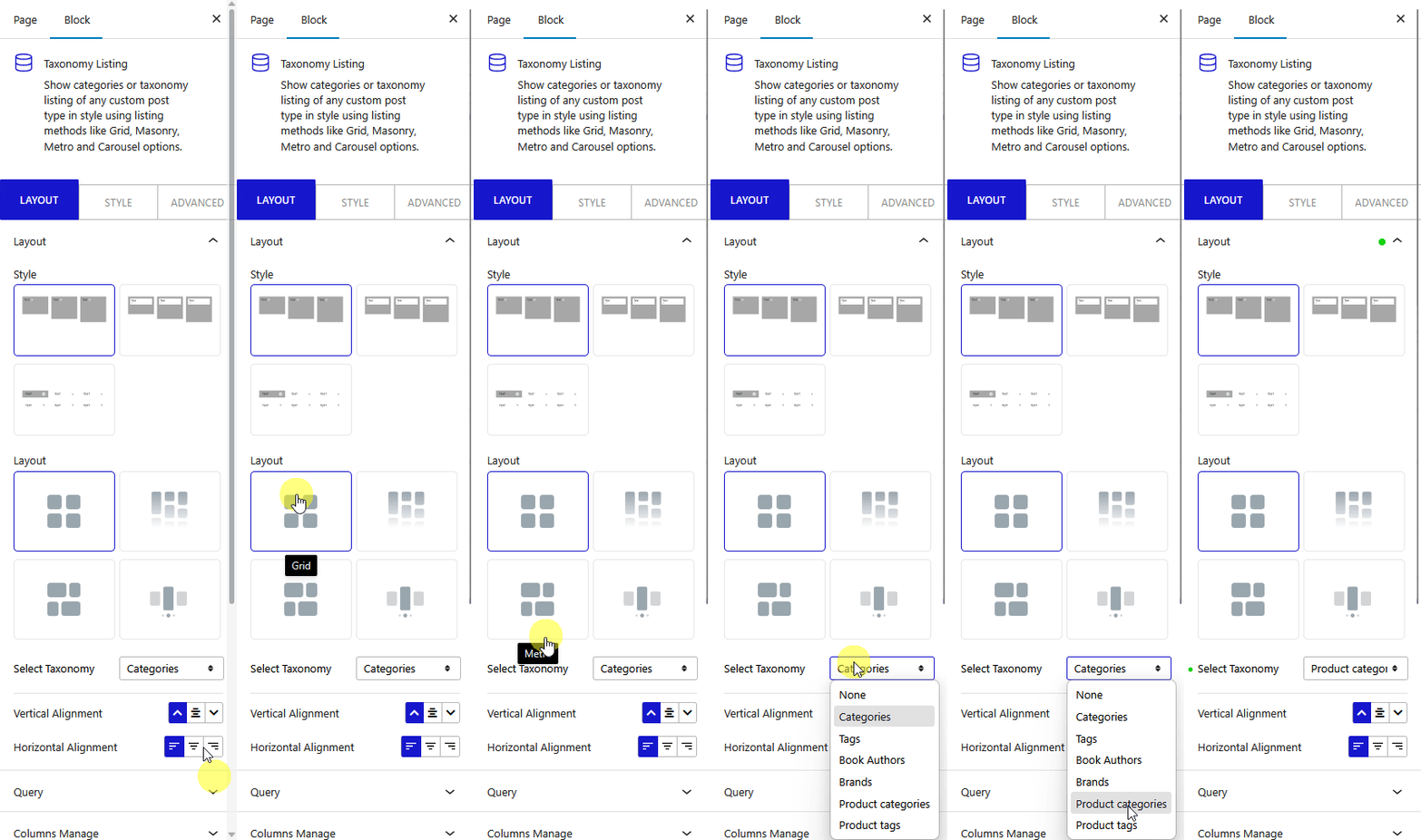
Note: Similarly you can create a product tag list by selecting the Product tags option.
This is how easily you can create a product category list.

