A video dropped straight onto a page brings the whole of YouTube with it — its cookies, its branding and its suggestions for what to watch next.
The Video block gives you the same embed with control over all three, or lets you host the file yourself.
Before You Start
- Edition: Free — the Video block is in the free Nexter Blocks plugin.
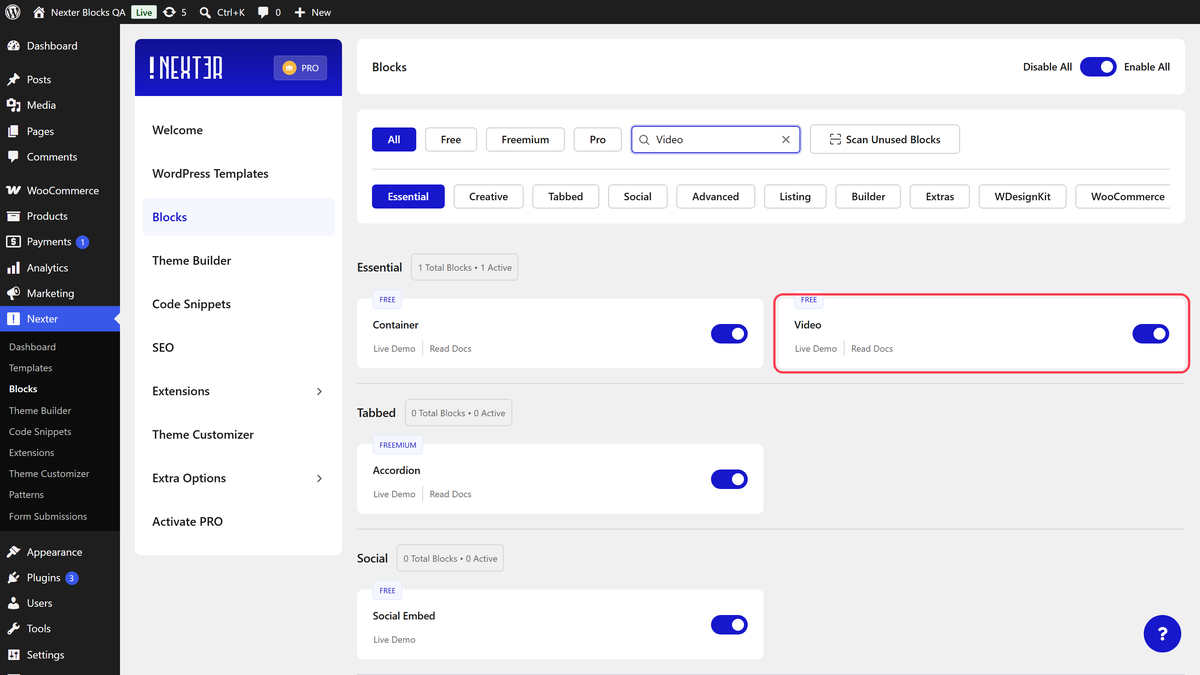
- Block to enable: Video, switched on under Nexter > Blocks in your WordPress dashboard.
- The video ready: a YouTube or Vimeo id, or an MP4 in your Media Library.
Steps
- Add the Video block to your page and click Design from Scratch.
- Set Source to YouTube.
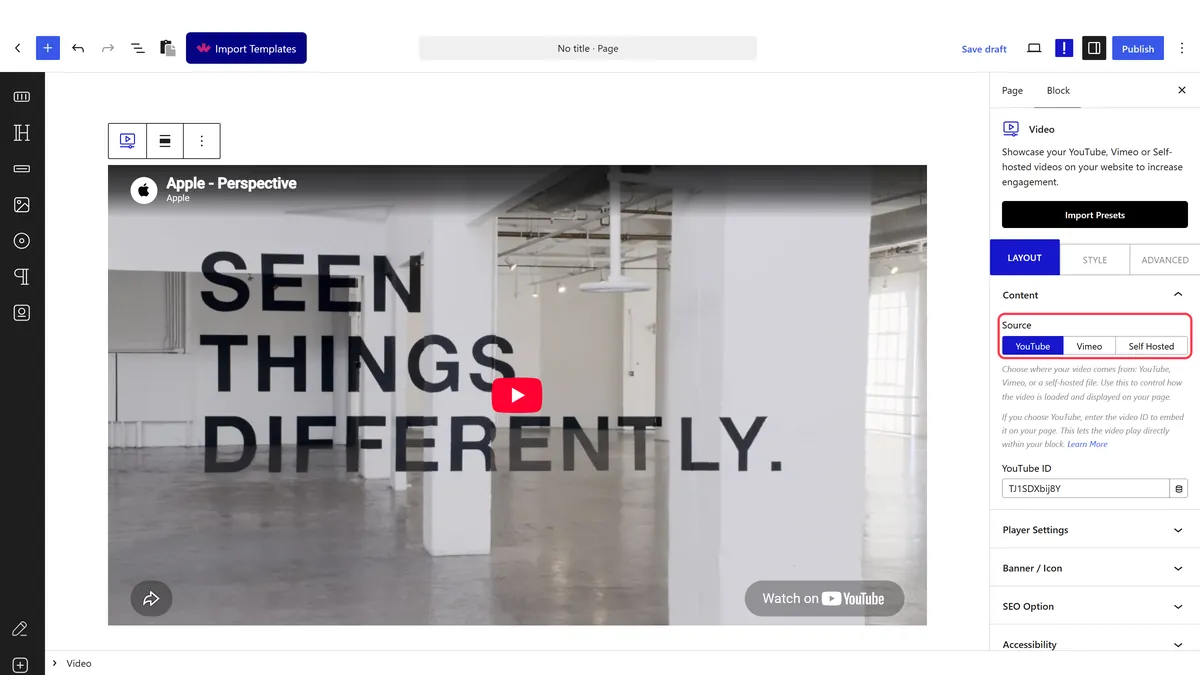
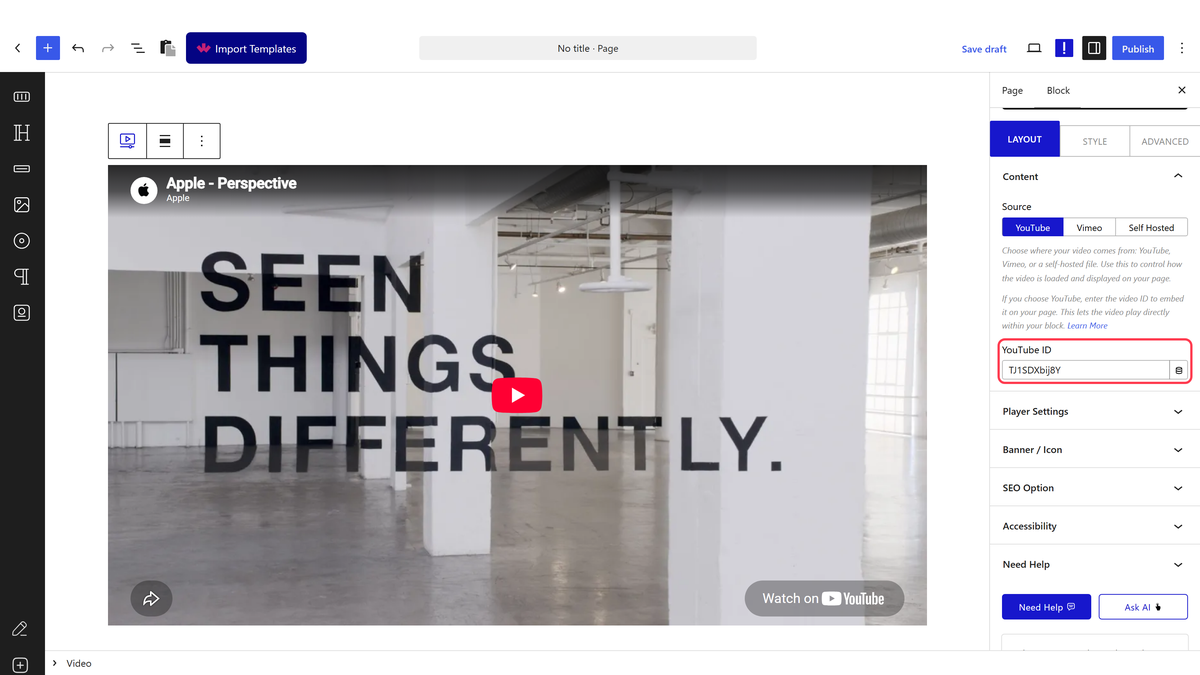
- Paste the video’s id into YouTube ID — the part of the URL after
v=, not the whole address.
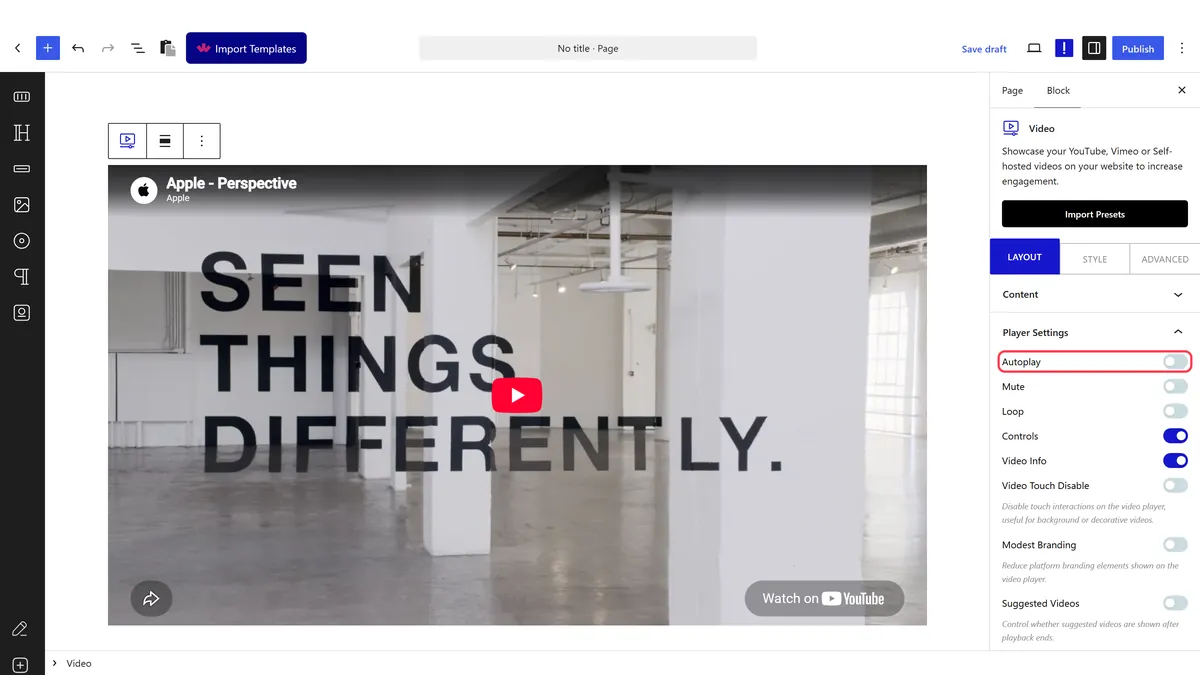
- In Player Settings, decide what the player shows and whether it starts on its own.
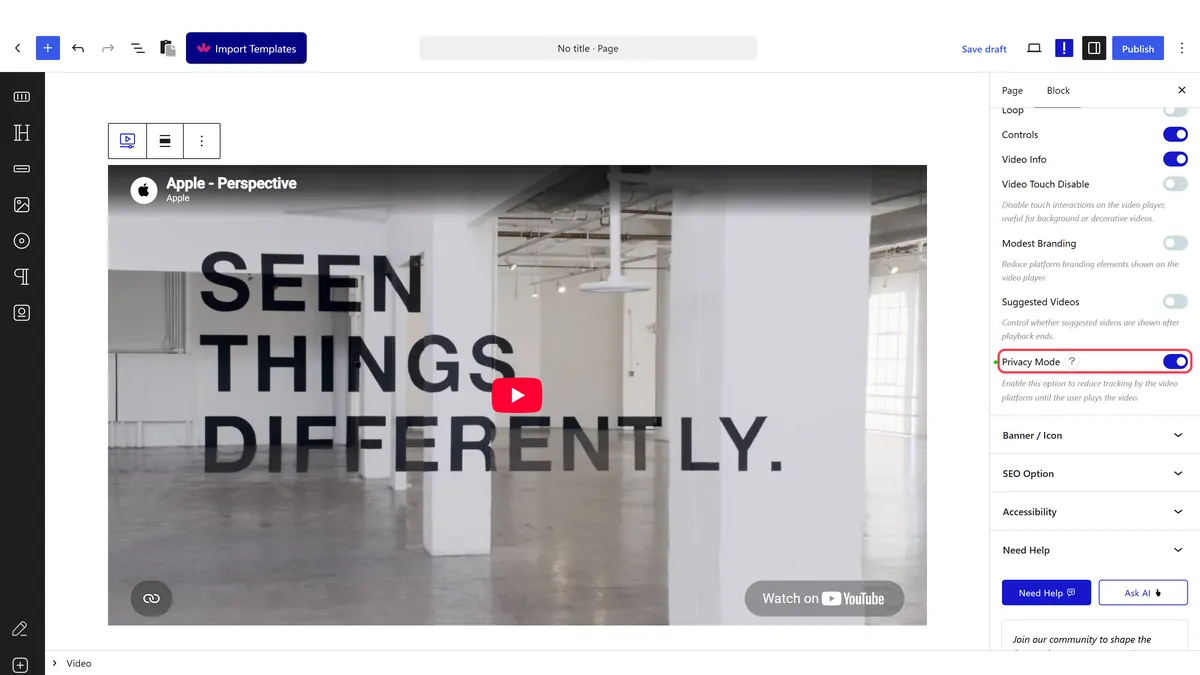
- Switch on Privacy Mode.
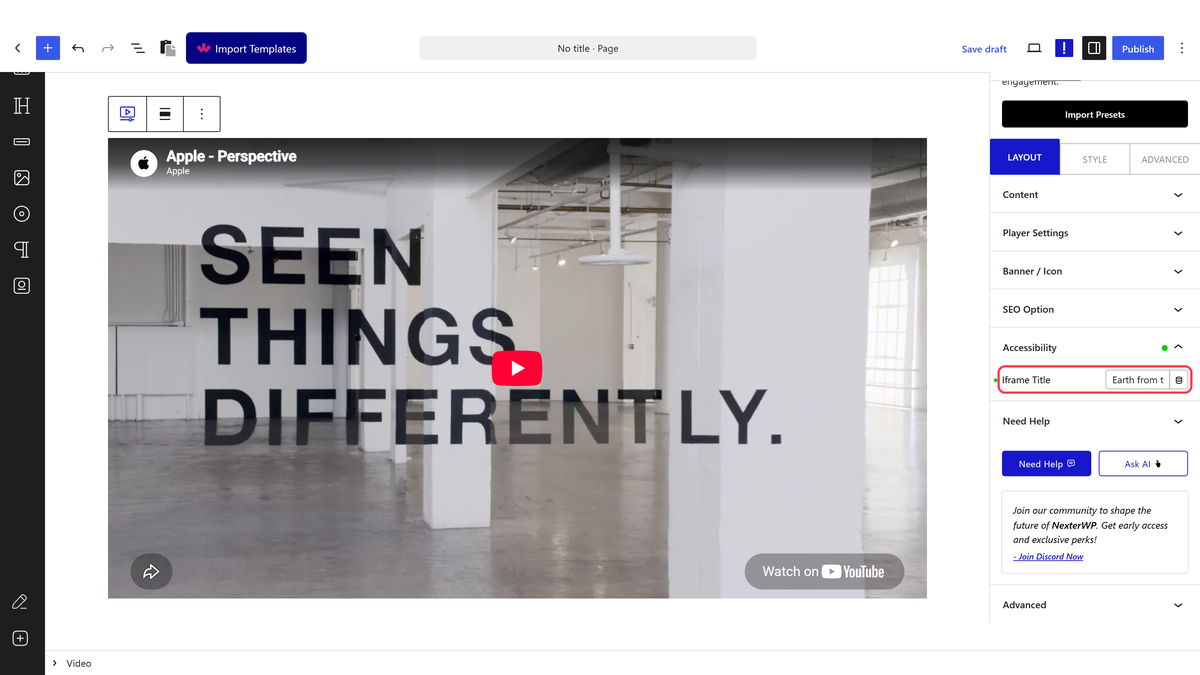
- In Accessibility, write an Iframe Title describing the video.
- Publish and check the player.
Privacy Mode switches the embed to youtube-nocookie.com — measured on the rendered page. It stops YouTube setting tracking cookies before anyone presses play, which is the single most useful toggle here for anyone with a cookie notice.
Where the Video Can Come From
| Source | What renders | Guide |
|---|---|---|
| YouTube | A YouTube embed | Embed a YouTube video |
| Vimeo | A Vimeo embed | Embed a Vimeo video |
| Self Hosted | A real HTML5 player using your own file | Add a self-hosted video |
What Each Panel Controls
| Panel | What you set there |
|---|---|
| Content | Where the video comes from and which video it is |
| Player Settings | Autoplay, mute, loop, controls, branding and privacy |
| Banner / Icon | A custom thumbnail and title, and whether the video opens in a popup |
| SEO Option | Search-engine markup describing the video |
| Accessibility | The title screen readers announce for the player |
How It Behaves
- Player Settings become parameters on the embed. Measured: turning Controls and Video Info off and Modest Branding and Suggested Videos on produced
controls=0&showinfo=0&modestbranding=1&rel=1on the YouTube URL. - Autoplay brings mute with it. With autoplay on, the embed gained
autoplay=1and the iframe anallow="autoplay"permission — but browsers only honour it when the video is muted, which is why the two settings belong together. - Custom Layout is a click-to-load thumbnail. With it on, the page shows your own image, title and description and no iframe at all — nothing is requested from YouTube until the visitor clicks. Measured on the front end.
- Iframe Title, in the Accessibility panel, names the player for screen readers. Left blank it renders as My Video on every video on the site — confirmed on the front end — so it is worth setting.
- Self Hosted renders a real HTML5 player — a
<video controls>element pointing at your file, with no third party involved at all.
Limitations
- Play on Popup needs the Banner / Icon panel. Play on Popup only works with the Banner / Icon panel. On its own it does nothing See the video popup guide.
- Enable Schema Markup only works with Custom Layout on. With the normal player it produced no markup at all — measured. It also writes microdata rather than the JSON-LD most SEO plugins use, and its upload date is a readable string rather than a machine-readable one.
- The block takes a video id, not a full URL, for YouTube and Vimeo.
- Autoplay is refused by browsers unless the video is muted. That is the browser’s rule, not the block’s.
- One video per block.
Troubleshooting
The player is blank
Check you pasted the id rather than the whole URL — for YouTube that is the part after v=.
Autoplay does not autoplay
Switch Mute on as well. Browsers block sound-on autoplay.
The popup does not open
Play on Popup needs Custom Layout switched on, or the Layout set to the icon-only option. On its own it does nothing.
I switched schema on and nothing appeared
It only writes markup in the Custom Layout mode. Switch Custom Layout on and give the video a title and description.
The block is missing from the inserter
Switch Video on under Nexter > Blocks in your dashboard.