










A login button in the header lets people sign in from any page, without being sent to a separate login screen.
The Login & Signup block in Nexter Blocks Pro has a Button layout that opens the form in a dropdown.
For every Login & Signup setting in one place, see the Login & Signup block guide.
Before You Start
- Edition: Pro — the Login & Signup block is part of Nexter Blocks Pro.
- Block to enable: Login & Signup, switched on under Nexter > Blocks in your WordPress dashboard.
- A header template: build one with the Nexter Builder so the button shows on every page. See how to create a header template.
Steps
- Edit your header template and add the Login & Signup block next to your menu.
- In Forms, set Type to Login or Login & Register.
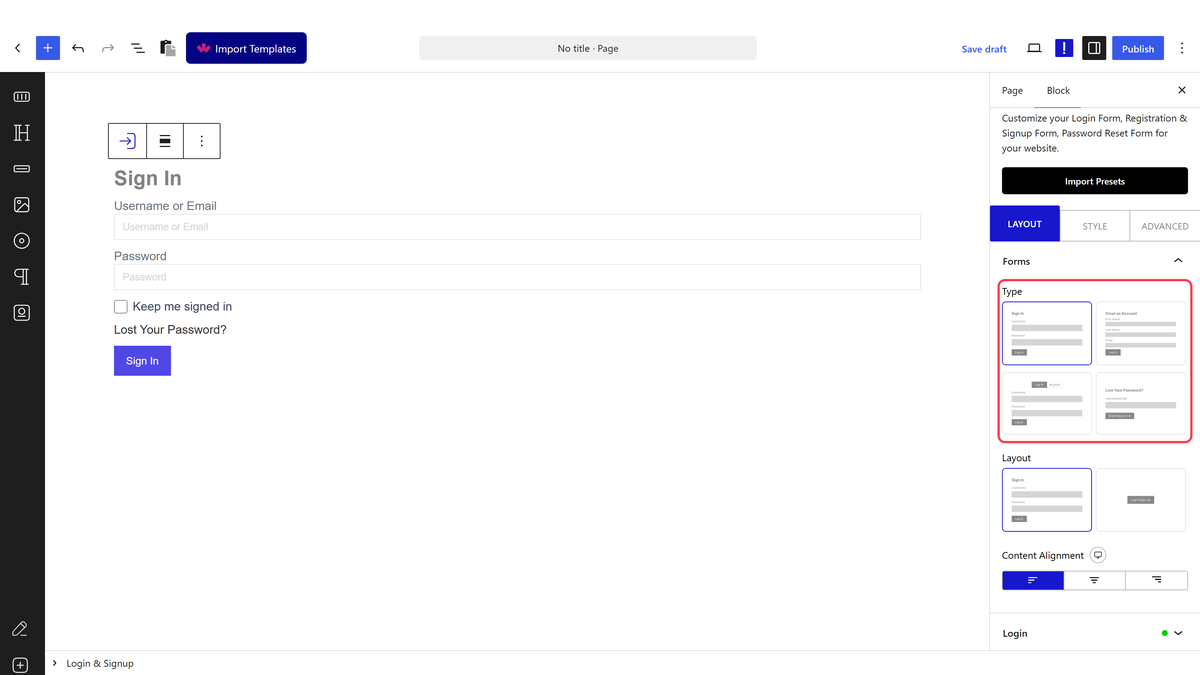
- Set Layout to Button.
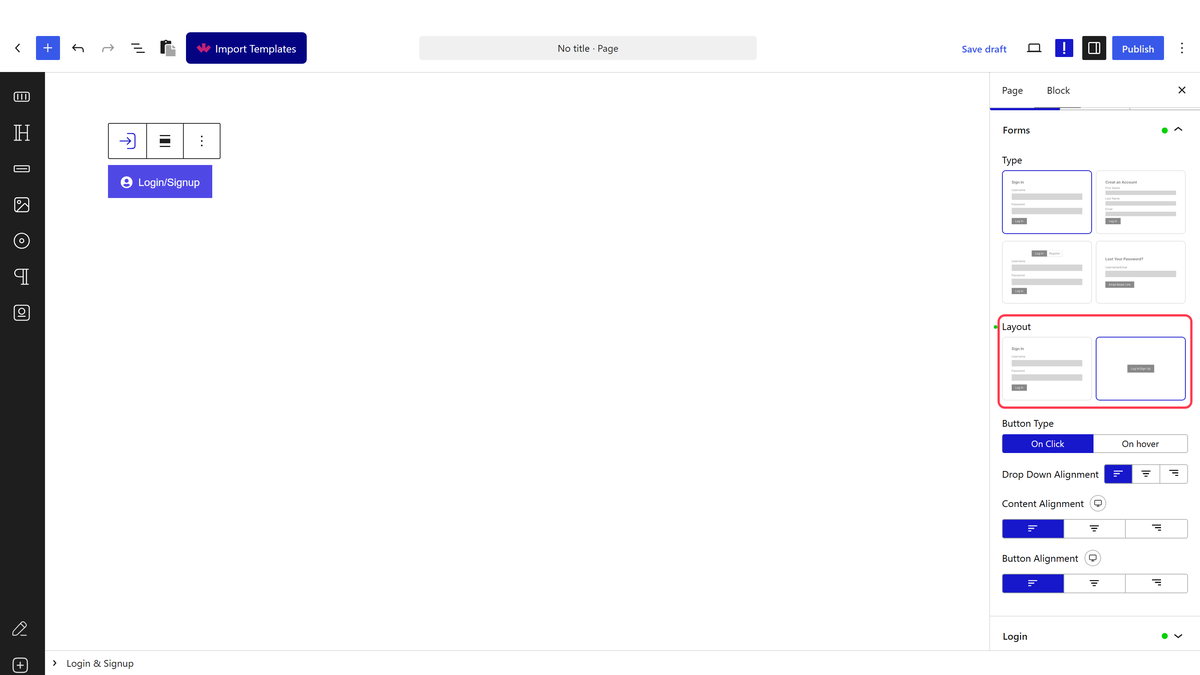
- Choose a Button Type: On Click or On Hover, then set Drop Down Alignment, Content Alignment and Button Alignment.
- Open the Button tab to change the button text and icon, then save the template.
How It Behaves
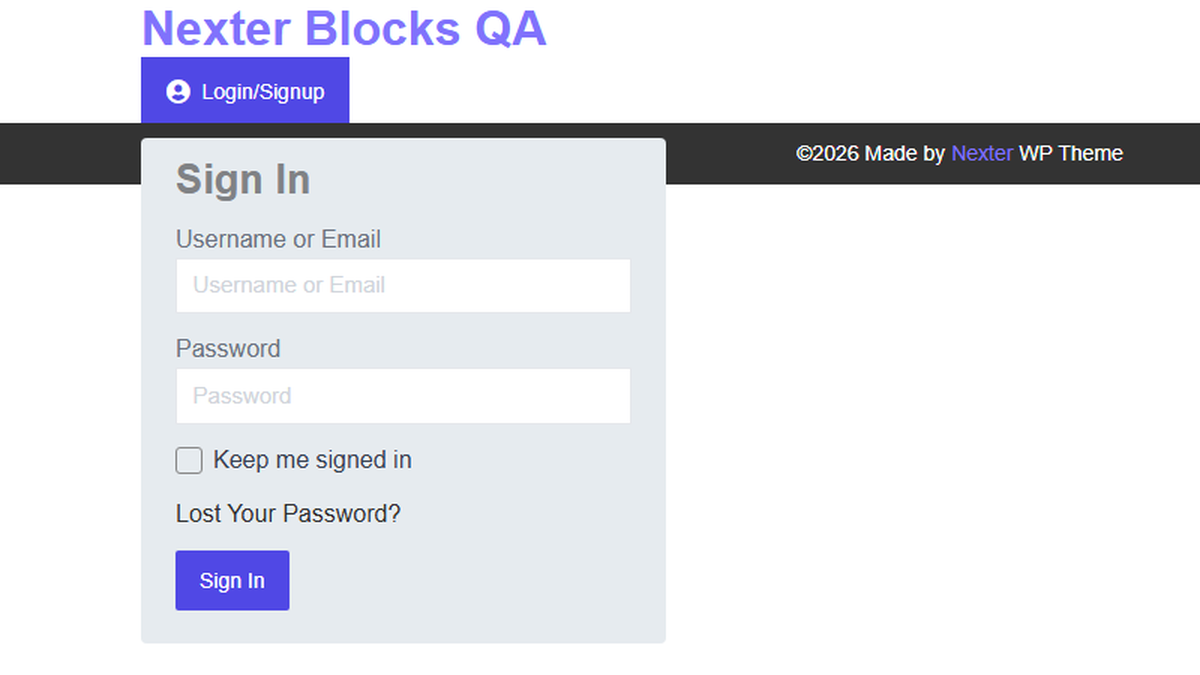
- The header shows only the button until a visitor clicks or hovers it, then the form opens in a dropdown.
- After signing in, the button is replaced by the My Account menu when that option is on.
- The dropdown keeps visitors on the page they were reading.
Limitations
- Pro only.
- The Button layout is not available for the Forgot Password form type.
- In a narrow header, set Drop Down Alignment so the form does not run off the screen.
Troubleshooting
The form is always visible instead of a button
Set Layout to Button in the Forms panel.
The dropdown is cut off at the edge of the screen
Change Drop Down Alignment, or move the block further from the edge of the header.
